



 Solution
 Centre de soutien
 À propos de nous
 Contacter
Apple ID Verification Failed? 7 Ways to Fix it & Regain Access
 Samuel Spenser Publié le 16 septembre 2026Déverrouiller iOS3 minutes de lecture
"Why does my Code de vérification de l'identifiant Apple not work when I sign in with my Apple Account?" "Why is the Apple ID verification code not sending?" "Why do I never receive the code from Apple?" Many users encountered verification errors for various reasons. Don't worry. It can be solved with a few simple checks. In this guide, we will guide you on how to fix this problem.

Dans cet article:
Part 1: Why is Apple Verification Code Not Working?
Apple verification code is an important part of Apple ID two-factor authentication. Whenever you sign in on a new device, browser, or app, Apple may ask you to enter a six-digit code to confirm that it is really you. But sometimes, the Apple verification code is not working. Here are the most common situations you may run into.
Not Receiving Apple Verification Code
You don't receive the Apple verification code. It's usually because the code is sent to the wrong device or phone number, or there is a delay with your carrier's SMS service due to network issues. If you cannot receive the code, you need to check and request it again.
Apple Verification Code is Invalid
You received the verification code but see an "invalid verification code" message when entering it. Apple verification codes are temporary. If you request several codes, only the latest one will work. Make sure you enter the newest code carefully.
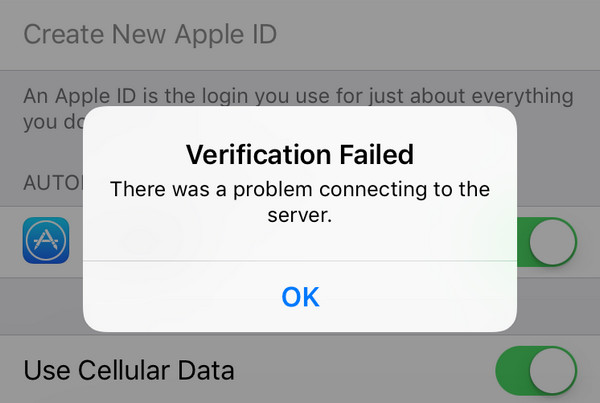
Apple ID Verification Failed
Sometimes, the problem is not the verification code itself, but that Apple failed to verify your identity at that moment. It may be caused by wrong Apple ID password, an unstable internet connection, Apple server issues, or incorrect settings on your device.
Part 2: What to Check When Apple ID Verification Failed
It's necessary to check the following things first before trying more advanced solutions.
Check Login Details
Start by making sure your Apple ID and password are correct. Also, double-check that the Apple ID verification code you entered is correct. If you vous avez oublié le mot de passe de votre identifiant Apple, you may need to reset or recover it.
Vérifier la connexion Internet
Check whether Wi-Fi or mobile data connection is stable. You can also switch between Wi-Fi and mobile data to see if the issue is caused by your current network.
Check Your VPN Server
A VPN can interfere with Apple ID verification. Turn off VPN on your device and attempt the verification again.
Check Apple Server Status
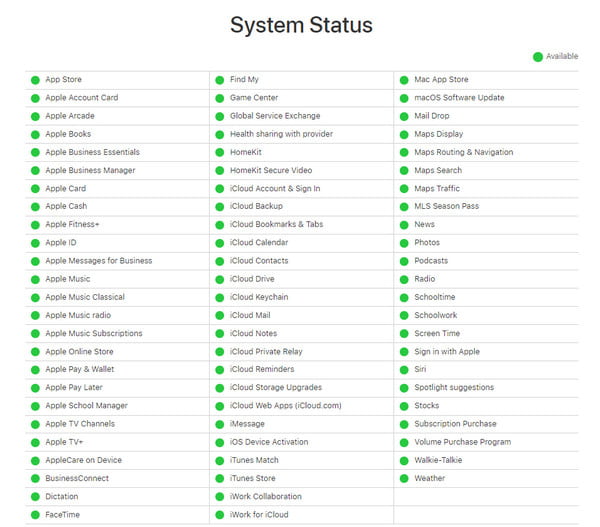
Check Apple's System Status page to see which services are currently available. A green dot next to the service means it is available. A red dot indicates that Apple is currently working on an issue. You need to wait until Apple fixes it.
Check Date & Time Settings
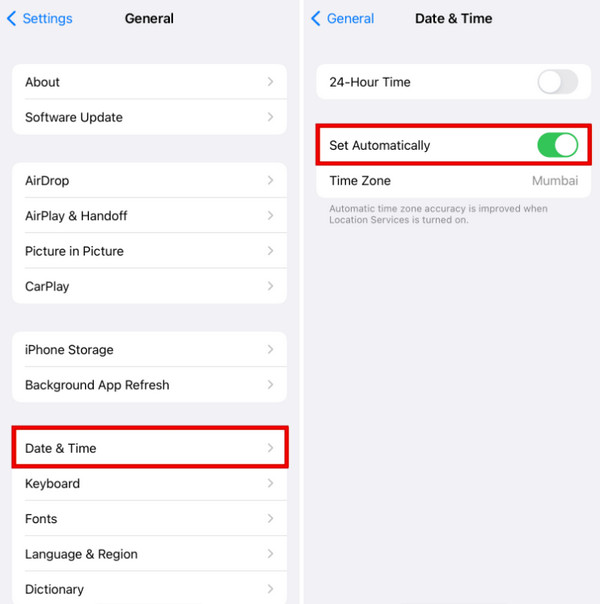
If you set a wrong time zone and date, Apple may have trouble verifying your request. Go to Paramètres > Général > Date et heure et allumez Définir automatiquement to make sure your device has the correct time.
Part 3: How to Fix Apple Verification Code Not Working
After checking the things above, if the verification for Apple ID still failed, you can take these additional fixes to resolve this issue.
Get a Verification Code via Your Phone Number
If you are not receiving the verification code on your trusted device, you can try getting it through your trusted phone number instead.
On the sign-in screen, tap Didn't Get a Code?
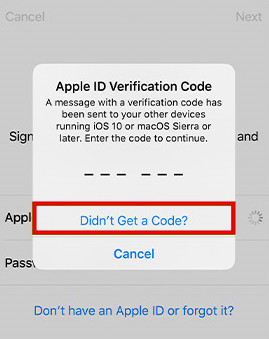
Choose the option to send the code as a text message or phone call.
You will get the code via text or phone call within a few seconds. Enter the verification code and click the Se connecter option.
Get a Verification Code from a Trusted Device
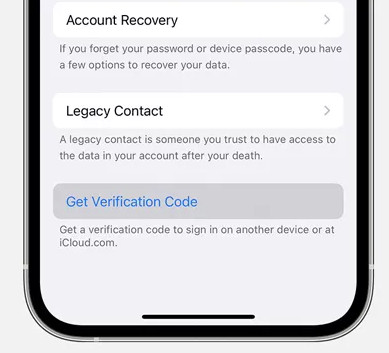
If you have another Apple device that is already signed in with the same Apple ID, you can generate a verification code via Settings directly. It even works offline, but is only available on iOS 17 or earlier.
Ouvert Réglages on your device, and tap on [Your Name].
Choisir Mot de passe et sécurité.
Robinet Obtenir le code de vérification, then use this new code to complete the verification.
Update to the Latest iOS
Updating your device may fix the Apple ID verification failing problem.
Aller à Réglages et sélectionnez General.
Robinet Mise à jour logicielle and check whether a new iOS version is available.
Robinet Mettez à jour maintenant and follow on-screen instructions.
Réinitialiser les réglages réseau
If your internet connection seems fine but Apple verification still does not work, your network settings may be causing the problem. You need to reset the network settings to fix it.
Ouvert Réglages sur votre iPhone et touchez Général.
Scroll down and select the Transférer ou réinitialiser l'iPhone option.
Choisir Réinitialiser et appuyez sur Réinitialiser les réglages réseau.
Part 4: How to Recover Apple ID If Verification Failed
If you have tried all the methods above but still cannot complete Apple ID verification, you may need a professional iPhone unlock tool. imyPass iPassGo is a powerful tool that helps remove the Apple ID from your iPhone or iPad safely. It can be useful when you forget the Apple ID password or get stuck on the Apple ID verification process.

4 000 000+ téléchargements
Recover Apple Account when Apple ID verification fails.
Remove Apple ID without password on iPhone/iPad.
Delete old, disabled, or identifiant Apple inactif facilement.
Prend en charge les dernières versions d’iOS et d’iPadOS.
Connectez l’appareil iOS à l’ordinateur
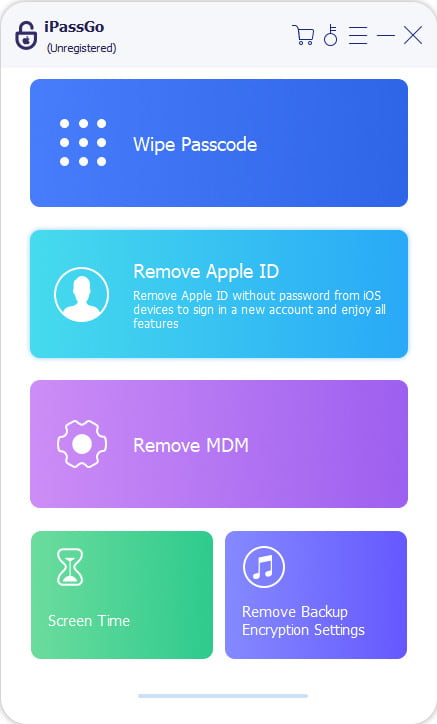
Lancez le logiciel sur votre ordinateur, puis sélectionnez le Supprimer l'identifiant Apple mode depuis l’interface. Utilisez un câble USB pour connecter votre appareil à l’ordinateur. Une fois connecté, cliquez sur Commencez maintenant bouton.
Supprimer l’identifiant Apple de votre appareil
Si Localiser mon iPhone est désactivé :
imyPass iPassGo peut supprimer immédiatement le mot de passe de votre identifiant Apple.
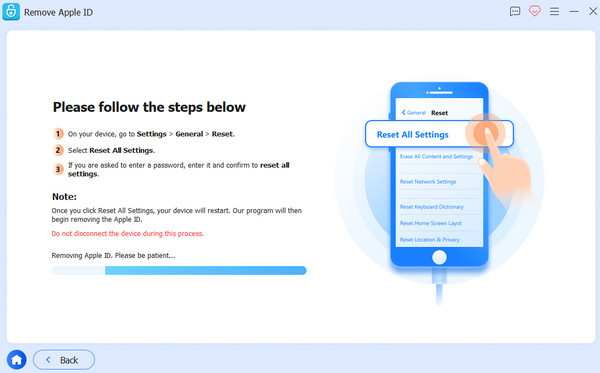
Si Localiser mon iPhone est activé :
Vous devrez réinitialiser tous les réglages de votre appareil. Allez dans Réglages > Général > Réinitialiser tous les réglages. Puis imyPass iPassGo commencera immédiatement à supprimer l’identifiant Apple.
Confirmer le processus de déverrouillage
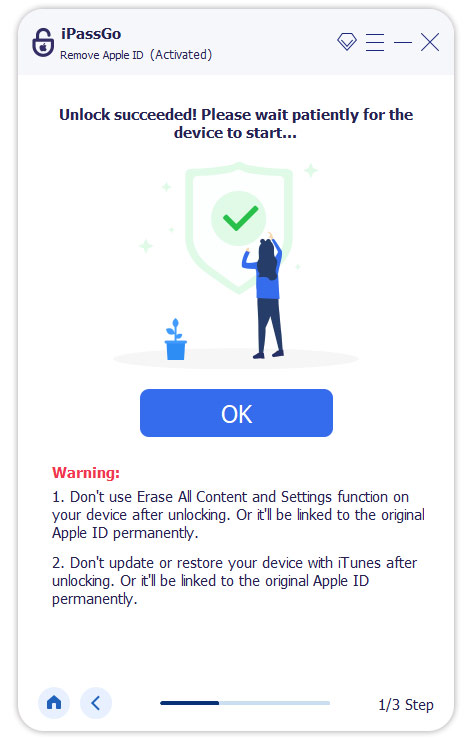
Une fois que tout est terminé, cliquez sur Confirmer à nouveau, puis l’identifiant Apple actuel sera bientôt supprimé.
Conclusion
Lorsque vous êtes confronté au problème de Le code de vérification Apple ID ne fonctionne pas commencez par les vérifications et solutions simples mentionnées dans ce guide. Prenez votre temps et suivez chaque méthode une par une. Si rien ne fonctionne et que vous êtes toujours bloqué hors de votre appareil, vous pouvez essayer imyPass iPassGo en dernier recours pour déverrouiller votre identifiant Apple.
Samuel est spécialisé dans la sécurité des mots de passe et la protection de la vie privée numérique. Il a auparavant travaillé comme consultant en cybersécurité pour des petites entreprises afin de protéger leurs actifs numériques. Titulaire de certifications en cybersécurité et en piratage éthique, il transforme des sujets de sécurité complexes en conseils faciles à suivre. Il aime également partager des astuces concernant les mots de passe pour aider les utilisateurs à protéger leurs comptes avec plus de confiance.
Solutions chaudes
-
Déverrouiller iOS
-
Conseils iOS
-
Déverrouiller Android
-
Conseils sur le mot de passe


