



 समाधान
 समर्थन केंद्र
 हमारे बारे में
 संपर्क करना
iPhone से किसी भी प्लेटफॉर्म पर लंबे वीडियो को जल्दी से कैसे भेजें
 क्लारा प्रेस्कॉट पर प्रकाशित 19 दिसंबर 2025स्थानांतरण डेटा3-मिनट पढ़ना
आईफोन जैसे स्मार्टफ़ोन में लगे उन्नत लेंसों की बदौलत वीडियो रिकॉर्ड करना पहले से कहीं ज़्यादा आसान हो गया है। हालांकि, अगर आप किसी बड़े वीडियो को सीधे मैसेज या ईमेल में अटैच करने की कोशिश करते हैं, तो आपका आईफोन उसे रोक सकता है या वीडियो को धुंधला कर सकता है। दरअसल, कुछ तरीके हैं जिनसे आप वीडियो रिकॉर्डिंग रोक सकते हैं। iPhone पर लंबे वीडियो भेजें या iPad के लिए iCloud, Mail Drop, और अन्य जैसी सुविधाएं। हमारा लेख सिद्ध तरीकों की पहचान करता है और आवश्यक शर्तों की व्याख्या करता है।

इस आलेख में:
भाग 1: iPhone पर वीडियो भेजने का सबसे बेहतरीन तरीका
यदि आपको iPhone पर वीडियो भेजने के लिए वीडियो की लंबाई बहुत अधिक होने की समस्या आती है, imyPass iPhone स्थानांतरण यह आपकी समस्या का समाधान कर सकता है। यह आपको अपने iPhone की किसी भी फ़ाइल को कंप्यूटर, दूसरे iPhone या iPad, या Android डिवाइस पर भौतिक कनेक्शन के माध्यम से भेजने की सुविधा देता है। इसलिए, आपको वीडियो की गुणवत्ता में कमी की चिंता करने की ज़रूरत नहीं है।

4,000,000+ डाउनलोड
एक क्लिक से iOS डिवाइस पर लंबे वीडियो भेजें।
बड़े वीडियो भेजते समय सुपर हाई स्पीड की सुविधा प्रदान करें।
अपने iPhone या iPad पर वीडियो का पूर्वावलोकन करें।
iTunes पर वीडियो भेजने जैसी अतिरिक्त सुविधाएं प्रदान करें।
iOS और iPadOS के नवीनतम संस्करणों का समर्थन करें.
अपने iPhone पर बड़ी वीडियो कैसे भेजें
अपने iPhone से कनेक्ट करें
अपने पीसी पर सर्वश्रेष्ठ वीडियो ट्रांसफरिंग सॉफ़्टवेयर इंस्टॉल करने के बाद उसे लॉन्च करें। मैक के लिए भी इसका एक संस्करण उपलब्ध है। अपने iPhone को लाइटनिंग केबल से कंप्यूटर से कनेक्ट करें। यदि आप iOS 13 या उससे ऊपर का संस्करण चला रहे हैं, तो कनेक्शन की अनुमति देने के लिए अपने iPhone का पासकोड दर्ज करें।
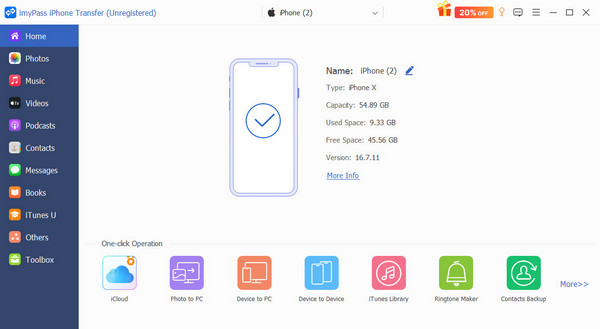
iPhone वीडियो का पूर्वावलोकन करें
सॉफ़्टवेयर आपके डिवाइस का पता लगाने के बाद, सभी डेटा को स्कैन करेगा। फिर, आप उन्हें प्रकार के अनुसार देख सकते हैं। चुनें वीडियो साइडबार पर टैब करें और अपने iPhone पर सभी वीडियो देखें। आप यह भी कर सकते हैं Apple Music लाइब्रेरी सिंक करें आपके iOS डिवाइसों के बीच।
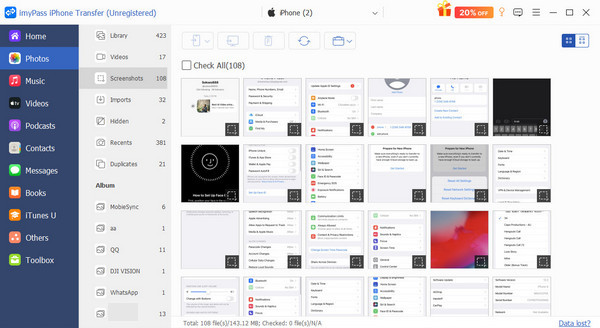
अपने iPhone पर लंबे वीडियो भेजें
उन बड़ी वीडियो फ़ाइलों का चयन करें जिन्हें आप स्थानांतरित करना चाहते हैं। यदि आप iPhone से iPhone पर लंबी वीडियो फ़ाइलें भेजना चाहते हैं, तो लक्ष्य iPhone को लाइटनिंग केबल से अपने कंप्यूटर से कनेक्ट करें। क्लिक करें फ़ोन बटन दबाएं और लक्ष्य डिवाइस चुनें। अपने कंप्यूटर पर वीडियो भेजने के लिए, क्लिक करें। पीसी बटन, चुनें पीसी पर निर्यात करेंऔर गंतव्य फ़ोल्डर का चयन करें।
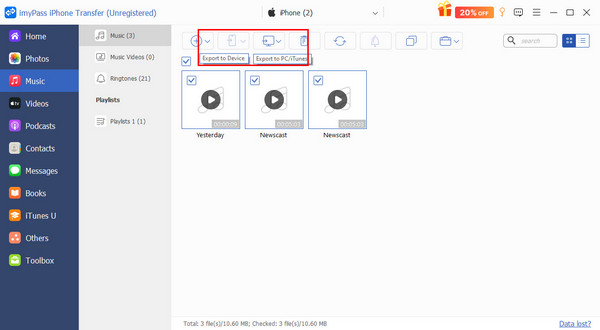
भाग 2: iCloud के माध्यम से iPhone पर वीडियो कैसे साझा करें
iOS उपकरणों के लिए आधिकारिक क्लाउड सेवा के रूप में, iCloud आपको स्थिर इंटरनेट कनेक्शन के माध्यम से अपने iPhone से किसी भी प्लेटफ़ॉर्म पर बड़े वीडियो भेजने की सुविधा देता है। प्रत्येक खाते में 5GB मुफ़्त स्टोरेज मिलता है। साथ ही, आप अतिरिक्त स्पेस खरीद सकते हैं।
iCloud लिंक के ज़रिए iPhone पर 10 मिनट का वीडियो कैसे भेजें
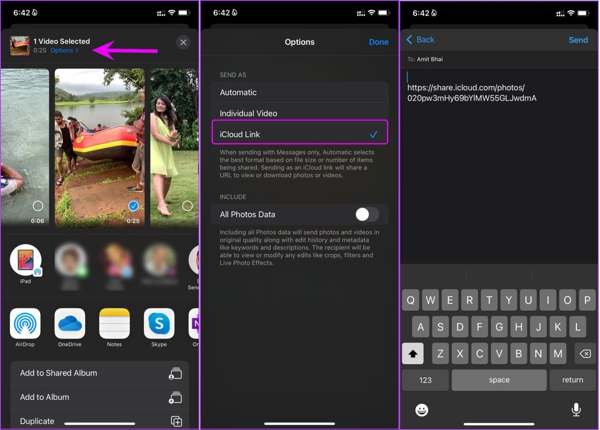
चलाएँ तस्वीरें अपने iPhone पर ऐप डाउनलोड करें।
के पास जाओ पुस्तकालय उस टैब या एल्बम पर जाएं जिसमें वह वीडियो संग्रहीत है जिसे आप स्थानांतरित करना चाहते हैं।
इसे टैप करें, दबाएँ शेयर करना बटन दबाएँ, और दबाएँ विकल्प वीडियो की अवधि के बगल में मेनू।
चुनना आईक्लाउड लिंक नीचे इस रूप में भेजें खंड।
फिर, अपने iPhone पर 10 मिनट का वीडियो भेजने के लिए इच्छित चैनल चुनें।
टिप्पणी: Photos ऐप वीडियो को iCloud पर अपलोड कर देगा, और आप iCloud लिंक साझा कर सकते हैं।
आईक्लाउड ड्राइव के माध्यम से आईफोन पर एक लंबा वीडियो कैसे साझा करें
अपने फ़ोटो ऐप में वांछित वीडियो ढूंढें और उस पर टैप करें।
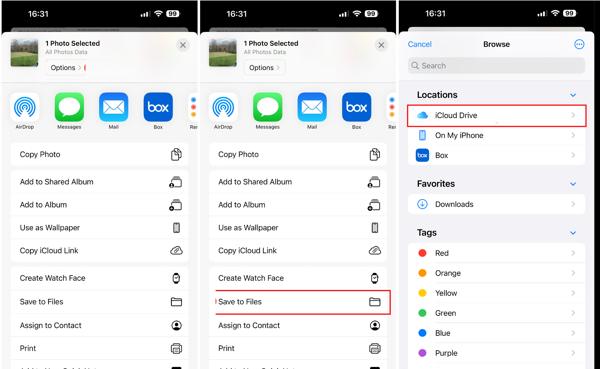
दबाएं शेयर करना बटन, चुनें फ़ाइलों में सहेजें, और चुनें iCloud ड्राइव.
फिर, एक फ़ोल्डर चुनें और टैप करें बचाना.
लक्षित डिवाइस पर, एक ब्राउज़र खोलें और www.icloud.com पर जाएं।
अपने Apple ID और पासवर्ड से साइन इन करें.
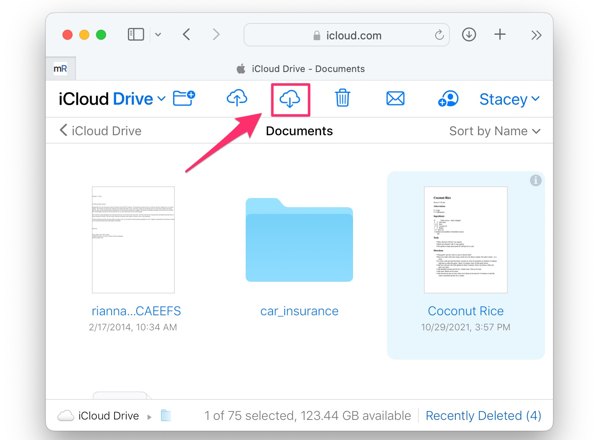
iCloud ड्राइव चुनें, वीडियो फ़ाइल का चयन करें और क्लिक करें। डाउनलोड बटन।
फिर, अपने iPhone पर एक लंबा वीडियो साझा करने के लिए स्थान फ़ोल्डर का चयन करें।
भाग 3: एयरड्रॉप के माध्यम से आईफोन से वीडियो कैसे भेजें
Apple इकोसिस्टम के भीतर iPhone पर वीडियो ट्रांसफर करने का एक आसान तरीका AirDrop है, जो iOS, iPadOS और macOS के लिए वायरलेस कनेक्शन है। इसलिए आप इसका उपयोग भी कर सकते हैं। मैक पर एयरड्रॉप फ़ाइलें भेजने या प्राप्त करने के लिए। अपने iPhone या iPad पर AirDrop के ज़रिए वीडियो भेजने के चरण इस प्रकार हैं:
अपने आईफोन और किसी अन्य एप्पल डिवाइस पर ब्लूटूथ और वाई-फाई चालू करें।
दोनों डिवाइस पर AirDrop सेट अप करें:
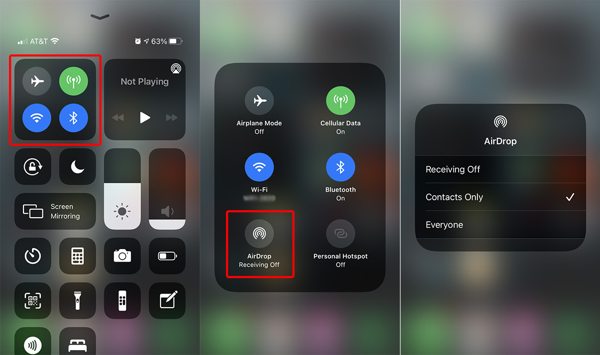
iPhone या iPad पर, दर्ज करें नियंत्रण केंद्रकनेक्शन पैनल को देर तक दबाएं और टैप करें एयरड्रॉप। उसके बाद चुनो सब लोग.
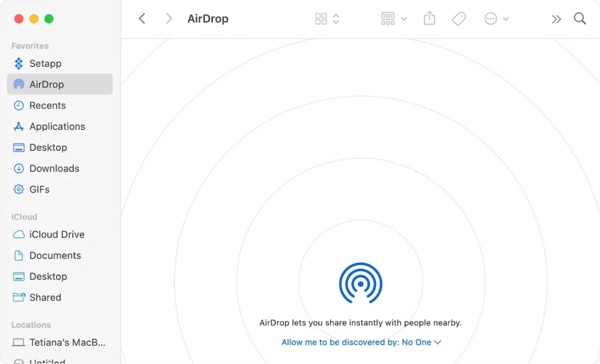
macOS पर, खोलें खोजक और क्लिक करें एयरड्रॉप साइडबार पर। चुनें सब लोग के पास मुझे खोजे जाने की अनुमति दें.
जिस वीडियो को आप शेयर करना चाहते हैं, उसे फ़ोटो ऐप में खोलें।
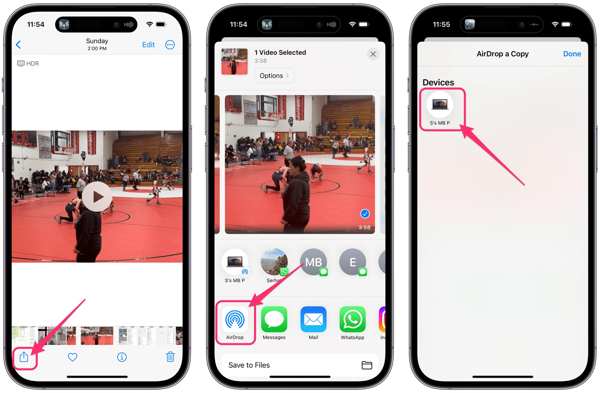
थपथपाएं शेयर करना बटन, चुनें एयरड्रॉपऔर प्राप्तकर्ता डिवाइस पर टैप करें।
दूसरे डिवाइस पर टैप करें स्वीकार करना जब आपको सूचना प्राप्त हो।
टिप्पणी: AirDrop से भेजे गए वीडियो कहाँ जाते हैं? iPhone के विपरीत, AirDrop के माध्यम से भेजे गए वीडियो स्वचालित रूप से मेरे कंप्यूटर पर जाते हैं। डाउनलोड फ़ोल्डर।
भाग 4: मेल ड्रॉप का उपयोग करके iPhone से वीडियो कैसे भेजें
अगर आप iPhone से ईमेल के ज़रिए लंबे वीडियो भेजते हैं, तो आपका अनुरोध अस्वीकार कर दिया जाएगा। इसके बजाय, बिल्ट-इन मेल ड्रॉप फ़ीचर की मदद से आप 5GB तक का वीडियो ईमेल कर सकते हैं। प्राप्तकर्ता 30 दिनों के भीतर वीडियो डाउनलोड कर सकता है।
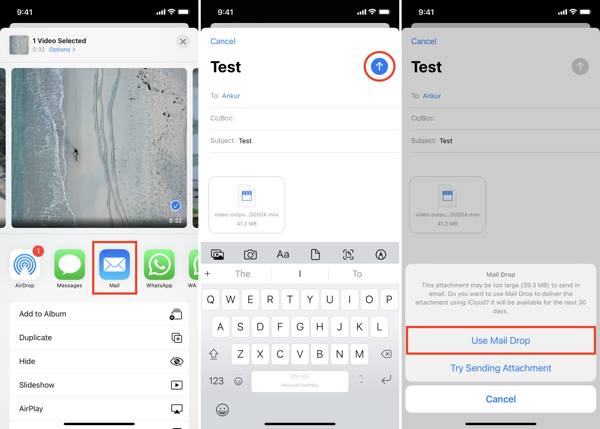
चलाएँ तस्वीरें अपने iPhone पर ऐप डाउनलोड करें।
वह लंबा वीडियो ढूंढें और उस पर टैप करें जिसे आप शेयर करना चाहते हैं।
थपथपाएं शेयर करना बटन दबाएं और चुनें मेल टूलबॉक्स से।
नए ईमेल स्क्रीन में प्राप्तकर्ता का ईमेल पता दर्ज करें और विषय लिखें।
थपथपाएं भेजना बटन।
क्योंकि वीडियो आईफोन पर भेजने के लिए बहुत लंबा है, इसलिए आपसे मेल ड्रॉप का उपयोग करने के लिए कहा जाएगा।
नल मेल ड्रॉप का उपयोग करें और वीडियो भेजें।
टिप्पणी: यदि आप जीमेल का उपयोग करके कोई लंबा वीडियो ईमेल करते हैं, तो आप उसे गूगल ड्राइव पर अपलोड कर सकते हैं और वीडियो को अटैचमेंट के रूप में ईमेल कर सकते हैं।
निष्कर्ष
इस गाइड में चर्चा की गई आप iPhone से लंबा वीडियो कैसे भेज सकते हैं? आप इसे कंप्यूटर, किसी अन्य iOS डिवाइस या Android फ़ोन पर भेज सकते हैं। मेल ड्रॉप फ़ीचर की मदद से आप एक लंबा वीडियो सीधे ईमेल कर सकते हैं। AirDrop, Apple डिवाइसों के बीच वीडियो भेजने के लिए वायरलेस कनेक्शन है। इसके अलावा, आप iCloud लिंक या iCloud ड्राइव का उपयोग करके अपनी वीडियो फ़ाइलें साझा कर सकते हैं। imyPass iPhone स्थानांतरण आईफोन वीडियो को कंप्यूटर या किसी अन्य मोबाइल डिवाइस जैसे किसी भी डिवाइस पर भेजने के लिए यह सबसे अच्छा विकल्प है।
क्लारा imyPass की एक संपादक हैं। वह डेटा रिकवरी में विशेषज्ञ हैं। आप किसी भी डिवाइस से खोए हुए डेटा को रिकवर करने के लिए पेशेवर ट्यूटोरियल और समाधान पा सकते हैं। कई उपयोगकर्ताओं ने बताया कि उनका ट्यूटोरियल आसान और उपयोगी है।
गरम समाधान
-
स्थानांतरण डेटा
-
डेटा पुनर्प्राप्त करें
-
आईओएस अनलॉक करें
-
आईओएस टिप्स

