



 Larutan
 Pusat layanan
 Tentang kami
 Kontak
How to Fix Your iPhone Location Sharing Not Working
 Penny Warren Diterbitkan di 19 Maret 2026Lokasi GPSMembaca 3 menit
“I can send my girlfriend my location indefinitely, and we always have shared it with each other, but now her phone won’t come through to me anymore. How to fix location sharing not working on my iPhone?” Location Sharing is an essential feature on iOS devices. It enables users to track friends and family’s location as well as share their own location. If this feature suddenly doesn’t work, you can fix it on your own by following our solutions.

Dalam artikel ini:
Part 1: Why iPhone Location Sharing Is Not Working
Di iPhone, Anda dapat membagikan lokasi Anda di aplikasi Cari Milik Saya (Find My), aplikasi pesan instan, atau aplikasi peta setelah Anda mengatur Layanan Lokasi dengan benar. Fitur ini juga berguna ketika Anda perlu melacak lokasi iPhone Anda untuk menemukan perangkat Anda atau memeriksa posisi terkini. Sebelum membahas solusi, mari kita bahas dulu penyebabnya. Memahami penyebab dan mengenali situasi Anda dapat membantu Anda memperbaiki iPhone yang tidak membagikan lokasi dengan cepat. Penyebab utamanya meliputi:
• Location Services are disabled.
• Connectivity issues or unstable internet connection.
• Low battery.
• Software glitches.
• Privacy restrictions.
Part 2: How to Fix Location Sharing Not Working on iPhone
Excluding hardware malfunction, you can fix the share my location issue on iPhone on your own. You can perform the solutions below one by one to make location sharing normal. Let’s start the journey.
Solusi 1: Aktifkan Layanan Lokasi
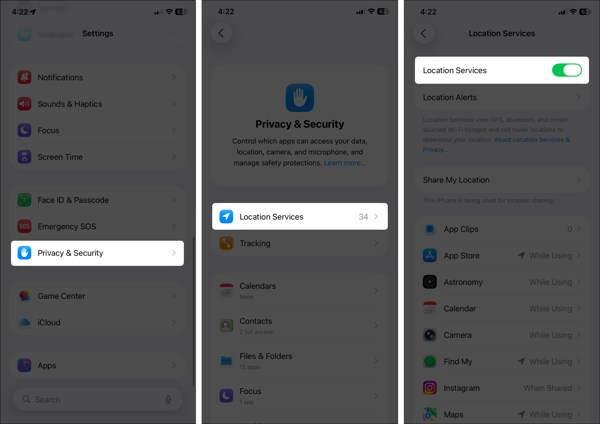
Buka Pengaturan aplikasi di iPhone Anda.
Pergi ke Privasi & Keamanan tab, dan pilih Layanan Lokasi.
Make sure to toggle on Location Services.
If Location Services is enabled, turn it off and toggle it back on.
Mengetuk Temukan Saya on the list, and choose Selalu atau Saat Menggunakan.
Solution 2: Configure Find My
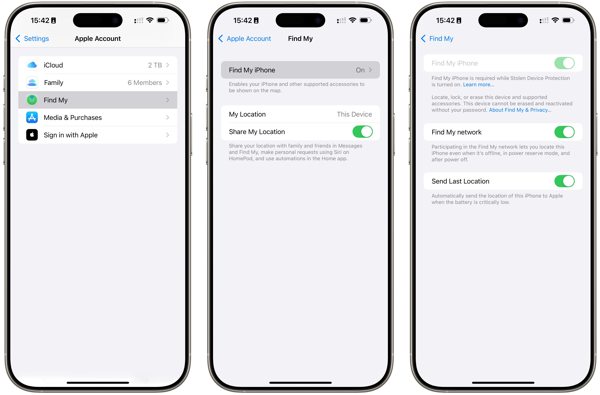
Pergi ke Anda Pengaturan aplikasi.
Ketuk profil Anda dan pilih Temukan Saya.
Mengetuk Temukan iPhone Saya dan aktifkan Temukan iPhone Saya.
Back to the Find My screen and toggle on Bagikan Lokasi Saya.
Jika diminta, ketuk Mengizinkan to confirm turning on GPS tracking.
Next, check if the iPhone location sharing not updating issue disappeared.
Solution 3: Check Your Connection
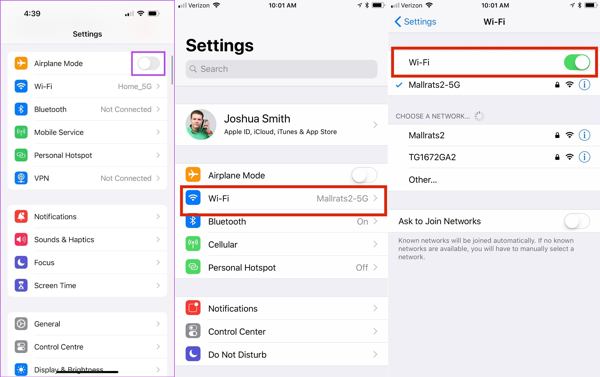
Jalankan Pengaturan aplikasi di iPhone Anda.
Aktifkan Mode pesawat.
Kemudian, matikan Mode pesawat.
If you still find iPhone not sharing location, check your internet signal.
Mengetuk Wifi di Pengaturan and switch to a stable network.
Catatan:
If you don’t have a Wi-Fi network, connect to a cellular data network instead.
Solution 4: Disable Location Restrictions
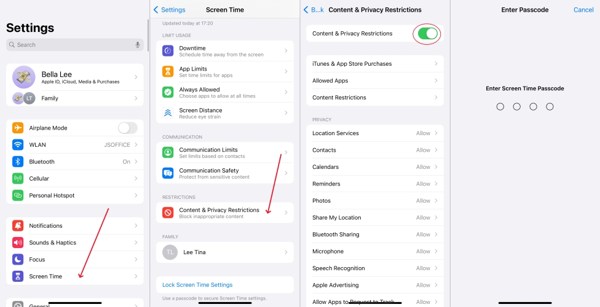
When iPhone location sharing is not updating due to restrictions, go to Waktu layar di dalam kamu Pengaturan aplikasi.
Jika diminta, masukkan kode sandi Waktu Layar Anda.
Memilih Pembatasan Konten & Privasi.
Matikan Pembatasan Konten & Privasi to completely disable restrictions.
Catatan:
If you want to keep restrictions, turn on Pembatasan Konten & Privasi, memilih Bagikan Lokasi Saya dibawah Pribadi, dan pilih Mengizinkan.
Solusi 5: Perbarui Perangkat Lunak
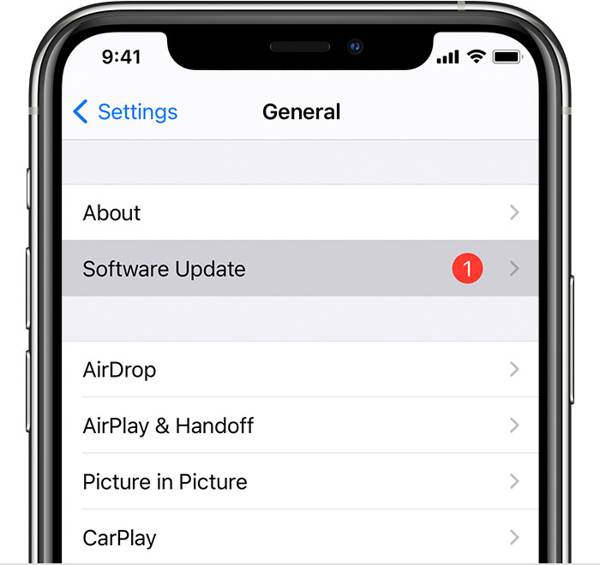
If you are still running an old version of iOS and no location is found when your iPhone shares location, go to the Pengaturan aplikasi.
Pergi ke Umum dan pilih Pembaruan perangkat lunak untuk mencari pembaruan.
Jika pembaruan tersedia, ketuk Unduh dan pasang tombol.
Follow the onscreen instructions to install the update.
Catatan:
You’d better not install a beta version of iOS. If iPhone location stops sharing after you update to a beta, go back to a standard version of iOS.
Solution 6: Reset Location & Privacy
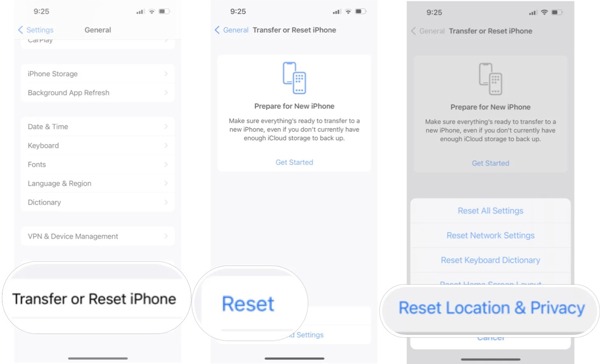
Pergi ke Umum tab in your Settings app when your iPhone is not sharing location.
Gulir ke bawah dan ketuk Transfer atau Reset iPhone.
Mengetuk Mengatur ulang and pick Reset Location & Privacy.
Jika diminta, masukkan kode sandi iPhone atau kata sandi ID Apple Anda.
When your iPhone restarts, set up Find My and share your location.
Bacaan Diperpanjang:
Part 3: Bonus Tip: How to Fake iPhone Location
Location Sharing on iPhone is a useful feature, but it is not perfect. It may expose your geolocation and privacy to someone else. Moreover, many apps capture your location information for marketing and advertising. If you turn on Location Services, these services will get your last location available. Can you stop sharing your location without others knowing? iLocaGo can help you resolve this problem.

4.000.000+ Unduhan
Fake iPhone location without disabling Location Sharing.
Change to any address and location around the world.
Create virtual routes for AR games and more.
Menawarkan beberapa moda untuk tujuan yang berbeda-beda.
Work on the latest versions of iOS and iPadOS.
How to Fake iPhone Location Without Notifying Others
Langkah 1 Hubungkan ke perangkat Anda
Run the iPhone location spoofing software once you install it on your PC. There is another version for Mac. Plug your iPhone into your PC with a Lightning cable. Then, the software will detect your device automatically.

Langkah 2 Pilih mode
On the mode window, you will see four options. If you just need to change your iPhone location, choose Ubah LokasiTiga mode lainnya, Mode Satu Perhentian, Mode Multi-Perhentian, dan Mode Joystik, are used to make virtual locations.

Langkah 3 Ubah lokasi iPhone
Masukkan alamat yang akurat ke dalam kolom di Ubah Lokasi dialog. If you don’t have an address, click a proper position on the map, and you will see the address. Finally, click on the Memodifikasi button to confirm changing your location. Now, turn to your iPhone and share your location.

Kesimpulan
Sekarang, Anda seharusnya sudah memahami apa yang bisa Anda lakukan jika berbagi lokasi tidak tersedia di iPhone. Pertama, Anda dapat mempelajari mengapa masalah ini terjadi. Yang lebih penting, Anda dapat mengikuti solusi yang sudah terbukti untuk mengatasi masalah ini dengan cepat. Jika Anda ingin melindungi informasi lokasi dan privasi Anda, kami menyarankan iLocaGo. Alat ini memungkinkan Anda mengubah lokasi iPhone tanpa harus berpindah tempat. Desainnya yang intuitif membuatnya mudah digunakan, terutama bagi pemula dan pengguna biasa.
Penny berfokus pada pemecahan masalah GPS dan optimasi Windows. Sebelumnya ia bekerja sebagai insinyur dukungan teknis, membantu klien menyelesaikan masalah terkait lokasi dan sistem secara efisien. Berbekal pengalaman di bidang dukungan TI, ia memberikan solusi praktis yang benar-benar berfungsi. Di waktu luangnya, ia suka mendaki dan melakukan geocaching, menguji teknologi GPS di dunia nyata.
Solusi Panas
-
Lokasi GPS
-
Buka kunci iOS
-
Kiat iOS
-
Buka kunci Android


