



 Soluţie
 Centru de asistență
 Despre noi
 a lua legatura
Apple ID Verification Failed? 7 Ways to Fix it & Regain Access
 Samuel Spenser publicat pe 16 septembrie 2026Deblocați iOSLectură de 3 minute
"Why does my Cod de verificare Apple ID not work when I sign in with my Apple Account?" "Why is the Apple ID verification code not sending?" "Why do I never receive the code from Apple?" Many users encountered verification errors for various reasons. Don't worry. It can be solved with a few simple checks. In this guide, we will guide you on how to fix this problem.

În acest articol:
Part 1: Why is Apple Verification Code Not Working?
Apple verification code is an important part of Apple ID two-factor authentication. Whenever you sign in on a new device, browser, or app, Apple may ask you to enter a six-digit code to confirm that it is really you. But sometimes, the Apple verification code is not working. Here are the most common situations you may run into.
Not Receiving Apple Verification Code
You don't receive the Apple verification code. It's usually because the code is sent to the wrong device or phone number, or there is a delay with your carrier's SMS service due to network issues. If you cannot receive the code, you need to check and request it again.
Apple Verification Code is Invalid
You received the verification code but see an "invalid verification code" message when entering it. Apple verification codes are temporary. If you request several codes, only the latest one will work. Make sure you enter the newest code carefully.
Apple ID Verification Failed
Sometimes, the problem is not the verification code itself, but that Apple failed to verify your identity at that moment. It may be caused by wrong Apple ID password, an unstable internet connection, Apple server issues, or incorrect settings on your device.
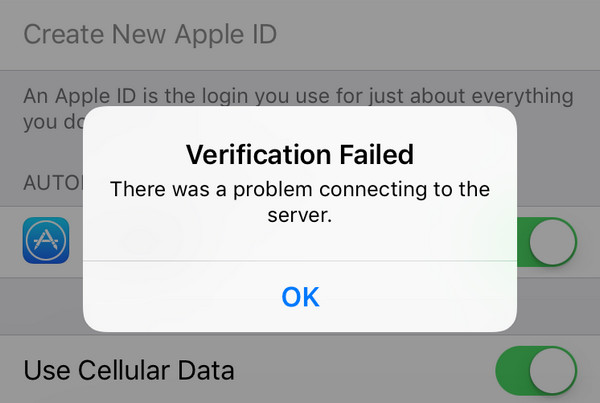
Part 2: What to Check When Apple ID Verification Failed
It's necessary to check the following things first before trying more advanced solutions.
Check Login Details
Start by making sure your Apple ID and password are correct. Also, double-check that the Apple ID verification code you entered is correct. If you ați uitat parola ID-ului Apple, you may need to reset or recover it.
Verificați conexiunea la internet
Check whether Wi-Fi or mobile data connection is stable. You can also switch between Wi-Fi and mobile data to see if the issue is caused by your current network.
Check Your VPN Server
A VPN can interfere with Apple ID verification. Turn off VPN on your device and attempt the verification again.
Check Apple Server Status
Check Apple's System Status page to see which services are currently available. A green dot next to the service means it is available. A red dot indicates that Apple is currently working on an issue. You need to wait until Apple fixes it.
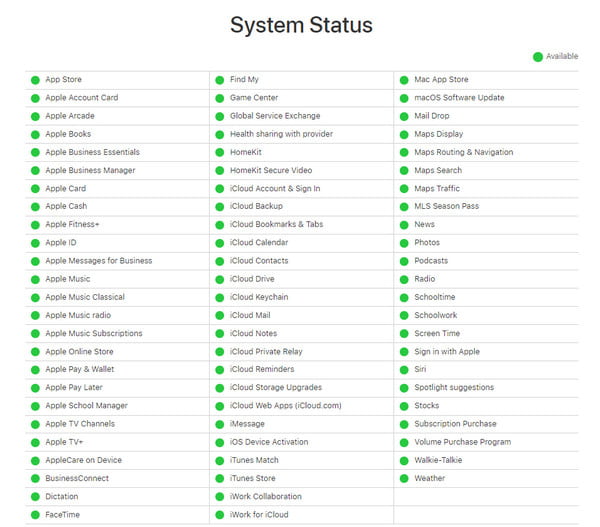
Check Date & Time Settings
If you set a wrong time zone and date, Apple may have trouble verifying your request. Go to Setări > General > Data și ora și porniți Setați automat to make sure your device has the correct time.
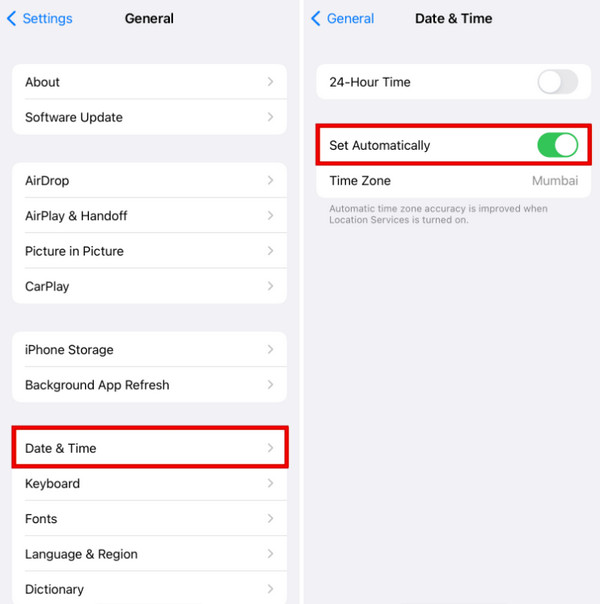
Part 3: How to Fix Apple Verification Code Not Working
After checking the things above, if the verification for Apple ID still failed, you can take these additional fixes to resolve this issue.
Get a Verification Code via Your Phone Number
If you are not receiving the verification code on your trusted device, you can try getting it through your trusted phone number instead.
On the sign-in screen, tap Didn't Get a Code?
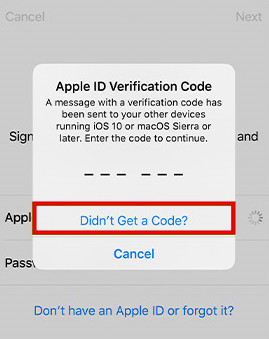
Choose the option to send the code as a text message or phone call.
You will get the code via text or phone call within a few seconds. Enter the verification code and click the Conectare opțiune.
Get a Verification Code from a Trusted Device
If you have another Apple device that is already signed in with the same Apple ID, you can generate a verification code via Settings directly. It even works offline, but is only available on iOS 17 or earlier.
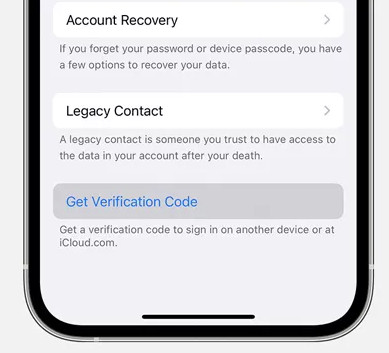
Deschis Setări on your device, and tap on [Your Name].
Alege Parolă și securitate.
Atingeți Obțineți codul de verificare, then use this new code to complete the verification.
Update to the Latest iOS
Updating your device may fix the Apple ID verification failing problem.
Mergi la Setări și selectați General.
Atingeți Actualizare de software and check whether a new iOS version is available.
Atingeți Actualizează acum and follow on-screen instructions.
Resetați setările de rețea
If your internet connection seems fine but Apple verification still does not work, your network settings may be causing the problem. You need to reset the network settings to fix it.
Deschis Setări pe iPhone și atinge General.
Scroll down and select the Transferați sau resetați iPhone-ul opțiune.
Alege Resetați și atingeți Resetați setările de rețea.
Part 4: How to Recover Apple ID If Verification Failed
If you have tried all the methods above but still cannot complete Apple ID verification, you may need a professional iPhone unlock tool. imyPass iPassGo is a powerful tool that helps remove the Apple ID from your iPhone or iPad safely. It can be useful when you forget the Apple ID password or get stuck on the Apple ID verification process.

Peste 4.000.000 de descărcări
Recover Apple Account when Apple ID verification fails.
Remove Apple ID without password on iPhone/iPad.
Delete old, disabled, or ID Apple inactiv uşor.
Suportă cele mai recente versiuni de iOS și iPadOS.
Conectează dispozitivul iOS la computer
Pornește software-ul pe computer, apoi selectează modul Eliminați ID-ul Apple mod din interfață. Folosește un cablu USB pentru a conecta dispozitivul la computer. Odată conectat, fă clic pe Începe acum buton.
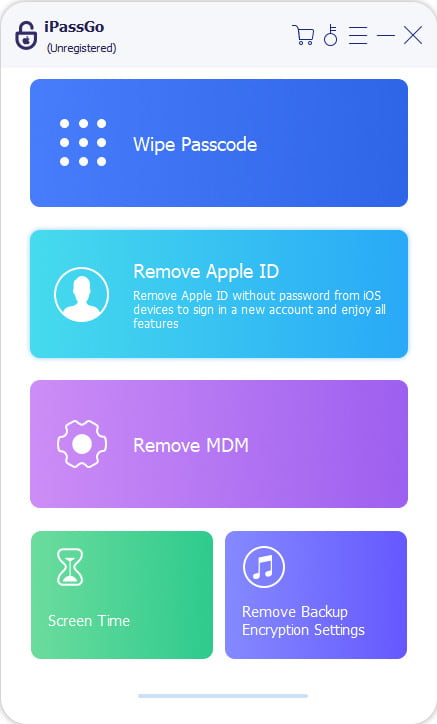
Elimină ID-ul Apple de pe dispozitivul tău
Dacă Găsește iPhone-ul meu este dezactivat:
imyPass iPassGo poate elimina imediat parola ID-ului tău Apple.
Dacă Găsește iPhone-ul meu este activat:
Va trebui să resetezi toate setările de pe dispozitiv. Accesează Setări > General > Resetează toate setările. Apoi, imyPass iPassGo va începe imediat să elimine ID-ul Apple.
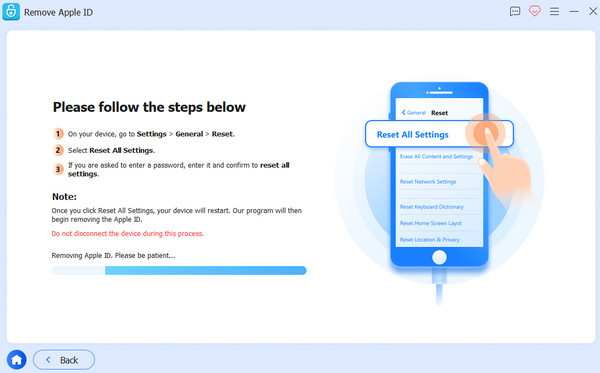
Confirmă procesul de deblocare
După ce totul este gata, faceți clic pe Confirmați din nou, apoi ID‑ul Apple curent va fi înlăturat în scurt timp.
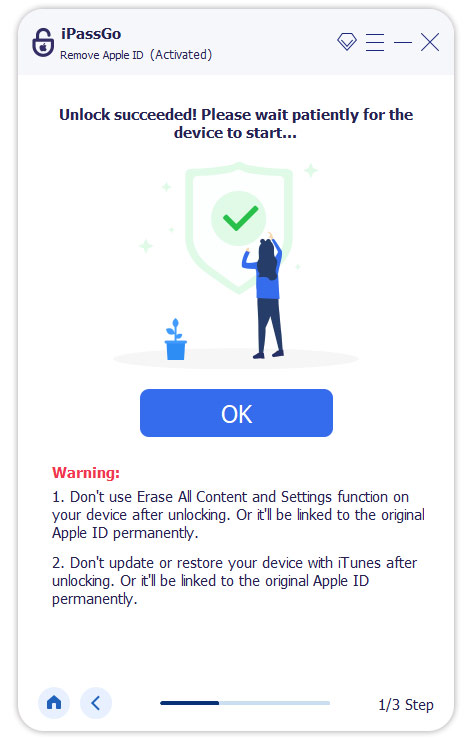
Concluzie
Când te confrunți cu problema Codul de verificare Apple ID nu funcționează începe cu verificările și soluțiile simple menționate în acest ghid. Ia‑ți timp și parcurge fiecare metodă pe rând. Dacă nimic nu funcționează și ești în continuare blocat(ă) în afara dispozitivului, poți încerca imyPass iPassGo ca ultimă soluție pentru a debloca Apple ID‑ul.
Samuel este specializat în securitatea parolelor și confidențialitatea digitală. A lucrat ca specialist în securitate cibernetică pentru întreprinderi mici, ajutându-le să își protejeze activele digitale. Cu certificări în Cybersecurity și Ethical Hacking, el transformă subiectele complexe de securitate în sfaturi ușor de urmat. De asemenea, îi place să împărtășească recomandări despre parole pentru a-i ajuta pe utilizatori să își protejeze conturile cu mai multă încredere.
Soluții fierbinți
-
Deblocați iOS
-
Sfaturi iOS
-
Deblocați Android
-
Sfaturi privind parola


