



 Soluţie
 Centru de asistență
 Despre noi
 a lua legatura
How to Fix iPhone Unavailable Without Erase Option [Full Guide]
 Samuel Spenser publicat pe 16 septembrie 2026Deblocați iOSLectură de 3 minute
Why does your iPhone suddenly show an Mesaj iPhone Indisponibil? It's confusing and annoying because you cannot access all your photos, apps, and important files inside the locked device. If you're facing an iPhone Unavailable screen with no Erase option available, keep reading. We'll explain why this issue happens and show you 4 practical ways to fix it.

În acest articol:
Part 1: Why Does My iPhone Say iPhone Unavailable
When you enter the wrong passcode on your iPhone too many times, you may see the "iPhone Unavailable" message or "iPhone Security Lockout" on the screen. What does Security Lockout mean on iPhone? This is Apple's security feature designed to prevent someone else from accessing your device and protect your personal data.
Common reasons why your iPhone says unavailable include:
- You entered the wrong iPhone passcode multiple times.
- You forgot your current iPhone passcode.
- Someone else tried to unlock your device with incorrect passwords.
- The iPhone was disabled after repeated failed unlock attempts.
Part 2: Why is There No Erase option on iPhone Unavailable Screen
On newer iOS versions, after too many failed attempts, the device may show an "Erase iPhone" option in the bottom right corner. You can reset the device and remove the passcode through this option. If you encounter iPhone Unavailable no Erase option, it may be caused by the following reasons.
- Your iPhone is running iOS 15.2 or lower, where the Erase iPhone feature was not available.
- Your iPhone is running iOS 17 or above, and the Erase option has been replaced by the Forgot Passcode option.
- You're not signed into your Apple ID on your iPhone.
- Find My iPhone is turned off.
- The iPhone is not connected to Wi-Fi or cellular data.
- You have not reached the required number of failed passcode attempts for the erase option to appear.
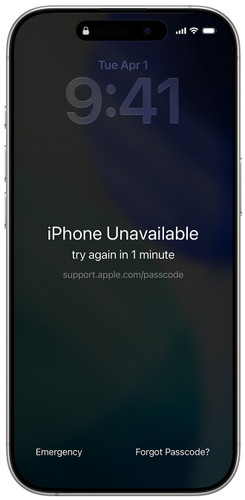
Part 3: How to Fix iPhone Unavailable Without Erase option - 4 Ways
If your iPhone shows "iPhone Unavailable" but there is no Erase iPhone option, you can still try these 4 ways to regain access.
Method 1: Unlock Unavailable iPhone via Old Passcode
Is it possible to fix iPhone unavailable without losing data? Yes, you may be able to. If you're using iOS 17/18 or later and just changed your passcode, there's a good chance you can still get back in. Apple lets you use your old passcode for up to 72 hours after you change it. So, if you remember the previous one, it's definitely worth trying before you reset your iPhone.
Apasă pe Ai uitat codul de acces? option at the bottom corner of the "iPhone Unavailable" screen.
Atingeți Introduceți codul de acces anterior and enter your old passcode.
Follow the instructions to set a new passcode.
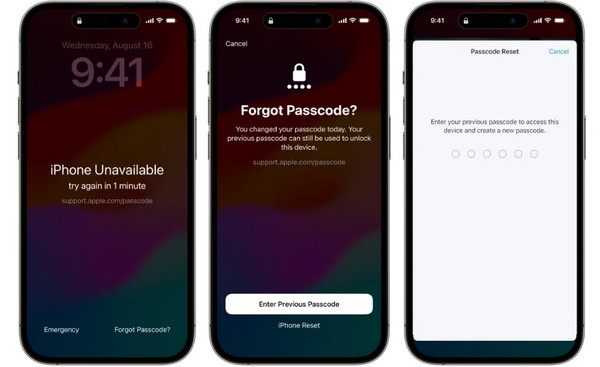
Method 2: Unlock Unavailable iPhone with imyPass iPassGo
If you forgot your passcode and there is no erase option, a professional iPhone unlock tool like imyPass iPassGo can help you bypass the unvailable screen and remove the screen lock effortlessly. It can remove different types of iPhone locks, including screen lock, Activation Lock, carrier lock, or MDM and Screen Time restrictions.

Peste 4.000.000 de descărcări
Fix iPhone Unavailable without Erase option easily.
Unlock disabled, locked, damaged iPhone without passcode.
Remove screen passcode, Face ID & Touch ID easily.
Suportă cele mai noi modele și versiuni iOS.
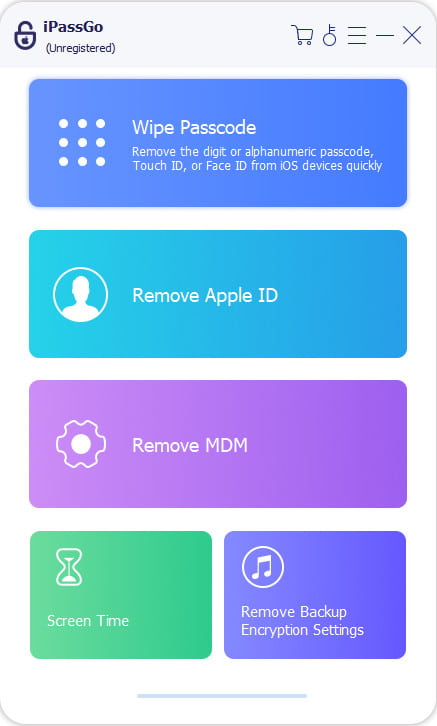
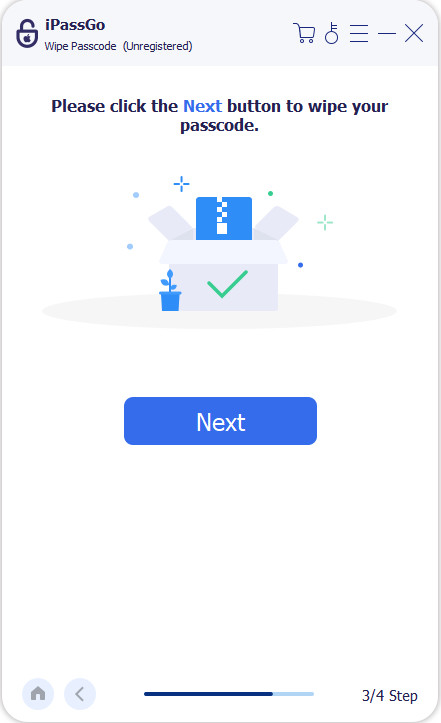
Pornește programul pe computer. Selectează modul Deblocați ecranul iOS din interfață. Conectează dispozitivul la computer folosind un cablu USB, apoi fă clic pe butonul start Acum a continua.
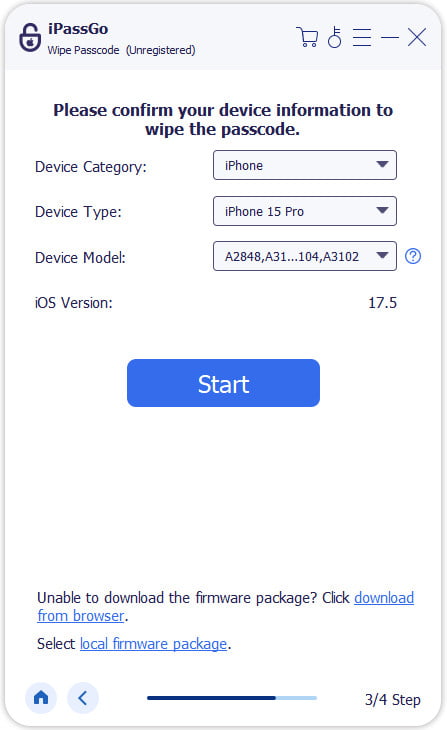
Confirmă informațiile dispozitivului tău și apasă butonul Începe acum pentru a descărca pachetul de firmware. Așteaptă finalizarea descărcării și verificarea firmware-ului.
După verificare, fă clic pe butonul Începeți eliminarea button and confirm again. The software will automatically unlock the disabled iPhone, then you can use your device again.
Method 3: Fix Unavailable iPhone with iTunes/Finder
Recovery mode works when the iPhone Unavailable Erase option is missing. You can use a computer to connect your device and restore your iPhone via iTunes or Finder.
Power off your disabled iPhone. Launch the latest version of iTunes on your PC (or Finder on Mac). Connect your iPhone to the computer using a USB cable.
Pune-ți iPhone-ul în Modul Recuperare.
- iPhone 8 sau o versiune ulterioară: Apăsați și eliberați rapid butonul Creșterea volumului button, then Volum scăzut buton. Apasă și ține apăsat butonul Latură butonul până când apare ecranul modului de recuperare.
- iPhone 7/7 Plus: Apăsați lung pe ambele Volum scăzut și Latură buttons simultaneously until the recovery mode screen appears.
- iPhone 6s sau modele anterioare: Apăsați lung pe ambele Acasă și Latură până când apare ecranul modului Recovery.
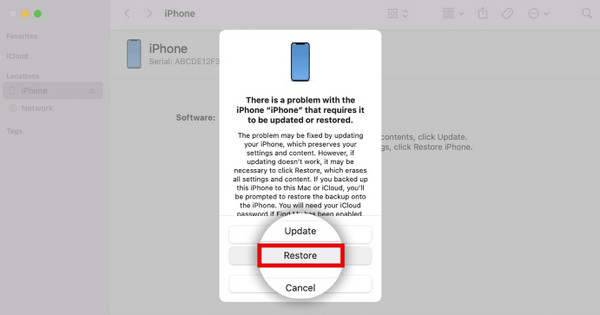
When your iPhone appears, select Restabili din meniu.
Method 4: Erase Your Unavailable iPhone Using Find My
If you don't have a computer around, you can remotely erase your iPhone using the Find My app on another device. Just keep in mind that Find My needs to have been turned on before your iPhone became unavailable. If it wasn't, this option won't help much.
Open the Find My app on another Apple device or visit iCloud.com on a browser.
Sign in with your Apple Account used on your unavailable iPhone.
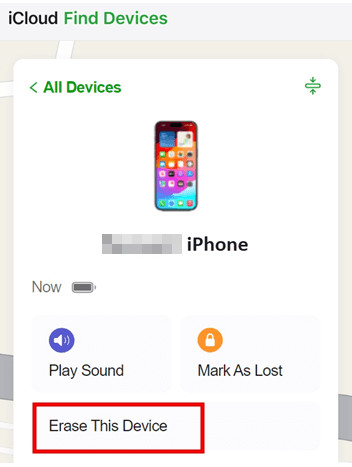
Select your iPhone from the device list. Choose Ștergeți acest dispozitiv and confirm it with one more click. Then your iPhone will be reset to factory settings.
Întrebări frecvente.
-
Dacă pe iPhone-ul meu apare mesajul „iPhone indisponibil”, cum îl pot reseta?
Dacă pe iPhone apare mesajul "iPhone indisponibil", îl poți reseta folosind opțiunea Șterge iPhone/Parolă uitată din colțul din dreapta jos. Poți folosi, de asemenea, iTunes/Finder, Găsire iPhone sau un instrument profesional de deblocare iPhone, precum imyPass iPassGo, pentru a elimina parola de ecran.
-
De câte ori poți introduce codul greșit înainte ca iPhone-ul să devină indisponibil?
Your iPhone becomes unavailable after 10 incorrect unlock attempts. The lockout time increases after each failed attempt. Once you reach the limit, your iPhone will be completely disabled.
-
Cum pot repara mesajul „iPhone indisponibil” fără opțiunea Erase, fără să îmi șterg telefonul?
If you recently changed your passcode and are using iOS 17/18 or later, you are able to unlock your iPhone without erasing your data using your previous passcode within 72 hours. Tap the Am uitat codul de acces opțiune și selectați Introduceți codul de acces anterior to exit the unavailable screen.
Concluzie
iPhone indisponibil, fără opțiune de Ștergere problema este destul de enervantă. Când nu ai idee ce să faci în continuare, încearcă aceste 4 metode menționate în acest ghid. Poți folosi opțiunea Ai uitat codul de acces, poți restaura prin iTunes/Finder, poți șterge folosind Găsire iPhone (Find My) sau poți încerca un program dedicat Software de deblocare iPhone cum ar fi imyPass iPassGo. Sperăm că una dintre aceste metode te va ajuta să intri din nou în iPhone fără prea mari probleme.
Samuel este specializat în securitatea parolelor și confidențialitatea digitală. A lucrat ca specialist în securitate cibernetică pentru întreprinderi mici, ajutându-le să își protejeze activele digitale. Cu certificări în Cybersecurity și Ethical Hacking, el transformă subiectele complexe de securitate în sfaturi ușor de urmat. De asemenea, îi place să împărtășească recomandări despre parole pentru a-i ajuta pe utilizatori să își protejeze conturile cu mai multă încredere.
Soluții fierbinți
-
Deblocați iOS
-
Sfaturi iOS
-
Deblocați Android
-
Sfaturi privind parola


