



 Solution
 Centre de soutien
 À propos de nous
 Contacter
What Location Expired Mean on iPhone and How to Fix It
 Penny Warren Publié le 23 juin 2026Localisation GPS4 minutes de lecture
"When my friends and I are trying to share our location, my iPhone says Expired Location before the location can even load in. Why does it say Location Expired?" According to our research, this common error occurs when your iPhone cannot update or share its current location information. Some iPhone users face this frustrating issue. This article shares the effective solutions to fix this error without losing data.

Dans cet article:
Part 1. What Does Location Expired Mean and Why Does It Occur
What does Location Expired mean? The error message is alarming on iOS devices. It interrupts the ability to track or share your whereabouts. Typically, this error occurs when sharing location on the Messages or other apps. It means that the location information is no longer available or up-to-date. When the error appears, you cannot see the shared location or share your location on your iPhone.
Before walking through the solutions, let’s explore the underlying causes why it keeps saying Location Expired on your iPhone.
- 1.Location Services is disabled accidentally.
- 2.Find My is restricted or stuck.
- 3.There is a problem with your iPhone’s network connection.
- 4.The location was shared a long time ago and has naturally expired.
- 5.Outdated iOS.
- 6.Bugs ou dysfonctionnements logiciels.
Part 2. How to Fix Location Expired on iPhone
While seeing an iPhone error message saying Location Expired can be frustrating, you can try the solutions below one by one to fix this error on your iPhone. Then, you can share your location normally.
Solution 1: Double Check Location Services
Ouvrez le Réglages sur votre iPhone.
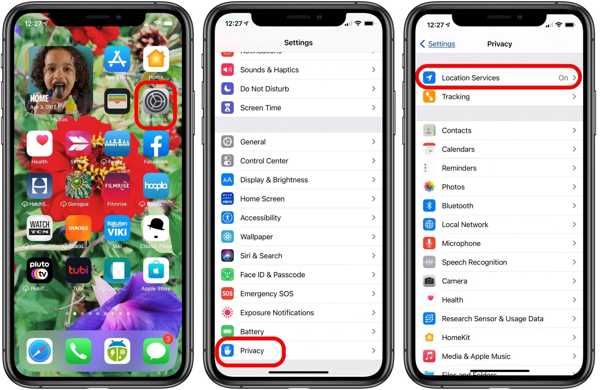
Allez à la Confidentialité languette.
Appuyez sur le Services de location bouton.
Activer le Services de location option.
Ensuite, appuyez sur le Partager ma position bouton.
Activer le Partager ma position option.
Make sure to allow the desired contact to fix the Location Expired on iPhone.
Solution 2 : redémarrez votre iPhone
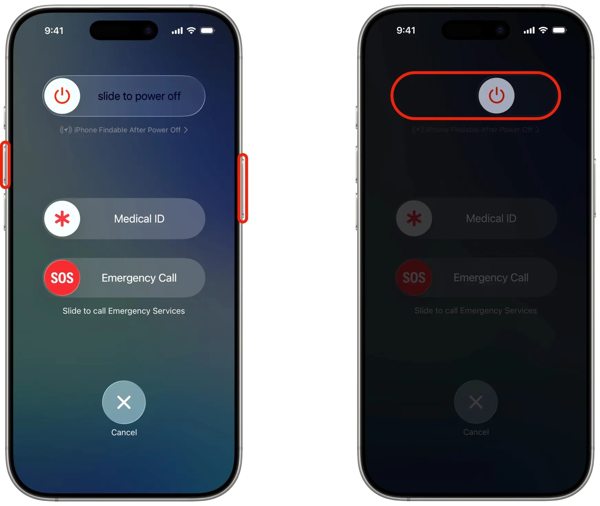
Pour un iPhone avec Face ID, maintenez enfoncé l’un des Volume bouton + Côté button together. For an iPhone without Face ID, press and hold the Côté ou Du pouvoir bouton.
When the power-off screen pops up, release the buttons or button.
Déplacez le curseur vers la droite pour éteindre votre appareil.
After your touchscreen turns black, wait for a few minutes.
Then, hold down the Side ou Du pouvoir jusqu'à ce que le logo Apple s'affiche.
Now, try to share your location again to check if Location Expired is fixed.
Solution 3 : Date et heure correctes
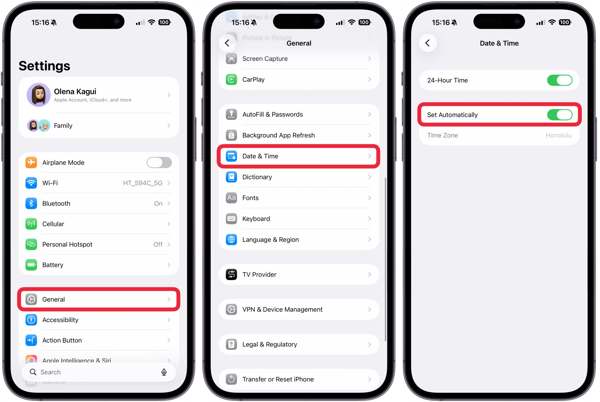
Allez dans votre Réglages application depuis votre écran d'accueil.
Aller vers Général et Date et heure.
Activer Définir automatiquement.
Connect to a stable network and fix Location Expired on iPhone.
Solution 4: Check Your Network
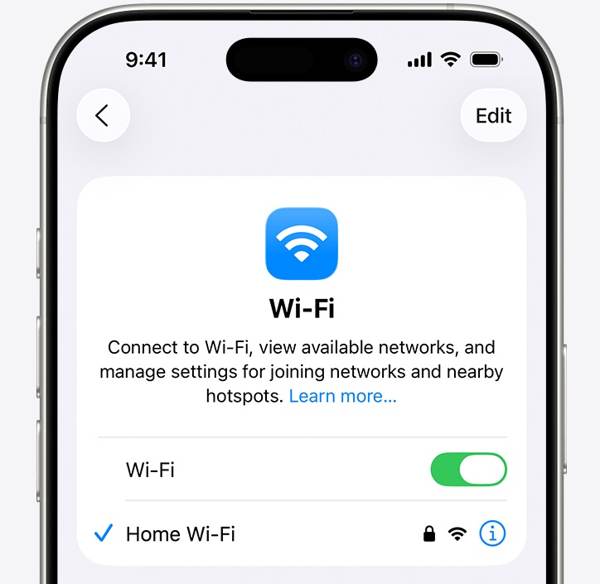
Sharing location on iPhone works through an internet connection. If you are using Wi-Fi and Location Expired occurs on your iPhone, connect to a cellular data network or vice versa. Then, share your location again.
Solution 5: Re-enable Find My
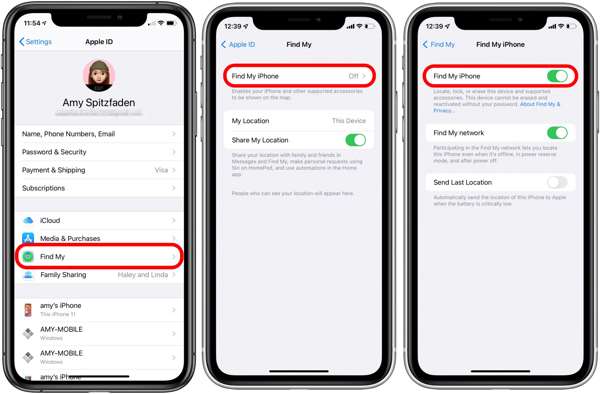
Commencer le Réglages application depuis votre écran d'accueil.
Appuyez sur votre profil.
Choisir la Trouver mon option et appuyez sur Trouve mon iphone.
Activer Trouve mon iphone et Find My network to fix Location Expired on iPhone.
If Find My iPhone is enabled, toggle it off and turn it back on.
Solution 6 : mettre à jour iOS
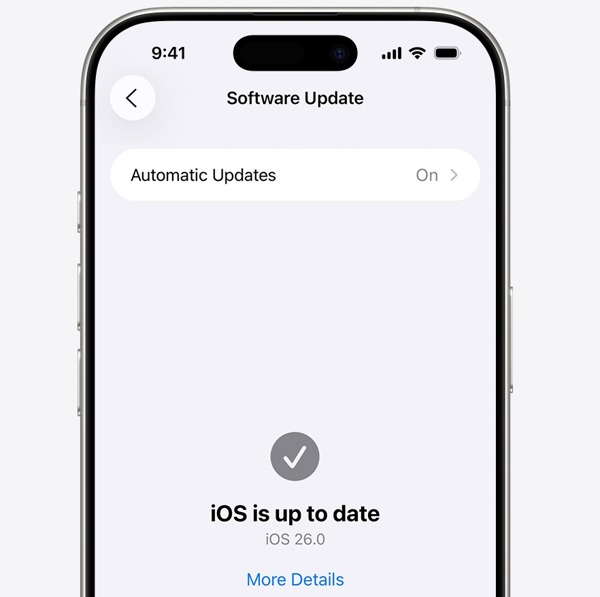
Exécutez votre Réglages application.
Aller vers Général et Mise à jour logicielle.
Si une mise à jour est disponible, appuyez sur le Télécharger et installer bouton.
Follow the onscreen instructions to update the iOS.
Une fois terminé, votre iPhone redémarrera.
Try to share your location to see if the Location Expired error disappears.
Solution 7 : Réinitialiser l'emplacement et la confidentialité
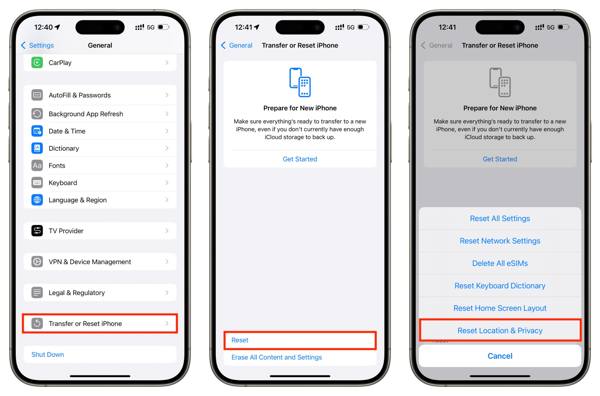
Ouvrez le Réglages application sur votre appareil.
Aller à Général et Transférer ou réinitialiser l'iPhone.
Appuyez sur le Réinitialiser bouton.
Choisir la Réinitialiser l'emplacement et la confidentialité option.
Next, turn on Location Services and Find My iPhone to fix Emplacement expiré.
Lectures connexes :
Part 3. One-stop Solution to Fix iPhone Location Expired
If you have performed the common solutions but the iPhone Location Expired error persists, you can try imyPass iLocaGo. It allows you to share any location without turning off Location Services on iOS devices. Plus, the user-friendly design makes it easy to use.

4 000 000+ téléchargements
Fausse localisation iPhone en un clic.
Simulez des déplacements avec plusieurs modes.
Work with accurate addresses and any locations.
Proposez des options personnalisées, comme la vitesse.
Prend en charge un large éventail d’iPhone et d’appareils Android.
How to Fix Location Expired on Your iPhone
Détectez votre iPhone
Launch the iPhone location spoofing software once you install it on your PC. There is another version for Mac. Next, connect your iPhone to your PC with a Lightning cable. Then, the software will detect your device immediately.

Choisissez un mode
Choisir la Modifier l'emplacement mode if you want to change the static location. The other three modes, Mode à guichet unique, Mode multi-arrêts, et Mode manette, sont utilisées pour créer des itinéraires virtuels.

Falsifiez votre position
Next, type in an accurate address into the field. If you don’t have an address, click the right position on the interactive map. Finally, click on the Modifier button to confirm it. Now, turn on your iPhone and check if the Location Expired error is resolved.y.

Conclusion
This article explained why it says Location Expired on your iPhone. More importantly, we shared the effective solutions to help you fix this error and enable you to share your location as usual. The good news is that software glitches or conflict settings cause this error. If the common solutions are unavailable, try imyPass iLocaGo. It allows you to share any address around the world on your iPhone without disabling Location Services.
Penny se consacre au dépannage GPS et à l’optimisation de Windows. Elle a auparavant travaillé comme ingénieure du support technique, aidant les clients à résoudre efficacement leurs problèmes de localisation et de système. Forte de son expérience en support informatique, elle propose des solutions pratiques qui fonctionnent réellement. Pendant son temps libre, elle aime faire de la randonnée et du géocaching, testant les technologies GPS en conditions réelles.
Solutions chaudes
-
Localisation GPS
- Comment savoir si quelqu'un a suspendu sa localisation sur Life360
- Comment passer des appels spoofing gratuitement
- Meilleurs emplacements Pokémon GO avec coordonnées
- Les 10 meilleurs cheats pour Pokémon GO
- 9 outils de spoofing pour Pokémon GO
- Comment localiser un iPhone
- Qu'est-ce qu'un emplacement fictif
- 5 joysticks GPS pour Pokémon GO
-
Déverrouiller iOS
-
Conseils iOS
-
Déverrouiller Android


