Solução
 Centro de Apoio
 Sobre nós
 Contato
How to Unlock Your Android Phone If You Forgot PIN
 Gideon Byron publicado em agosto 25, 2026Desbloquear AndroidLeitura de 3 minutos
A PIN is a numeric code used to secure an Android device. It locks your Android phone or tablet, preventing unauthorized access. Typically, a PIN consists of 4 to 6 digits. Even though you can set more screen locks, like a pattern or fingerprint, you still need to unlock your device with the PIN after it restarts. This guide shares four ways to unlock the forgotten Android password and provides detailed steps.

Neste artigo:
Part 1: How to Unlock a Forgotten Android Phone PIN Remotely
What do I do if I forgot my Android password? One easy way to regain access to your device is the remote lock feature on Google Find My Device. The prerequisite is that you have turned on Find My Device before you forget the PIN.
Benefícios
- 1.Unlock an Android phone without a factory reset.
- 2.Set a new password remotely.
- 3.Keep all your data.
Downside
- 1.Require Find My Device to be enabled.
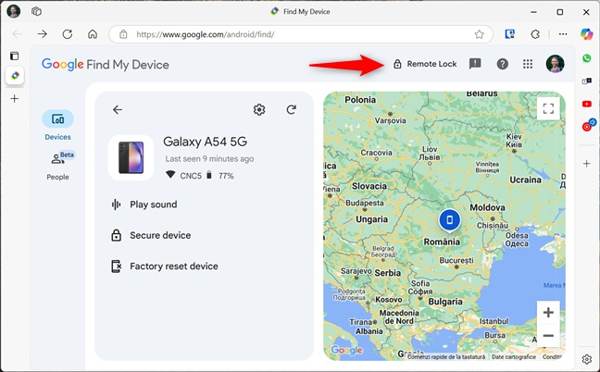
Go to www.google.com/android/find in a browser.
Log in to the Google account linked with your phone.
Choose your device.
Clique no Remote Lock botão.
Defina uma nova senha.
Now, unlock your phone with the new password.
Part 2: How to Unlock an Android Phone PIN by Factory Reset
If you cannot remember the password for your Android phone, you can factory reset it using Google's Find Hub app. The process removes all data on your Android device, including screen locks.
Benefícios
- 1.Remove screen locks on Android.
- 2.Factory reset devices remotely.
Downside
- 1.You must have turned on Find My Device on your phone.
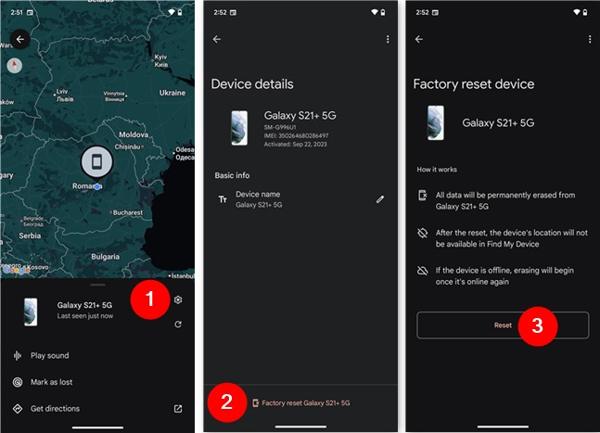
Execute o Encontre meu dispositivo app on a borrowed phone.
Log in to the associated Google account and password.
Choose your locked phone.
Toque em Definições botão.
Bater Factory reset [your phone].
Leia a notificação e toque em Redefinir.
You May Also Like:
Part 3: How to Unlock an Android Phone Password in Recovery Mode
If you forgot the lock screen password on your Android phone or tablet, you can put it in Recovery Mode and reset it. This way will clear all data on your device and custom settings, including the PIN.
Benefícios
- 1.Unlock Android without a computer.
- 2.Remove Android screen locks.
Downside
- 1.Clear all data on your device.
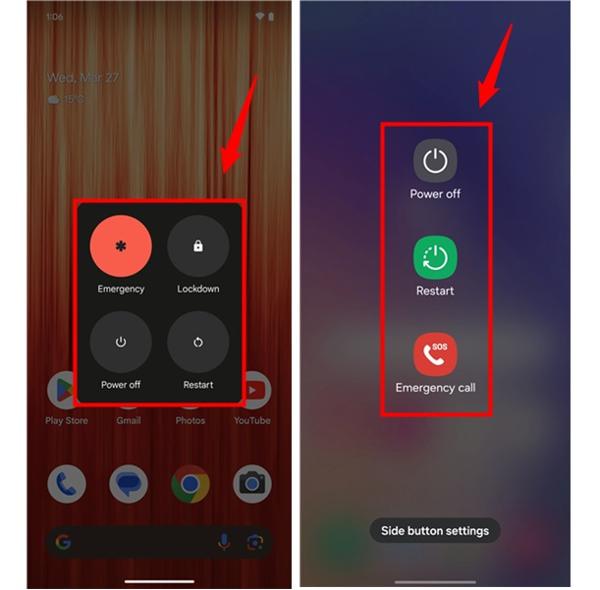
Pressione e segure o Poder botão.
Escolher Power off or a similar option to shut down your phone.
For Samsung, hold the Aumentar o volume + Poder botões juntos.
For Pixel, hold the Volume baixo + Poder botões simultaneamente.
For Motorola, hold the Volume baixo + Poder botões.
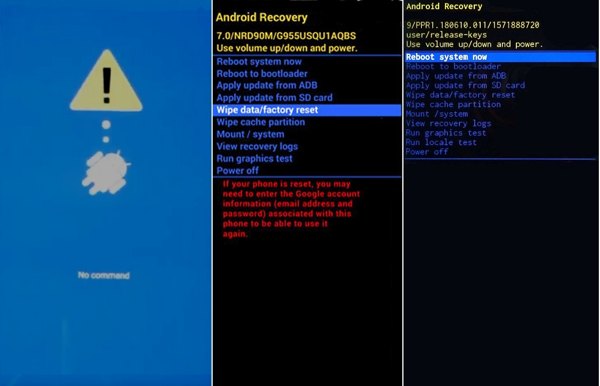
Selecionar Limpar dados / reinício fábrica with the volume buttons, and press the Poder botão.
A seguir, selecione Sim e pressione Poder Para iniciar o processo.
When it is done, select Reinicie o sistema agora e pressione Poder.
Part 4: How to Unlock an Android Phone Without a Password
Can you unlock an Android phone if you forgot the PIN and the associated Google password? Yes, all you need is imyPass AnyPassGo. It is able to remove any type of screen lock from an Android phone or tablet without any restrictions. The intuitive interface makes it easy to navigate.
Mais de 4.000.000 de downloads
Unlock an Android device in 3 steps.
Remove PINs, passwords, patterns, fingerprints, and more.
Don’t require a password or restriction.
Ignorar bloqueio FRP without your Google password.
Support almost all Android brands and models.
How to Unlock Your Android Phone When You Forget the PIN
Install the Android unlock tool
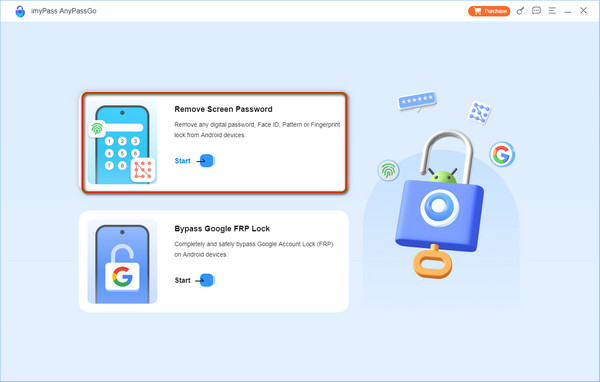
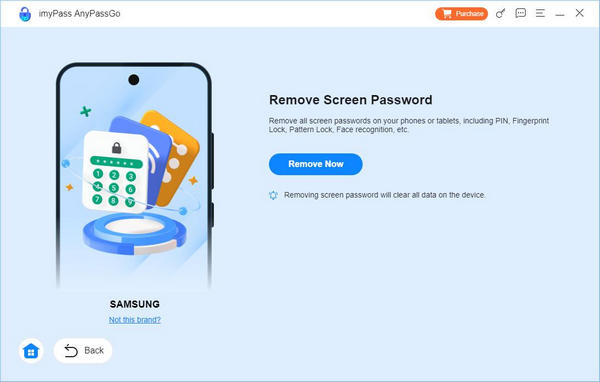
Run the Android unlocking tool once you install it on your computer. Choose the Remover senha da tela mode to continue. If your phone is locked by FRP, choose the Ignorar bloqueio do Google FRP mode instead.
Detecte seu telefone
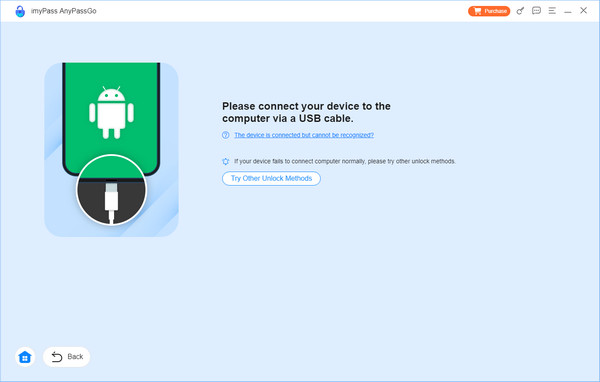
Choose your phone brand on the window. Link your Android phone to your computer with a USB cable. After trusting this computer, the software will detect your device.
Desbloqueie seu dispositivo
Clique no Remover agora button to initiate removing the forgotten PIN on your Android tablet or phone immediately. During the process, keep your device connected. When it is done, your phone will restart automatically.
Observação:
The process will clear all your data. You'd better back up your device before the process.
Conclusão
This guide explained what to do if you forgot your Android password. Android devices allow you to enter a wrong password a few times. Then, users will be locked out. Fortunately, you have multiple ways to regain access to your device. The remote lock feature on Google Find My Device, for example, lets you set a new PIN and unlock your device with it. imyPass AnyPassGo allows you to remove the PIN from your Android device with one click.
Gideon writes about unlocking iOS, Android, and Windows devices. He previously worked as a mobile device specialist in a repair center, assisting customers with locked devices and password recovery. In his spare time, he tests new unlock tools, customizes smart devices and makes complex unlock processes simple and safe.
Soluções quentes
-
Desbloquear Android
-
Desbloquear iOS
-
dicas de senha
-
Dicas para iOS