Solução
 Centro de Apoio
 Sobre nós
 Contato
How to Unlock Huawei Lock Screen Without Password – 5 Easy Methods
 Gideon Byron publicado em outubro 23, 2026Desbloquear AndroidLeitura de 3 minutos
Forgot your Huawei phone's screen lock password? First, check if you can still unlock it with your fingerprint or face, or if you're using the wrong user space. If you've truly forgotten the password, don't worry. This guide covers five ways to unlock a Huawei phone. Read on to learn how to use each method and get back in your Huawei phone!

Neste artigo:
Quick Comparison of the 5 Huawei Unlock Methods
| Método | Needs a computer | Erases data | Pré-requisitos | Melhor para |
| AnyPassGo | Sim | Sim | USB cable, supported model and system version | Users who want an easy and fast tool |
| Find My Phone | Não | Sim | HUAWEI ID signed in, Find Device enabled, phone online | A phone you cannot touch but that is still online |
| Hard reset via Recovery Mode | Não | Sim | Working physical buttons | Any Huawei phone |
| Forgot Pattern Option | Não | Não | Google account, older Android models only | Legacy Huawei phones running old EMUI |
| Huawei Customer Service | Não | Depends on the case | Proof of purchase, HUAWEI ID, device IMEI | Methods above failed |
Method 1: Unlock Huawei Phone Without Password
When you cannot recall the password, an Android unlocking tool is the most direct option. imyPass AnyPassGo can remove different types of screen locks on Huawei models, covering numeric PIN, password, pattern and biometrics recognition. It also handles a range of other Android brands, including Google, LG, Lenovo, Oppo, Xiaomi, Infinix, and more.
Download imyPass AnyPassGo from its official website and install it on your computer, then launch the program.
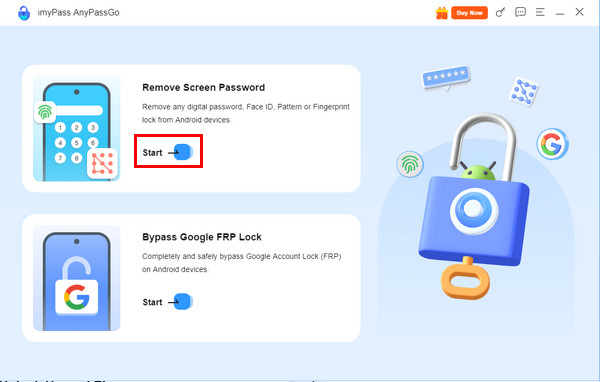
Clique Remover senha da tela in the main interface, or click the Começar button beneath it.
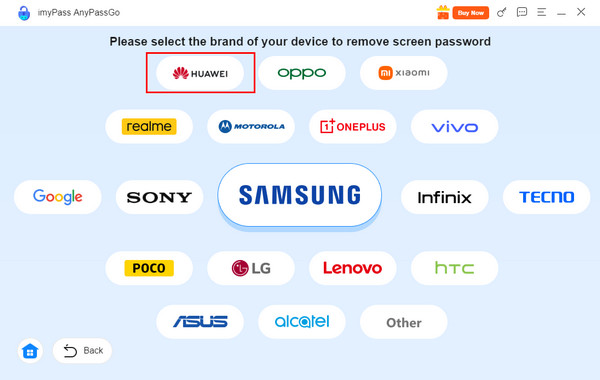
Select your phone brand - Huawei - from the brand list at the top of the interface.
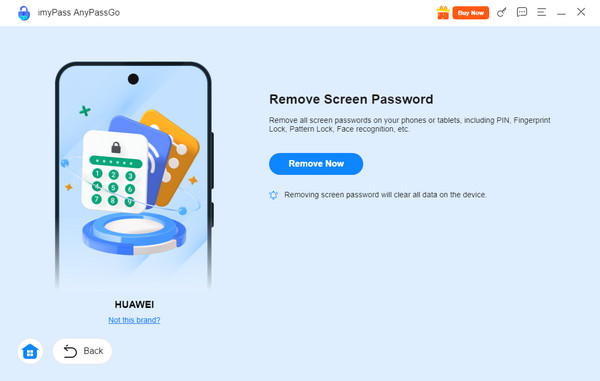
Connect your Huawei phone with a compatible USB cable, then click Remover agora on the right. Follow the on-screen prompts to begin removing the forgotten lock.
Method 2: Unlock Huawei Phone via Find My Phone
Find My Phone (also called Find Device) is Huawei's remote management feature. It can track your lost or misplaced Huawei phone, lock it remotely, and erase it. The erase function is a remote wipe what people usually rely on when they are locked out, and it works for pattern, numeric and alphanumeric lock types. Without a HUAWEI ID on the phone, the method is not available at all.
Open cloud.huawei.com on any browser and sign in with the HUAWEI ID bound to the locked phone. Select Encontrar dispositivo no painel esquerdo.
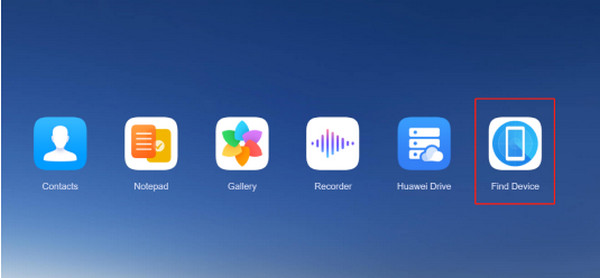
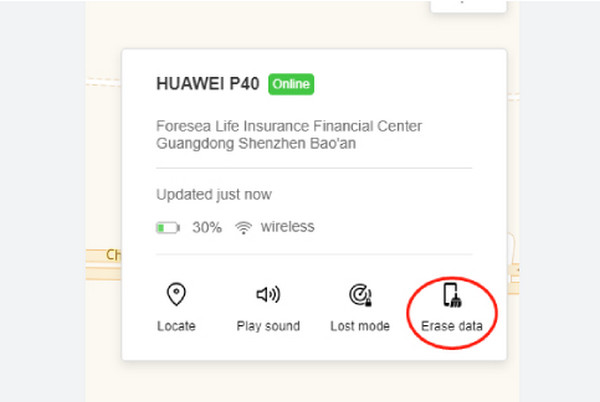
Localize o nome do telefone Huawei, onde você esqueceu a senha. Depois disso, você verá mais opções para o telefone Huawei. Selecione Apagar dados botão na tela principal para prosseguir.
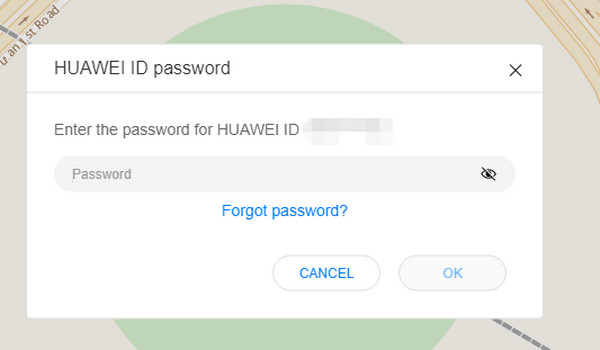
O recurso exigirá que você insira a senha do ID Huawei da caixa pequena. Dessa forma, você poderá autenticar o procedimento. Digite a senha corretamente e clique em OK botão para confirmar o processo.
Method 3: Unlock Huawei Phone with a Hard Reset
Recovery Mode is built into the phone, so it works even when the screen is locked. You can unlock Huawei phone by putting it into Recovery Mode. The button combination varies slightly by model, and Mate 30 Pro, Mate 30 RS and Mate 30E Pro have no physical volume keys — on those, press the Power button five times in a row after the boot vibration instead.
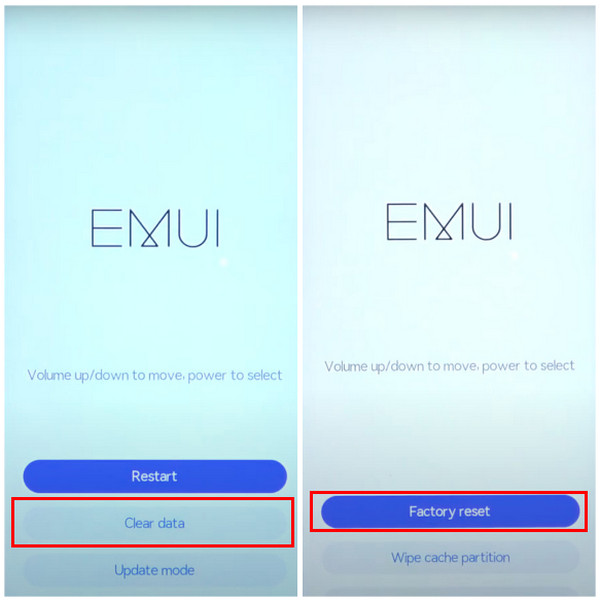
Suppose that your Huawei phone is turned on. Use the volume keys to highlight Limpar dados e pressione Poder to confirm. Touch input is disabled in some Recovery builds, so use the hardware keys instead.
o Modo de recuperação screen will appear on the screen. There will be four options from the main interface. Use the volume keys to highlight Limpar dados e pressione Poder to confirm. Touch input is disabled in some Recovery builds, so use the hardware keys instead.
A nova tela mostrará outro conjunto de opções. Selecione a Redefinição de fábrica Selecione o botão da lista usando os botões físicos. Depois disso, a tela da Huawei deverá aparecer, indicando que a reinicialização forçada foi concluída.
Method 4: Unlock Huawei Phone Using Forgot Pattern Feature
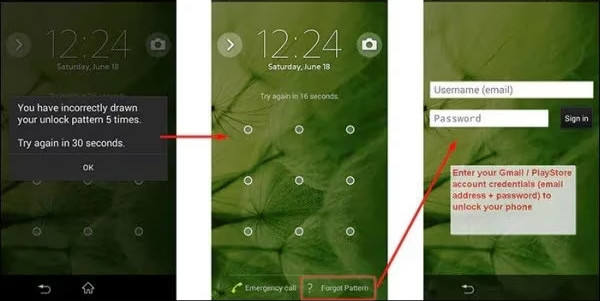
Older Android phones had a Forgot Pattern/Forgot Password option on the lock screen. You could remove Huawei phone screen lock with this feature with a Google account already signed in. This method only works on some older models, so it isn't available on HarmonyOS devices. What's more, the technique can also be used to desbloquear telefones Samsung, Oppo e outras marcas.
Abra seu telefone Huawei e digite as senhas erradas consecutivamente. Em seguida, você verá uma pequena janela na tela. Toque em OK botão no centro para prosseguir. Um novo conjunto de opções será exibido na parte inferior.
Toque em Esqueceu o padrão/senha button at the bottom right. Then, you are required to enter the Google account associated with the Huawei phone. Tap the Entrar button to unlock the Huawei phone.
Method 5: Ask Huawei Customer Service for Help
If none of the methods work, contact Huawei Support for help. If your volume button is broken, your HUAWEI ID is dead, or your phone is stuck on the activation lock screen, you can give it a try. You can contact support through the Huawei Care website, phone, live chat, or email, or visit a service center. Before you reach out, prepare your proof of purchase, IMEI number, and any account details you remember.
Conclusão
There are five ways to desbloquear um celular Huawei, but only the old Forgot Pattern option can unlock it without erasing your data. Other methods may erase your data or require account details, so backing up your data regularly is necessary. If you're unsure which method to use, just try imyPass AnyPassGo to unlock Huawei screen lock without password!
Gideon writes about unlocking iOS, Android, and Windows devices. He previously worked as a mobile device specialist in a repair center, assisting customers with locked devices and password recovery. In his spare time, he tests new unlock tools, customizes smart devices and makes complex unlock processes simple and safe.
Soluções quentes
-
Desbloquear Android
-
Desbloquear iOS
-
dicas de senha
-
Dicas para iOS