Solução
 Centro de Apoio
 Sobre nós
 Contato
Delete Google Account in Phone to Remove Unnecessary Accounts
 Gideon Byron publicado em abril 02, 2026Desbloquear AndroidLeitura de 3 minutos
Android phones have multiple built-in applications, services, and features that you can use. But Google allows you to use additional services if you sign in to your account on your Android phone. It includes Google Play Store, Google Photos, Google Calendar, and more. However, some Android phone users need to delete the Google account. It might be due to inactive accounts, unnecessary accounts, and more.
How to remove a Google account from a phone? This article will help you achieve the procedure smoothly using the three easy methods it offers. Kindly scroll below to know all the details about the interesting topic.
Neste artigo:

Part 1. Before You Remove: Warning & Checklist
Before removing the Google account on your Android phone, it is recommended to back up your data. This way, you will not experience any data loss after the process. Also, ensure that you know your Google account password, as you might need to sign in to it again. Below are the outcomes when you erase the Google account from the phone.
1. Loss of Access to Google Services
Google offers additional services for your Android phone. It includes Google Drive, Google Photos, Google Calendar, Google Play Store, and more. These free services are helpful for users who want to add more functions to their Android phones. However, their services will be removed when you eliminate the Google account from the mentioned device.
2. Removal of Synced Data
The data stored on your Google account can be synced to different Android phones. It includes documents, photos, videos, audio, and more. However, these data will be removed from your Android phone if you sign out or remove the Google account. There is nothing to worry about because the data will not be deleted from the account. It will only be removed from the Android phone. You can still access the data when you sign in to the associated Google account again.
3. Inaccessible Subscriptions and Purchases
The Google account is used for purchasing different services, primarily from the Google Play Store. The purchased services or subscriptions will be inaccessible when the Google account is removed. So, you need to consider them so as not to be wasted.
4. Backup and Sync Processes Will Stop
Backing up and syncing your data is one of the most common procedures your Google account can perform. However, these procedures will automatically stop when the Google account is removed from your Android phone. It is better to wait for them to finish before you remove it. In this case, there will be no data loss after the Google account removal.
5. Google Factory Reset Protection (FRP) Will Be Removed
Google Factory Reset Protection, or FRP lock, is used to protect unauthorized access after the factory reset of your Android phone. Leaving no Google account on your Android phone will put it at risk of unauthorized access.
Part 2. How to Remove a Google Account (The Normal Way)
The Google account is commonly removed to prevent the Google FRP lock from being encountered. It happens after the factory reset of the mentioned device. If the Google account information is unknown, you need to ignorar o bloqueio do Google to regain access.
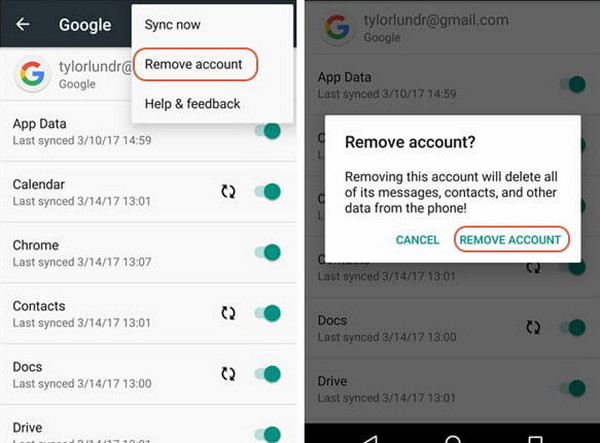
In this section, the normal way of removing the Google account will be included. The Settings app is the primary requirement of the process. Ensure that the Google account password is known to surpass the authentication process. Learn how to disconnect a Google account from a phone with the steps below.
Grab your Android phone and select the Definições aplicativo do Tela inicial section to open it. After that, swipe down on the screen and select the Contas button. Tap the mentioned button again and choose the Google account you need to remove.
You will be asked for confirmation. Please enter the Google account password. A small window will be shown. Please select the Remover conta button at the bottom right to confirm and start the Google account removal from your account.
Part 3. How to Remove a Google Account by Resetting
Besides manually removing the Google account on Samsung, Oppo, Vivo, and other Android phone brands, factory resetting it can also delete it. However, the Google FRP lock will be accessed before setting up the Android phone again. You will need the credentials of the main Google account used before the factory reset.
Do you have the account credentials? If yes, there will be no worries after removing the Google account from an Android phone. Please follow the instructions below to know the correct process.
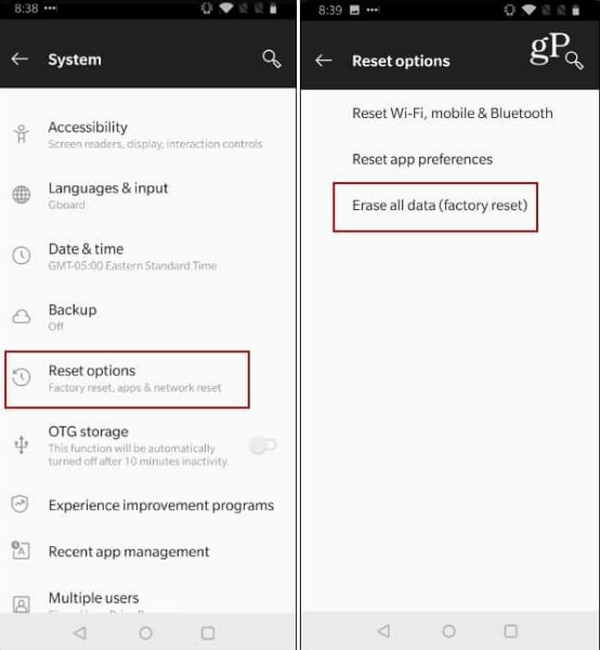
Vá para o Definições app on your Android phone. After that, please choose the Sistema button from the options list that will appear on the screen. Then, please tap the Reset Options botão na próxima tela.
Por favor, toque no Erase All Data (Factory Reset) button on the next screen. You will be asked for the data you can delete. Please tap the Redefinir telefone button at the bottom. Finally, confirm and start the factory reset process on your Android phone by tapping the Apagar tudo botão.
Part 4. How to Remove a Google Account Without a Password
However, what if the Google account password is unknown and you cannot proceed with the Google account removal? imyPass AnyPassGo can help you! This tool will remove the Google account from your Android phone that causes the Google FRP lock. The procedure will delete all the data and settings your Android phone contains. It is better if you back up your Android phone data first before using the tool. This way, you can safely save your data and settings from the mentioned device.
Oppo, Vivo, Xiaomi, Samsung, and Alcatel are some of the popular brands this tool supports. Their earlier and latest Android OS versions are also supported.
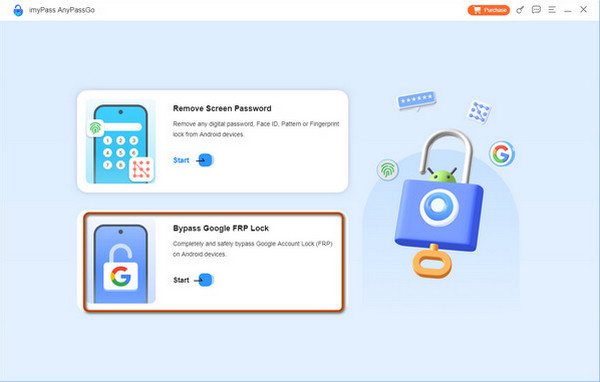
Por favor, baixe imyPass iPassGo from its website for a safer download process. Locate the file and set it up afterward. Install the file from a small window. Then, the tool will be automatically opened.
Clique no Começar botão sob o Ignorar bloqueio do Google FRP button. You will also see the description of the feature.
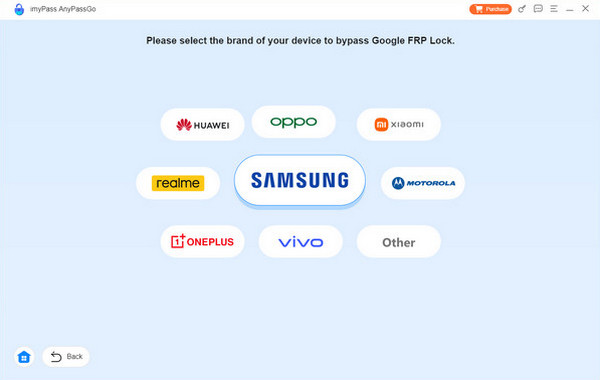
Please select the Android phone brand that you have. Plug your Android phone into a computer with a compatible USB cable afterward. Follow the on-screen instructions to enter your Android phone to its Depuração USB mode. Finally, click the OK option to finish the process.
Conclusão
Em conclusão, você pode delete a Google account on a phone using Apple and third-party ways. The checklist and warning details about removing the account are also included. imyPass AnyPassGo is also here to help you bypass the Google FRP lock on an Android phone. You may download the tool on your computer to explore its other features.
Gideon writes about unlocking iOS, Android, and Windows devices. He previously worked as a mobile device specialist in a repair center, assisting customers with locked devices and password recovery. In his spare time, he tests new unlock tools, customizes smart devices and makes complex unlock processes simple and safe.
Soluções quentes
-
Desbloquear Android
-
Desbloquear iOS
-
dicas de senha
-
Dicas para iOS