Solução
 Centro de Apoio
 Sobre nós
 Contato
All about Universal Unlock PIN for Android Phone or Tablet
 Gideon Byron publicado em agosto 25, 2026Desbloquear AndroidLeitura de 3 minutos
Keeping data on your phone or tablet safe is essential because it saves a lot of private photos and files. The lock screen password is designed to protect your data and privacy on your Android device. If you forgot the lock screen password, you will be locked out of your device. This article explains whether you can unlock your phone or tablet with a universal unlock PIN for Android.

Neste artigo:
Part 1: Is There a Universal Unlock PIN for Android
Is there a universal unlock PIN for all Android devices? No, there is no universal unlock PIN for Android. Any claim of a universal unlock code or master code that works for all devices is a lie.
It cannot be denied that old versions of Android support secret codes. However, since Android 5.0, Google has eliminated the secret codes to prevent unauthorized access and enhance security.
Furthermore, there is a wide variety of Android brands. They all customize the operating systems for their products, including the screen locks. Obviously, the universal unlock PIN for Android is unavailable to all devices. In short, there is no universal PIN.
Part 2: How to Unlock an Android Phone Without a Universal PIN
Way 1: How to Unlock PIN on Android Without Losing Data
One easy way to unlock a PIN on an Android phone without losing data is the remote lock feature on Google Find My Device. This way requires that you have turned on Find My Device and Use Remote Lock on your device.
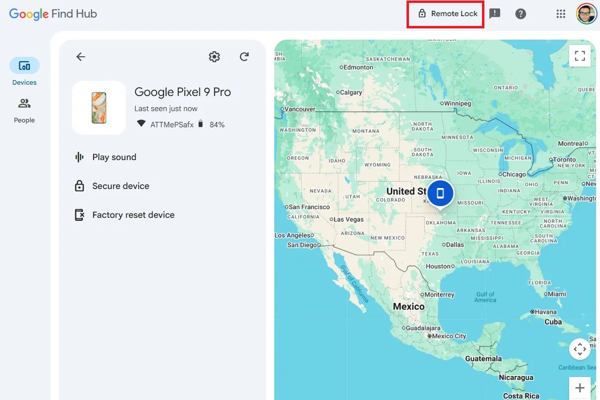
Go to www.google.com/android/find/ in a web browser.
Log in to the Google account and password linked to your device.
Choose your device under the Meus Dispositivos seção.
Clique no Remote Lock botão.
Defina uma nova senha.
Turn to your phone and unlock it with the new password.
Way 2: How to Unlock Android Phone Password by Google Find Hub
If you have set up Find My Device on your Android device, you can unlock your Android phone's password using the Find My Device app on another phone or tablet. This way requires the associated Google account and password. Bear in mind that the process will clear all data on your device.
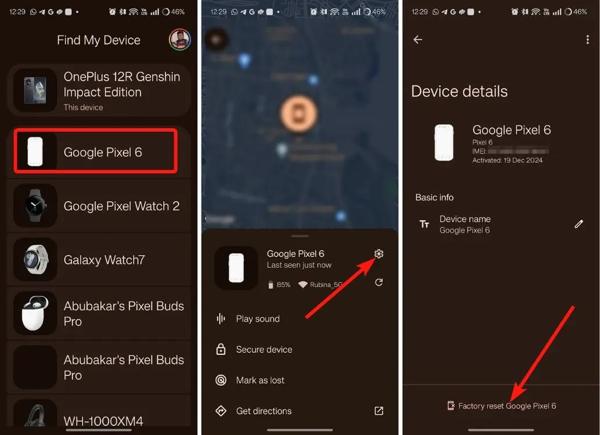
Install the Find My Device app on another Android device.
If you don't have a secondary device, borrow one and install the app from the Google Play Store for free.
Open the app and sign in with your Google account.
Vou ao Dispositivos tab and choose your phone.
Toque em Definições botão com um ícone de engrenagem.
Toque em Factory reset [your phone] botão.
Leia a notificação e toque em Redefinir para confirmá-lo.
When the process finishes, your device will restart automatically.
You May Also Like:
Way 3: How to Unlock PIN on Android in Recovery Mode
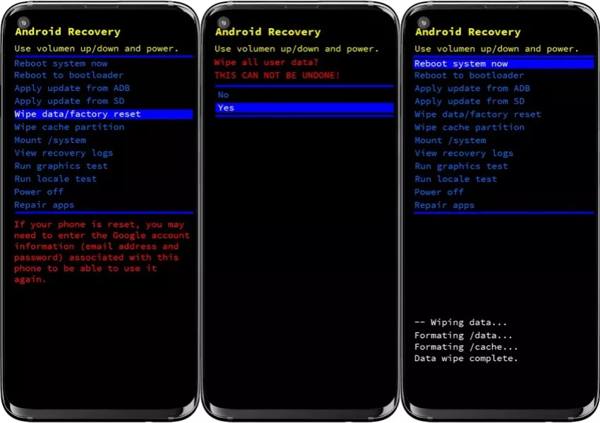
Another way to unlock the PIN on your Android device is to factory reset your phone or tablet in Recovery Mode. This way doesn't require extra software or hardware, but all your data will be deleted.
Pressione e segure o Poder botão.
Toque em Power off or similar option to shut down your device.
For Samsung, hold the Aumentar o volume + Poder botões juntos.
For other Android devices, hold the Volume baixo + Poder botões simultaneamente.
When the bootloader menu appears, release the buttons.
Selecione os Limpar dados / reinício fábrica option with the volume buttons and press the Poder botão para confirmar.
Quando solicitado, selecione Sim e pressione o Poder botão.
Selecionar Reinicie o sistema agora e pressione Poder after the process.
Part 3: How to Unlock Android PIN Without Restrictions
If you forgot your password and haven't turned on Find My Device, you will need a powerful unlock tool, such as imyPass AnyPassGo. It is able to remove the screen password and unlock the Android PIN easily and quickly.
Mais de 4.000.000 de downloads
Unlock Android devices in 3 steps.
Unlock PINs, passwords, patterns, fingerprints, and more.
Easy to use and offers on-screen instructions.
Bypass Google FRP Lock without your Google account.
Support almost all Android brands and models.
How to Unlock Your Android PIN Easily
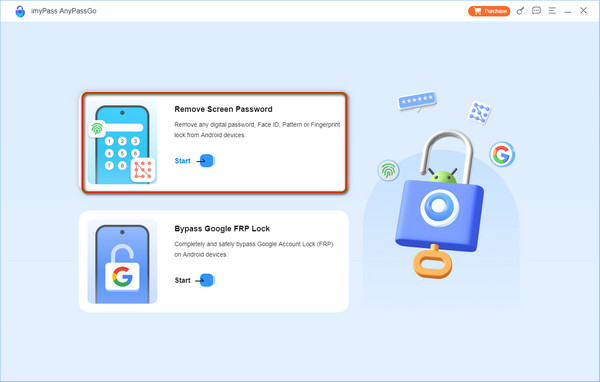
Install Android unlocker
Launch the Android unlock software after installing it on your computer. Choose the Remove Screen Password mode to move on.
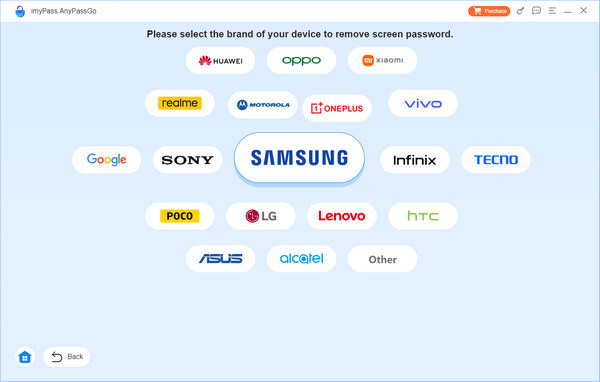
Step 2: Connect to your phone
Choose your device brand in the interface. Connect your phone to your computer with a USB cable. If prompted, tap Confiar to trust your computer.
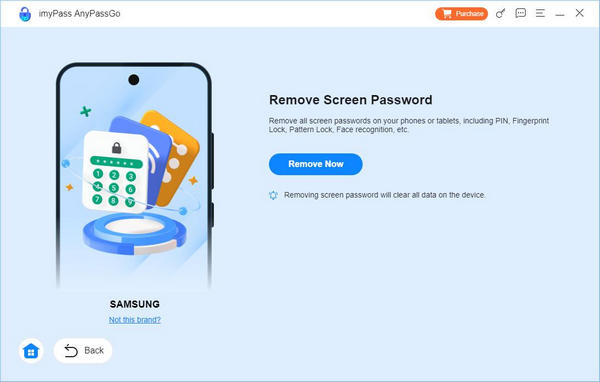
Step 3: Unlock Android PIN
Once your device is detected, click on the Remover agora button to begin unlocking the PIN on your Android device immediately.
Conclusão
This article answered whether there is a secret code to unlock an Android phone's password. Moreover, you should learn the proven methods to unlock your smartphone or tablet when you forgot your PIN. You can pick an appropriate method and follow the steps to regain access to your device. imyPass AnyPassGo is a good option for beginners due to the intuitive design.
Gideon writes about unlocking iOS, Android, and Windows devices. He previously worked as a mobile device specialist in a repair center, assisting customers with locked devices and password recovery. In his spare time, he tests new unlock tools, customizes smart devices and makes complex unlock processes simple and safe.
Soluções quentes
-
Desbloquear Android
-
Desbloquear iOS
-
dicas de senha
-
Dicas para iOS