



 Solução
 Centro de Apoio
 Sobre nós
 Contato
Resolve iPhone Passwords Not Working to Regain Access to Your Data
 Samuel Spenser publicado em abril 28, 2026Desbloquear iOSLeitura de 3 minutos
Have you experienced an issue wherein the iPhone passcode is not working? This issue rarely happens, but it does. Encountering this issue is one of the most frustrating experiences you could ever have on the iPhone. If you come to think of it, you are providing the correct passcode, but the iPhone is not accepting it due to different causes.
Eyes here! This article will help you determine causing the mentioned problem. The immediate procedures you can perform are also included to fix the issue immediately. Please continue browsing the post to know the information that can help you with the problem.

Neste artigo:
Part 1. Immediate Try This First Steps
When the iPhone passcode suddenly stops working, it is stressful because you cannot access it. There are immediate methods that can be used to fix the issue quickly. View the list below to discover them.
1. The Force Restart
A force restart happens when the combination of physical buttons is made. It is commonly used for issues with iPhones that have a broken screen, an unresponsive screen, etc. Every iPhone model has different ways of force restarting. See them below.
• iPhone 8 and Later Versions: Pressione e solte o Aumentar o volume button quickly. Please do the same with the Volume baixo button. Push and hold the Lado physical button until the Apple Logo is seen.
• iPhone 7: Push and hold the Volume baixo e Dormir/Despertar button. Wait until the Apple Logo is prompted.
• iPhone 6s and Earlier Versions: Pressione e segure o Dormir/Despertar e Lar buttons. Release them when the Apple Logo is seen.
2. Try Older Passcode (iOS 17+)
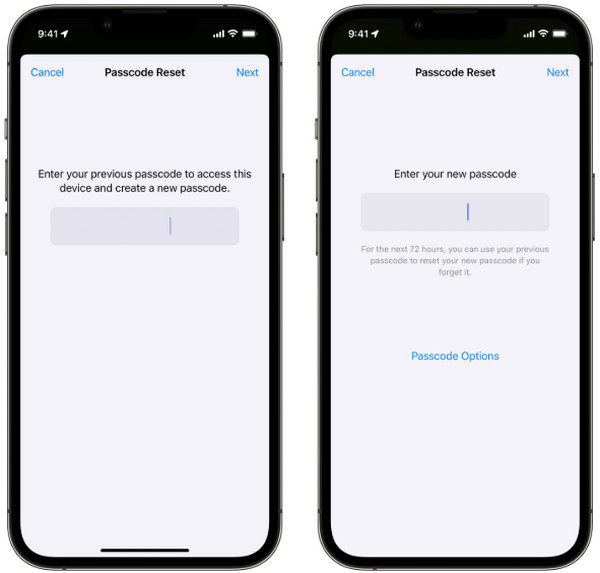
If you recently changed the iPhone passcode, try the old one. After 5 failed attempts, tap the Esqueci a senha button and enter your previous passcode to set a new one within 72 hours. Ensure that the iPhone has iOS 17 or later versions. Old ones do not have the feature. You can also use it to change your passcode afterward.
3. Check for Obvious Issues
The screen protector or case can also cause the passcode of the iPhone not to work. So, you can try to remove them. Additionally, there might be a typographical error when entering the passcode due to a wet or dry screen. Clean it with a dry cloth. If you use Touch ID, you can try using a different finger.
Part 2. Understanding Why This Happens
There are countless reasons the iPhone passcode may not be working. All of them are software issues needed to be known and fixed right away. See them from the list below.
1. iPhone Passcode Not Working After Update
Updating the iPhone is good for getting the latest versions it offers. However, after the iOS update, the iPhone forces passcode entry. Face ID and Touch ID are deactivated temporarily. It is just mandatory at this stage, and you need to wait for a few minutes.
2. iPhone Passcode Not Working to Reset Password / For Apple ID
The iPhone passcode will not work to reset the password or Apple ID because it might be the old one. It is the common reason for this issue. Alternatively, it is also possible that the iPhone passcode has expired.
3. Falhas de software
Software glitches are temporary bugs in the iOS. This issue happens sometimes and can be fixed by restarting or force-restarting the iPhone.
Part 3. Advanced Solutions (If Restarting Doesn't Work)
If the simple procedures from the previous section do not work, it is time to use the advanced solutions. Below are the three best ways that can help you erase the iPhone when the passcode is not working. See them from the list below.
1. imyPass iPassGo
imyPass iPassGo can wipe your iPhone to remove its screen lock passcode. It could be the numeric, Face ID, Touch ID, and alphanumeric. It is a third-party tool that uses a USB connection for the unlocking process, which helps you to finish the procedure in a few minutes only! Additionally, it supports most of the iOS versions of iPhone, including the earlier and latest versions.
Besides screen lock, the tool can also be used to bypass the iPhone MDM, Screen Time, Apple ID, and iTunes backup encryption settings password. Do you want to know how to use the tool? Refer to the steps below.
Open your trusted browser and download imyPass iPassGo on your computer. You may visit the official website to do that. Then, set up, install, and open the tool to start the unlocking process for your iPhone.
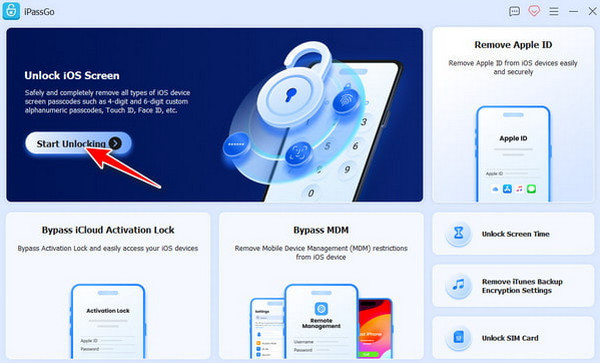
Por favor selecione o Comece a desbloquear button from the first interface. Then, plug the iPhone into your computer using your USB cable. Click the Comece agora button to proceed. Then, the tool will download the firmware package.
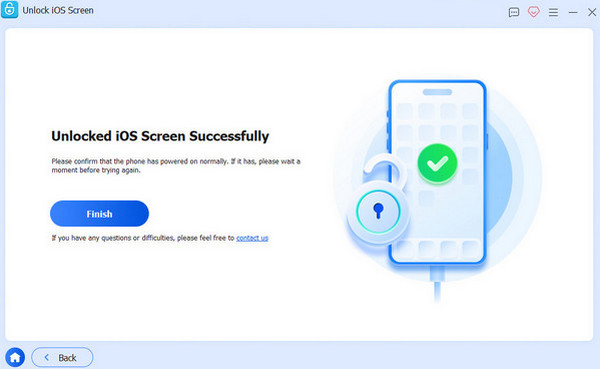
Clique no Começar a remover button on the next screen. Please click the Confirm Again option at the bottom to start unlocking your iPhone. Finally, click the Terminar button to end the unlocking process.
2. Reset Without a Computer (Erase iPhone)
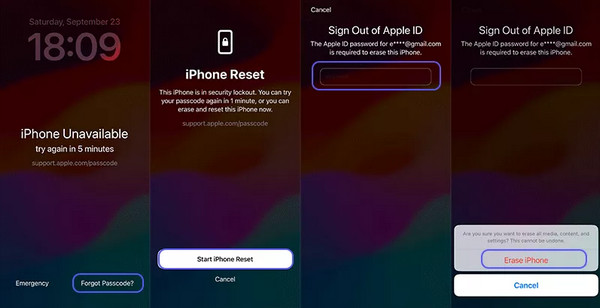
Due to multiple wrong passcode attempts, the iPhone might be locked out. So, erasing it is the primary solution to unlock it. The Erase iPhone feature will help you with this issue. The Apple ID that is associated with the locked-out iPhone is the only requirement you need. It does not need a computer to be performed. Also, it is commonly used for other security issues on your iPhone. It can be used when there is nenhuma opção para Esqueci a senha do Tempo de Uso issue. Anyway, reset a locked iPhone with the steps below.
Toque em Esqueci a senha button at the bottom right. Tap the Redefinição do iPhone button and enter the Apple ID password at the top.
Toque em Apagar iPhone button at the bottom. Later, the erasing process will start immediately.
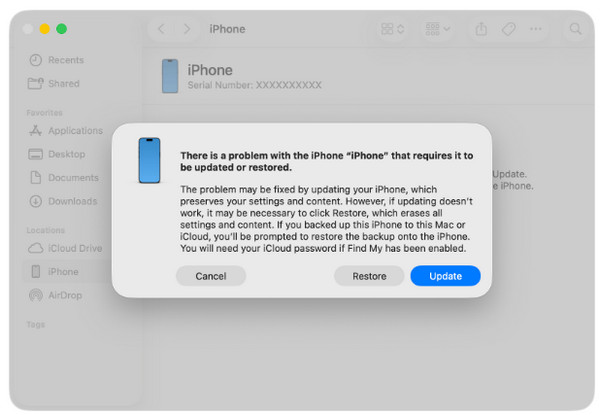
3. Reset Using a Computer (Recovery Mode)
Alternatively, you can use a computer to unlock your iPhone. It needs the help of Finder and iTunes to use recovery mode. It is the professional method when the iPhone cannot be unlocked, or the screen does not function. The steps below will guide you.
Put your iPhone into recovery mode. Open iTunes ou localizador. Plug your iPhone into the computer.
A small window will appear. Select the Restaurar button from the small window that will appear. Then, confirm the process to start unlocking your iPhone.
Part 4. How to Avoid This in the Future
The iPhone passcode is important to access it, including your data. To prevent this from happening, you must use a memorable yet secure passcode. Also, always make a backup for your iPhone as a safety net. Even though the iPhone passcode does not work at all, you can still retrieve your data.
Furthermore, you need to update the iOS because it sometimes encounters glitches. It is also recommended to restart your iPhone regularly to resolve temporary bugs.
Conclusão
Passcode not working on iPhone? This article helps you to resolve and determine the issue immediately. imyPass iPassGo can be used to bypass the iPhone passcode when forgotten or not working. The tool can also be operated for bypassing Screen Time, MDM, and other security features. Downloading it will help you experience these additional features.
Samuel specializes in password security and digital privacy. He used to work as a cybersecurity consultant for small businesses to protect digital assets. With certifications in Cybersecurity and Ethical Hacking, he turns complex security topics into easy-to-follow advice. He also enjoys sharing password tips to help users protect their accounts more confidently.
Soluções quentes
-
Desbloquear iOS
-
Dicas para iOS
-
Desbloquear Android
-
dicas de senha


