



 Solução
 Centro de Apoio
 Sobre nós
 Contato
What Happens After 10 Failed Passcode Attempts on iPhone
 Samuel Spenser publicado em maio 09, 2026Desbloquear iOSLeitura de 3 minutos
Apple suggests that users protect their iPhones with lock screen passcodes. To prevent accidental entry, you can enter wrong passcodes several times. However, unauthorized access will be refused, and your device will be locked temporarily. For iPhone users, it is essential to understand how many attempts to unlock an iPhone. To avoid permanently disabling an iOS device, we share a concrete guide about this topic.

Neste artigo:
Part 1. How Many Attempts to Unlock iPhone
According to Apple and our tested, you can enter the wrong passcode up to 5 times in a row without any lockout. From then on, your device will be temporarily locked. It means that you cannot try unlimited passcode attempts on your iPhone.
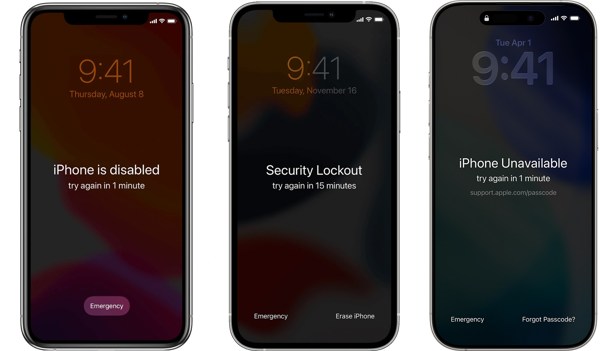
After the 6th wrong attempt, the iPhone will be locked for 1 minute.
After the 7th wrong attempt, the iPhone will be locked for 5 minutes.
After the 8th wrong attempt, the iPhone will be locked for 15 minutes.
After the 9th wrong attempt, the iPhone will be locked for 1 hour.
After the 10th wrong attempt, the iPhone will be permanently locked out and disabled.
Part 2. How to Turn off Failed Passcode Attempts on iPhone
Can you turn off failed passcode attempts on iPhone? Unluckily, there is no built-in way to disable the iPhone's passcode lockout feature in your iPhone settings. Depending on your iOS software version, you will see iPhone is disabled, Connect to iTunes, iPhone Unavailable or Security lockout after 10 incorrect attempts. Without jailbreaking your iPhone, you can only get rid of this feature by turning off the passcode.
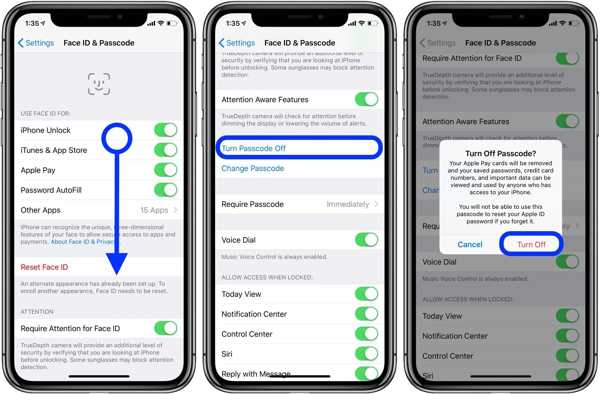
Abra o Definições aplicativo no seu iPhone.
Role para baixo e escolha ID facial e senha.
If prompted, enter your passcode.
Toque Desativar senha.
Next, choose Turn Off on the confirmation dialog.
Part 3. What to Do After 10 Failed Passcode Attempts on iPhone
What happens after 10 failed passcode attempts on your iPhone is determined by your settings. Anyway, you can regain access to your device after erasing the iPhone. The process can start automatically or manually according to your settings.
How to Automatically Erase iPhone After 10 Failed Passcode Attempts
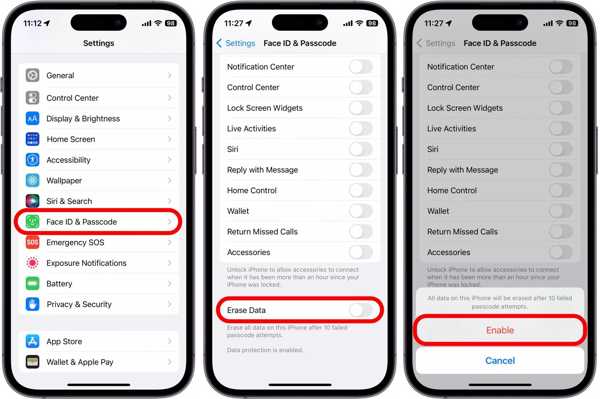
Vamos para ID facial e senha dentro Definições.
Enter your iPhone passcode to proceed.
Scroll down and toggle on Erase Data.
Quando solicitado, escolha Habilitar.
Now, your iPhone data will automatically be erased after 10 failed passcode attempts.
How to Manually Erase iPhone After 10 Failed Passcode Attempts
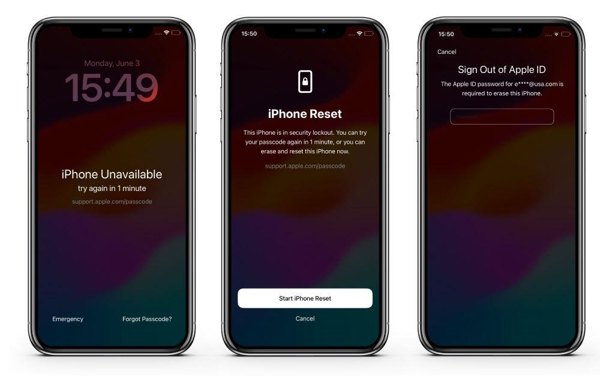
If you didn't enable Apagar dados, the Security Lockout screen will be triggered.
Toque em Esqueci a senha ou Apagar iPhone opção na parte inferior.
Escolher Iniciar reinicialização do iPhone ou Apagar iPhone to proceed with Restaurando as configurações de fábrica do seu iPhone.
Next, enter your Apple ID password to initiate erasing your iPhone.
Part 4. How to Unlock iPhone After 10 Failed Passcode Attempts
If you have forgotten your Apple ID password, you cannot erase your iPhone after 10 failed passcode attempts. Fortunately, imyPass iPassGo can help you resolve this problem. It is able to unlock any iOS device without a password or technical skills.

Mais de 4.000.000 de downloads
Remove iPhone screen locks without a password.
Work for digit passcodes, Face IDs, and Touch IDs.
Available to locked and disabled iPhones.
Ofereça recursos de bônus, como Screen Time bypassing.
Support a wide range of iPhones and iPad devices.
How to Unlock Your iPhone After 10 Failed Passcode Attempts Without a Password
Install iPhone unlocker
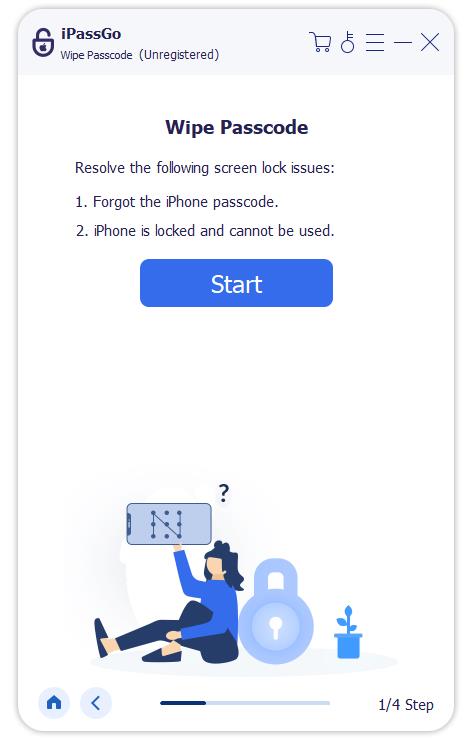
Launch the iPhone unlocking software after you install it on your computer. It is compatible with Windows 11/10/8/7 and macOS 10.12 or above. Connect your iPhone to your computer with a Lightning cable. Make sure to trust your computer. Choose the Limpar senha mode to proceed..
Verifique as informações do iPhone
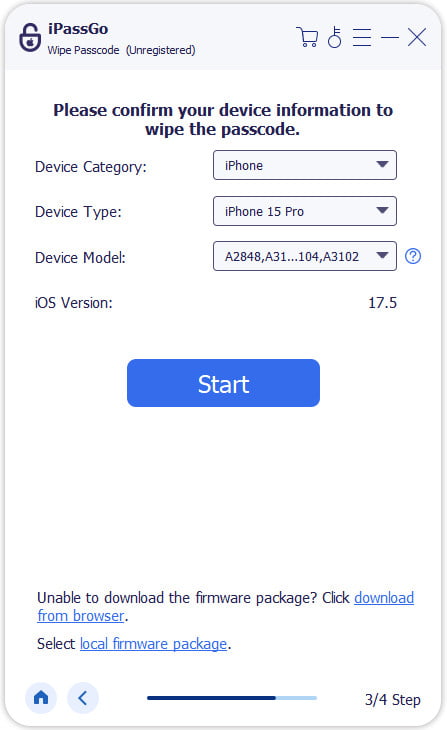
Depois que seu dispositivo for detectado, clique em Começar button to load the device information. Then, hit Começar para baixar o pacote de firmware.
Unlock the locked iPhone
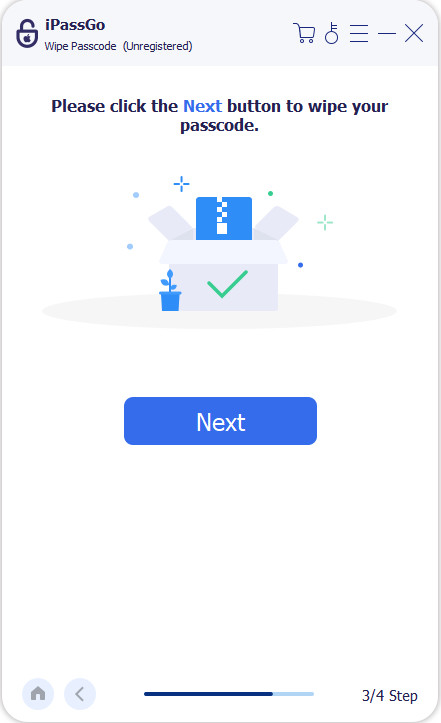
After firmware downloading, click the Desbloquear button to continue. Read the warning message and confirm the unlocking again. Next, follow the onscreen instructions to ensure the process. When it is done, your iPhone will restart, and you can unlock it directly.
Observação:
The process will erase your iPhone, so you'd better make a backup before unlocking it.
Conclusão
Este artigo explicou what happens after 10 failed passcode attempts on an iPhone. You cannot input unlimited incorrect passcode attempts. Instead, your device will be temporarily or permanently locked out if you enter the wrong passcodes multiple times. To protect your data, your iPhone will be automatically or manually erased after it is unavailable or disabled. imyPass iPassGo is the ultimate solution to regain access to your iPhone after 10 failed passcode attempts, even if you forgot your Apple ID password.
Samuel specializes in password security and digital privacy. He used to work as a cybersecurity consultant for small businesses to protect digital assets. With certifications in Cybersecurity and Ethical Hacking, he turns complex security topics into easy-to-follow advice. He also enjoys sharing password tips to help users protect their accounts more confidently.
Soluções quentes
-
Desbloquear iOS
-
Dicas para iOS
-
Desbloquear Android
-
dicas de senha


