



 Solução
 Centro de Apoio
 Sobre nós
 Contato
How to Turn off Time Limit on iPhone With or Without Passcode
 Samuel Spenser publicado em agosto 06, 2026Desbloquear iOSLeitura de 3 minutos
Have you ever gotten interrupted by Time Limit on iPhone? Maybe you set a screen limit to keep yourself from getting addicted to smartphones, or maybe you're with a used iPhone that has parental controls on certain apps. The intentions were good, but now the limit is bringing you trouble. Don't worry, from this article you will learn how to disable Time Limit on iPhone facilmente.

Neste artigo:
Part 1. What Is Time Limit on iPhone
Time Limit restricts the daily usage time of specific apps or the phone itself. It is designed to prevent users from getting distracted by their iPhones during work, or for parents to change parental controls on their kids' iPhones.
App Time Limit
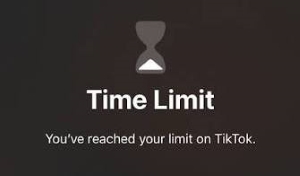
This type of Time Limit only restricts the usage of certain apps. When you reach the limit, the app is automatically locked, and the iPhone displays a notification that reads "You've reached your limit on [App]". But other apps can still be used normally.
Screen Time Limit
Screen Time Limit controls the time spent on the device as a whole. This means anything you do on your iPhone counts. Once the limit is reached, your iPhone gets locked. Parents often set this limit to avoid their kids from getting addicted to phones. You may also be bothered by Screen Time Limit because you set it up long ago and forgot to turn off, or it was set by the previous owner on a used iPhone.
Part 2. How to Turn off Time Limit on an iPhone App
Abrir Definições e toque Tempo de tela.
Selecionar Limites de aplicativos. Tap on the app you want to remove the limit for, then tap Limite de exclusão.
Your iPhone will ask if you're sure you want to delete this limit. Tap Limite de exclusão novamente para confirmar.
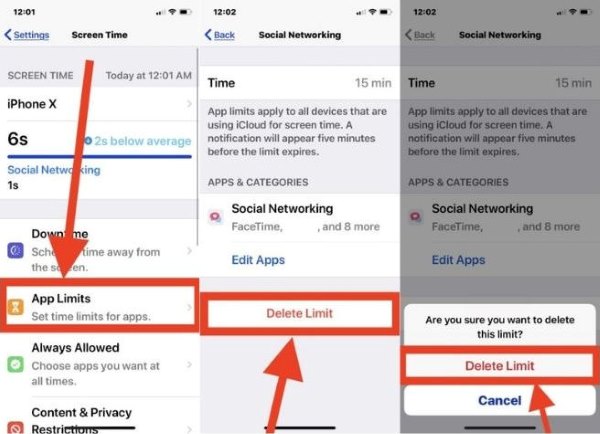
Now the App Limit is successfully removed. You can use that app freely without restrictions.
Part 3. How to Remove Screen Time Limit with Passcode
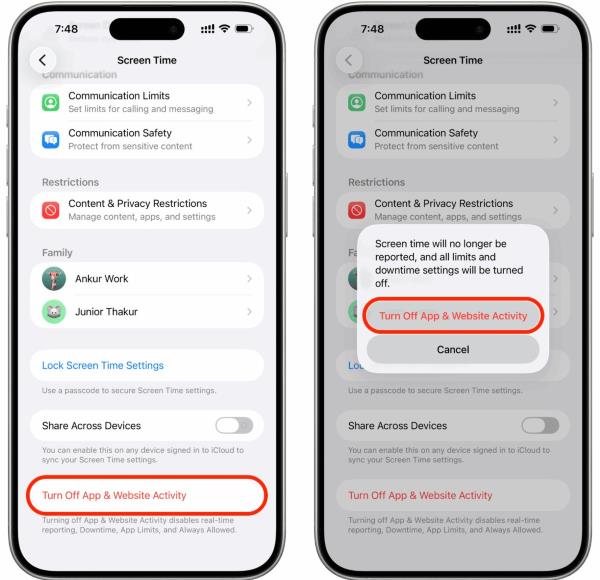
Abrir Definições e depois Tempo de tela.
Scroll to the bottom, and there's an option titled Desativar atividade de aplicativos e sites. Tap on it, and tap it again on the pop-up notification to confirm.
You are likely asked for your Tempo de tela passcode, which is a 4-6 digit PIN. After entering the passcode, your Screen Time is disabled.
Part 4. Passcode Lost: How to Reset
You can't turn off Screen Time Limit without the passcode it asks for. But even if you don't know the passcode, you can still achieve your goal by setting a new one.
Abrir Definições e vai para Tempo de tela > Alterar senha de tempo de tela. On the notification window that pops up, tap Alterar senha de tempo de tela de novo.
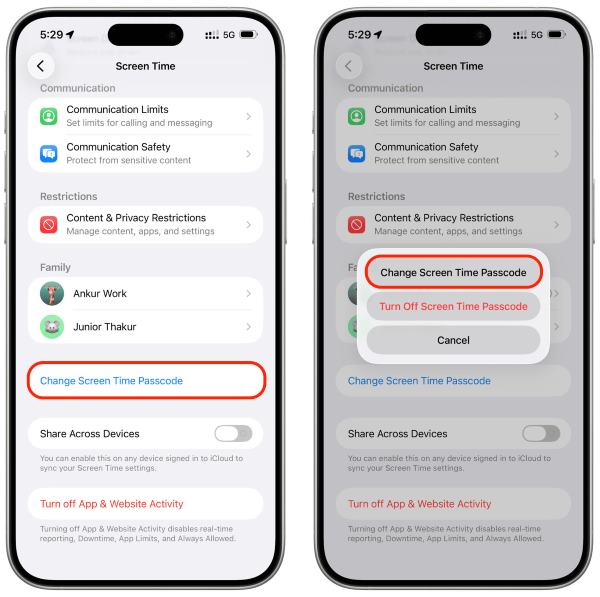
When it asks you for the passcode, tap Esqueci a senha.
Then you are required to verify your Apple ID or phone number to make sure you are authorized for this change. Do as told.
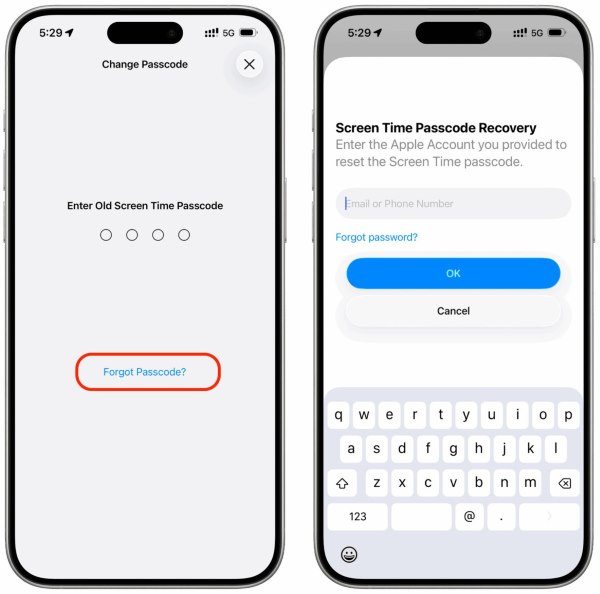
Now you can set a new Time Limit passcode. With a valid passcode, you can continue to turn off Screen Time Limit by following the steps in Part 3.
What if you have no idea what the Apple ID or phone number is? You can still remove Time Limit with the method in the next part.
Part 5. How to Get Rid of Time Limit Without a Passcode
imyPass iPassGo can bypass almost all types of locks and restrictions on an iPhone, including a Time Limit, without a passcode. Dedicated to helping non-techy users, imyPass iPassGo offers a simple UI and workflow. You can unlock Time Limit with only a few clicks.

Mais de 4.000.000 de downloads
Unlock Screen Time Limit without any passcode or phone number.
Simple operation with no data loss.
Support iPhone/iPad and multiple iOS versions.
Work smoothly and securely in all scenarios.
Você precisa desativar o Buscar meu iPhone before unlocking.
Download and install imyPass iPassGo on your Windows or Mac.
Connect your iPhone to the computer using a cable and launch the software. Click Desbloquear tempo de tela on the right side of the window.
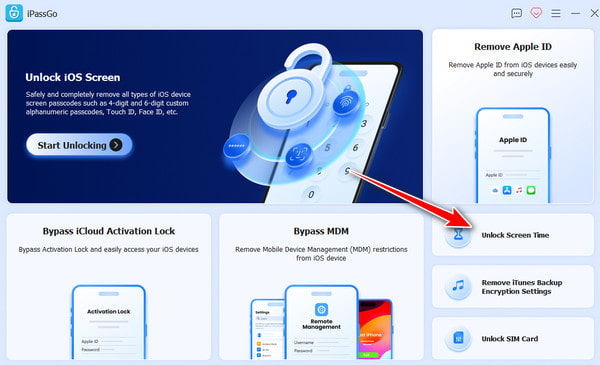
iPassGo recognizes your device info for you to confirm. After confirmation, click the Começar button, and the software will automatically remove the passcode.
Conclusão
Now you've mastered how to remove Time Limit on iPhone apps or on screen. Turning off App Limit is easy, while removing Screen Limit requires passcode to verify. If you forget the passcode, you can either reset it or use imyPass iPassGo to remove the limit directly without loss.
Samuel specializes in password security and digital privacy. He used to work as a cybersecurity consultant for small businesses to protect digital assets. With certifications in Cybersecurity and Ethical Hacking, he turns complex security topics into easy-to-follow advice. He also enjoys sharing password tips to help users protect their accounts more confidently.
Soluções quentes
-
Desbloquear iOS
-
Dicas para iOS
-
Desbloquear Android
-
dicas de senha


