



 Solução
 Centro de Apoio
 Sobre nós
 Contato
Complete Guide to Set Up & Turn Off Downtime on iPhone
 Samuel Spenser publicado em setembro 16, 2026Desbloquear iOSLeitura de 3 minutos
Want to reduce the time you spend on your iPhone? Downtime can help you limit app usage during specific hours. But how to disable Downtime if it's set by others or you forgot the passcode? This guide explains Downtime on iPhone and shows you how to use Downtime, manage its settings, and desligar o tempo de inatividade no iPhone.

Neste artigo:
Part 1: What is Downtime on iPhone
Downtime feature is part of Screen Time, which is available on iOS 12 or later. It works alongside features such as Focus Mode, Screen Time, and App Limits to help manage iPhone usage.
Downtime iPhone lets you schedule a specific period when most apps are restricted. During the scheduled period, you can only use the apps you have marked as "Always Allowed." You can also control which contacts you can communicate with during Downtime.
Downtime is different from APP Limits. It restricts most apps during a specific period, while App Limits sets a daily usage limit for individual apps. However, if App Limits is not working and apps are still available after reaching the limit, you may need to check your Screen Time settings.
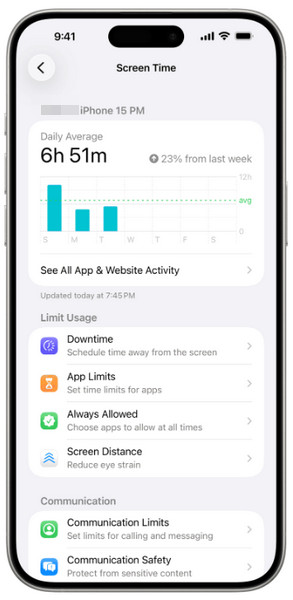
Part 2: How Does Downtime Work on iPhone
You can use Downtime in Screen Time to schedule your bedroom, work and study hours. Follow the steps to set up Downtime on your iPhone.
Abrir Definições e toque Tempo de tela.
Toque Tempo de inatividadee ative-o.
Escolher Every Day to use the same Downtime schedule each day, or tap Personalizar dias to set different start and end times for different days.
Volte para Tempo de tela e toque Sempre permitido. Add the apps you can open during Downtime, such as Phone, Messages, or other essential apps.
Part 3: What Does Block at Downtime Mean
Block at Downtime is an option in Screen Time that strictly limits your app usage. When it is turned on, apps that Downtime restricts are blocked as soon as the scheduled Downtime begins. You cannot open these apps or receive notifications from them until the Downtime period ends. This feature is particularly useful when you want to avoid being distracted by certain apps.
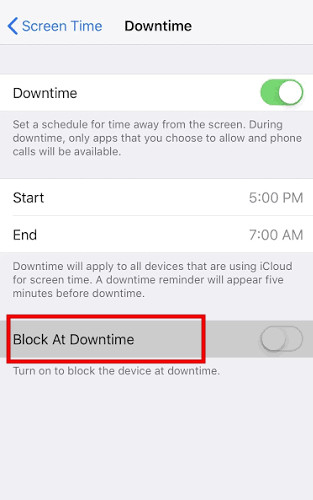
Part 4: How to Turn Off Downtime on iPhone
If you no longer need Downtime to restrict your apps, you can turn it off. If Downtime is managed through Family Sharing, you may need permission or the passcode to turn it off.
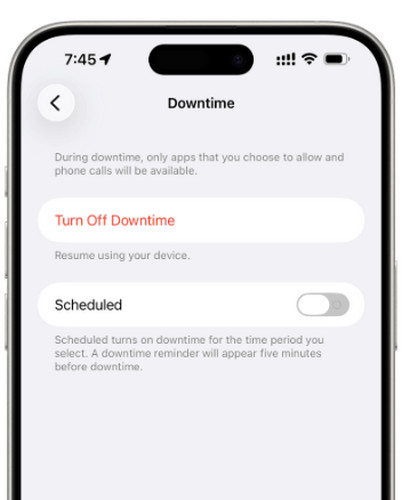
Abrir Definições, escolher Tempo de tela, em seguida, toque em Tempo de inatividade.
Toque Desligar o tempo de inatividade. If there is a schedule on, simply toggle Agendado off to disable the schedule.
If you want to schedule Downtime for specific periods, toggle on Agendado, then set the desired time range for Downtime.
Part 5: How to Bypass Downtime on iPhone Without Passcode
If an app is blocked at Downtime and you need to use it before the scheduled period ends, you need to turn off Downtime on iPhone with the password. But what if you forgot the Screen Time passcode or the Downtime is set by others and you don't know it? You may need a professional tool to bypass Downtime without passcode.
imyPass iPassGo is an iOS unlocker designed to help remove Screen Time passcodes and other iOS locks without passcode. Whether the Downtime is set by yourself or through Family Sharing, you can easily remove the restrictions using this software!

Mais de 4.000.000 de downloads
Turn Off Downtime on iPhone without passcode.
Remove Screen Time passcode without data loss.
Unlock any type of iOS lock in various situations.
Work on the newest iOS devices and versions.
Launch the software and choose the Desbloquear tempo de tela mode. Connect your device to a computer with a USB cable.
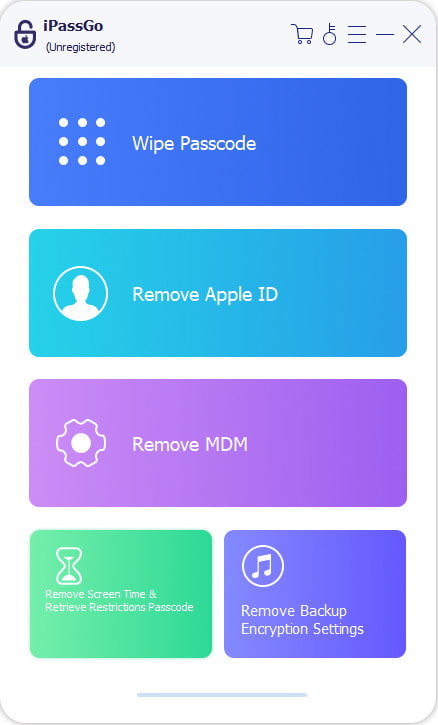
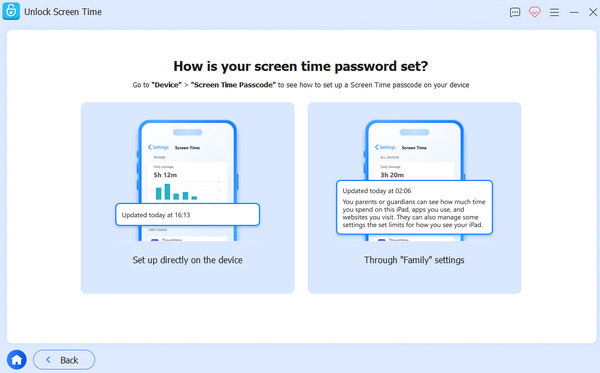
Choose how your screen time password is set.
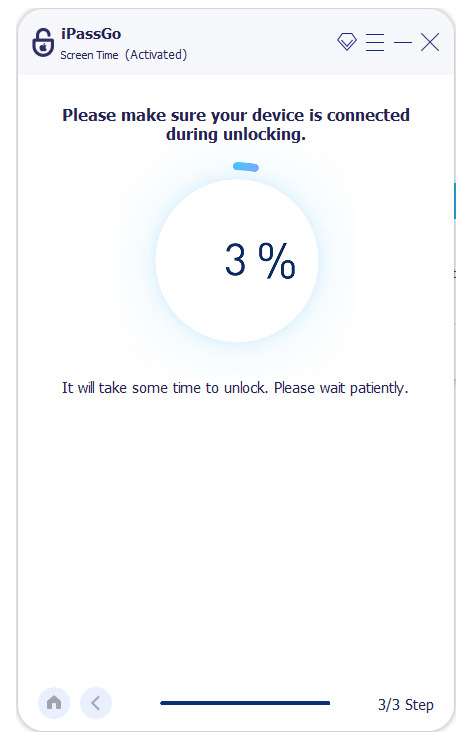
Follow the instructions to turn off Find My and make sure that the two-factor authentication is enabled. Then, click the Desbloquear button to bypass the Downtime passcode.
Perguntas frequentes.
-
Why can't I turn off Downtime on iPhone?
If you can't turn off Downtime, you may need to enter your Screen Time passcode. If Downtime is managed by a parent through Family Sharing, you may also need permission to change it.
-
Can I set two or more Downtime schedules in one day?
No. You can set one Downtime period per day. However, you can choose different start and end times for different days using Personalizar dias.
-
Can I temporarily turn off Downtime?
Yes. You can turn off the Agendado opção em Settings > Screen Time > Downtime. This stops Downtime from following your regular schedule until you turn it on again.
-
Does Downtime block calls and messages?
Downtime does not have to block calls and messages. You can keep Phone, Messages, and other essential apps available by adding them to Sempre permitido.
Conclusão
Now you should know what is Downtime on iPhone and how it works. You can set a schedule, manage allowed apps, and turn off Downtime when you don't need it. If you forget your Screen Time passcode, don't worry. Try this Screen Time remover - imyPass iPassGo to remove Downtime restrictions without password!
Samuel specializes in password security and digital privacy. He used to work as a cybersecurity consultant for small businesses to protect digital assets. With certifications in Cybersecurity and Ethical Hacking, he turns complex security topics into easy-to-follow advice. He also enjoys sharing password tips to help users protect their accounts more confidently.
Soluções quentes
-
Desbloquear iOS
-
Dicas para iOS
-
Desbloquear Android
-
dicas de senha


