



 Solução
 Centro de Apoio
 Sobre nós
 Contato
How to Turn off Restrictions on Your iPhone Quickly
 Samuel Spenser publicado em outubro 22, 2026Desbloquear iOSLeitura de 3 minutos
As its name suggests, Restrictions on an iPhone let you manage app usage and content access. As an essential part of parental controls in the Apple ecosystem, many parents set up Restrictions on their kids' iOS devices. When your kid grows up, you have to turn off Restrictions on iPhone. This guide will walk you through the steps to regain full access to your device, even if you forgot the Screen Time passcode.

Neste artigo:
Part 1: What Are the Restrictions on iPhone
Restrictions, also known as Content & Privacy Restrictions, are not an independent functionality on iPhone. They are Screen Time settings that let you limit access to specific apps, services, and content types on iOS devices. It controls which apps you can use and when you can use them.
Restrictions are useful for parents managing kids' devices or for anyone who hopes to enhance privacy and security. What Restrictions can do include:
- Control app installation and deletion.
- Restrict explicit music, movies, and websites.
- Manage privacy settings, such as location services and contacts.
- Prevent changes to device settings, such as the lock screen passcode.
Part 2: How to Turn off Restrictions on iPhone
When it released iOS 12, Apple completely changed the Restrictions feature. Therefore, the processes for switching off Restrictions on iPhone differ depending on your iOS version.
How to Stop Restrictions on iOS 12 and Later
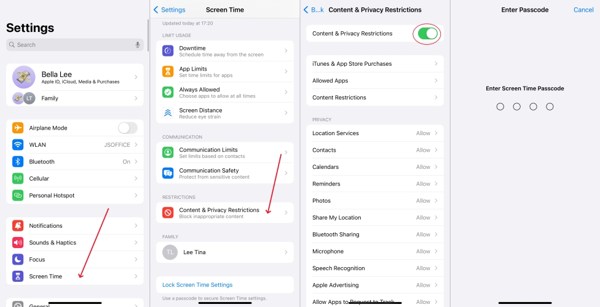
Execute o Definições aplicativo na tela inicial.
Escolha o Tempo de tela entrada.
Toque em Restrições de conteúdo e privacidade opção.
Desligar Restrições de conteúdo e privacidade.
Next, enter the Screen Time passcode to stop restrictions on your iPhone.
How to Turn off Web Content Restrictions on Your Child's iPhone
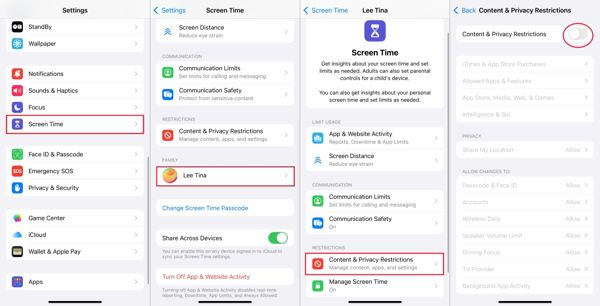
Turn on the organizer's iPhone and open the Definições aplicativo.
Escolha o Tempo de tela entrada.
Press your child's name under the Família seção.
Toque em Restrições de conteúdo e privacidade opção.
Switch off Restrições de conteúdo e privacidade.
Input your passcode to turn off web content restrictions on your child's iPhone.
How to Disable Restrictions on iOS 11 and Earlier
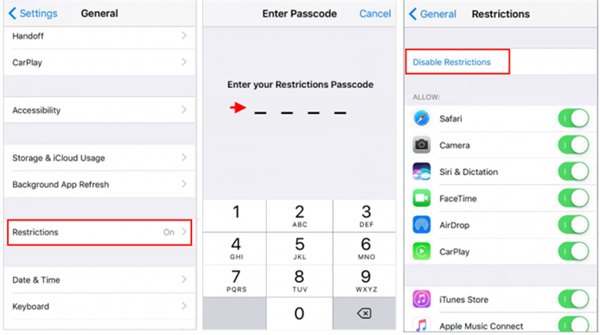
Vou ao Definições aplicativo.
Navegar para Em geral e Restrições.
Offer the Restrictions passcode.
Toque Desativar restrições.
If prompted, enter the passcode again to confirm disabling Restrictions on your iPhone.
Part 3: How to Turn off Specific Restrictions on iPhone
Restrictions almost cover all apps and services on iPhone. In other words, you can turn off web content restrictions on iPhone while keeping other apps, services, privacy, and content restrictions.
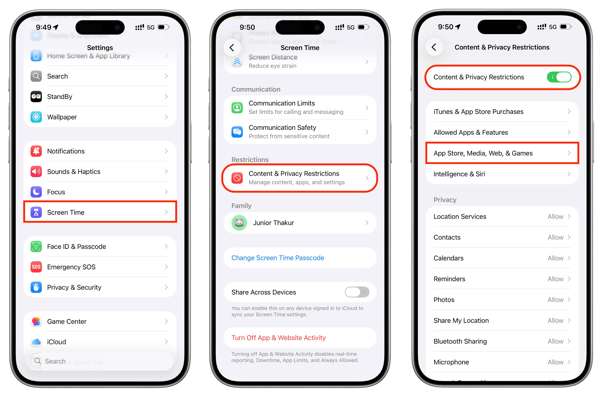
Vá para sua Definições aplicativo.
Dirigir a Tempo de tela e Restrições de conteúdo e privacidade.
Make sure to toggle on Restrições de conteúdo e privacidade.
Now, you can turn off specific restrictions. To turn off app restrictions on iPhone, for example, choose Allowed Apps & Features, select the desired app, and turn it off.
When prompted, enter your Screen Time passcode to confirm your action.
Observação:
Consider which restrictions you really want to disable. Some might be useful to keep for personal management. Be aware that removing restrictions will turn off content filtering, so be cautious about what content you keep accessible.
Part 4: How to Remove Restrictions on iPhone When You Forgot the Passcode
Se você esqueceu sua senha do Screen Time, you cannot remove Restrictions on iPhone. Fortunately, Apple allows you to reset the Screen Time passcode with your Apple Account and password.
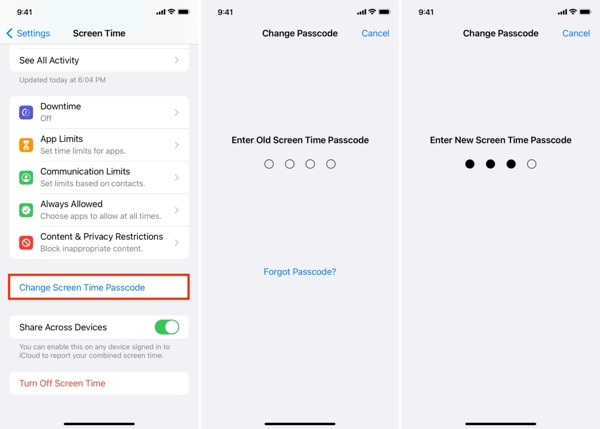
Vamos para Definições e Tempo de tela.
Toque em Alterar senha de tempo de tela botão.
Selecionar Alterar senha de tempo de tela de novo.
Toque em Esqueci a senha opção.
Enter your Apple Account and tap OK.
Input your Apple Account password and hit OK.
Set a new passcode for Screen Time.
Now you can turn off content restrictions on your iPhone using the new passcode.
Part 5: How to Turn off Restrictions on iPhone Without a Passcode
If your iPhone is managed by work or school MDM, you cannot turn off Restrictions. Moreover, you need your Apple Account password or Screen Time passcode to turn on or off Restrictions on an iOS device. Fortunately, imyPass iPassGo allows you to bypass the Screen Time passcode and completely stop Restrictions on your iPhone. It won't ask for a password during the process. Moreover, the streamlined design simplifies the workflow.

Mais de 4.000.000 de downloads
Completely turn off Restrictions on an iPhone or iPad.
Ignorar a senha do Tempo de Tela during the process.
Protect your data on your iPhone without erasing it.
Offer on-screen instructions to remove restrictions in one click.
Suporte às versões mais recentes do iOS e iPadOS.
How to Turn off Restrictions on iPhone Without a Password
Install iPassGo
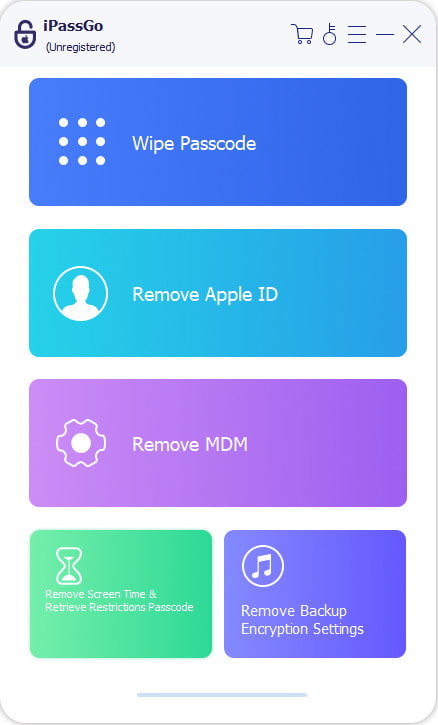
Launch the Restrictions removal tool once you install it on your computer. It is available on Windows 11/10/8/8.1/7 and macOS 10.12 or above. Choose the Desbloquear tempo de tela modo para continuar.
Conecte seu iPhone
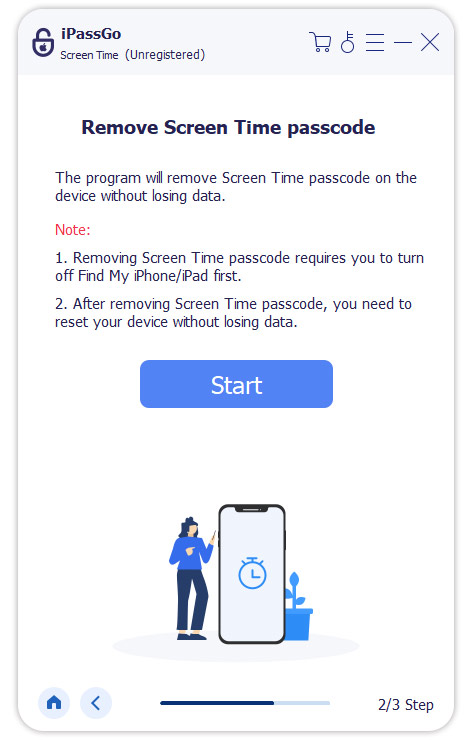
Link your iPhone to your computer using a Lightning cable. When prompted, tap Confiar on your screen to trust this PC. Once the software detects your device, your device information will be loaded. Click the Comece agora botão para seguir em frente.
Turn off Restrictions on your iPhone
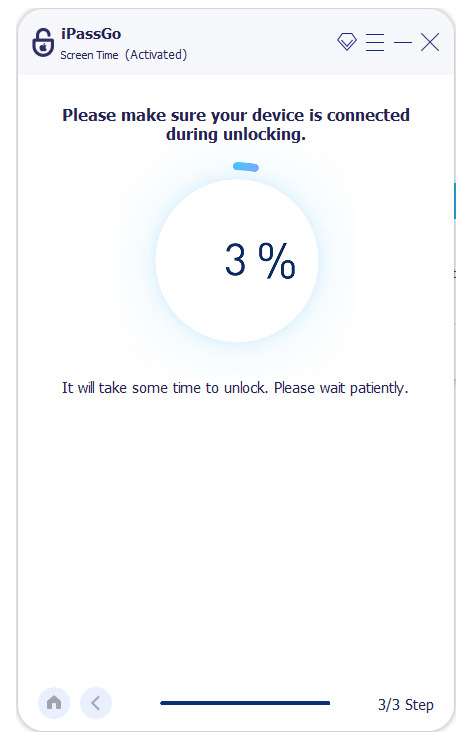
Follow the onscreen instructions to set your Screen Time passcode. Moreover, make sure that Find My iPhone is disabled on your device while Two-factor authentication is enabled. Finally, click the Desbloquear button to initiate the process. During the process, keep your iPhone connected.
Conclusão
Este guia discutiu how to turn off the Restrictions on your iPhone in different situations. Firstly, you can turn off all restrictions on your iOS device to gain full access to features, apps, services, and web content. Moreover, you can turn off restrictions for specific content and apps according to your preference. If you forgot the Screen Time passcode and Apple Account password, imyPass iPassGo can help you get rid of restrictions quickly.
Samuel specializes in password security and digital privacy. He used to work as a cybersecurity consultant for small businesses to protect digital assets. With certifications in Cybersecurity and Ethical Hacking, he turns complex security topics into easy-to-follow advice. He also enjoys sharing password tips to help users protect their accounts more confidently.
Soluções quentes
-
Desbloquear iOS
-
Dicas para iOS
-
Desbloquear Android
-
dicas de senha


