



 Solução
 Centro de Apoio
 Sobre nós
 Contato
How to Unlock Frozen iPhone With or Without Resetting iPhone
 Samuel Spenser publicado em maio 09, 2026Desbloquear iOSLeitura de 3 minutos
Freezing is a common problem on almost any iOS device. It may happen in a variety of situations, like you are watching YouTube, posting a large image on Instagram, or sharing a large file. The iPhone screen becomes slow and unresponsive. As a result, you cannot interact with your device or use any feature. Of course, you can fix this problem quickly. However, you need to unlock a frozen iPhone first. This guide shares multiple proven methods.

Neste artigo:
Part 1. Why an iPhone Is Frozen
Before walking through the ways to unlock a frozen iPad or iPhone, let's learn why this problem happens. In fact, there is not always an obvious cause. Nevertheless, according to our research, the main reasons include:
- 1.Insufficient memory storage.
- 2.Too hot or too cold.
- 3.Outdated software or apps.
- 4.Software glitches.
Part 2. What to Do When the iPhone Is Frozen
You can fix a frozen iPhone by freeing up space, updating software and apps, and using your device properly. However, you need to unlock your frozen iPhone or iPad first, following the methods below:
Method 1: Force Restart a Frozen iPhone
iPhone with Face ID and iPad without a Home button
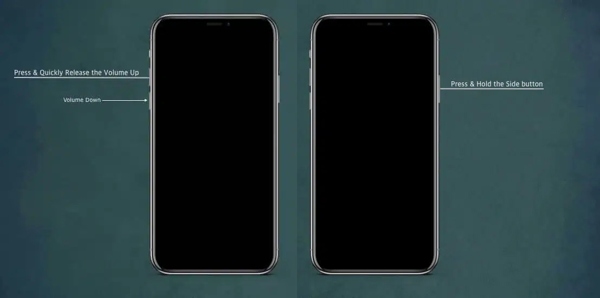
Press and quickly release the Volume Up button.
Do the same thing to the Volume Down button.
Press and hold the Side button until you see the Apple logo.
iPhone 7/7 Plus
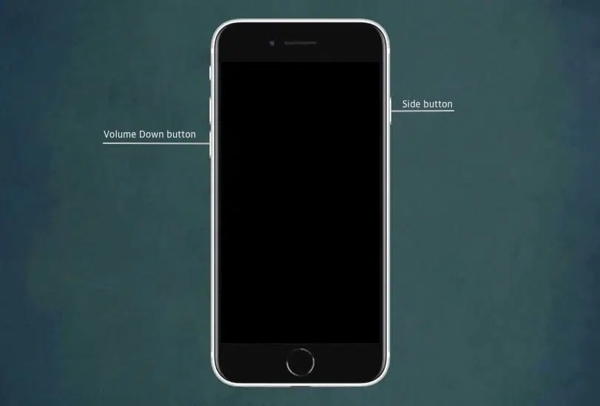
Pressione e segure o Volume baixo + Lado botões simultaneamente.
Let the buttons go once the Apple logo pops up.
iPhone and iPad with a Home button
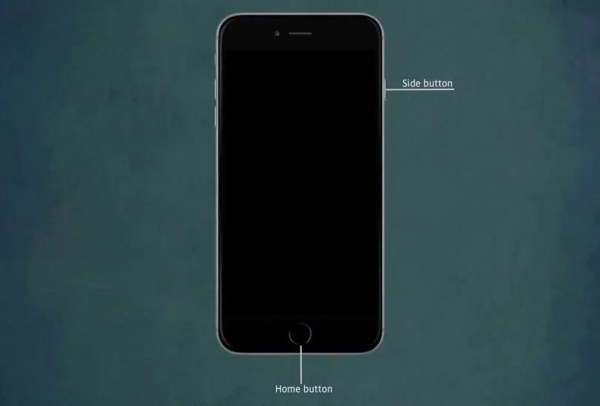
Segure o Lar + Poder botões juntos.
Release them when the Apple logo appears.
Method 2: Unlock a Frozen iPhone in Recovery Mode
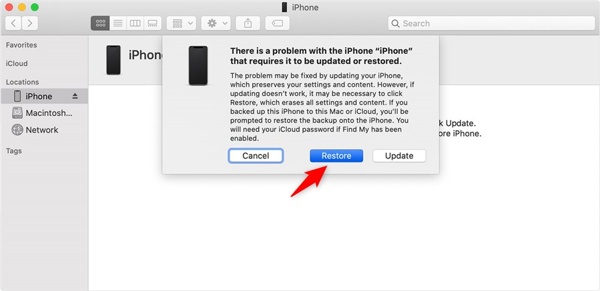
Connect the frozen iPad or iPhone to a computer with a USB cable.
Open iTunes on PC and macOS Mojave or earlier. On macOS Catalina or later, open Finder.
Put your device in Modo de recuperação.
The button combination is the same as forcing a restart on an iOS device. Once the Recovery Mode screen appears, release the button combination.
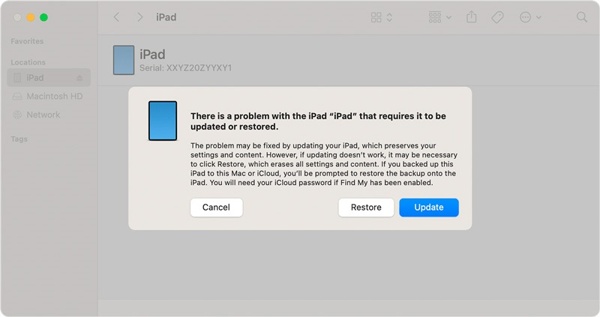
A seguir, clique no Restaurar button on the pop-up dialog in iTunes or Finder to unlock the frozen iPhone.
Method 3: Unlock a Frozen iPhone on iCloud
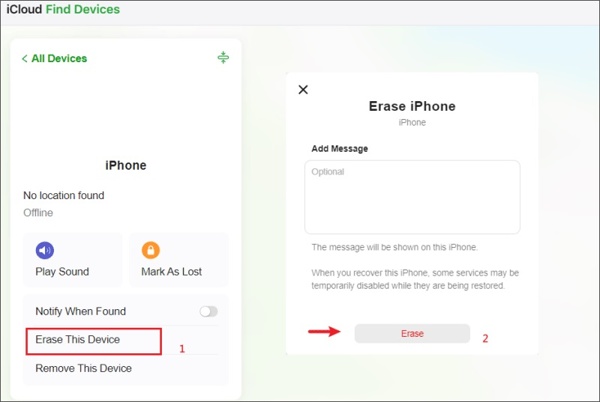
Go to www.icloud.com in your browser if Find My has been enabled on your device.
Log in with the Apple ID and password associated with the frozen device.
Choose the iPhone from the Todos os dispositivos lista.
Clique no Apagar este dispositivo botão para redefinir seu iPhone de fábrica.
Next, click the Erase button again to confirm it.
Method 4: Unlock a Frozen iPhone Using Another Apple Device
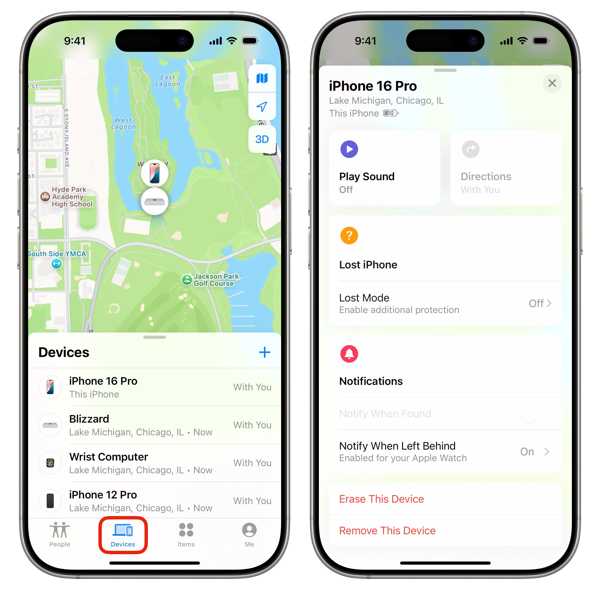
If Find My has been turned on, run the Find My app on another Apple device associated with the same Apple account.
Vou ao Dispositivos tab and choose the frozen iPhone.
Clique no Apagar este dispositivo botão.
Follow the onscreen instructions to unlock your frozen iPhone or iPad.
Part 3. How to Unlock a Frozen iPhone
If you forgot your Apple ID password or the above methods are unavailable, try imyPass iPassGo instead. It is able to force unlock any iOS device without restrictions. Moreover, the user-friendly design makes it available to anyone.

Mais de 4.000.000 de downloads
Regain access to locked or frozen iOS devices.
Remove screen locks, including passcodes, Face IDs, and Touch IDs.
Offer bonus features, like MDM bypassing.
Work for a wide range of iPhones and iPad devices.
How to Unlock Your Frozen iPhone Without a Password
Conecte-se ao seu dispositivo
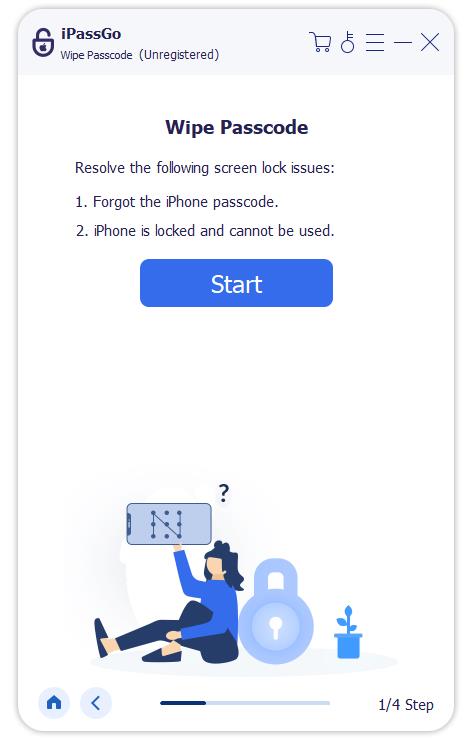
Start the frozen iPhone unlocking software once you install it on your PC. There is another version for Mac. Plug your iPhone into your PC with a Lightning cable. Then, choose the Limpar senha modo para prosseguir.
Confira as informações
Depois que seu dispositivo for detectado, clique no botão Começar button to load your device information. Check them and click the Começar button to initiate downloading the firmware. It may take a while.
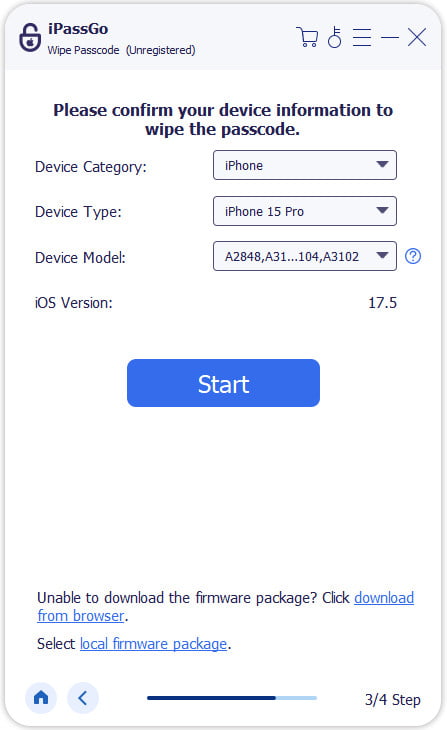
Unlock a frozen iPhone
Wait for the download to finish and click the Unlock button to proceed. Read the warning notification and confirm unlocking the device again. Next, follow the onscreen prompts to ensure the process and the software will do the job automatically.

Leitura Estendida:
Conclusão
Este guia compartilhou what to do when your iPhone is frozen. Before fixing this problem, you should follow our methods to unlock your device even if the touchscreen is unresponsive at all. The button combination lets you regain access without losing data. Otherwise, you have to reset your device with iTunes, iCloud, or Find My to unlock it. imyPass iPassGo is the ultimate option to unlock any iPhone or iPad even if the touch screen is frozen and stuck.
Samuel specializes in password security and digital privacy. He used to work as a cybersecurity consultant for small businesses to protect digital assets. With certifications in Cybersecurity and Ethical Hacking, he turns complex security topics into easy-to-follow advice. He also enjoys sharing password tips to help users protect their accounts more confidently.
Soluções quentes
-
Desbloquear iOS
-
Dicas para iOS
-
Desbloquear Android
-
dicas de senha


