Solução
 Centro de Apoio
 Sobre nós
 Contato
Windows XP Password Recovery: How to Reset a Forgotten Password
 Penny Warren publicado em agosto 27, 2026Senha do WindowsLeitura de 3 minutos
Forgot Windows XP password and locked out of your computer? Don't worry! This Windows XP password recovery guide shows how to reset a forgotten password on Windows XP with 5 step-by-step methods. Try them to regain access to your Windows XP now!

Neste artigo:
- Part 1: Reset Windows XP Password with an Administrator Account
- Part 2: Use Windows XP Password Reset Disk to Reset a Forgotten Password
- Part 3: Recover Windows XP Password in Safe Mode
- Part 4: Best Way to Reset a Forgotten Windows XP Password Without Logging In
- Part 5: Reinstall Windows XP to Remove the Password (Last Resort)
Part 1: Reset Windows XP Password with an Administrator Account
If you have forgotten only the password for the standard user account on Windows XP and still have access to the administrator account, then congratulations! You can use the administrator account to reset the Windows XP password directly. Windows XP allows the administrator account to modify or delete the passwords of other user accounts. If you forgot the password for the only administrator account on your computer, try other methods in this guide, such as using a password reset tool.
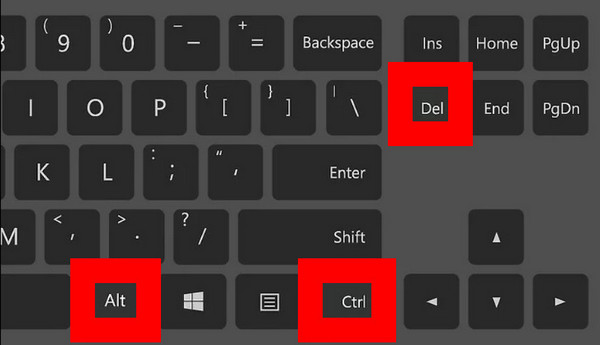
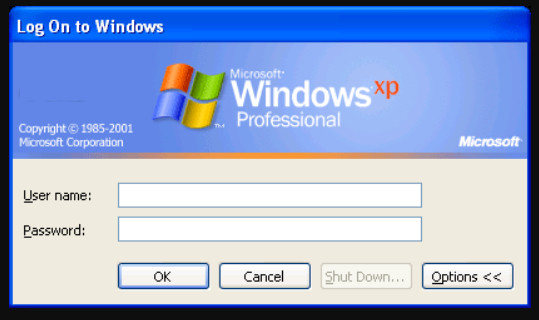
Restart your Windows XP computer and press Ctrl + Alt + Excluir twice to open the Classic Login Prompt.
Enter the username and password of your Administrator account to sign in.
Vamos para Painel de controle > Contas de usuário and select the account for which you forgot the password.
Clique Mudar senha and set a new password.
Restart your computer and log in to your forgotten account with the new password.
Part 2: Use Windows XP Password Reset Disk to Reset a Forgotten Password
You can also use the Windows XP password reset disk to reset the forgotten Windows XP password. This method allows you to create a new password without knowing the original one. However, the prerequisite is that you must create the reset disc before forgetting the password. If you don't have the reset disc, try other Windows XP password recovery methods.
Insert the Windows XP password reset disk into your computer.
Enter a wrong password. Then, click Redefinir senha when it appears.
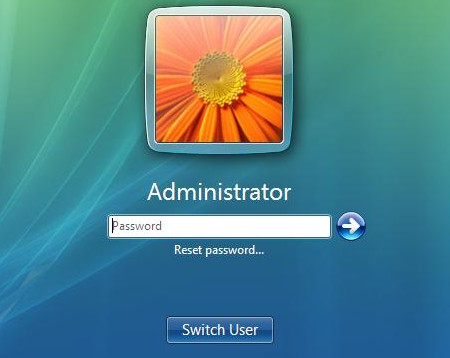
Follow the Password Reset Wizard and select the inserted reset disk.
Create a new password and enter a password hint if needed.
Clique Terminar. Then, you can log in to Windows XP with the new password.
Part 3: Recover Windows XP Password in Safe Mode
Safe mode is also another commonly used method when you forget the Windows XP password. Its working principle is that when you only start the necessary components, the safe mode may display the built-in administrator account. You can use this to change the passwords of other user accounts. This method suits users who cannot access the built-in Administrator account from the normal login screen.
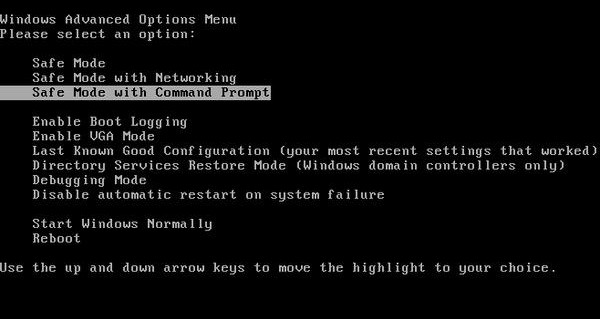
Restart your Windows XP computer and press F8 repeatedly
Selecionar Modo de segurança das janelas Avançado Opções Menu e pressione Digitar.
Log in to the built-in Administrador account when the login screen appears.
Observação:
If the Administrator account doesn't have a password, you can directly unlock your computer without a password.
Follow the same steps in Part 1 to change the Windows XP password.
Part 4: Best Way to Reset a Forgotten Windows XP Password Without Logging In
If you forget the administrator password and are unable to log in to Windows XP, and you don't have technical experience, you can use a professional password reset tool, such as Redefinição de senha do Windows imyPass, that provides detailed step-by-step instructions in pictures.
imyPass Windows Password Reset does not crack or reveal your original password. Instead, it removes or resets the password by modifying the Windows account data. You can create a bootable USB/CD on another computer, start the locked Windows XP PC from it, and reset the forgotten password to access your account again.
Press the button below to free download this Windows password reset tool for free.
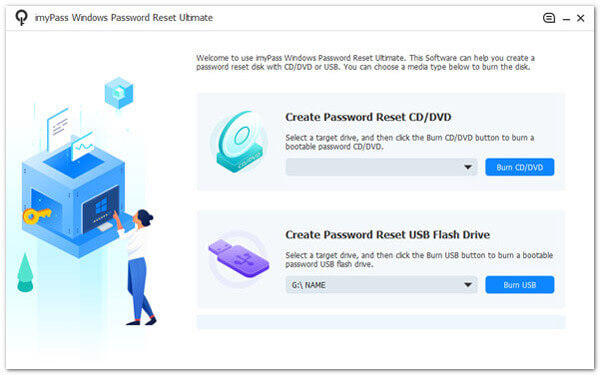
Create a bootable password reset disk with a USB drive or CD/DVD on another available computer. Insert it into the locked Windows XP computer.
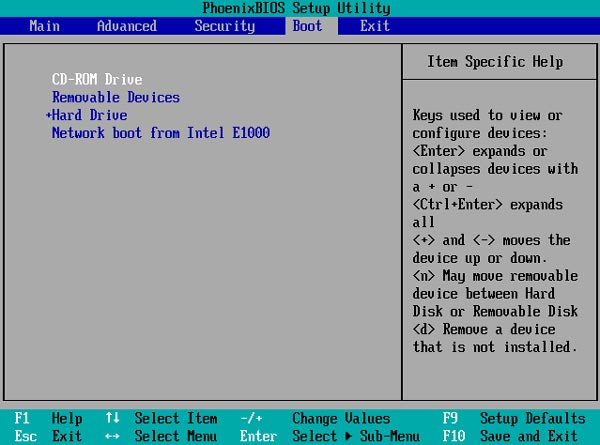
Restart the locked computer and enter the Menu de inicialização to boot from the created USB drive or CD/DVD.
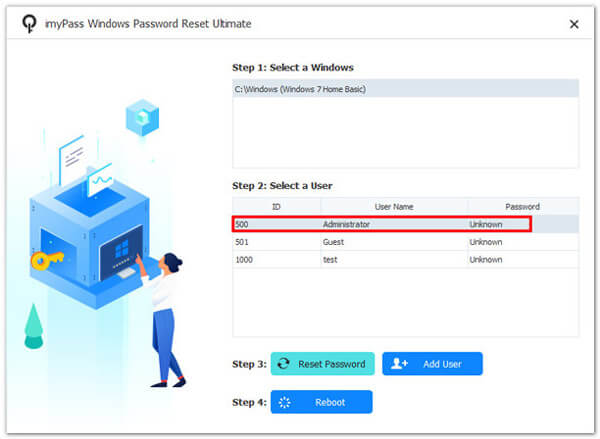
Select the Windows XP system and choose the user account for which you forgot the password.
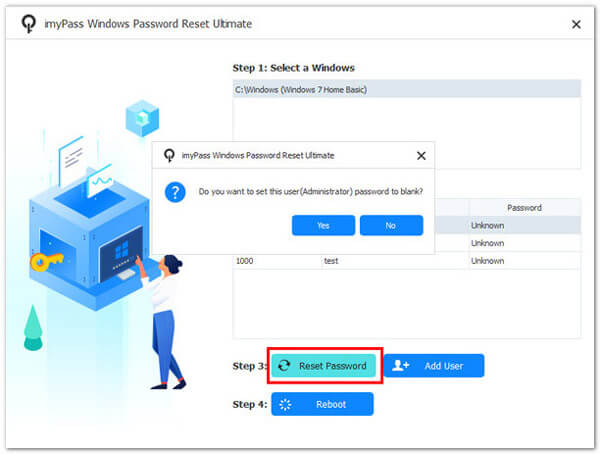
Clique Redefinir senha to remove or reset the password, then restart your computer and log in again.
Part 5: Reinstall Windows XP to Remove the Password (Last Resort)
When other recovery methods do not work, reinstalling Windows XP is the last option to remove a forgotten password. This method will delete the existing Windows system and install a brand new one, allowing you to create a new account and password.
However, reinstalling Windows will erase your system files. Therefore, make sure to back up important data before using this method.
Insert a Windows XP installation CD into your computer.
Restart your computer and boot from the Windows XP installation disc.
Follow the on-screen instructions to format the drive and reinstall Windows XP.
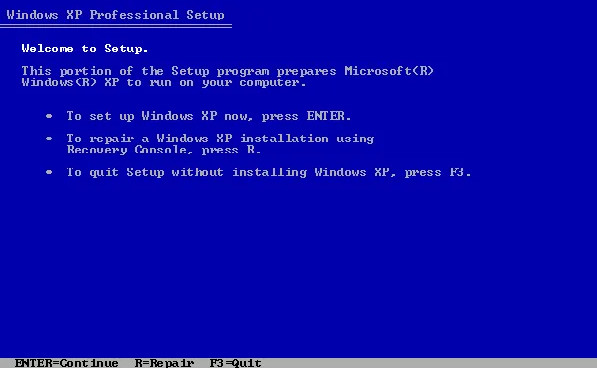
After the installation is complete, you can create a new user account and set up a new password. Keep this password in mind this time.
Restore your files and reinstall necessary programs.
Conclusão
If you forgot your Windows XP password, you can reset it with an administrator account, a password reset disk, Safe Mode, or Windows password unlock software. Choose the right Windows XP password reset method to regain access to your computer.
Penny focuses on GPS troubleshooting and Windows optimization. She formerly worked as a technical support engineer, helping clients solve location-based and system issues efficiently. Backed by IT support experience, she provides practical solutions that really work. In her free time, she likes hiking and geocaching, testing GPS tech in the real world.
Soluções quentes
-
Senha do Windows
-
Dicas do Windows
-
Corrigir janelas
-
dicas de senha

Redefinição de senha do Windows
Redefinir conta de administrador/usuário do Windows
Download grátis Download grátis