Solução
 Centro de Apoio
 Sobre nós
 Contato
Windows Stuck on Loading Screen? Best Ways to Fix It Fast
 Penny Warren publicado em junho 08, 2026Corrigir janelasLeitura de 3 minutos
Seeing your computer freeze on the loading screen can be frustrating, especially when the spinning circle keeps going, and nothing else happens. If you are dealing with the Windows stuck loading screen problem, you might be wondering what went wrong and how to get your PC working again. The good news is that several practical fixes can help you move past the loading screen and start Windows normally.

Neste artigo:
Part 1. Why Is Windows Stuck on the Loading Screen
Seeing your computer freeze during startup is a fairly common issue. The Windows logo appears, the loading animation keeps spinning, and the system never reaches the desktop. Several factors can cause this problem. Below are some of the most common ones.
Failed or Interrupted Windows Updates
Sometimes, a Windows update starts automatically while the PC is booting. If the update doesn't finish as expected, for example, because the computer shuts down unexpectedly, Windows may get stuck on the loading screen the next time it starts.
Corrupted System Files
System files are required for Windows to start normally. If some of these files become damaged or missing, the operating system may freeze while loading.
Driver Conflicts
Newly installed drivers or incompatible hardware drivers can interfere with the startup process. This is another common reason why some users get stuck on Windows loading screen after installing new software or devices.
External Device Interference
It may sound unusual, but a connected USB device can sometimes prevent Windows from starting properly. If the system gets stuck while checking an external drive or other peripheral, the boot process may not complete as expected.
Disk or Boot Configuration Errors
Problems with the hard drive or incorrect boot configuration may prevent Windows from loading correctly, leaving the system stuck on the startup screen.
Once you understand the possible causes, it becomes easier to choose the right solution. In the next section, we will walk through several methods to fix the Windows stuck loading screen issue and get your computer running again.
Part 2. How to Fix Windows Stuck on Loading Screen Without Data Loss
Knowing the possible causes is helpful, but what most people really want is to fix the laptop stuck on Windows loading screen as quickly as possible. The table below gives a quick overview so you can decide which method to try first.
| Quick Overview of the 4 Fixes | ||
| Método | Dificuldade | Data Loss Risk |
| Unplug External Devices | Fácil | Não |
| Modo de segurança | Médio | Não |
| Reparo de inicialização | Médio | Não |
| Prompt de comando | Avançado | Não |
Fix 1. Unplug External Devices
External hardware sometimes interferes with the startup process, especially if the system attempts to load a problematic device during startup.
Turn off your computer completely.
Take a moment to unplug any accessories that aren't essential. If you have a USB drive, printer, memory card, or external hard drive connected, disconnect it for now.
Leave only essential devices connected, such as the keyboard and mouse.
Turn the computer back on and see whether Windows starts normally.
If Windows loads successfully after removing the devices, reconnect them one at a time to identify the device causing the problem.
Fix 2. Start Windows in Safe Mode
Modo de segurança do Windows 10 starts with only the essential drivers and services. If your system is stuck on Windows loading screen, booting into Safe Mode can help determine what the issue is caused by.
Turn on the computer and force shutdown when the Windows logo appears by holding the power button.
Repeat this process two or three times until the Windows Recovery Environment appears.
Selecionar Solucionar problemas > Opções avançadas > Configurações de inicialização.
Clique Reiniciar. Then, press 4 or F4 to enter Safe Mode.
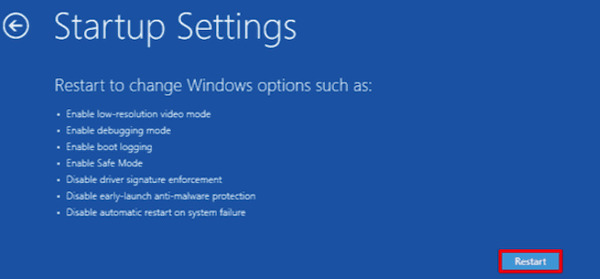
If the system starts normally in Safe Mode, the Windows stuck loading screen issue is likely related to a driver or recently installed software.
Fix 3. Run Windows Startup Repair
Windows includes a built-in tool designed to detect and repair boot problems automatically. If you are wondering how do I fix Windows 10 stuck on loading screen, Startup Repair is one of the easiest methods to try.
Enter Windows Recovery Environment.
Clique Solucionar problemas > Opções avançadas.
Escolher Reparo de inicialização.
Select your Windows account and allow the system to scan for startup problems.
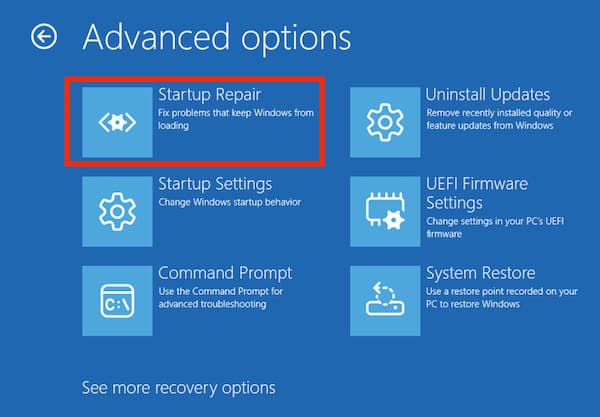
The tool will check startup files and attempt to repair errors that may cause Windows to be stuck on the loading screen during boot.
Fix 4. Use Command Prompt
Damaged system files can also cause startup problems. Running a system file scan can help repair these files.
Enter Windows Recovery Environment again.
Selecionar Solucionar problemas > Opções avançadas > Prompt de comando.
Type the following command and press Digitar:
sfc /escaneie agora
chkdsk c: /f /r
Wait for the scanning process to complete. After finishing, restart your computer.
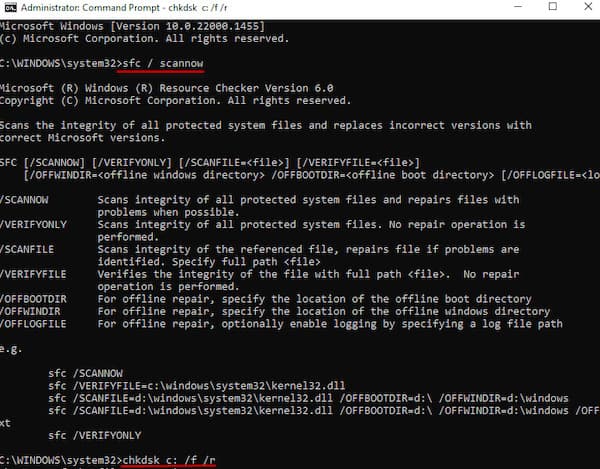
If corrupted system files were responsible for the Windows stuck loading screen problem, the system should now be able to boot normally.
Recommended Tool for Windows Account Access
Mais de 4.000.000 de downloads
Remove forgotten Windows passwords without reinstalling the system.
Create a new administrator account when you cannot access the original one.
Support Windows 11, Windows 10, Windows 8, and Windows 7.
Simple interface that allows users to reset access in just a few steps.
Part 3: FAQs About Windows Stuck on Loading Screen
Perguntas frequentes.
-
Can a virus cause Windows to get stuck on the loading screen?
Yes, malware or viruses can damage system files or interfere with startup processes, which may lead to a Windows stuck loading screen issue.
-
Can BIOS settings cause Windows to freeze during startup?
Yes. Incorrect BIOS or boot settings may prevent the system from loading Windows properly, which can sometimes result in Windows 10 stuck on loading circle. If the problem is related to BIOS access or configuration, you may also need to reset the BIOS password on Windows 11 before adjusting the settings.
-
Does overheating affect Windows startup?
In some cases, hardware overheating can interrupt the boot process. If the computer shuts down unexpectedly, it may appear as if Windows is stuck on the loading screen.
Conclusão
If you are currently dealing with Windows stuck on loading screen, try the solutions above step by step! And if you finally reach the login screen but cannot access your account, Redefinição de senha do Windows imyPass can help you quickly regain control of your computer and start using it again.
Penny focuses on GPS troubleshooting and Windows optimization. She formerly worked as a technical support engineer, helping clients solve location-based and system issues efficiently. Backed by IT support experience, she provides practical solutions that really work. In her free time, she likes hiking and geocaching, testing GPS tech in the real world.
Soluções quentes
-
Corrigir janelas
- How to Bypass the Defaultuser0 Password
- How to Fix Windows Stuck on Loading Screen
- How to Fix Windows 10 Stuck on Welcome Screen
- 7 Ways to Stop Windows Code 0xc000021a
- How to Fix Windows 10 PIN Not Working
- How to Unlock Computer Without Password
- Corrigir Windows 10 sem tela de login
- How to Fix Getting Windows Ready Stuck
-
Dicas do Windows
-
Senha do Windows
-
dicas de senha

Redefinição de senha do Windows
Redefinir conta de administrador/usuário do Windows
Download grátis Download grátis