Solução
 Centro de Apoio
 Sobre nós
 Contato
What Is Windows Boot Disk and How to Boot Your Windows
 Penny Warren publicado em setembro 09, 2026Dicas do WindowsLeitura de 3 minutos
Similar to other digital devices, a PC can be vulnerable, and users may encounter various problems. Booting from a bootable disk or USB can be useful for various tasks, from reinstalling Windows to troubleshooting and recovering data. However, the Windows 10 boot disk sounds complicated. This article will explain the concept and share other knowledge you should know, such as how to make a boot disk or USB flash drive quickly.

Neste artigo:
Part 1: What Is a Windows Boot Disk
A Windows 10 boot disk or USB is a portable device that contains an operating system or recovery tool. It lets you start up a PC using the files stored on the disk or USB rather than the PC’s built-in operating system. The boot disk is typically used for:
- 1.Install or reinstall Windows.
- 2.Run the system recovery tool when your Windows fails to load.
- 3.Troubleshoot for viruses, software glitches, and more.
- 4.Recover data.
- 5.Reset and erase your PC.
- 6.Update BIOS or firmware.
Part 2: Create a Windows Boot Disk
To make a Windows boot disc or USB, you must have a blank disk or USB flash drive with enough space. If you use a USB, it should have at least 16GB of storage and must be USB 3.0 or higher.
Way 1: How to Create a Windows Boot Disk with Media Creation Tool
Insert the blank disk or compatible USB into a PC.
Visit https://www.microsoft.com/en-us/software-download/ in a browser and select the desired version of Windows.
Download Create Windows Installation Media.
Run the file labeled MediaCreationToolxxx.
Accept Microsoft’s terms and conditions.
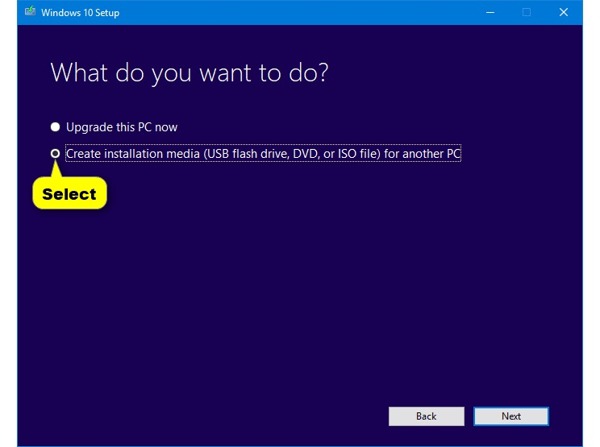
Selecionar Create installation media for another PC e clique Próximo.
Set language, edition, and architecture, and hit Próximo.
If you cannot set the form, uncheck Use the recommended options for this PC.
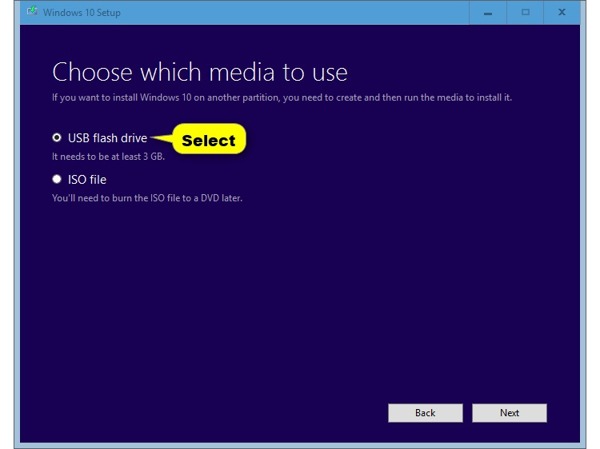
Selecionar Unidade flash USB e clique Próximo. If you want to make a Windows boot disk, select arquivo ISO e bater Próximo.
Clique no Próximo botão para prosseguir.
Select the USB drive or disk again and click Próximo para iniciar o processo.
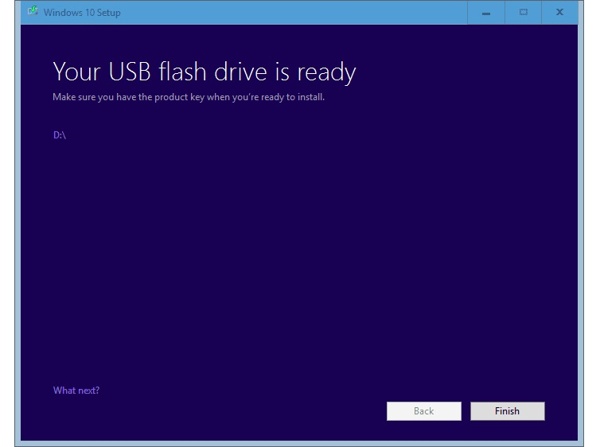
When the boot flash disk for Windows 7 is done, click Terminar and remove it from the PC.
Way 2: How to Create a Windows Boot Disk Using Rufus
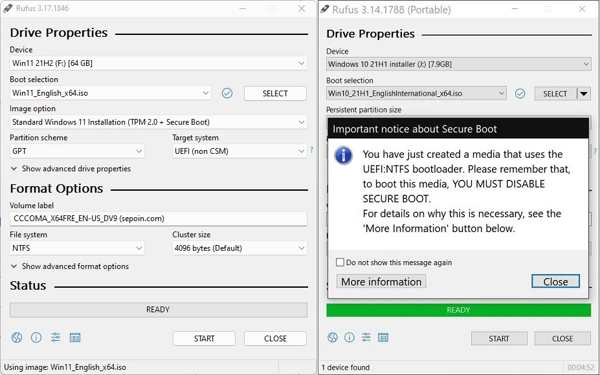
Insert your disk or USB into your PC.
Download Rufus from the official website and run the Rufus.exe file.
Select the USB drive or disk under the Dispositivo opção.
Choose the proper version of ISO from the Boot selection.
Troque para Download a partir de Selecionar.
Set the partition type, firmware type, file system, and disk cluster size.
Por fim, clique no Começar button to begin making a Windows XP boot disk or USB.
Part 3: Boot Windows from Boot Disk
If you need to reinstall Windows, troubleshoot, recover data, and more, use your Windows boot disk. You need to boot your PC to the bootable media using the BIOS hotkey, which is different depending on your manufacturer.
Insert your Windows boot disk or USB into your PC.
Restart your PC.
Once the screen lights up, press the BIOS hotkey repeatedly:
- Dell: F2 OR F12
- HP: F10 or Esc
- Lenovo: F1 or Fn + F1
- ASUS: F2
- Acer: F2 or Del
Navegar para Bota ou Boot Order.
Select the first boot option as the boot disk or USB and press Enter.
Save the changes and exit BIOS.
Next, boot your PC and enter the disk.
You May Also Like:
Part 4: Bonus Tip: How to Reset Windows Password
When you forgot your login password, Redefinição de senha do Windows imyPass is a straightforward Windows USB boot disk maker. It can make a boot disk or USB on another PC and let you check and reset your account password quickly.
Mais de 4.000.000 de downloads
Make a Windows password reset disk or USB quickly.
Reset Windows password for both administrator and users.
Add new users without accessing Windows.
Work for Windows 11/10/8/7 and earlier.
How to Reset Windows Password with Bootable Disk
Make a bootable disk
Launch the Windows boot disk maker after installing it on an accessible PC. Insert a blank disk into the PC. Select the disk from the drop-down list under Criar CD/DVD de redefinição de senha e clique Gravar CD/DVD.
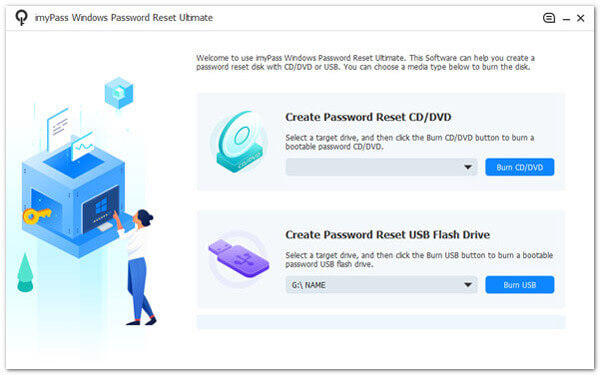
You can create a bootable USB if you don’t have a disk.
Choose your account
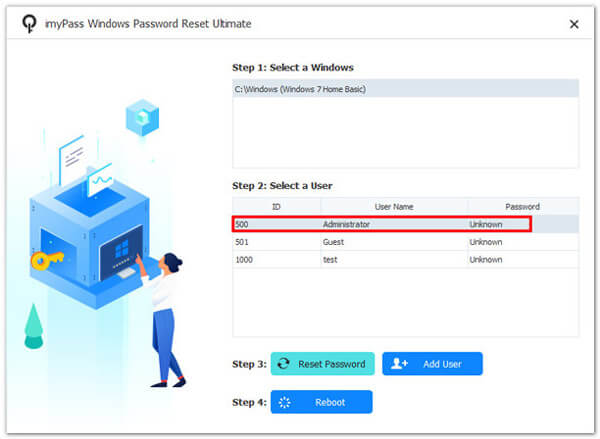
Insert the bootable disk into your computer. Restart your PC and boot from the disk. Select your Windows and choose the account you want to change.
Redefinir a senha do Windows
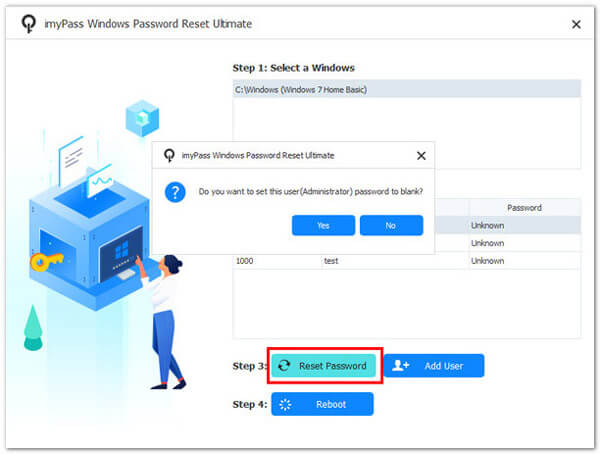
Clique no Redefinir senha button to set it to be blank. When prompted, click the OK button to confirm it. Next, click Reinício to restart your PC directly.
Conclusão
This article explained what a Windows 10 boot disk or USB is. Moreover, you can learn two ways to make the boot disk or USB on a PC quickly. If you need to install Windows or troubleshoot, follow the steps to complete the process. Redefinição de senha do Windows imyPass is an intuitive way to reset your Windows password.
Penny focuses on GPS troubleshooting and Windows optimization. She formerly worked as a technical support engineer, helping clients solve location-based and system issues efficiently. Backed by IT support experience, she provides practical solutions that really work. In her free time, she likes hiking and geocaching, testing GPS tech in the real world.
Soluções quentes
-
Dicas do Windows
-
Senha do Windows
-
Corrigir janelas
-
dicas de senha

Redefinição de senha do Windows
Redefinir conta de administrador/usuário do Windows
Download grátis Download grátis