



 Soluţie
 Centru de asistență
 Despre noi
 a lua legatura
How to Fix Update Apple ID Settings Stuck on iPhone/iPad
 Clara Prescott publicat pe 24 iunie 2026Sfaturi iOSLectură de 4 minute
"I changed my trusted phone number for my Apple ID and updated the settings on my iPhone, but it gets stuck. How can I fix this problem?" After changing your information for your account, you'd better update the changes on all your Apple devices to use the account normally. However, the Update Apple ID Settings stuck message brings your device usage to an unexpected halt. Follow our solutions to fix this problem.

În acest articol:
Part 1. Why Updating Apple ID Settings Gets Stuck
If your iPhone is stuck on the Update Apple ID Settings screen, you cannot complete the updating process. As a result, your account is inaccessible on your iOS device. The main causes of the error include:
- 1.Poor internet connection.
- 2.Apple servers are down.
- 3.Something is wrong with your account.
- 4.Insufficient storage.
- 5.Probleme de software (erori minore).
Part 2. How to Fix Updating Apple ID Settings Stuck
Soluția 1: Repornește dispozitivul
Restarting the iPhone is a simple solution to fix Update Apple ID Settings stuck error. It can close all apps in the background, free up space, quit the conflict apps, and enable you to take other solutions.
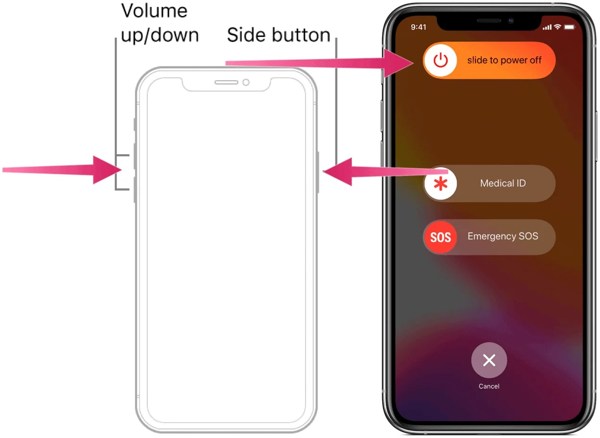
Apasă și menține apăsat unul dintre Volum buton + Latură button on an iPhone with Face ID. Hold down the Latură sau Putere button on an iPhone without Face ID.
Release the buttons or button when the power-off screen appears.
Mutați glisorul și închideți dispozitivul.
A few minutes later, hold down the Latură sau Putere butonul până când vedeți sigla Apple.
Solution 2: Check Your Wi-Fi
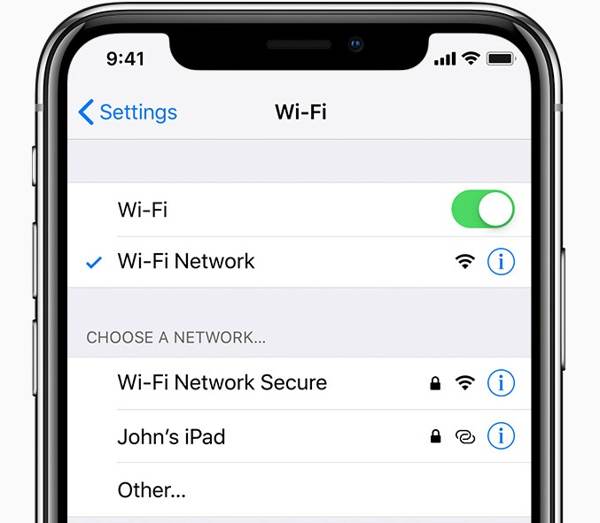
Changing Apple ID settings requires a stable internet connection. If your iPhone connects to a poor Wi-Fi, switch to cellular data or vice versa. Then, update Apple ID settings again to check if the problem is fixed.
Solution 3: Re-sign in to Apple ID
If your screen gets stuck when tapping Update Apple ID Settings, you can sign out of the account and sign in to the Apple ID back to manually update the changes. Here are the steps to update your account:
Atingeți profilul dvs. în aplicația Setări.
Scroll down and tap the Sign Out button at the bottom.
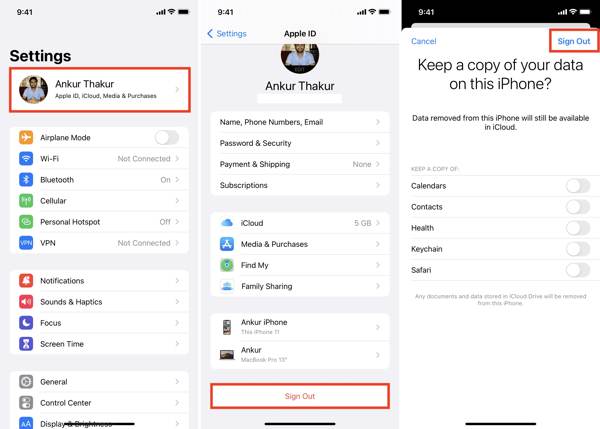
Enter your Apple Account password to disable Find My.
Apasă pe Opriți buton.
Decide to keep a copy of the data or not and tap Sign out.
Înapoi la Setări aplicație și atingeți Cont Apple.
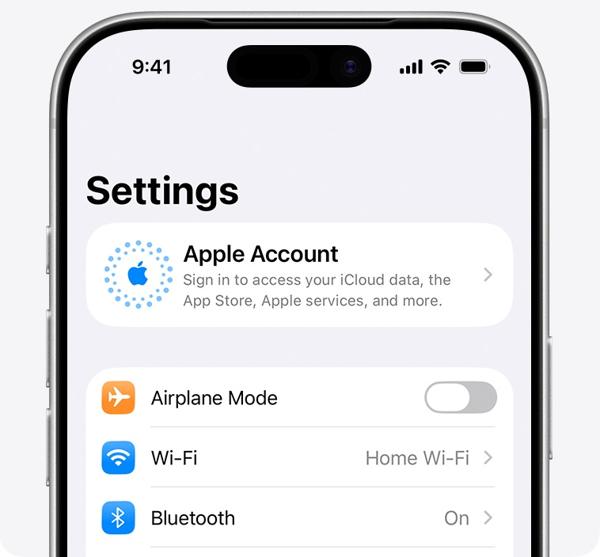
Alege Conectați-vă manual, and enter your Apple Account and password.
Solution 4: Check Apple Servers
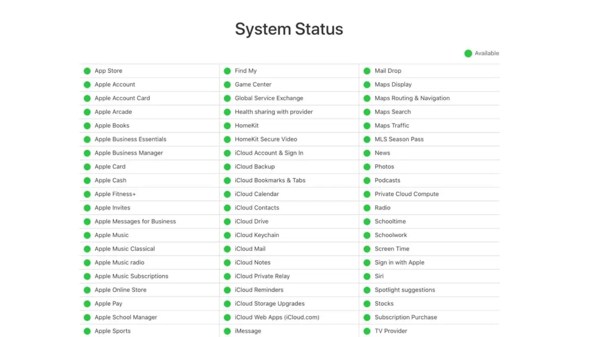
When your screen is stuck on the Updating Apple ID Settings screen, go to https://www.apple.com/support/systemstatus/ in a browser. Check the status of the Apple Account and the relevant servers. If any item is down, wait for it to work again.
Solution 5: Change Your Apple ID Password
Another solution to fix the Update Apple ID Settings stuck is to change your account password. This method requires an accessible iPhone and your iPhone lock screen passcode. Plus, your account must have Two-factor Authentication.
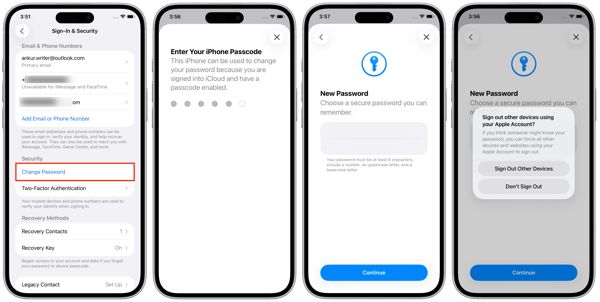
Atingeți profilul dvs. în Setări.
Mergi la Conectare și securitate.
Apasă pe Schimbaţi parola buton.
Introduceți parola iPhone-ului.
Setează o parolă nouă și confirm‑o.
Alege Sign Out Other Device sau Nu deconecta.
Lecturi înrudite:
Part 3. How to Update Apple ID Settings
If you want to update Apple ID settings on your iPhone after you forgot the password, imyPass iPassGo can meet your needs. It is able to remove the current account from your iOS device without any restrictions. Then, you can log in to your account again.

Peste 4.000.000 de descărcări
Remove the old Apple Account without the password.
Complete the process with three steps.
Available to locked and disabled Apple Accounts.
Acceptă o gamă largă de dispozitive iPhone și iPad.
How to Update Apple ID Settings on Your iPhone
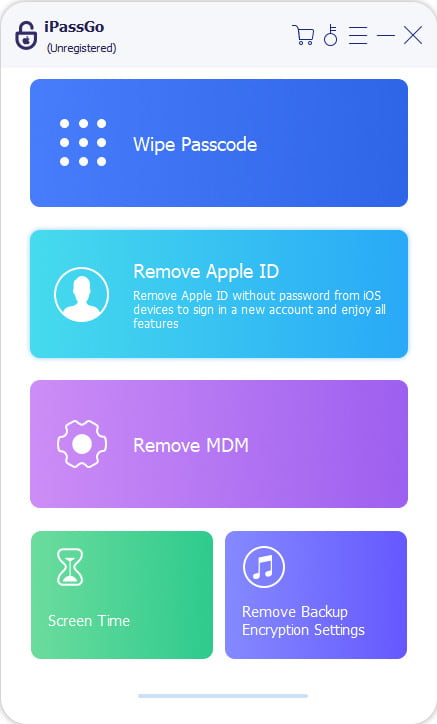
Instalați instrumentul de eliminare a ID-ului Apple
Run the Apple ID removal software after installing it on your PC. There is another version for Mac. Choose the Eliminați ID-ul Apple modul.
Conectați-vă la dispozitivul dvs
Connect your iPhone to your PC with a Lightning cable. Once the software detects your iPhone, click the Începe acum buton.
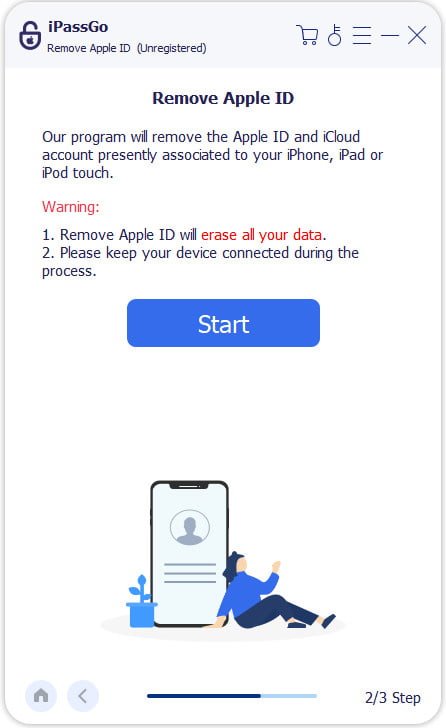
Update Apple ID Settings
If Find My is disabled, the software will automatically start removing the old account. If Find My is enabled, reset all settings on your device. Then, click Confirmați din nou și verificați informațiile dispozitivului pentru a iniția procesul.
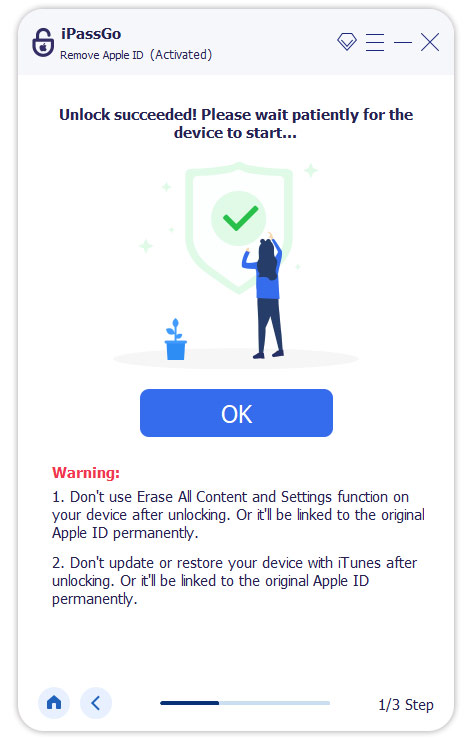
When it is done, set up your iPhone and sign in to your Apple Account again.
Concluzie
This article shared what to do if your touchscreen gets stuck on Update Apple ID Settings. Fortunately, you can follow our solutions one by one to get rid of the error on your iPhone or iPad. Then, you can use your Apple Account on your iOS device as usual. imyPass iPassGo allows you to remove the old account and log in to it again.
Clara are peste 8 ani de experiență în ajutarea utilizatorilor să recupereze fișiere pierdute și să transfere date. Anterior, a lucrat ca tehnician în recuperare de date pentru o mare companie de servicii IT. Certificată în Recuperare de Date și Criminalistică Digitală, articolele ei se concentrează pe soluții simple care fac sarcinile complicate de recuperare mai ușoare pentru utilizatorii de zi cu zi.
Soluții fierbinți
-
Sfaturi iOS
- Cum să descărcați aplicații fără ID Apple
- Cum să resetezi iPhone‑ul la setările din fabrică
- Cum se resetează din fabrică un iPad
- Cum să repari eroarea de conectare la serverul ID‑ului Apple
- Cum să remediați problema „iPhone indisponibil”
- Cum să remediați rapid eroarea „SIM not supported”
- Cum să intrați în modul de recuperare iPhone
- ID Apple și ID iCloud sunt la fel
-
Deblocați iOS
-
Localizare GPS
-
Sfaturi pentru Windows


