



 Soluţie
 Centru de asistență
 Despre noi
 a lua legatura
How to Change Apple ID Account Without Losing Everything
 Samuel Spenser publicat pe 11 mai 2026Deblocați iOSLectură de 3 minute
Creating an Apple ID is the most important component of owning an Apple device. It enables users to access all Apple's services, like downloading apps from the App Store, subscribing to Apple Music, backing up data to iCloud, and much more. An Apple ID is the primary email address. If you no longer use the email, you have to schimba-ți ID-ul Apple immediately. This guide shares the workflows on your iPhone, iPad, Mac, and Online.

În acest articol:
Part 1: What Happens After You Change Apple ID
Can I change my Apple ID without losing everything? Yes. Whether you keep or delete content on your device, some of your data will stay even after changing your Apple ID.
- 1.Contacts, photos, calendars, and app data will remain.
- 2.Apps, music, books, and podcast subscriptions will be kept.
- 3.You'd better sign out of all subscriptions that you use your Apple ID for, like iBooks, iMessage, FaceTime, and more.
- 4.Once you change your Apple ID on your iPhone, you need to update it on all your Apple devices.
Bear in mind that if you use an Apple email address as your Apple ID, such as @icloud.com, @me.com, or @mac.com, you cannot change it to a non-Apple email address.
Part 2: How to Change Apple ID on iPhone
The process to change Apple ID on your iPad or iPhone is far more than deleting the old email address. You need to sign out of the services on your device. We share the complete process below:
Deschide Setări aplicația de pe ecranul de pornire.
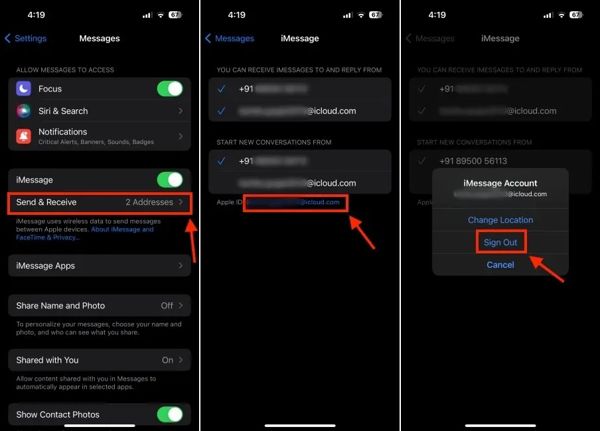
Alege Mesaje, Atingeți Trimiteți și primiți sub iMessage, and tap your Apple ID.
Alege Sign out în caseta de dialog de alertă.
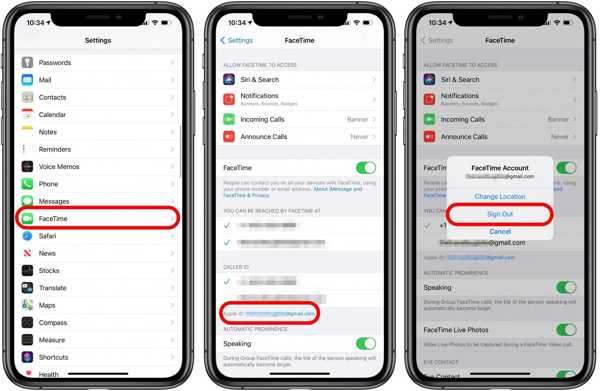
Înapoi la Setări aplicație și alegeți FaceTime.
Next, tap your Apple ID and choose Sign out.
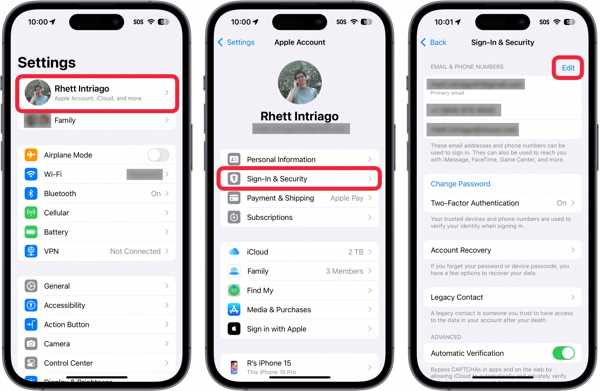
Tap on your profile at the top of the Setări aplicația.
Alege Conectare și securitate.
Apasă pe Editați | × butonul din E-mail și numere de telefon secțiune.
apasă pe Șterge button with a minus icon next to the primary email.
Apoi, atingeți Șterge buton.
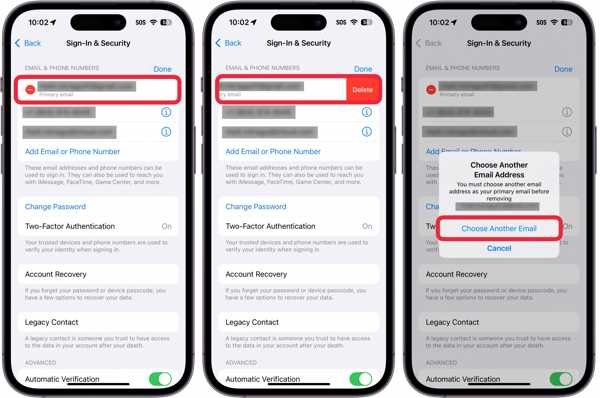
Alege Choose Another Email pe dialogul de confirmare.
Enter your iPhone passcode if prompted.
Input a new email address and tap Continua.
Access the email address and check the verification code.
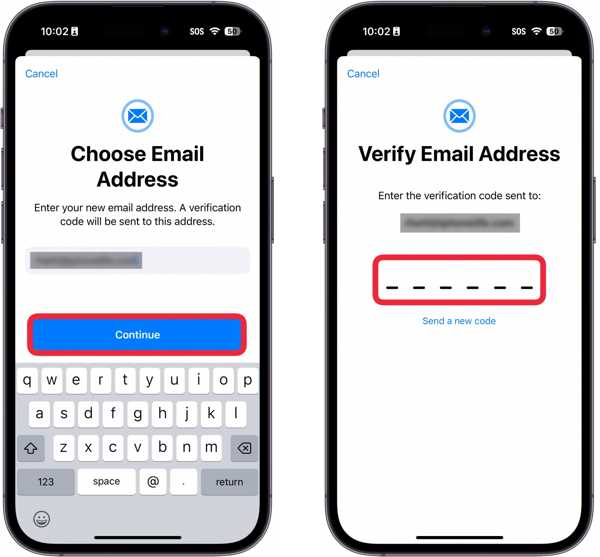
Input the code and complete changing the Apple ID account on your iPhone.
Part 3: How to Change Apple ID in App Store
According to Apple, you can change your Apple ID in the App Store without modifying the account on your iOS device. In other words, you can use a different Apple ID for your App Store and purchases.
Rulați Setări aplicație și atingeți profilul dvs.
Alege Media și achiziții și atingeți Sign out buton din caseta de dialog.
Alege Sign out on the confirmation dialog to confirm it.
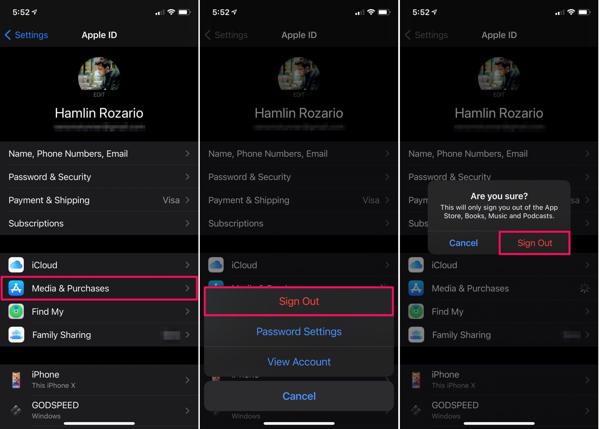
Apoi, atingeți Media și achiziții din nou.
Alege Not [your name] în fereastra pop-up.
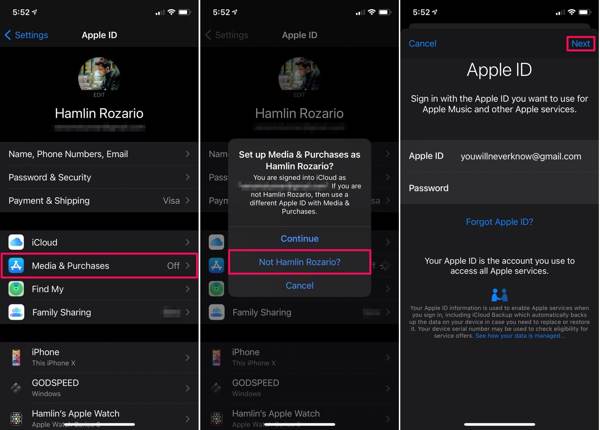
Now, input another Apple ID and password.
În cele din urmă, atingeți Următorul button to change your Apple ID account.
Part 4: How to Change Apple ID on Mac/PC
If your iPhone or iPad is inaccessible or not in your hand, you can change your Apple ID in a web browser. This method requires your current Apple ID and password. Here are the steps to complete the job:
Visit https://account.apple.com/ in a browser.
Conectați-vă cu ID-ul și parola Apple.
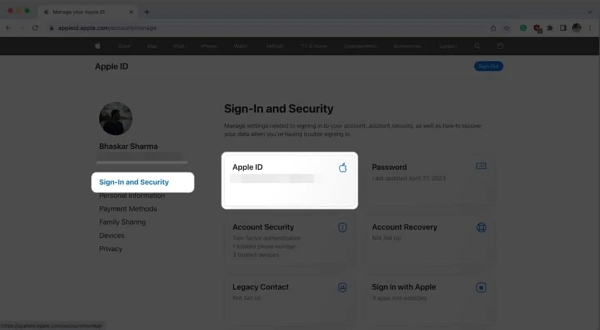
Du-te la Conectare și securitate fila.
Apasă pe ID-ul Apple opțiune.
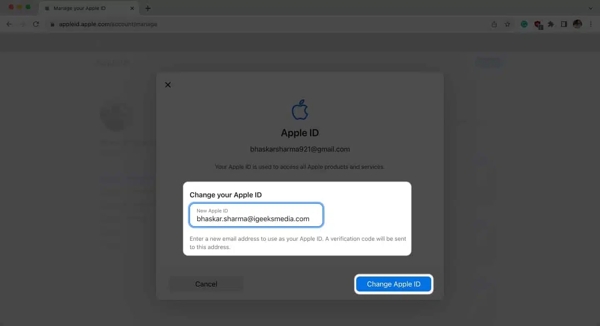
Enter a new email address and click Schimbați ID-ul Apple.
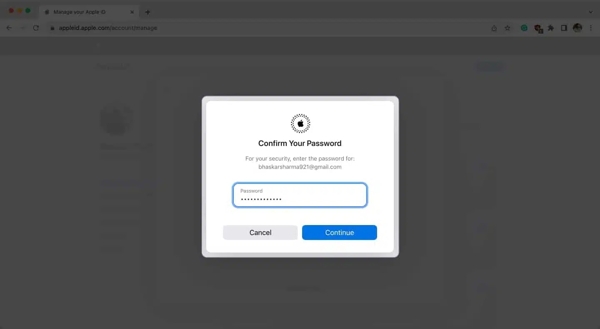
Next, input your current Apple ID password and click Continua.
Check the verification code in your email and enter it.
În cele din urmă, faceți clic pe Continua button to confirm your action.
Part 5: What to Do If You Cannot Change Apple ID on iPhone
When changing your Apple ID on your iPad or iPhone, you may find that your account is greyed out and you cannot change it at all. That is very likely to happen after you set up Screen Time on your device. You can adjust the settings to resolve this problem.
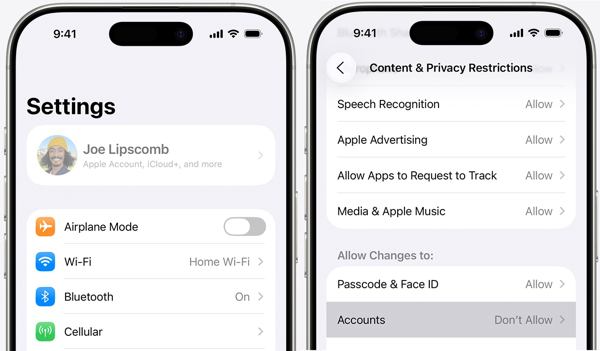
Rulați-vă Setări aplicație și alegeți Timpul ecranului.
Dacă vi se solicită, introduceți parola pentru Timp de utilizare.
Alege Restricții de conținut și confidențialitate.
Dacă Restricții de conținut și confidențialitate is enabled, locate the Allow Changes To secțiune.
Atingeți Conturiși setați-l la Permite.
Part 6: How to Change Apple ID Without the Password
A more drastic solution to change your Apple ID on iPad or iPhone is to delete the old account. However, you must remember your Apple ID password. If you forget your password, you will need a powerful account removal software, like imyPass iPassGo. It is able to remove an old account from iOS without the password. The concise design makes it a good option for ordinary people.

Peste 4.000.000 de descărcări
Remove the old Apple ID from an iPhone in 3 steps.
Nu îți solicită parola ID‑ului Apple sau codul de acces al iPhone‑ului.
Perform a factory reset without restrictions.
Offer bonus features, like Screen Time bypass and Îndepărtarea MDM.
Acceptă cele mai recente versiuni de iOS și iPadOS.
How to Change Apple ID on Your iPhone Without a Password
Install Apple ID removal software
Start the Apple ID removal tool as long as you install it on your computer. It is available on Windows 11/10/8/7 and macOS 10.12 or above. Choose the Eliminați ID-ul Apple modul pentru a continua.
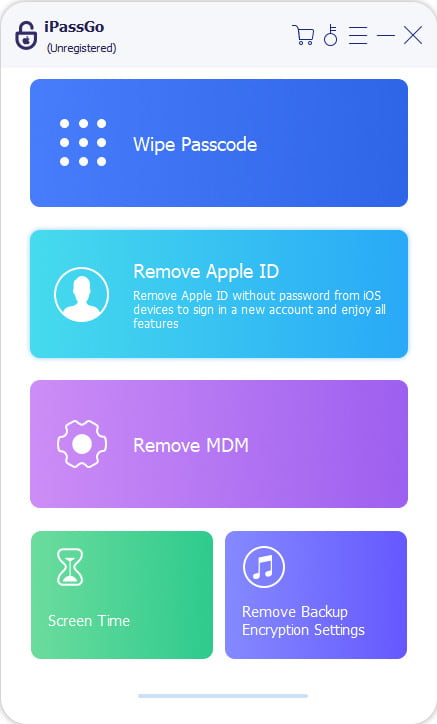
The process will erase all your data. To avoid data loss, you should back up your iPhone first.
Conectați-vă la iPhone
Plug your iPhone into your computer with a Lightning cable. If prompted, tap Încredere on your screen to trust this PC. Then, the software will detect your device immediately. Click the start butonul pentru a continua.
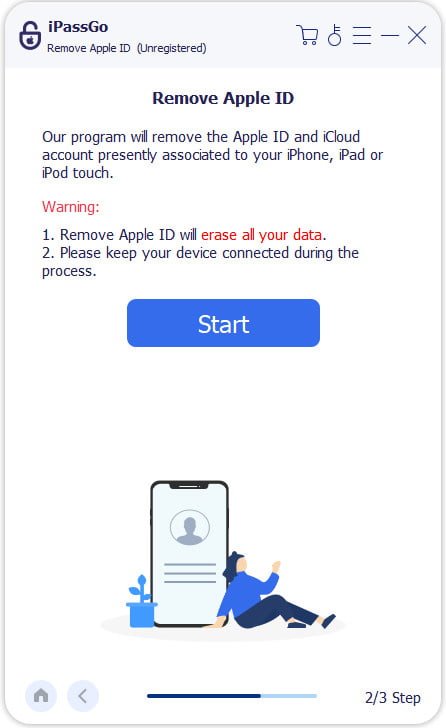
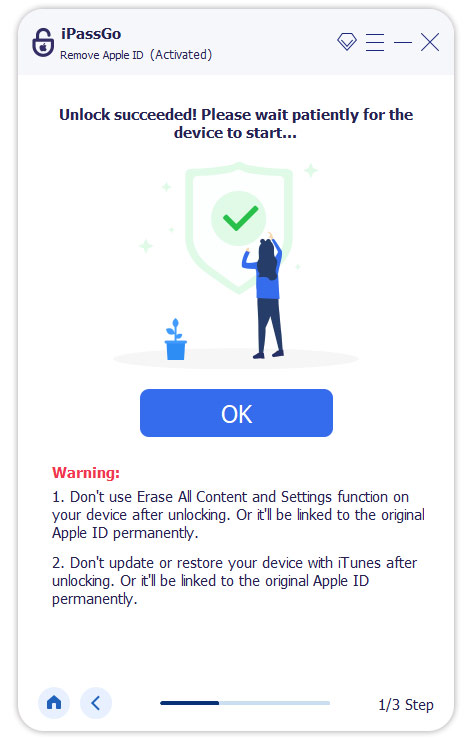
Elimină vechiul ID Apple
Dacă funcția Găsire iPhone este dezactivată, software‑ul îți va elimina automat ID‑ul Apple. Dacă Găsire iPhone este activată, urmează instrucțiunile de pe ecran pentru a reseta toate setările de pe dispozitiv. Apoi, software‑ul va începe procesul de eliminare. Când s‑a terminat, deconectează iPhone‑ul.
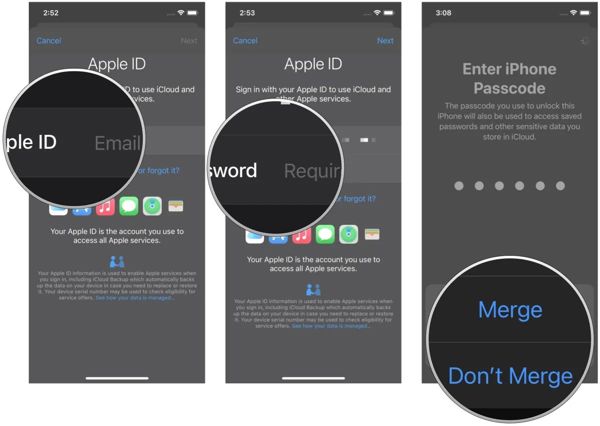
Schimbă la un nou ID Apple
Configurează iPhone‑ul ca un dispozitiv nou urmând instrucțiunile inițiale. Apoi, deschide Setări aplicație și atingeți Cont Apple în partea de sus. Alege opțiunea Conectați-vă manual . Introdu un nou ID Apple și o nouă parolă. Când ți se solicită, introdu codul de acces al iPhone‑ului. Apoi alege să Merge sau Nu combina datele tale.
S-ar putea să îți placă și:
Concluzie
Acest ghid a explicat cum să îți schimbi ID‑ul Apple pe iPhone, iPad și online. Mai întâi, este mai bine să afli ce se va întâmpla după ce îți schimbi contul. Dacă ești sigur, urmează pașii noștri pentru a trece la un alt ID Apple pe dispozitivul tău. Dacă dispozitivul tău iOS este inaccesibil, poți finaliza sarcina online. imyPass iPassGo este o modalitate ușoară de a elimina vechiul cont Apple fără parolă, astfel încât să te poți conecta cu un nou ID Apple.
Samuel este specializat în securitatea parolelor și confidențialitatea digitală. A lucrat ca specialist în securitate cibernetică pentru întreprinderi mici, ajutându-le să își protejeze activele digitale. Cu certificări în Cybersecurity și Ethical Hacking, el transformă subiectele complexe de securitate în sfaturi ușor de urmat. De asemenea, îi place să împărtășească recomandări despre parole pentru a-i ajuta pe utilizatori să își protejeze conturile cu mai multă încredere.
Soluții fierbinți
-
Deblocați iOS
-
Sfaturi iOS
-
Deblocați Android
-
Sfaturi privind parola


