



 Soluţie
 Centru de asistență
 Despre noi
 a lua legatura
Why iPhone Says SIM Failure and How to Fix This Problem
 Samuel Spenser publicat pe 9 octombrie 2026Deblocați iOSLectură de 3 minute
“I got a new iPhone this year. All of a sudden, today I began getting a message that says SIM card failure. I haven't dropped or damaged my phone at all. Any ideas?”
While the iPhone comes with a wide variety of features, most of them require a SIM card and wireless signals. If it cannot detect the SIM card, these features are unavailable, such as phone calls, SMS, and more. This guide walks you through solutions to fix SIM failure on an iPhone.

În acest articol:
Part 1: What Does SIM Failure Mean on iPhone
What does SIM Failure mean on an iPhone? It means that your iPhone can see that a SIM card is inserted, but something blocks it from being recognized by your mobile network. In addition to SIM Failure, you may also see the error message, such as Invalid SIM, SIM Not Supported, or SIM Not Valid.
Why does my iPhone keep saying SIM Failure? First of all, you need to rule out any hardware damage, like water damage. If the error occurs suddenly, the common causes may include:
- 1.Something is wrong with the SIM card.
- 2.Network issues.
- 3.Your iPhone doesn't load the SIM card properly.
- 4.Outdated software or carrier settings.
- 5.Probleme de software (erori minore).
- 6.Your iPhone is locked to a specific carrier.
Part 2: How to Fix iPhone Says No SIM
Solution 1: Disable Airplane Mode
Network issues may be responsible for your iPhone not recognizing the SIM card. If you accidentally turn on Airplane Mode on your device, you will encounter network errors. The solution is simple: turning off Airplane Mode on your iPhone.
Opțiunea 1:
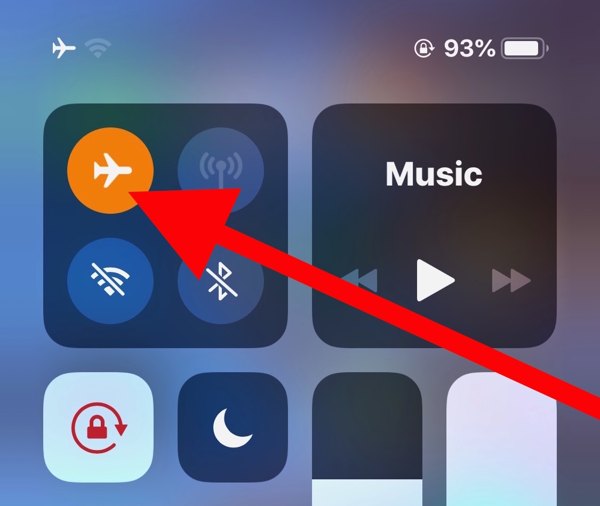
Introduceți Centrul de Control pe iPhone-ul tău.
Apasă pe Modul avion button to turn it off. If it is disabled, turn it on and then disable it.
Opțiunea 2:
Rulați Setări app from the home screen.
Găsi Modul avion option, and toggle it off.
Soluția 2: Reintrodu cartela SIM
When an iPhone keeps saying No SIM, it means that your device cannot see the SIM card. That may be due to a loose card, improper placement, or a damaged SIM card. To fix this problem, you need to take out the card from your device.
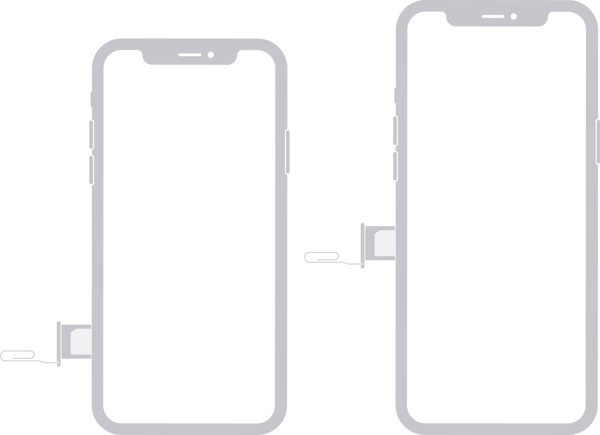
Find the SIM tray on the right side.
Insert a paper clip or SIM-eject tool into the hole beside the tray.
Pull in gently to eject the tray.
Remove the SIM card.
Next, place the SIM card back in the tray.
Insert the SIM tray into your iPhone to see if the error disappears.
If not, take out the card and use another one to check whether your SIM is broken.
Soluția 3: Reporniți iPhone-ul
Another simple solution to fix iPhone not detecting the SIM card is to restart your device. That can refresh the operating system and let it detect the SIM card again. For an iPhone, you can complete the process with physical buttons.
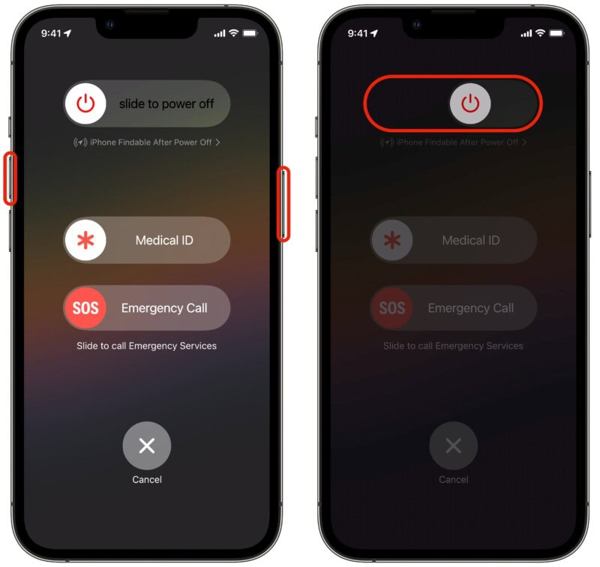
For an iPhone with Face ID, press and hold the Creșterea volumului + Latură nasturi împreună.
For older models, hold down the Latură buton.
As long as the boot menu screen appears, release the buttons or button.
Move the power-off slider to shut down your iPhone.
Câteva minute mai târziu, apăsați lung butonul Latură button until the Apple logo pops up.
Solution 4: Update Carrier Settings
Your iPhone does not read the SIM card partly because the carrier settings are outdated. By default, iOS is able to detect and install the update automatically. If not, you will need to update the carrier settings manually.
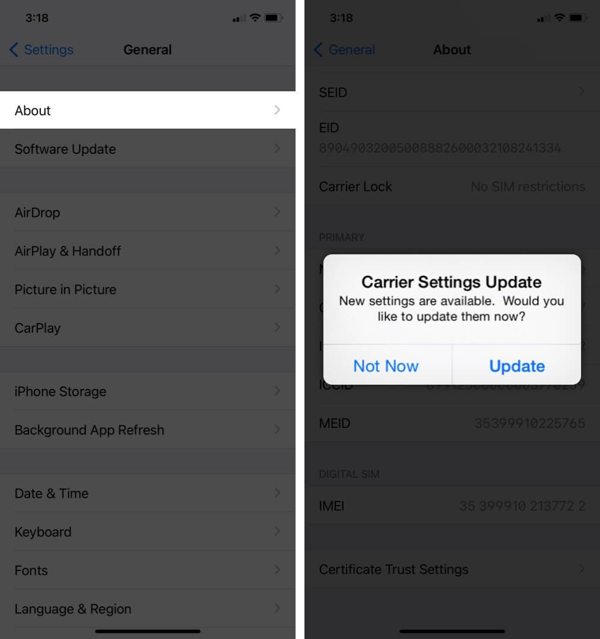
Rulați Setări aplicația.
Mergi la General și Despre.
If a carrier settings update is available, tap the Actualizați button on the prompt.
When the update finishes, check your SIM card again.
Solution 5: Update iPhone Software
Outdated software is another cause that your iPhone keeps saying SIM Failure. In fact, outdated software can lead to a lot of issues. Therefore, Apple suggests users keep software up to date on their iPhones.
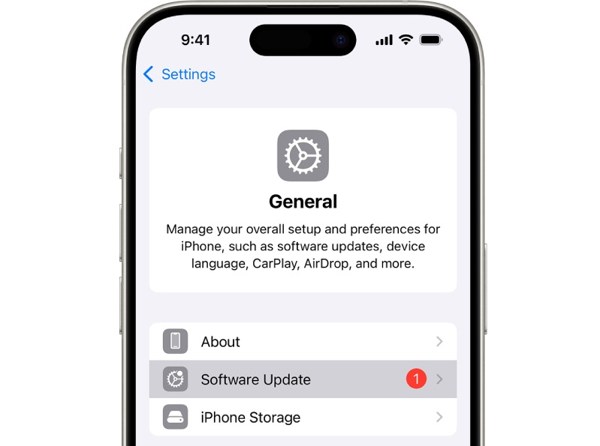
Începe-ți Setări aplicația.
Navigheaza catre General și Actualizare de software.
If an update is ready, tap the Descarca si instaleaza button to get it.
Soluția 6: Resetarea setărilor de rețea
Conflict settings can lead to the SIM Failure error on iPhone, too. It is difficult to identify which changes cause the problem, but you can reset all network settings with a single option on your iPhone.
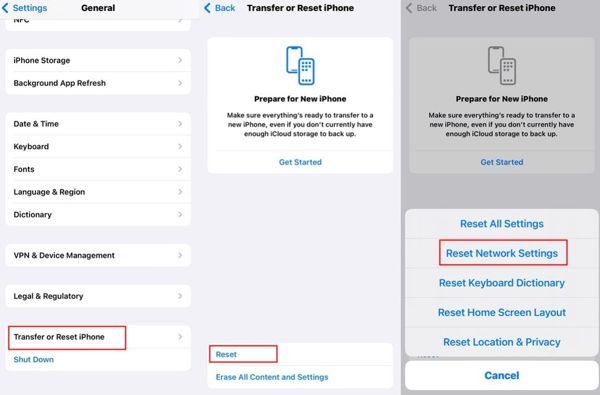
Rulați-vă Setări aplicația.
Îndreptați-vă spre General, Transferați sau resetați iPhone-ul, și Resetați.
Alege Resetați setările de rețea opțiune.
Authenticate with your iPhone passcode.
Atingeți Resetați setările de rețea din nou pentru a o confirma.
Solution 7: Check if Your iPhone Is Locked to a Carrier
One main reason why my iPhone says SIM Failure is that your device is carrier-locked. Once you insert a SIM card from another carrier, your iPhone cannot read the signal. Check if your iPhone is locked to a carrier following the steps below:
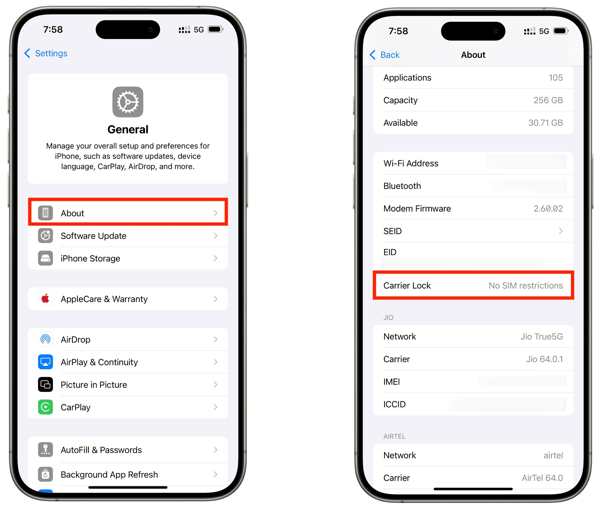
Mergi la General în dumneavoastră Setări aplicația.
Alege Despre opțiune.
Localizați Blocare de transport intrare.
If you see No SIM restrictions, it means your iPhone isn't locked to a carrier. If not, you have to unlock the SIM on your device.
S-ar putea să îți placă și:
Part 3: How to Unlock SIM Lock on an iPhone
If your iPhone doesn't recognize SIM card because your device is locked to the previous carrier, imyPass iPassGo can help you fix this problem quickly. It can remove the SIM lock from your iPhone without any restrictions. Furthermore, the clear design helps you simplify the workflow.

Peste 4.000.000 de descărcări
Deblocați codul PIN al cartelei SIM pe un iPhone în doar trei pași.
Nu solicitați parolă sau restricții în timpul procesului.
Păstrați-vă datele în siguranță atunci când deblocați cartela SIM.
Funcționează pentru aproape toate modelele de iPhone.
Include funcții bonus, cum ar fi ocolirea MDM.
Cum să deblocați cartela SIM pe iPhone-ul dvs.
Instalați programul de deblocare SIM
Lansați software-ul de deblocare SIM după ce îl instalați pe computer. Este disponibil pentru Windows 11 până la 7 și Mac OS X 10.12 sau versiuni ulterioare. Alegeți Deblochează cartela SIM modul pentru a continua.
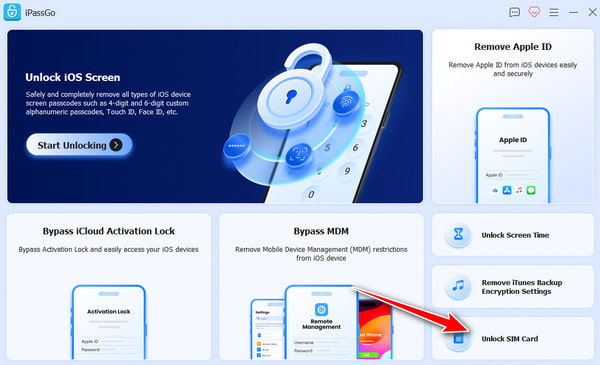
Recunoaște-ți iPhone-ul
Conectați iPhone-ul la computer folosind un cablu Lightning și asigurați-vă că aveți încredere în acest computer. După ce software-ul vă detectează iPhone-ul, faceți clic pe Începe acum butonul pentru a continua.
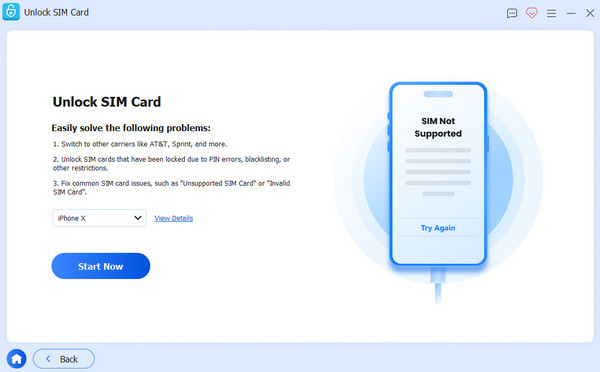
Deblocați cartela SIM pe un iPhone
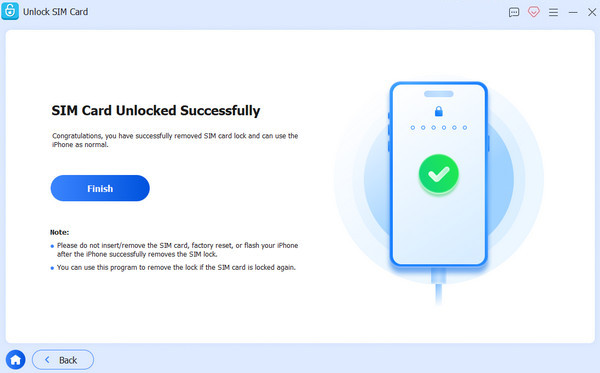
Verificați și confirmați informațiile dispozitivului. Apoi faceți clic pe Începeți să ocoliți buton. După ce faceți jailbreak dispozitivului, urmați instrucțiunile de pe ecran pentru a vă configura dispozitivul. Când terminați, faceți clic pe O.K pentru a începe deblocarea cartelei SIM pe iPhone.
Bonus: SIM Failure vs. No SIM vs. Invalid SIM vs. No Service
Dacă există și alte probleme cu SIM sau eSIM pe un telefon, puteți consulta tabelul de mai jos pentru a le înțelege pe toate.
| Erori | Semnificație |
| Eroare SIM | iPhone detectează o problemă cu cartela SIM sau cu conexiunea celulară. |
| Fără SIM / Nicio cartelă SIM | iPhone nu poate detecta o cartelă SIM. |
| Cartelă SIM nevalidă | Cartela SIM nu este acceptată sau nu poate fi utilizată cu acest iPhone. |
| Fără serviciu | iPhone nu se poate conecta la rețeaua celulară a operatorului. |
| SOS / Doar SOS | iPhone nu se poate conecta la rețeaua celulară normală, dar poate permite în continuare apeluri de urgență. |
Concluzie
Acum, ar trebui să înțelegi de ce Eroarea de tip „Eșec SIM” apare pe iPhone 13 și pe alte modele. Mai important, puteți afla soluțiile dovedite pentru a scăpa de această eroare și pentru a folosi iPhone-ul ca de obicei. Dacă întâmpinați această eroare deoarece dispozitivul este blocat pe operatorul anterior, încercați imyPass iPassGo pentru a elimina rapid blocarea SIM de pe iPhone fără nicio restricție.
Samuel este specializat în securitatea parolelor și confidențialitatea digitală. A lucrat ca specialist în securitate cibernetică pentru întreprinderi mici, ajutându-le să își protejeze activele digitale. Cu certificări în Cybersecurity și Ethical Hacking, el transformă subiectele complexe de securitate în sfaturi ușor de urmat. De asemenea, îi place să împărtășească recomandări despre parole pentru a-i ajuta pe utilizatori să își protejeze conturile cu mai multă încredere.
Soluții fierbinți
-
Deblocați iOS
-
Sfaturi iOS
-
Deblocați Android
-
Sfaturi privind parola


