



 المحلول
 مركز الدعم
 معلومات عنا
 اتصال
اتصالReset Your Microsoft Password: Tips and Troubleshooting Guide
 بيني وارين نشرت في 10 أبريل 2026كلمة مرور Windowsقراءة 3 دقائق
You can only get to your accounts if you can prove who you are, and even a small mistake can lock you out. The إعادة تعيين كلمة المرور الخاصة بـ Microsoft system is meant to make it easy to prove who you are, but users still have to wait because of security checks or data mismatches. Learning how the process works is important to fixing this quickly. The article explains each method in an easy-to-understand order, covering online recovery, device-based resets, and common issues that can interrupt the process.

في هذه المقالة:
Part 1. How to Reset Your Microsoft Account Password Online
If you need to change your Microsoft password, you should do it in a safe, step-by-step way. Microsoft checks your identity at every step to keep your account safe. As long as you follow all the steps carefully, you will be able to get back into your account safely and avoid being locked out.
To start the password reset process, go to the Microsoft sign-in page. Choose هل نسيت كلمة السر؟ If you are not on the password screen, click إعادة تعيين كلمة المرور. To start the recovery process, type in your email address, number, or username and click التالي. This tells you which account you want to reset.
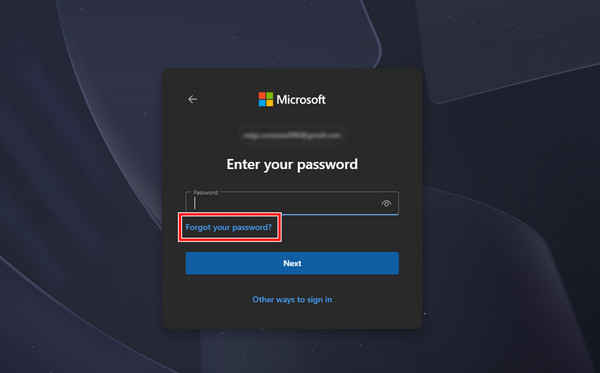
Pick a verification method to confirm your identity. You will receive a security code via your registered email address or phone number. Click التالي after selecting the method. Choosing a method you currently have access to is essential, as Microsoft uses this to verify your identity.
Confirm your request by entering the partial email or the last four digits of your registered phone number as prompted. Click احصل على الكود and check your email inbox or phone for the verification code. This step only works when the account owner can complete the reset.
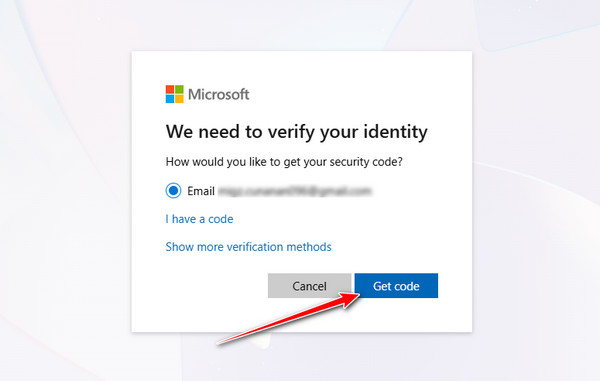
Type-in the verification code in the provided field, click التالي, and then create a new password. Make sure your new password is strong, unique, and meets Microsoft’s security requirements. Confirm the password and select التالي again to finalize the reset.
You can log in with your new password and get full access to your account again after you finish these steps. If this problem occurs in the future, Microsoft password resets are faster and safer. Think about updating your recovery information and turning on multi-factor authentication.
Part 2. How to Reset Your Microsoft Password on a Windows Laptop/PC
If the standard Microsoft account password reset method does not work, a dedicated tool like imyPass Windows إعادة تعيين كلمة المرور can help restore access. This method is useful when you are locked out of your Windows laptop or PC and cannot verify your identity online. It works by creating a bootable disk and resetting the password directly from the system.
Download and install imyPass Windows Password Reset on a working computer, launch the program, insert a blank CD, DVD, or USB drive, then create a password reset disk by selecting and burning your preferred option.
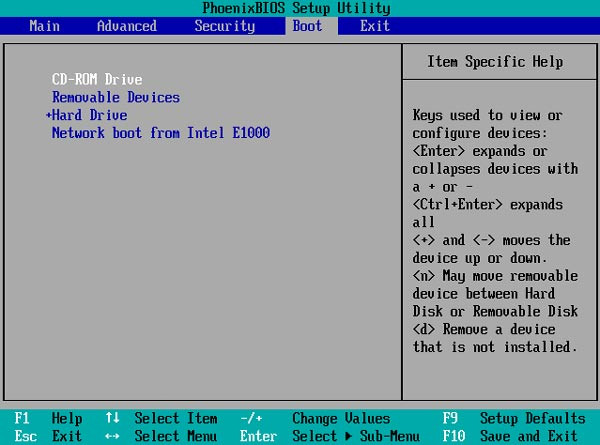
Insert the created reset disk into the locked computer, restart it, and press keys such as F12 أو خروج لدخول قائمه التمهيد, noting that the exact key may vary depending on the device brand.
Select the inserted USB أو قرص مضغوط/أقراص DVD from the boot options using the keyboard, choose the correct device or UEFI option if shown, then press Enter and allow the system to restart into the tool interface.
If there is more than one Windows operating system on the computer, choose the one you want to use, and then look at all the user accounts that are available.
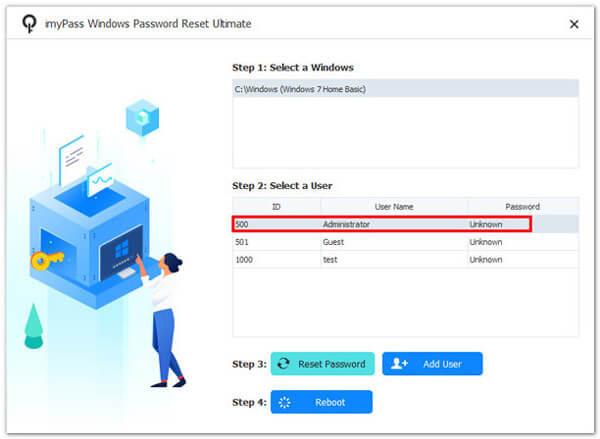
To get back into the locked account, select it, click the إعادة تعيين كلمة المرور button, confirm the action to clear the password, then take out the disk and restart the computer.
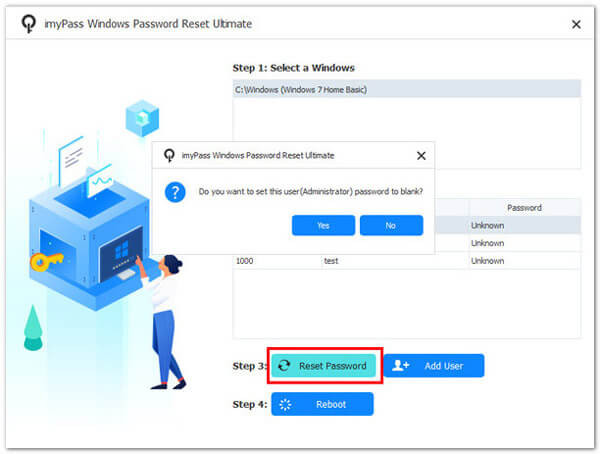
This method works well when standard recovery options don't work. Next, you will learn how to fix common problems that come up when you reset your password.
Part 3. Troubleshooting When Microsoft Password Reset Not Working
When the reset process fails, the issue is often linked to verification errors, outdated account data, or system conflicts. Below are the most common problems and how to resolve them.
1. When It is Not Sending Code to Email/Phone
If you are not receiving a verification code during a Microsoft online password reset, check your spam or junk folder first, then confirm that your number or email is entered correctly. Network delays and carrier restrictions can also block messages. Wait a few minutes and try again, or switch to another verification method if available. If the issue continues, use the account recovery tool to verify your identity manually.
2. Recovery Information is Outdated or Inaccessible
Outdated recovery details can prevent you from completing a Microsoft 365 password reset. If you no longer have access to your backup email or phone number, you will need to use the account recovery form. Provide as much accurate information as possible, such as previous passwords, recent activity, or account details, to improve your chances of verification. Keeping recovery information updated is critical for future access.
3. When Error Says that the Microsoft Account Doesn't Exist
This error frequently occurs when the account was never created or when the email address is entered incorrectly. Verify the spelling, domain, and any other email formats you may have used when attempting to reset your Microsoft account password. Make sure you are logging into the right Microsoft service as well. Try again later if the account was just created, because it might not be completely synchronized across systems.
4. Password Reset Loop (Page Reloads or Doesn't Accept New Password)
A reset loop can happen due to browser cache issues, expired sessions, or security conflicts. If you are trying to learn how to reset a Microsoft password and the page keeps reloading, clear your browser cache, switch to a different browser, or use a private window. Also, ensure your new password meets Microsoft security requirements, including length and complexity, to avoid rejection.
Part 4. For Organizations & Microsoft 365
You usually are unable to utilize Microsoft's public reset tool to change your password if your employer or school provides your account. An internal directory like Microsoft Entra ID, which regulates access, security guidelines, and authentication techniques, is used by an organization to manage these accounts.
Windows 8 password resets are typically only possible via the IT department of your company or a self-service portal that your administrator has set up. Self-service resets are permitted by certain companies, but only if you have pre-registered verification methods, such as an authentication app, phone number, or work email.n app.
Start by looking for a "Forgot password" option on the sign-in page of your company if you are locked out. If that doesn't work or isn't available, get in touch with your IT support staff directly. They have the authority to restore access and confirm your identity safely.
Administrators may also impose security-related regulations like multi-factor authentication, password complexity, and reset limits, which may have an impact on how and when you can get back in.
Part 5. How to Avoid This in the Future
You are able to safeguard the account and save time and frustration by taking a proactive approach. You can protect your account and lessen the need for a Microsoft password reset by using these techniques.
1. Keep Recovery Information Updated
Verify that your backup phone numbers and email addresses are up to date. This guarantees that in the event that you forget your password or encounter problems with verification, you will receive a Microsoft account password reset email. The most frequent cause of lockouts is outdated recovery information, which is why many decided to delete the Windows account user.
2. استخدم كلمات مرور قوية وفريدة
أنشئ كلمات مرور طويلة، وادمج بين الحروف والأرقام والرموز، وتأكد من أن تكون مختلفة عن تلك المستخدمة في الحسابات الأخرى. تقلل كلمات المرور القوية من مخاطر الاختراق، وتسهّل إعادة تعيين كلمة مرور مايكروسوفت عند الحاجة.
3. فعّل المصادقة متعددة العوامل (MFA)
تضيف المصادقة متعددة العوامل طبقة أمان إضافية عبر طلب رمز تحقق أو تأكيد من تطبيق إلى جانب كلمة المرور. يساعد ذلك على منع الوصول غير المصرح به ويدعم عملية أكثر أمانًا لإعادة تعيين كلمة مرور حساب مايكروسوفت.
4. خزّن كلمات المرور بشكل آمن
استخدم مدير كلمات مرور موثوقًا للاحتفاظ ببيانات اعتمادك. تجنّب كتابة كلمات المرور على الورق أو إعادة استخدامها في عدة حسابات حتى تتمكن من إعادة تعيين كلمة المرور في مايكروسوفت بسرعة ودون ارتباك. وإذا نسيتها، فهناك طريقة لـ العثور على كلمات المرور المخزنة في ويندوز حتى دون استخدام خيار «هل نسيت كلمة المرور؟».
5. راقب نشاط الحساب بانتظام
راجع عمليات تسجيل الدخول الأخيرة، ومحاولات تسجيل الدخول الفاشلة، أو التنبيهات الأمنية. يساعد اكتشاف الأنشطة المريبة مبكرًا على منع قفل الحساب، ويجعل طريقة إعادة تعيين كلمة مرور مايكروسوفت أسهل عند الحاجة.
6. خطّط للحسابات التنظيمية
بالنسبة لحسابات العمل أو المدرسة، تعرّف على إجراءات قسم تقنية المعلومات لإعادة تعيين كلمة المرور. إن اتباع البروتوكولات الداخلية يضمن إعادة تعيين سلسة لكلمة مرور مايكروسوفت 365 دون تأخير.
7. تجنّب الشبكات العامة عند تغيير كلمات المرور
احرص دائمًا على إعادة تعيين كلمة المرور أثناء الاتصال بشبكة آمنة وخاصة. قد تعرّض شبكات الواي فاي العامة بيانات تسجيل الدخول للخطر، مما يجعل إعادة تعيين كلمة مرور مايكروسوفت عبر الإنترنت أكثر تعقيدًا أو مخاطرة.
8. راجع واختبر طرق الاسترداد
تحقق دوريًا من أن بريدك الإلكتروني الاحتياطي أو رقم هاتفك أو تطبيق المصادقة يعمل بشكل صحيح. يضمن ذلك أن أي عملية إعادة تعيين مستقبلية لكلمة مرور مايكروسوفت ستكون سريعة وموثوقة وخالية من التوتر.
من خلال تطبيق هذه العادات، تقلل احتمالية قفل حسابك، وتضمن أن أي عملية لإعادة تعيين كلمة المرور، سواء كانت شخصية أو تابعة لمؤسسة، ستكون آمنة وسريعة وفعّالة.
استنتاج
استعادة الوصول إلى حسابك لا يجب أن تكون عملية مرهقة إذا اتبعت الخطوات والإجراءات الوقائية الصحيحة. إن معرفة كيفية إعادة تعيين كلمة مرور مايكروسوفت بشكل آمن يضمن إمكانية استرجاع حسابك بسرعة مع حماية معلوماتك الشخصية. ومن خلال إبقاء معلومات الاسترداد محدثة، واستخدام كلمات مرور قوية، وتفعيل ميزات الأمان مثل المصادقة متعددة العوامل، تقلل من خطر حالات القفل المستقبلية. سواء كنت تعيد تعيين كلمة المرور عبر الإنترنت، أو على جهاز يعمل بنظام ويندوز، أو من خلال أدوات تنظيمية، فإن اتباع هذه الممارسات المثلى يجعل العملية سلسة وآمنة وموثوقة.
بيني محررة رئيسية في imyPass. ركّزت على إيجاد حلول مثالية لتحديد المواقع عبر نظام تحديد المواقع العالمي (GPS) في جميع الحالات، ولديها أيضًا خبرة في إصلاح أجهزة الكمبيوتر.
الحلول الساخنة
-
كلمة مرور Windows
- تجاوز كلمة مرور Windows 8
- إظهار كلمة مرور المسؤول باستخدام CMD
- تجاوز كلمة مرور Windows 10
- اختراق كلمة المرور على جهاز كمبيوتر يعمل بنظام Windows
- تجاوز كلمة مرور المسؤول على نظام التشغيل Windows
- أفضل 5 مفرقعات لكلمة مرور Windows 10
- إعادة تعيين كلمة مرور Windows Vista
- أدوات استعادة كلمة مرور Windows المجانية
-
نصائح ويندوز
-
إصلاح الويندوز
-
نصائح حول كلمة المرور

إعادة تعيين كلمة مرور Windows
إعادة تعيين حساب المسؤول/المستخدم لنظام Windows
تحميل مجاني تحميل مجاني
