



 Lösung
 Support-Center
 Über uns
 Kontakt
How to Fix Life360 Not Working on iPhone and Android
 Penny Warren Veröffentlicht auf 27. März 2026GPS-Standort3-minütige Lektüre
"My wife and I use Life360 to update our location. Recently, my wife's location hasn't updated. She left the house 15 minutes ago, but Life360 still shows her as home. Why is Life360 not working?" As a popular location-sharing app, Life360 enables users to track and be tracked with family and friends. However, some users encounter issues with the app. This article shares eight solutions to fix this problem quickly.

In diesem Artikel:
Part 1: Why Life360 Is Not Working
Life360 uses GPS technology to track location. Once you have the app installed on your mobile device, it continually updates your whereabouts and shares the information with your circles. It also taps into Wi-Fi and Bluetooth signals. The main causes why Life360 is not working include:
1. Poor GPS and internet connection.
2. Life360 is restricted or blocked.
3. Your device is in low power mode.
4. Life360 is outdated or stuck.
5. Softwarefehler.
Part 2: How to Fix Life360 Not Working
Solution 1: Check App Permissions
Why am I not getting Life360 notifications? In most cases, the problem is due to the notification permission being blocked. The solution is simple: check your app permissions and enable notifications.
Auf dem iPhone
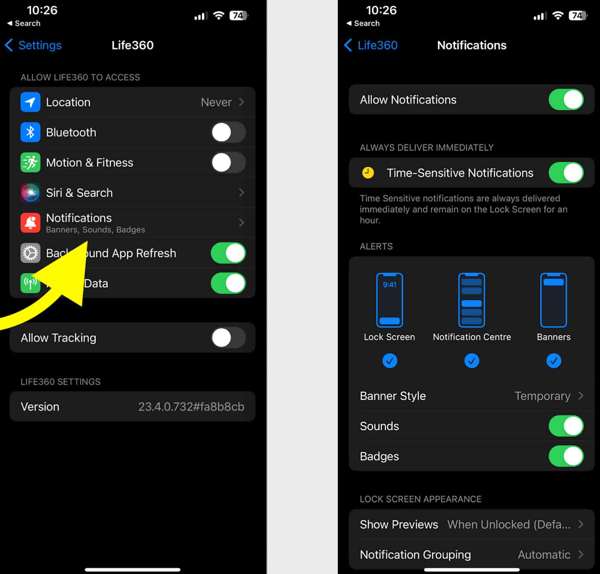
Öffne das Einstellungen App.
Wählen Leben360 und tippen Sie auf Benachrichtigungen.
Aktivieren Allow Notifications und Time-Sensitive Notifications.
Auf Android
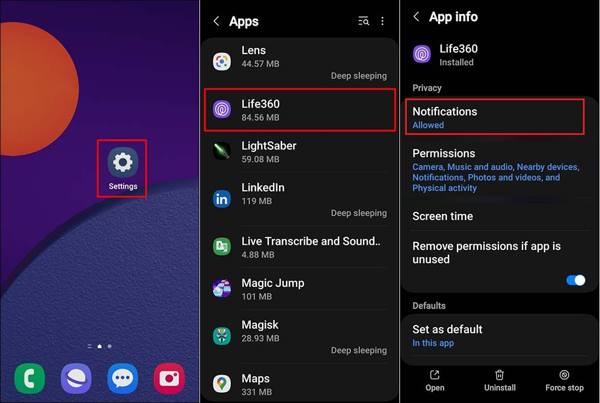
Laufen Einstellungen.
Gehe zu Anwendungen und wähle Leben360.
Tap Notifications, and choose Erlauben.
Solution 2: Update Life360
If you could not be located on Life360, you'd better update your app. The outdated app may lead to a variety of issues. In fact, the developer fixes bugs and adds new features in each update of the app.
Auf dem iPhone
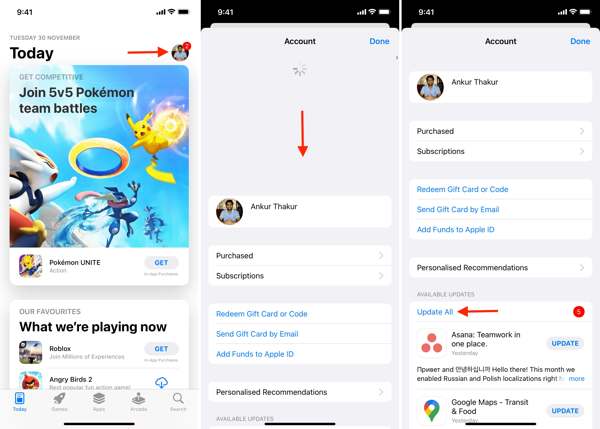
Öffnen Sie Ihr Appstore.
Tippen Sie auf Ihr Profil.
Wischen Sie vom oberen Bildschirmrand nach unten.
Klopfen AKTUALISIEREN for Life360.
Auf Android
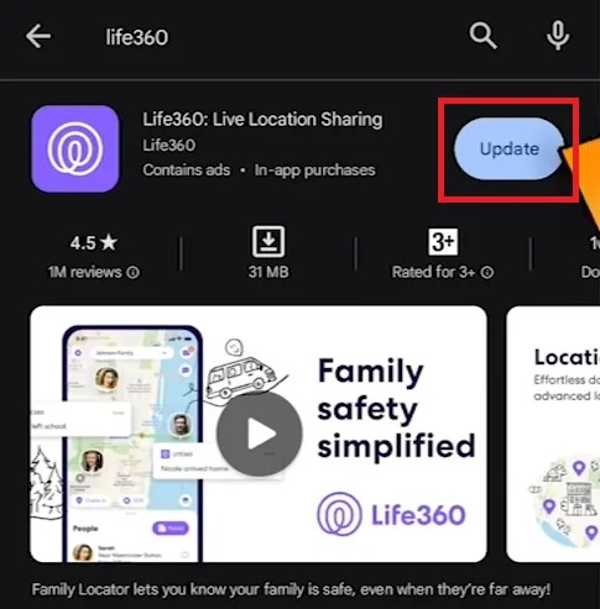
Öffne das Play Store and find Leben360.
Check if an update is available.
Tippen Sie auf die Aktualisieren Taste.
Solution 3: Restart the App
Why does Life360 say I'm driving when I'm not? This problem is partly because your app or device gets stuck. You can force stop the app and restart Life360 to share your location as usual.
Auf dem iPhone
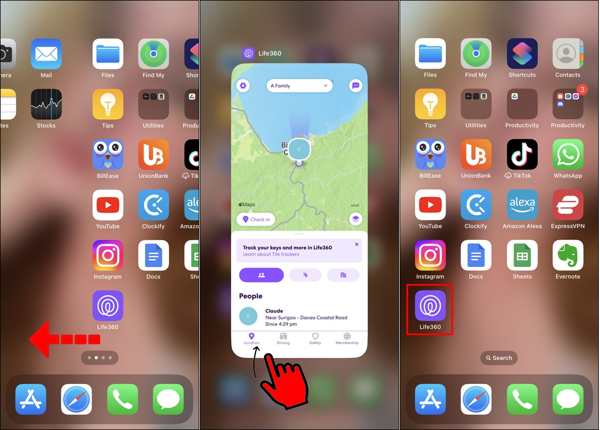
Greife auf ... zu App-Umschalter auf Ihrem Gerät.
Swipe left and right to find the Life360 app.
Tap the app and swipe upward to close it.
Then, open Life360 again.
Auf Android
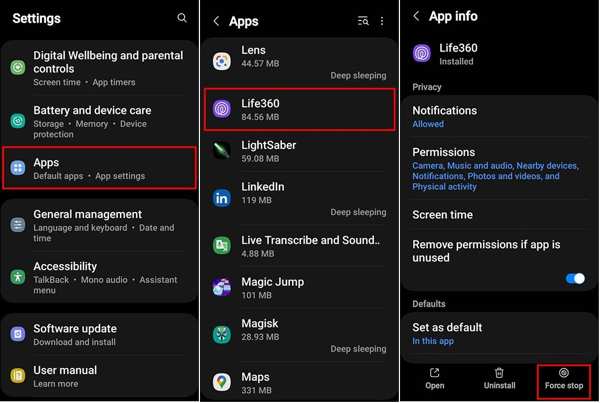
Gehe zu Anwendungen in Einstellungen.
Wählen Leben360 und tippen Sie auf Stopp erzwingen.
Then, reopen the app.
Solution 4: Check Your Account
After changing your account credentials for Life360, you must update them on all your devices. Plus, you have to update it if the associated email or phone number stops being used. Otherwise, Life360 won't work today.
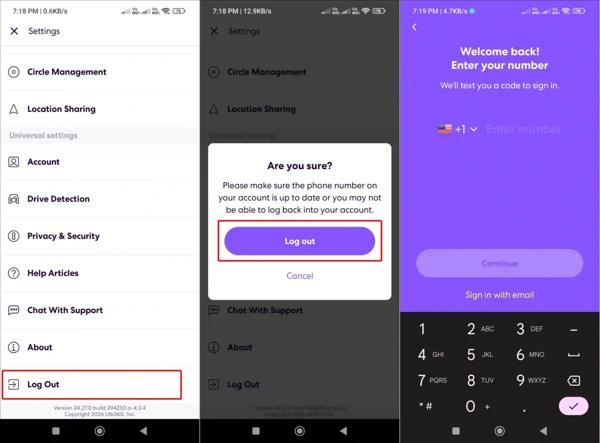
Laufen Leben360 auf Ihrem Telefon.
Tippen Sie auf die Einstellungen Schaltfläche mit einem Zahnradsymbol.
Scrollen Sie nach unten und tippen Sie auf Ausloggen.
Restart your iPhone or Android phone.
Next, sign in with your account and password.
Solution 5: Enable Location Sharing
Life360 works through the GPS on your mobile phone. If you accidentally disable Location Sharing, the Life360 app won't work. Therefore, you'd better check Location Sharing for Life360 and keep it on.
Auf dem iPhone
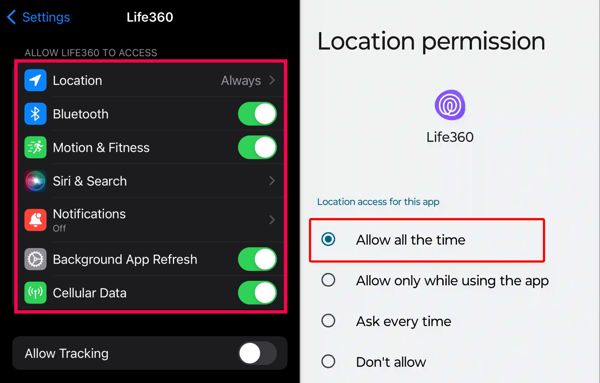
Wählen Leben360 in deinem Einstellungen App.
Klopfen Standort und wähle Stets.
Aktivieren Sie dann Präziser Standort.
Auf Android
Führen Sie die aus Einstellungen App.
Gehe zu Anwendungen und wähle Leben360.
Klopfen Berechtigungen und auswählen Standort.
Enabling Location Sharing in Always mode ensures Life360 can update your location continuously, even when the app is in the background.
Aktivieren Genauen Standort verwenden.
Weiterführende Literatur:
Solution 6: Allow Background App Refresh
If your Life360 is not showing speed, you need to allow Background App Refresh. Once you disable this option, Life360 cannot update your location and speed when it is running in the background.
Auf dem iPhone
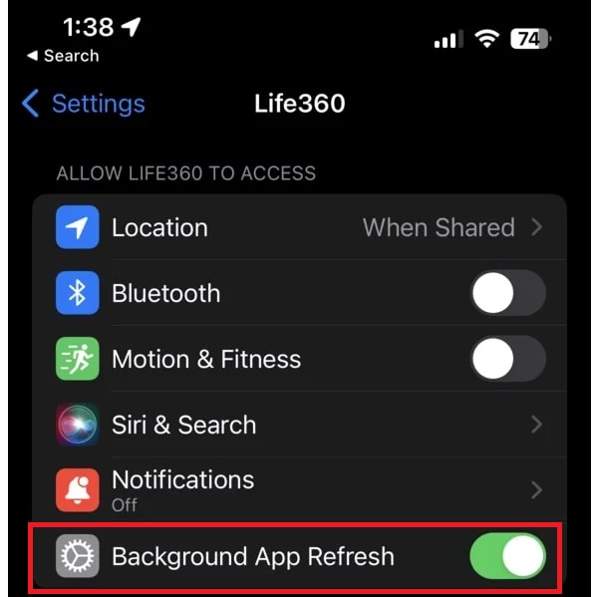
Wählen Leben360 in Einstellungen.
Suchen Sie die Allow Life360 to Access Sektion.
Aktivieren Hintergrund App aktualisieren.
Auf Android
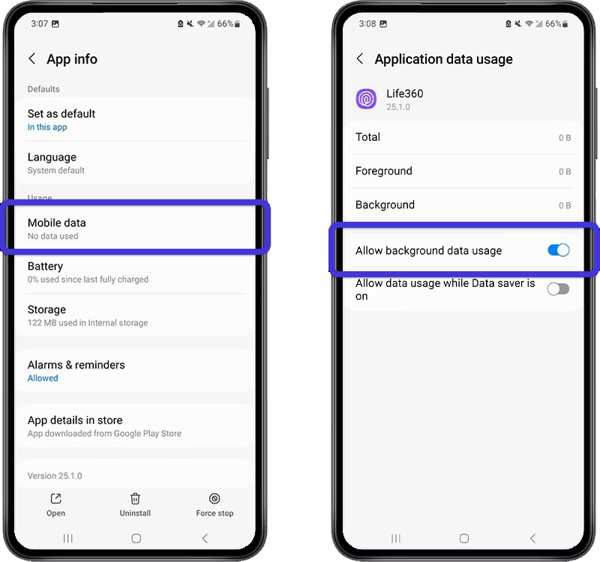
Gehe zu Anwendungen in Einstellungen.
Wählen Leben360 und tippen Sie auf Mobile Data & Wi-Fi.
Aktivieren Hintergrunddatennutzung zulassen.
Part 3: Bonus Tip: How to Change Life360 Location Without Notifying Others
iLocaGo is an effective method to change your Life360 location to anywhere on your iPhone or Android phone. More importantly, the user-friendly design makes it easy to use, especially for beginners.

Über 4.000.000 Downloads
Change Life360 location with one click.
Use an accurate address or any position.
Bietet mehrere Modi für unterschiedliche Zwecke.
Support a wide range of iPhones and Android devices.
How to Change Life360 Location Without Notifying Others
Install the Life360 location spoofing tool
Launch the Life360 location spoofing tool after installing it on your computer. Connect your iPhone or Android phone to your computer with a compatible USB cable.

Wählen Sie einen Modus
Wählen Standort ändern if you need to change the static location. The other three modes, One-Stop-Modus, Multi-Stop-Modus, und Joystick-Modus, werden zur Erstellung virtueller Routen verwendet.

Life360-Standort ändern
Input an address into the field or click a position on the map. Finally, click the Ändern button. Now, you can open the Life360 app on your mobile device, and the app should update your location automatically.

Fazit
This article explained what you should do if Life360 funktioniert nicht. Sie können die Hauptursachen für dieses Problem kennenlernen. Außerdem können Sie unsere Lösungen nacheinander befolgen, um Ihre Standortverfolgungs‑App zu reparieren und Ihre Position mit Familie und Freunden zu teilen. Wenn Sie Ihren echten Standort bei der Nutzung von Life360 verbergen möchten, iLocaGo ist hilfreich. Damit können Sie Ihren Standort sowohl auf einem iPhone als auch auf einem Android‑Telefon fälschen.
Penny konzentriert sich auf die Fehlerbehebung bei GPS sowie auf die Optimierung von Windows. Zuvor arbeitete sie als Technical Support Engineer und half Kunden dabei, standortbezogene und Systemprobleme effizient zu lösen. Gestützt auf ihre Erfahrung im IT-Support bietet sie praxisnahe Lösungen, die wirklich funktionieren. In ihrer Freizeit wandert sie gern und geht Geocaching nach, um GPS‑Technik in der realen Welt zu testen.
Heiße Lösungen
-
GPS-Standort
- So erkennen Sie, ob jemand seinen Standort auf Life360 pausiert hat
- So tätigen Sie kostenlose Spoof-Anrufe
- Die besten Pokémon-GO-Standorte mit Koordinaten
- Die 10 besten Pokémon-GO-Cheats
- 9 Pokémon-Go-Spoofing-Tools
- So verfolgen Sie den Standort eines iPhones
- Was ist ein Scheinstandort?
- 5 Pokémon-GO-GPS-Joysticks
-
iOS entsperren
-
iOS-Tipps
-
Android entsperren


