



 Lösung
 Support-Center
 Über uns
 Kontakt
How to Fix iPhone Unavailable Without Erase Option [Full Guide]
 Samuel Spender Veröffentlicht auf 16. September 2026iOS entsperren3-minütige Lektüre
Why does your iPhone suddenly show an Meldung „iPhone nicht verfügbar“? It's confusing and annoying because you cannot access all your photos, apps, and important files inside the locked device. If you're facing an iPhone Unavailable screen with no Erase option available, keep reading. We'll explain why this issue happens and show you 4 practical ways to fix it.

In diesem Artikel:
Part 1: Why Does My iPhone Say iPhone Unavailable
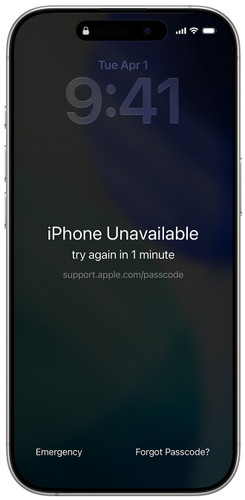
When you enter the wrong passcode on your iPhone too many times, you may see the "iPhone Unavailable" message or "iPhone Security Lockout" on the screen. What does Security Lockout mean on iPhone? This is Apple's security feature designed to prevent someone else from accessing your device and protect your personal data.
Common reasons why your iPhone says unavailable include:
- You entered the wrong iPhone passcode multiple times.
- You forgot your current iPhone passcode.
- Someone else tried to unlock your device with incorrect passwords.
- The iPhone was disabled after repeated failed unlock attempts.
Part 2: Why is There No Erase option on iPhone Unavailable Screen
On newer iOS versions, after too many failed attempts, the device may show an "Erase iPhone" option in the bottom right corner. You can reset the device and remove the passcode through this option. If you encounter iPhone Unavailable no Erase option, it may be caused by the following reasons.
- Your iPhone is running iOS 15.2 or lower, where the Erase iPhone feature was not available.
- Your iPhone is running iOS 17 or above, and the Erase option has been replaced by the Forgot Passcode option.
- You're not signed into your Apple ID on your iPhone.
- Find My iPhone is turned off.
- The iPhone is not connected to Wi-Fi or cellular data.
- You have not reached the required number of failed passcode attempts for the erase option to appear.
Part 3: How to Fix iPhone Unavailable Without Erase option - 4 Ways
If your iPhone shows "iPhone Unavailable" but there is no Erase iPhone option, you can still try these 4 ways to regain access.
Method 1: Unlock Unavailable iPhone via Old Passcode
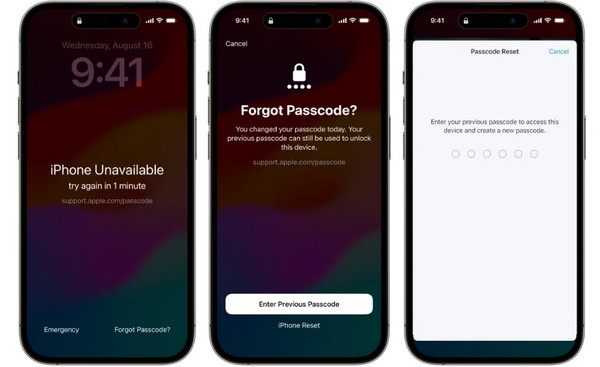
Is it possible to fix iPhone unavailable without losing data? Yes, you may be able to. If you're using iOS 17/18 or later and just changed your passcode, there's a good chance you can still get back in. Apple lets you use your old passcode for up to 72 hours after you change it. So, if you remember the previous one, it's definitely worth trying before you reset your iPhone.
Tippen Sie auf die „Passcode vergessen?“ option at the bottom corner of the "iPhone Unavailable" screen.
Klopfen Vorherigen Passcode eingeben and enter your old passcode.
Follow the instructions to set a new passcode.
Method 2: Unlock Unavailable iPhone with imyPass iPassGo
If you forgot your passcode and there is no erase option, a professional iPhone unlock tool like imyPass iPassGo can help you bypass the unvailable screen and remove the screen lock effortlessly. It can remove different types of iPhone locks, including screen lock, Activation Lock, carrier lock, or MDM and Screen Time restrictions.

Über 4.000.000 Downloads
Fix iPhone Unavailable without Erase option easily.
Unlock disabled, locked, damaged iPhone without passcode.
Remove screen passcode, Face ID & Touch ID easily.
Unterstützt die neuesten iOS‑Modelle und ‑Versionen.
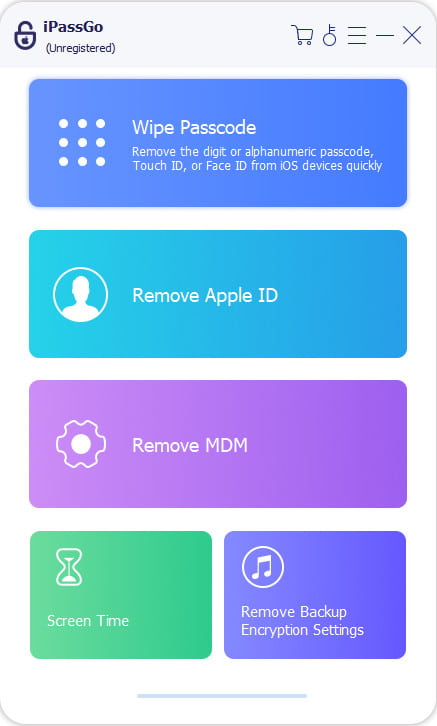
Launch the program on your computer. Select the Entsperren Sie den iOS-Bildschirm mode from the interface. Connect your device to a computer using a USB cable, then click Anfang Jetzt weitermachen.
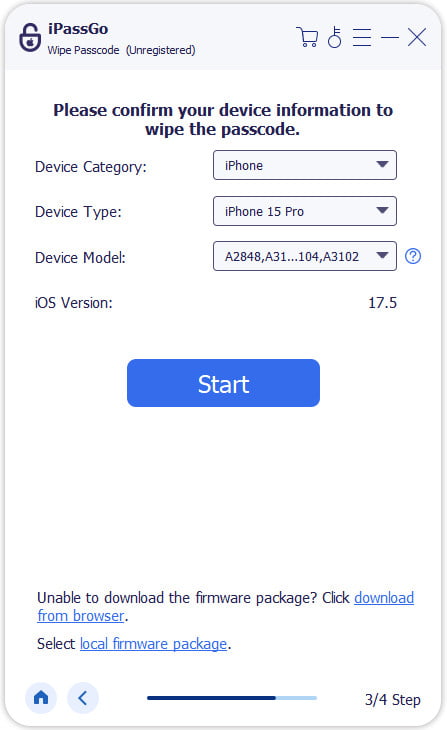
Bestätige deine Geräteinformationen und klicke auf die Jetzt anfangen Schaltfläche, um das Firmware-Paket herunterzuladen. Warte, bis der Download abgeschlossen ist und die Firmware verifiziert wurde.
Nach der Verifizierung klicke auf die Beginnen Sie mit dem Entfernen button and confirm again. The software will automatically unlock the disabled iPhone, then you can use your device again.

Method 3: Fix Unavailable iPhone with iTunes/Finder
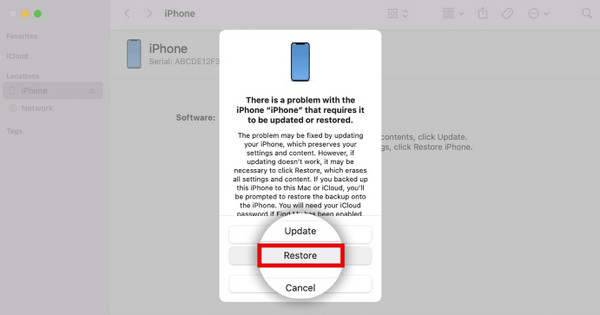
Recovery mode works when the iPhone Unavailable Erase option is missing. You can use a computer to connect your device and restore your iPhone via iTunes or Finder.
Power off your disabled iPhone. Launch the latest version of iTunes on your PC (or Finder on Mac). Connect your iPhone to the computer using a USB cable.
Versetze dein iPhone in den Wiederherstellungsmodus.
- iPhone 8 oder neuer: Drücken und schnell wieder loslassen Lautstärke erhöhen button, then Lautstärke runter Taste. Halten Sie die Seite Taste, bis der Bildschirm für den Wiederherstellungsmodus angezeigt wird.
- iPhone 7/7 Plus: Halten Sie die beiden Lautstärke runter und Seite buttons simultaneously until the recovery mode screen appears.
- iPhone 6s oder älter: Halten Sie die beiden Heim und Seite Tasten gedrückt, bis der Bildschirm für den Wiederherstellungsmodus erscheint.
When your iPhone appears, select Wiederherstellen aus dem Menü.
Method 4: Erase Your Unavailable iPhone Using Find My
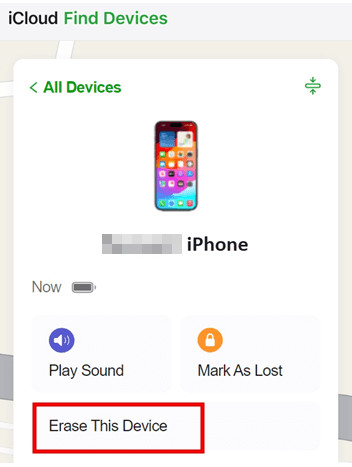
If you don't have a computer around, you can remotely erase your iPhone using the Find My app on another device. Just keep in mind that Find My needs to have been turned on before your iPhone became unavailable. If it wasn't, this option won't help much.
Open the Find My app on another Apple device or visit iCloud.com on a browser.
Sign in with your Apple Account used on your unavailable iPhone.
Select your iPhone from the device list. Choose Dieses Gerät löschen and confirm it with one more click. Then your iPhone will be reset to factory settings.
FAQs.
-
Wenn auf meinem iPhone „iPhone nicht verfügbar“ angezeigt wird, wie setze ich es zurück?
Wenn auf deinem iPhone "iPhone nicht verfügbar" angezeigt wird, kannst du es zurücksetzen, indem du die Option „iPhone löschen/Passcode vergessen“ in der unteren rechten Ecke verwendest. Du kannst auch iTunes/Finder, „Mein iPhone suchen“ oder ein professionelles iPhone-Entsperrtool wie imyPass iPassGo nutzen, um die Bildschirmsperre zu entfernen.
-
Wie viele falsche Code-Eingaben sind nötig, bis das iPhone nicht mehr verfügbar ist?
Your iPhone becomes unavailable after 10 incorrect unlock attempts. The lockout time increases after each failed attempt. Once you reach the limit, your iPhone will be completely disabled.
-
Wie kann ich „iPhone nicht verfügbar“ ohne die Option „iPhone löschen“ beheben, ohne mein iPhone zu löschen?
If you recently changed your passcode and are using iOS 17/18 or later, you are able to unlock your iPhone without erasing your data using your previous passcode within 72 hours. Tap the Passwort vergessen und wählen Sie Vorherigen Passcode eingeben to exit the unavailable screen.
Fazit
iPhone nicht verfügbar – keine Option „Löschen“ Das Problem ist ziemlich ärgerlich. Wenn Sie keine Ahnung haben, was Sie als Nächstes tun sollen, probieren Sie die 4 Methoden aus, die in dieser Anleitung erwähnt werden. Sie können die Option „Code vergessen“ verwenden, über iTunes/Finder wiederherstellen, über „Wo ist?“ löschen oder ein spezielles Tool ausprobieren, iPhone-Entsperrsoftware wie imyPass iPassGo. Hoffentlich bringt Sie eine dieser Methoden ohne allzu große Umstände wieder in Ihr iPhone.
Samuel ist auf Passwortsicherheit und digitalen Datenschutz spezialisiert. Früher arbeitete er als Cybersicherheitsberater für kleine Unternehmen, um deren digitale Werte zu schützen. Mit Zertifizierungen in Cybersicherheit und Ethical Hacking verwandelt er komplexe Sicherheitsthemen in leicht verständliche Ratschläge. Außerdem gibt er gerne Passworttipps, damit Nutzer ihre Konten selbstbewusster schützen können.
Heiße Lösungen
-
iOS entsperren
-
iOS-Tipps
-
Android entsperren
-
Passwort-Tipps


