



 Solución
 Centro de Apoyo
 Sobre nosotros
 Contacto
Resolve iPhone Randomly Asking for Apple ID Password to Remove Pop-ups
 samuel spenser Publicado en 20 de mayo de 2026Desbloquear iOSlectura de 3 minutos
The Apple ID on your iPhone is very helpful because it can be used for different additional services. It includes the iCloud service because an Apple ID can be associated with it. However, other users report that their iPhone keeps asking for the Apple ID password even though there are no requests for changes in the system or other features.
If that happens, there might be errors in the system. Eyes here! This article helps you to fix the mentioned issue using the eight easy methods it offers. Kindly scroll below to know the full details about the topic.

En este articulo:
Part 1. Why Does My iPhone Keep Asking for My Apple ID Password?
By default, the Apple ID is required when changes need to be made to your iPhone. It includes resetting the Screen Time passcode, making a purchase online, and more. However, sometimes this authentication appears out of nowhere. Why does my iPhone keep asking for an Apple ID? It is due to software issues on your iPhone. Some of them are listed below.
- iCloud sync issues on your Apple ID. You might need to recover an Apple ID to adjust the account.
- There are problems in the App Store or iTunes download processes.
- An iOS update or software glitches have occurred.
- Your Apple ID sessions have expired.
- An existing backup and restore issue.
Part 2. Common Solutions to Fix
Regardless of the cause, it is indeed great to fix the iPhone that keeps asking for Apple ID verification. In this section, you will encounter the eight ways to fix the mentioned issue. Kindly scroll below to know their full details.
1. Sign Out and Back Into iCloud
Apple ID is associated with your iCloud account. You may try signing out and signing back in to fix the issue. This method requires an internet connection.
Por favor seleccione el Ajustes app from your iPhone Pantalla de inicio. Then, choose your name at the top. Swipe down on the screen and tap the Desconectar button. Enter your Apple ID password.
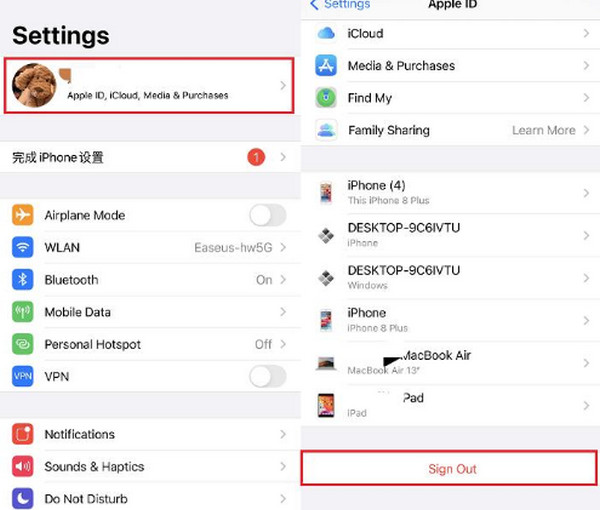
To sign in, tap the Ajustes app to open it. Tap the Sign In to Your iPhone option. Enter the Apple ID credentials.
2. Reinicia tu iPhone
Bugs and glitches can be the reason for an Apple ID authentication to pop up out of nowhere. Restating your iPhone can help you get rid of the issue.
- For iPhones Without a Home Button: Mantenga presionado el botón Lado y Bajar volumen buttons. A slider will appear on the screen. Please toggle off the slider to restart your iPhone.
- For iPhones with a Home Button: iPhone 7: Lado o Arriba button. Wait for the slider to be prompted on your screen. Later, toggle the slider to restart your iPhone.
3. Comprobar el estado del sistema Apple
The Apple System Status page can help you determine if there are down services that the manufacturer offers. In this case, you will know if the problem is on their end or on your iPhone. If it appears that Apple has a system down for Apple ID, you only need to wait for the problem to be fixed on their end. You cannot do anything about it but wait.
4. Check App Store Downloads
There might be an unfinished or stuck update for your apps. So, the Apple ID will be required to be authenticated. You can check the App Store for this issue. Continue updating the apps to fix it.
Abre el Tienda de aplicaciones app. Tap the Perfil opción en la esquina superior derecha.
Wait for the apps to load. Tap the Actualizar todo button to fix the issue.
5. Toggle Media & Purchases
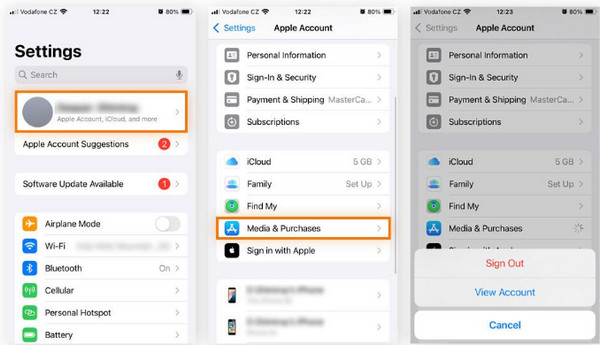
If you do not want to sign out of the Apple ID, you can also toggle Media & Purchases. It is the quickest way to fix pop-ups for the Apple ID password.
Abre el Ajustes app. Tap your name at the top.
Toque en el Medios y compras botón. Toque el Ver cuenta botón en la parte inferior.
6. Disable Password for Free Downloads
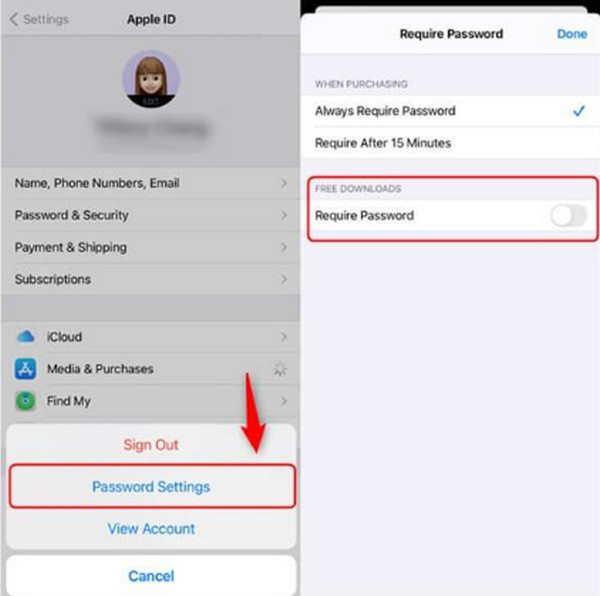
You can also turn off the password requirement for downloading free apps. This way, you can lessen the pop-ups for your Apple ID.
Abre el Ajustes app. Select the name at the top and tap the Medios y compras botón.
Toque en el Configuración de contraseña button. Turn off the Requerir Contraseña sección.
7. Reset Network Settings
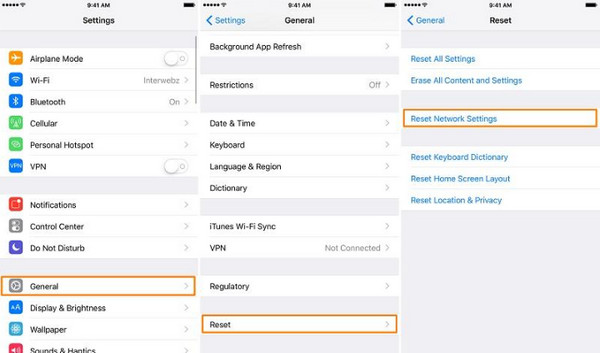
The network can also affect how you sign in to your Apple ID when there are changes needed to make on your iPhone. So, wrong network settings can lead to the pop-ups of your Apple ID when they are not needed. Resetting the network settings is the best solution to fix the issue.
Abre el Ajustes aplicación y toque el General botón. Seleccione el Transferir o restablecer iPhone botón después.
Toque en el Reiniciar Elige el botón Reiniciar configuración de la red button and enter the iPhone passcode. Tap the same button to confirm.
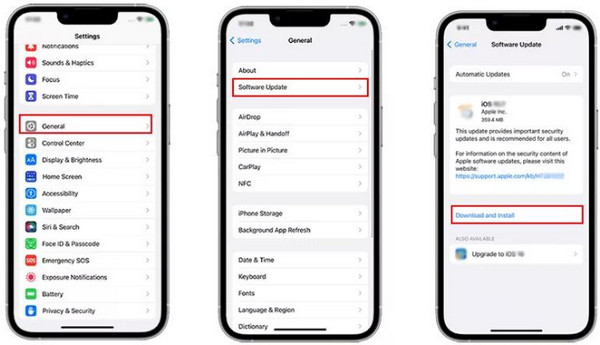
8. Update iOS System
Your iPhone needs its updates to fix issues in its system. It includes the Apple ID that keeps asking for your password. It can also be the way to fix Apple ID greyed out y otros problemas relacionados con el ID de Apple. Aprende cómo actualizar iOS con los pasos indicados a continuación.
Abre el Ajustes app. Tap the General botón.
Toque en el Actualización de software botón. Espera a que aparezcan las actualizaciones disponibles. Toca el Descargar e instalar botón después.
Bonus: How to Bypass If You Forgot Your Apple ID Password
Además del problema mencionado, también hay usuarios de iPhone que han olvidado las credenciales de su ID de Apple. Por ello, no pueden realizar ningún cambio en el iPhone. imyPass iPassGo puede ayudarte a deshacerte de la cuenta mencionada en tu iPhone sin sus credenciales. Es una herramienta sin conexión que solo depende de una conexión USB.
Además, los principiantes encontrarán esta herramienta práctica gracias a la sencilla interfaz que ofrece. Además, la herramienta también se puede utilizar para eliminar el bloqueo de la SIM, el tiempo de uso, MDM y otras funciones de seguridad de tu iPhone. Utiliza la herramienta siguiendo los pasos que se indican a continuación.
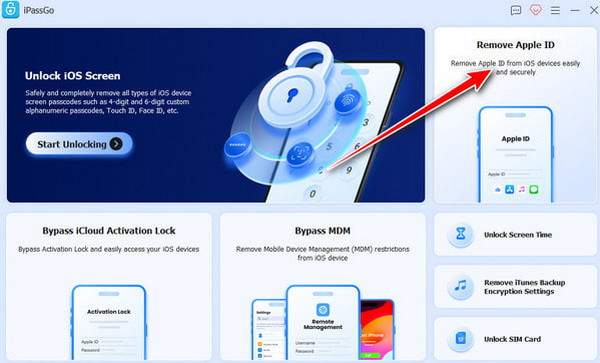
Visita rápidamente el sitio web de imyPass iPassGo. Luego, descarga la herramienta en tu ordenador. Configúrala, instálala y ábrela para iniciar el proceso.
Selecciona el Eliminar ID de Apple botón en la parte superior derecha. Después, conecta tu iPhone al ordenador.
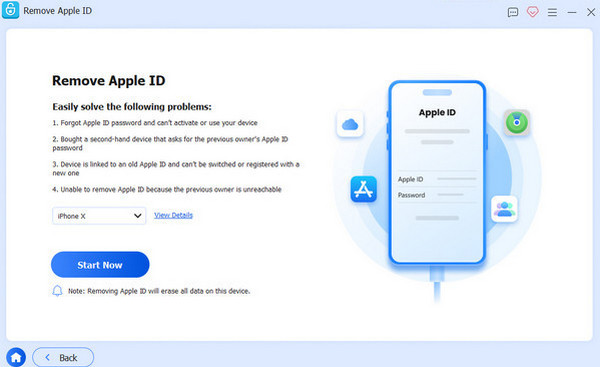
Haga clic en el Empezar ahora botón. Sigue los pasos adicionales que aparecen en pantalla. Luego, haz clic en el Confirmar de nuevo botón para empezar a eliminar el ID de Apple. Por último, haz clic en el Finalizar botón.
Conclusión
En resumen, cuando el iPhone sigue pidiendo un ID de Apple y una contraseña, se debe a problemas de software. Esta publicación te permite descubrir los ocho métodos sencillos para solucionarlo. imyPass iPassGo es una herramienta adicional que se puede utilizar para omitir el ID de Apple en tu iPhone cuando se han olvidado sus credenciales. ¡Descargar la herramienta te ayudará a conocer más datos y características sobre ella!
Samuel está especializado en seguridad de contraseñas y privacidad digital. Antes trabajaba como consultor de ciberseguridad para pequeñas empresas, ayudándolas a proteger sus activos digitales. Con certificaciones en Ciberseguridad y Hacking Ético, convierte temas de seguridad complejos en recomendaciones fáciles de seguir. También disfruta compartiendo consejos sobre contraseñas para ayudar a los usuarios a proteger sus cuentas con mayor confianza.
Soluciones calientes
-
Desbloquear iOS
-
Consejos para iOS
-
Desbloquear Android
-
Consejos de contraseña


