



 Ratkaisu
 Tukipalvelu
 Meistä
 Ottaa yhteyttä
How to Put iPhone in Recovery Mode and Get It Out Safely
 Clara Prescott Julkaistu 12. helmikuuta 2026Palauta tiedot3 minuutin lukeminen
When your iPhone won't turn on, gets stuck on the Apple logo, or fails during a system update, putting your iPhone in Recovery Mode is often the most effective solution. In this guide, you'll learn what iPhone Recovery Mode is, when to use it, and how to enter and exit. Furthermore, you'll also find reliable methods to recover your data after recovery.

Tässä artikkelissa:
Part 1: What is iPhone Recovery Mode
iPhone Recovery Mode is Apple's official system repair feature. It can fix serious iOS issues that stop your iPhone from booting normally or make it unresponsive. After connecting your device to a computer, you can update or restore your iPhone and reinstall iOS in this mode. People commonly use it to resolve boot problems, failed updates and system crashes when basic fixes no longer work.
Part 2: When to Use iPhone Recovery Mode
When basic fixes don't resolve system glitches on your iPhone, iPhone Recovery Mode comes in handy. You can repair iOS, reinstall the system, and get your device back to working normally. Here are the most common scenarios to use Recovery Mode.
1. Your iPhone Won't Start or Gets Stuck
If your iPhone won't turn on, freezes on the Apple logo, keeps restarting nonstop, or locks up as it boots up, use Recovery Mode. These problems usually come from major iOS boot failures or corrupted system files that stop your device from loading properly.
2. iOS Updates or Installations Fail
If an iOS update fails halfway, gets stuck while installing, or leaves your system unstable afterward, just enter Recovery Mode to reinstall iOS and fix all update-related errors.
3. iPhone Screen is Unresponsive, Locked, or Unrecognized
If your screen won't respond to taps and a force restart doesn't work either, or if you forget your passcode, you can turn to Recovery Mode to re-establish a connection with your iPhone.
Part 3. How to Put iPhone in Recovery Mode
Before you start, make sure you have a computer, a USB cable and a stable internet connection, then open Finder or iTunes. Once your iPhone enters Recovery Mode, your computer will prompt you to choose one of 3 options:
Päivittää: Reinstall iOS without deleting data.
Palauttaa: Erase all data and reinstall iOS.
Peruuttaa: Exit Recovery Mode without any changes.
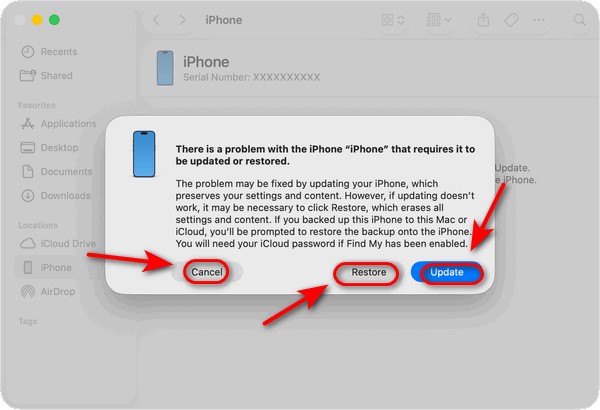
merkintä:
Choosing Palauttaa will erase all data on the device! That's why Recovery Mode is helpful but should be used with caution, especially when your data hasn't been backed up!
Different iPhone models use different methods to enter Recovery Mode. Match your iPhone model to find the most accurate steps for your device.
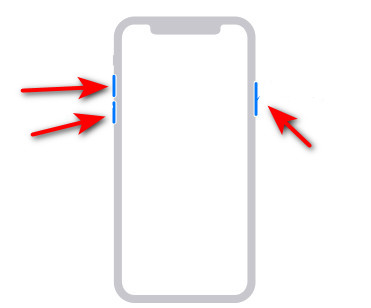
For iPhone 8 and Later Models Including iPhone SE (2nd Generation)
If you use an iPhone 8 or newer models, you need to follow these steps:
Paina ja vapauta Ääni kovemmalle button quickly.
Paina ja vapauta Äänenvoimakkuutta pienemmälle button quickly.
Paina ja pidä painettuna Tehoa button until you see Palautus tila appear.
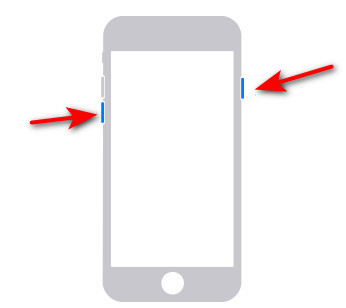
For iPhone 7 and iPhone 7 Plus
Jatka näppäimen painamista Äänenvoimakkuutta pienemmälle Button and Sivu Button together until Palautus tila ilmestyy näytölle.
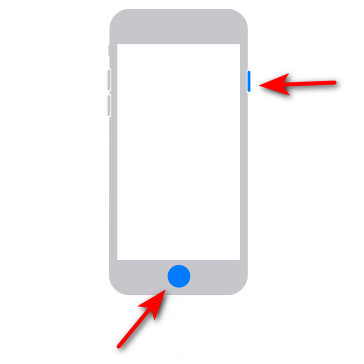
For iPhone 6S or Earlier, Including iPhone SE (1st Generation)
paina Koti ja Sivu Buttons together and hold them until Palautus tila appears on your phone.
Part 4. How to Get iPhone Out of Recovery Mode
If you accidentally entered Recovery Mode by mistake, or your iPhone got stuck during an update, how can you exit Recovery Mode? Don't worry - just follow the steps below, and your iPhone will get out of Recovery Mode without losing any data!
For iPhone 8 and Later Models Including iPhone SE (2nd Generation)
Paina ja vapauta Ääni kovemmalle button quickly.
Paina ja vapauta Äänenvoimakkuutta pienemmälle button quickly.
Paina ja pidä painettuna Tehoa button until you see the Omena logo.
For iPhone 7 and iPhone 7 Plus
Jatka näppäimen painamista Äänenvoimakkuutta pienemmälle Button and Tehoa Button together until the Apple logo appears.
For iPhone 6S or Earlier, Including iPhone SE (1st Generation)
Paina ja pidä painettuna Koti ja Tehoa Buttons until the Apple logo appears.
Part 5. How to Recover Data After Restoring iPhone in Recovery Mode
Will Recovery Mode delete my photos and files? The answer is yes – Recovery Mode will erase all data on your phone. That's why this Mode is extremely helpful but risky to try. When your iPhone enters Recovery Mode, you'll see three options: Peruuttaa, Palauttaa ja Päivittää. Selecting Palauttaa means you agree to erase all data on the device, including photos, videos, messages and apps, and reinstall the iOS from scratch.
Does Restore Mode remove my data from my iPhone permanently? Don't panic! If you have an iCloud or iTunes/Finder backup, you can restore your files after the process. Even without a backup, a professional iPhone data recovery software may help retrieve lost photos and files!
imyPass iPhone Data Recovery is a powerful tool that allows you to recover lost data without a backup. It is available for both Windows and Mac users. With an intuitive interface and a clean guide page, this software makes it easy for users to operate. It also supports file preview before recovery, so you can selectively restore only the data you need.
Yli 4 000 000 latausta
Tukee iOS 5 – iOS 18 -järjestelmiä, mukaan lukien uusin iOS 26.
Palauta kaikenlaisia tiedostotyyppejä, kuten tekstisisältöä, mediasisältöä, yhteystietoja ja paljon muuta.
Palauta tiedostoja varmuuskopion kanssa tai ilman sitä.
Hae kadonneet tiedot monenlaisista tilanteista ja vaurioista.
Palauta iOS‑laitteista vaihe vaiheelta:
Käynnistä ohjelmisto ja yhdistä laitteesi tietokoneeseen USB‑kaapelilla. Ohjelma tunnistaa laitteesi automaattisesti.
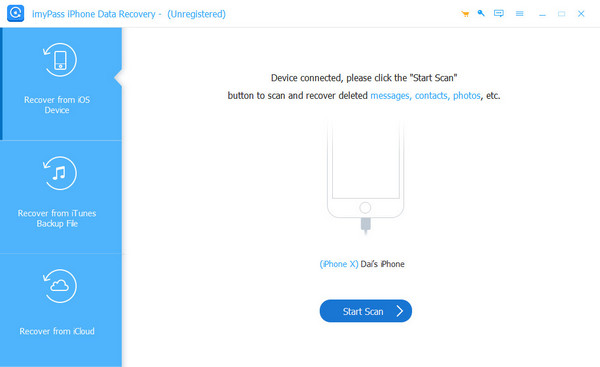
Valitse Palauta iOS‑laitteista aloittaaksesi skannauksen. Voit esikatsella tiedostoja, käyttää suodattimia tai etsiä tiettyjä tiedostoja.
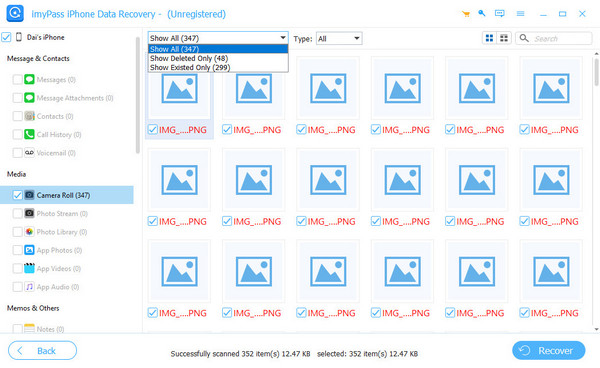
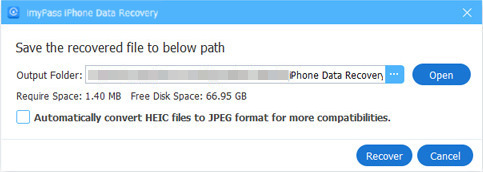
Valitse tiedostot, jotka haluat palauttaa. Määritä kohdekansio ja napsauta Palauta tallentaaksesi ne.
Palauta iCloud-varmuuskopiosta
Käynnistä ohjelmisto ja napsauta Palauta iCloudista. Syötä Apple ID:si ja salasanasi.
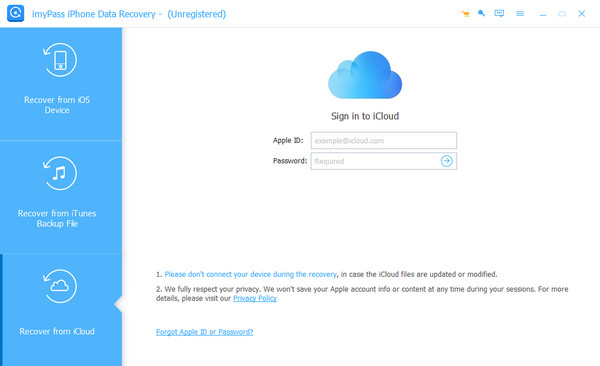
merkintä:
Jos sinä unohdat Apple ID:si tai salasanasi, imyPass tarjoaa silti hyviä ratkaisuja, joiden avulla voit ratkaista ongelman vaivattomasti!
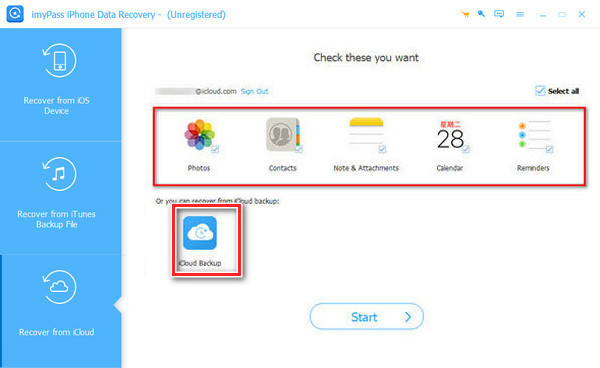
Valitse palautettavaksi tiedot kohteesta Sovellukset tai iCloud-varmuuskopio.
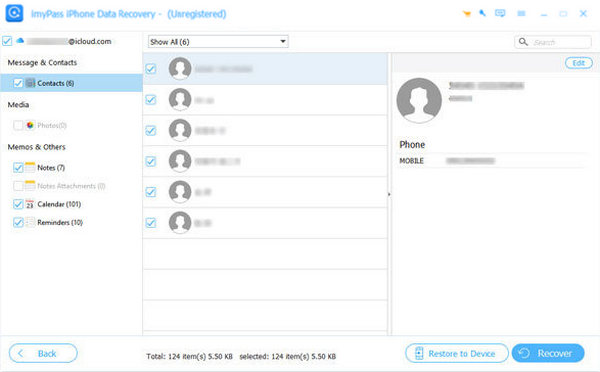
Valitse tiedostot, jotka haluat palauttaa, ja napsauta Palauta painiketta tallentaaksesi ne.
Johtopäätös
Oppia miten siirtyä palautustilaan, ja korjaat äkilliset iOS‑häiriöt nopeasti. Yksi asia on vielä hyvä muistaa: vaikka vakavat iPhonen järjestelmäongelmat katoavat, palautusprosessi on voinut poistaa tietosi. Jos niin käy, luotettava iPhonen tietojen palautusohjelmisto voi auttaa sinua palauttamaan kaikki tärkeät tiedostot! Oletko väsynyt takkuilevaan tai reagoimattomaan iPhoneen? Seuraa yllä olevia ohjeita ja valitse sinulle parhaiten sopiva ratkaisu!
Clara on imyPassin toimittaja. Hän on erikoistunut tietojen palautukseen. Löydät meiltä ammattimaisia opetusohjelmia ja ratkaisuja kadonneiden tietojen palauttamiseen miltä tahansa laitteelta. Monet käyttäjät ovat kertoneet, että hänen opetusohjelmansa on helppo ja hyödyllinen.
Kuumia ratkaisuja
-
Palauta tiedot
- Palauta WhatsApp-näkymä kerran -valokuva
- Palauta poistetut TikTok-videot mobiililaitteella
- Palauta poistettu Facebook-kuva
- Palauta Viber-viestit, valokuvat jne.
- Palauta poistetut Snapchat-kuvat
- 5 parasta yhteystietojen palautussovellusta
- Palauta poistetut Discord-viestit
- AppGeeker iOS Data Recovery Review
- Palauta tiedot DFU-tilasta
- iPhonen varmuuskopiota ei voi palauttaa
-
Avaa iOS
-
iOS-vinkkejä
-
Salasanavinkit

iPhonen tietojen palautus
Palauta poistetut tai kadonneet iPhone-tiedot
Ilmainen lataus Ilmainen lataus
