



 Ratkaisu
 Tukipalvelu
 Meistä
 Ottaa yhteyttä
Why iPhone Says SIM Failure and How to Fix This Problem
 Samuel Spenser Julkaistu 9. lokakuuta 2026Avaa iOS3 minuutin lukeminen
“I got a new iPhone this year. All of a sudden, today I began getting a message that says SIM card failure. I haven't dropped or damaged my phone at all. Any ideas?”
While the iPhone comes with a wide variety of features, most of them require a SIM card and wireless signals. If it cannot detect the SIM card, these features are unavailable, such as phone calls, SMS, and more. This guide walks you through solutions to fix SIM failure on an iPhone.

Tässä artikkelissa:
Part 1: What Does SIM Failure Mean on iPhone
What does SIM Failure mean on an iPhone? It means that your iPhone can see that a SIM card is inserted, but something blocks it from being recognized by your mobile network. In addition to SIM Failure, you may also see the error message, such as Invalid SIM, SIM Not Supported, or SIM Not Valid.
Why does my iPhone keep saying SIM Failure? First of all, you need to rule out any hardware damage, like water damage. If the error occurs suddenly, the common causes may include:
- 1.Something is wrong with the SIM card.
- 2.Network issues.
- 3.Your iPhone doesn't load the SIM card properly.
- 4.Outdated software or carrier settings.
- 5.Ohjelmistovirheet.
- 6.Your iPhone is locked to a specific carrier.
Part 2: How to Fix iPhone Says No SIM
Solution 1: Disable Airplane Mode
Network issues may be responsible for your iPhone not recognizing the SIM card. If you accidentally turn on Airplane Mode on your device, you will encounter network errors. The solution is simple: turning off Airplane Mode on your iPhone.
Vaihtoehto 1:
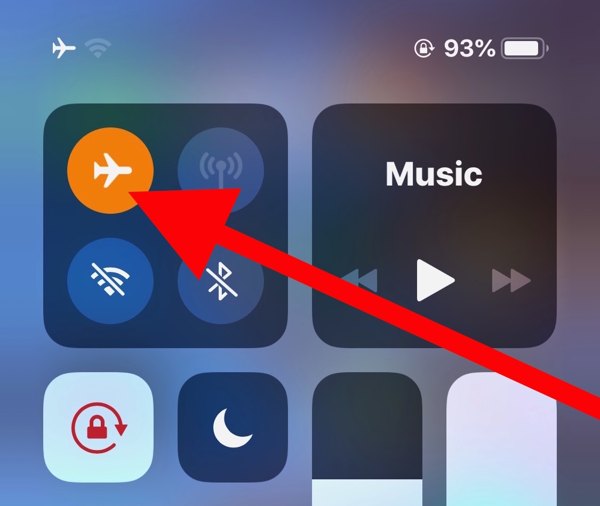
Syötä Ohjauskeskus iPhonessasi.
Napauta Lentokonetila button to turn it off. If it is disabled, turn it on and then disable it.
Vaihtoehto 2:
Suorita asetukset app from the home screen.
Etsi Lentokonetila option, and toggle it off.
Ratkaisu 2: Aseta SIM-kortti uudelleen paikalleen
When an iPhone keeps saying No SIM, it means that your device cannot see the SIM card. That may be due to a loose card, improper placement, or a damaged SIM card. To fix this problem, you need to take out the card from your device.
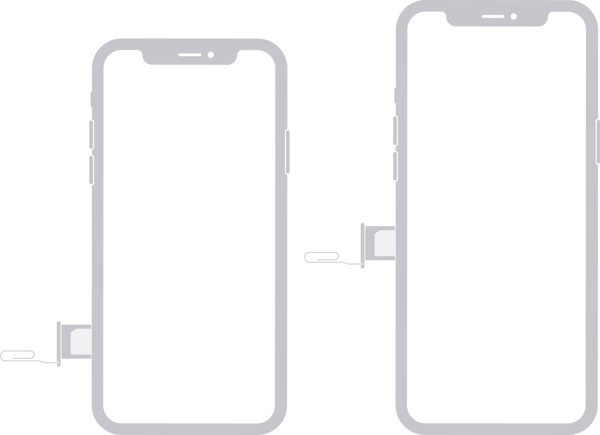
Find the SIM tray on the right side.
Insert a paper clip or SIM-eject tool into the hole beside the tray.
Pull in gently to eject the tray.
Remove the SIM card.
Next, place the SIM card back in the tray.
Insert the SIM tray into your iPhone to see if the error disappears.
If not, take out the card and use another one to check whether your SIM is broken.
Ratkaisu 3: Käynnistä iPhone uudelleen
Another simple solution to fix iPhone not detecting the SIM card is to restart your device. That can refresh the operating system and let it detect the SIM card again. For an iPhone, you can complete the process with physical buttons.
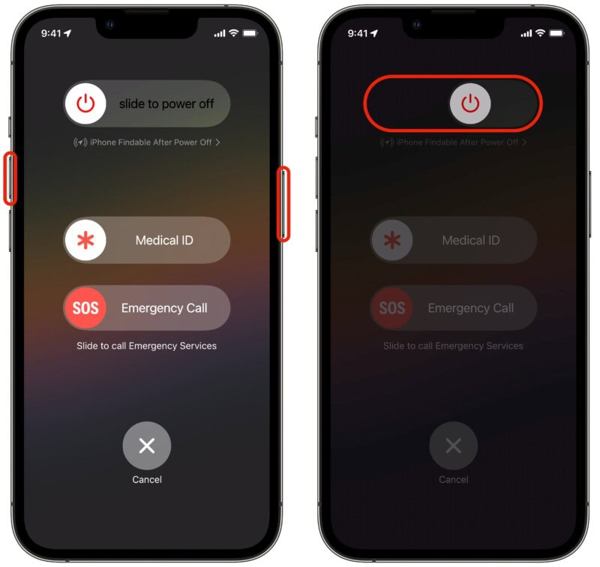
For an iPhone with Face ID, press and hold the Ääni kovemmalle + Sivu painikkeet yhdessä.
For older models, hold down the Sivu -painiketta.
As long as the boot menu screen appears, release the buttons or button.
Move the power-off slider to shut down your iPhone.
Muutaman minuutin kuluttua paina pitkään Sivu button until the Apple logo pops up.
Solution 4: Update Carrier Settings
Your iPhone does not read the SIM card partly because the carrier settings are outdated. By default, iOS is able to detect and install the update automatically. If not, you will need to update the carrier settings manually.
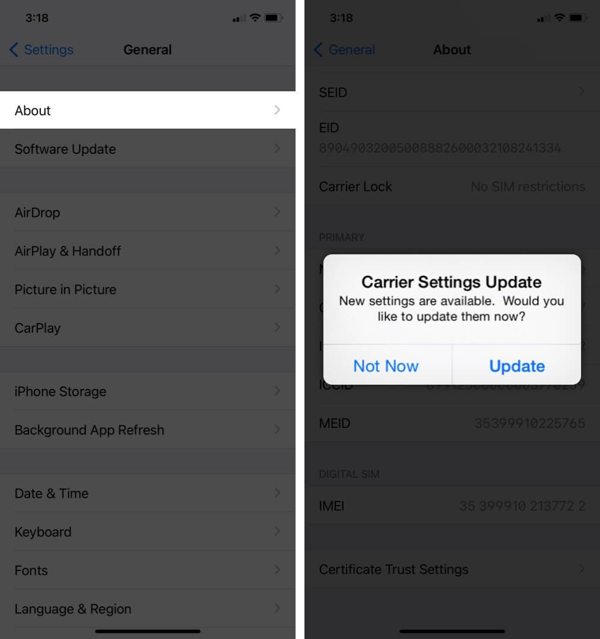
Suorita asetukset sovellus.
Mene Kenraali ja Noin.
If a carrier settings update is available, tap the Päivittää button on the prompt.
When the update finishes, check your SIM card again.
Solution 5: Update iPhone Software
Outdated software is another cause that your iPhone keeps saying SIM Failure. In fact, outdated software can lead to a lot of issues. Therefore, Apple suggests users keep software up to date on their iPhones.
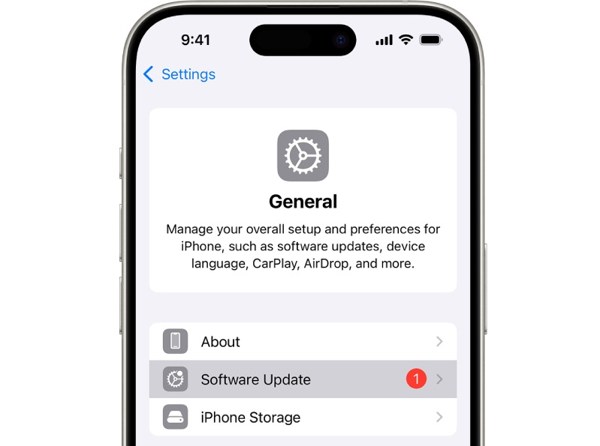
Aloita oma asetukset sovellus.
Navigoida johonkin Kenraali ja Ohjelmistopäivitys.
If an update is ready, tap the Lataa ja asenna button to get it.
Ratkaisu 6: Palauta verkkoasetukset
Conflict settings can lead to the SIM Failure error on iPhone, too. It is difficult to identify which changes cause the problem, but you can reset all network settings with a single option on your iPhone.
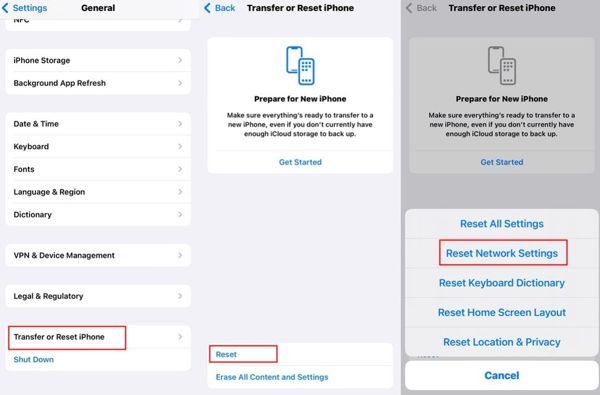
Suorita omasi asetukset sovellus.
Suunnata Kenraali, Siirrä tai nollaa iPhone, ja Nollaa.
Valitse Palauta verkkoasetukset vaihtoehto.
Authenticate with your iPhone passcode.
Napauta Palauta verkkoasetukset uudelleen vahvistaaksesi sen.
Solution 7: Check if Your iPhone Is Locked to a Carrier
One main reason why my iPhone says SIM Failure is that your device is carrier-locked. Once you insert a SIM card from another carrier, your iPhone cannot read the signal. Check if your iPhone is locked to a carrier following the steps below:
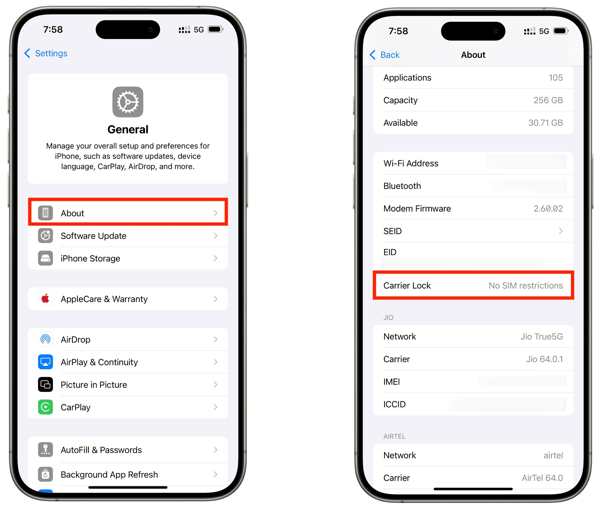
Mene Kenraali sinun asetukset sovellus.
Valitse Noin vaihtoehto.
Paikanna Kuljettajan lukko sisääntulo.
If you see No SIM restrictions, it means your iPhone isn't locked to a carrier. If not, you have to unlock the SIM on your device.
Saatat pitää myös näistä:
Part 3: How to Unlock SIM Lock on an iPhone
If your iPhone doesn't recognize SIM card because your device is locked to the previous carrier, imyPass iPassGo can help you fix this problem quickly. It can remove the SIM lock from your iPhone without any restrictions. Furthermore, the clear design helps you simplify the workflow.

Yli 4 000 000 latausta
Avaa SIM-kortin lukitus iPhonessa vain kolmessa vaiheessa.
Älä pyydä salasanaa tai aseta rajoituksia prosessin aikana.
Pidä tietosi turvassa SIM-lukituksen avaamisen aikana.
Toimii lähes kaikissa iPhone-malleissa.
Sisältää lisäominaisuuksia, kuten MDM-lukituksen ohittamisen.
Kuinka avata SIM-kortin lukitus iPhonessasi
Asenna SIM-unlockeri
Käynnistä SIM-lukituksen avaamisohjelma, kun olet asentanut sen tietokoneellesi. Se on saatavilla Windows 11–7 -järjestelmissä sekä Mac OS X 10.12 tai uudemmissa. Valitse Avaa SIM-kortin lukitus tila jatkaaksesi.
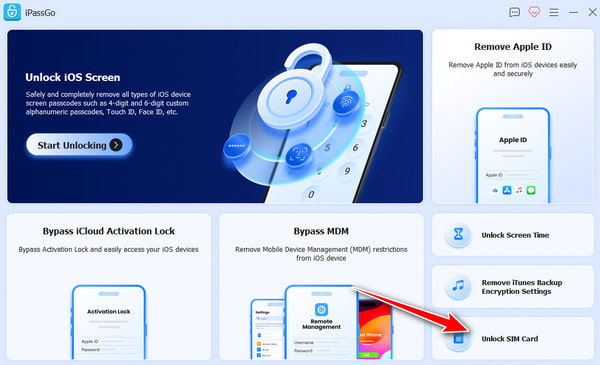
Tunnista iPhonesi
Yhdistä iPhone tietokoneeseen Lightning-kaapelilla ja varmista, että luotat tähän tietokoneeseen. Kun ohjelma tunnistaa iPhonesi, napsauta Aloita nyt -painiketta jatkaaksesi.
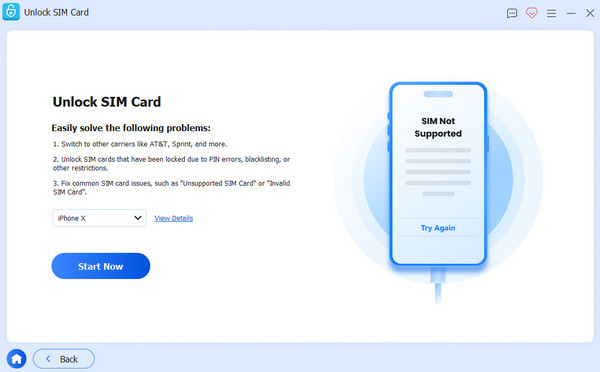
Avaa SIM-lukitus iPhonessa
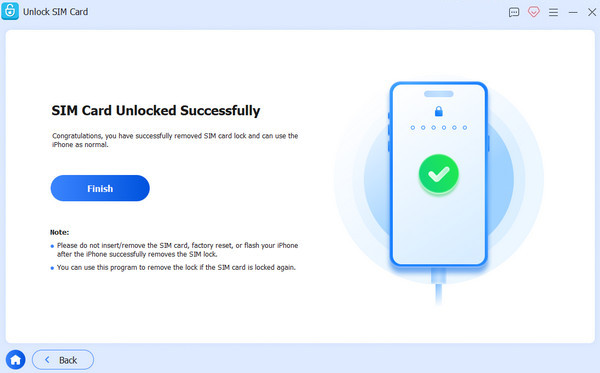
Tarkista ja vahvista laitetietosi. Napsauta sitten Aloita ohitus -painiketta. Kun olet suorittanut laitteesi jailbreakin, seuraa näytöllä näkyvää ohjetta laitteen määrityksessä. Kun olet valmis, napsauta OK aloittaaksesi SIM-kortin lukituksen avaamisen iPhonessasi.
Bonus: SIM Failure vs. No SIM vs. Invalid SIM vs. No Service
Jos puhelimessa on muita SIM- tai eSIM-ongelmia, voit tarkistaa alla olevan taulukon ymmärtääksesi ne kaikki.
| Virheet | Merkitys |
| SIM-virhe | iPhone havaitsee ongelman SIM-kortissa tai mobiiliyhteydessä. |
| Ei SIM-korttia / Ei SIM-korttia | iPhone ei havaitse SIM-korttia. |
| Virheellinen SIM-kortti | SIM-korttia ei tueta tai sitä ei voi käyttää iPhonen kanssa. |
| Ei palvelua | iPhone ei pysty muodostamaan yhteyttä operaattorin mobiiliverkkoon. |
| SOS / Vain SOS | iPhone ei pysty yhdistämään normaaliverkkoon, mutta voi silti tukea hätäpuheluita. |
Johtopäätös
Nyt sinun pitäisi ymmärtää miksi SIM-virhe ilmenee iPhone 13:ssa ja muissa malleissa. Vielä tärkeämpää on, että voit oppia todistetut ratkaisut päästäksesi eroon virheestä ja käyttää iPhoneasi normaalisti. Jos kohtaat tämän virheen, koska laitteesi on lukittu edelliselle operaattorille, kokeile imyPass iPassGo poistaaaksesi SIM-lukituksen nopeasti iPhonestasi ilman rajoituksia.
Samuel on erikoistunut salasanojen tietoturvaan ja digitaaliseen yksityisyyteen. Hän on aiemmin työskennellyt kyberturvallisuuskonsulttina pienyrityksille suojaten heidän digitaalisia omaisuuseriään. Kyberturvallisuus- ja eettisen hakkeroinnin sertifikaattien ansiosta hän osaa muuttaa monimutkaiset tietoturva-aiheet helposti seurattaviksi neuvoiksi. Hän myös nauttii salasanavinkkien jakamisesta auttaakseen käyttäjiä suojaamaan tilejään entistä itsevarmemmin.
Kuumia ratkaisuja
-
Avaa iOS
-
iOS-vinkkejä
-
Avaa Android
-
Salasanavinkit


