Ratkaisu
 Tukipalvelu
 Meistä
 Ottaa yhteyttä
Unlock Your Windows PC with Ease: A Guide to Using PassFab 4WinKey
 Penny Warren Julkaistu 18. kesäkuuta 2026Windowsin salasana3 minuutin lukeminen
Locked out of your Windows PC? PassFab 4WinKey could be your solution. This tool promises to help you reset or remove your password quickly and easily. In this review, we'll explore its key features, safety, pricing, and how to use it step by step, so you can decide whether it's the right tool to unlock your locked computer.

Tässä artikkelissa:
What is PassFab 4WinKey?
PassFab 4WinKey is a powerful Windows password reset tool that helps you regain access to your computer if you've forgotten your password. It allows you to remove or reset your Windows password by creating a password reset disk using a USB drive, CD, or DVD. This way, you can bypass the Windows login screen and access your system without reinstalling the operating system, all while keeping your personal data safe.
Compabality
PassFab 4WinKey supports password reset on the following Windows versions:
Windows 11, Windows 10, Windows 8.1, Windows 8, Windows 7, Vista, XP (32-bit/64-bit), Server 2019, 2012, 2008(R2), 2003(R2), 2000, SBS 2011.
Laitteistovaatimukset
- PROSESSORI: 1 GHz (32-bit or 64-bit) and above.
- RAM: 256 MB (1028 MB Recommended).
- Kiintolevy: 200 MB free space and more.
- Drives: RAID/SCSI/SATA drives, and FAT16, FAT32, NTFS, NTFS5 file systems.
Key Features of PassFab 4WinKey
- 1.Offer an intuitive, simple, and user-friendly interface.
- 2.Supports resetting or removing passwords for all types of user accounts, including Windowsin järjestelmänvalvojan salasanat and user accounts.
- 3.Reset passwords for local Microsoft accounts on Windows 10 and 11.
- 4.Easily create a password reset disk using a USB drive and restore access without losing data.
Is PassFab 4WinKey Safe?
PassFab 4WinKey demonstrates that it is completely secure and does not compromise user privacy.
In our tests, we used PassFab 4WinKey on a Dell XPS 15 running Windows 10 and a HP Specter x360 running Windows 11. We encountered no security risks or malware during installation, and the software didn't interfere with system performance. It doesn't prompt you to install any unrelated programs.
We also recommend that you free download PassFab 4WinKey only from the official website to avoid any risks associated with cracked versions.
Compare Editions & Pricing of PassFab 4WinKey
Is PassFab 4WinKey free? No, it is a paid tool that offers various editions to suit different user needs. Each edition has different features, and the pricing details are listed below:
| Editions | Price (Month) | ominaisuudet |
| Ammattilainen | $19.95 | Remove admin/local password |
| Enterprise | $39.95 | 1. Remove admin/local password 2. Remove domain admin/local password (for enterprise) |
| Perimmäinen | $59.95 | 1. Remove admin/local password. 2. Reset Microsoft account/ RAID Server user password. 3. Reset/Remove domain admin/local password & Create domain admin/local admin account (for enterprise). 4. Delete admin/guest account. |
User Reviews of PassFab 4WinKey
Here's what users are saying about PassFab 4WinKey:
"Not gonna lie, I thought this was another scam… but it actually worked. My laptop is unlocked, and I’m officially impressed."
"Needed quick access to my files and PassFab 4WinKey was the swift access giver. It's a must for productivity."
"I purchased the PassFab 4WinKey - Ultimate. Customer service was very nice, and although their product did not work for me, I was able to get a partial refund."
"I tried to crack an Excel password using the PassFab for Excel program. Even after running it for 10 hours, it failed to crack the password."
How to Use PassFab 4WinKey?
Download and install PassFab 4WinKey on a spare computer (not your locked PC). Launch the software and click Start Password Reset pääliittymässä.
Insert a CD/DVD or USB flash drive to create a bootable password reset disk. Click Start burning to proceed. Note that this will erase all data in your CD/DVD or USB drive, so make sure there is nothing important in it.
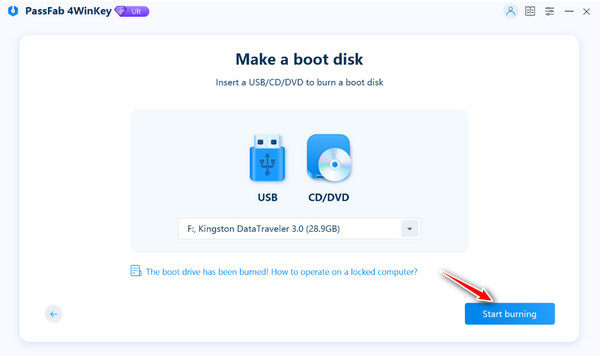
Select the device you inserted, then click Seuraava to proceed. 4WinKey will create the bootable password recovery drive.
Follow the step-by-step tutorial to boot the locked computer. Insert the bootable USB, CD or DVD into the locked computer. Restart the computer and press F12 tai POISTU päästäksesi sisään Saapas valikosta.
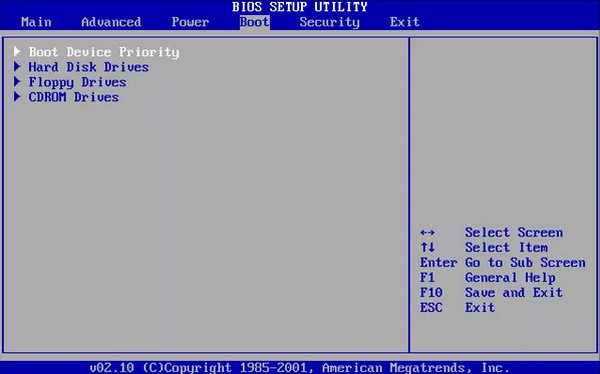
Käytä nuolinäppäimiä etsiäksesi asettamasi levyn nimen. Paina F10 tallentaaksesi ja poistuaksesi.
Kun BIOS-asetukset on tallennettu, tietokone käynnistyy uudelleen ja PassFab 4WinKey -käyttöliittymä tulee näkyviin. Valitse käyttöjärjestelmä ja napsauta Seuraava.
Näet nyt kaikki järjestelmän käyttäjätilit. Valitse tili, jonka haluat avata, ja valitse Poista tilin salasana tai Palauta tilin salasanaja napsauta sitten Seuraava.
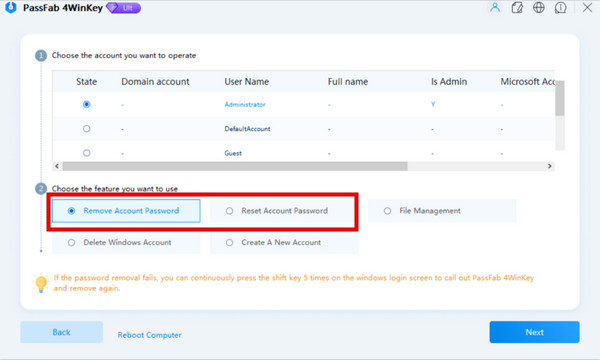
Seuraa ohjeita poiston viimeistelemiseksi. Kun se on tehty, sinun pitäisi päästä tietokoneellesi.
An Alternative Way to Reset Lost Windows Password
Jos yllä oleva menetelmä ei toimi sinulle tai etsit toista vaihtoehtoa, Windows-salasanan palauttamiseen on olemassa vaihtoehtoinen tapa. imyPass Windowsin salasanan palautus voi auttaa poistamaan minkä tahansa järjestelmänvalvojan, käyttäjän tai Microsoft-tilin salasanan Windows-tietokoneesta ilman tietojen menetystä. Tämä helppokäyttöinen työkalu tarjoaa myös 30 päivän rahat takaisin -takuun, joten voit kokeilla sitä riskittömästi.
Yli 4 000 000 latausta
Poista kadonnut tai unohtunut Windows-kirjautumissalasanasi.
Poista järjestelmänvalvojan, paikallisen ja Microsoft-tilin salasanat suoraan.
Luo uusi tili ilman järjestelmänvalvojan oikeuksia.
Yhteensopiva lähes kaikkien Windows-versioiden ja pöytätietokonemerkkien kanssa.
Lataa ja asenna ohjelmisto käytettävissä olevalle tietokoneelle. Liitä tyhjä DVD-levy tai USB-muistitikku tietokoneeseen luodaksesi salasanan palautuslevyn.
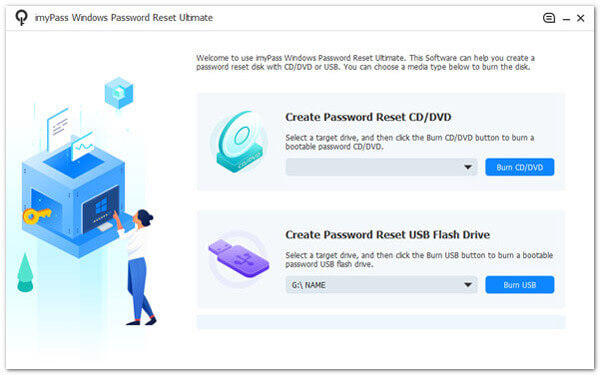
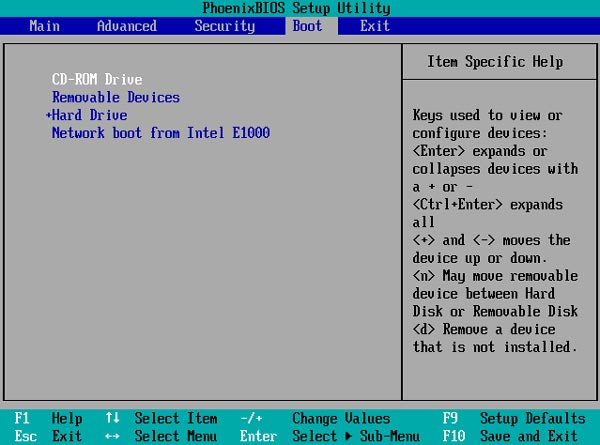
Aseta poltettu levy lukittuun tietokoneeseesi. Käynnistä sen jälkeen tietokone uudelleen ja paina F12 avain tai POISTU siirtyäksesi käynnistysvalikkoon (Boot menu).
Käytä ylä- tai alanuolinäppäintä löytääksesi asettamasi USB-muistin tai CD/DVD-levyn ja paina sitten Tulla sisään jatkaaksesi. Tallenna sitten asetukset ja poistu käynnistysvalikosta.
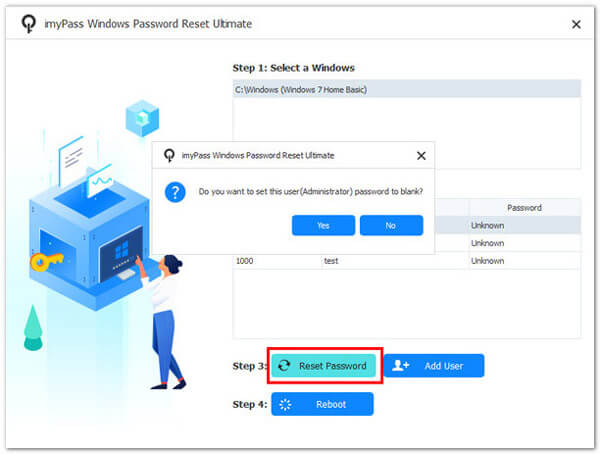
Valitse käyttöjärjestelmä ja valitse Windows-tili. Napsauta sitten Nollaa salasana ja osui Tulla sisään -painiketta vahvistaaksesi. Lopuksi poista poltettu levy ja käynnistä tietokone uudelleen.
Johtopäätös
Olemme esitelleet, miten PassFab 4WinKey -työkalua käytetään Windows-tilien lukituksen avaamiseen. Sinun tarvitsee vain luoda käynnistettävä asema, käynnistää lukittu tietokoneesi ja seurata ohjeita Windows-salasanan poistamiseksi. Jos etsit vaihtoehtoista salasananpalautustyökalua, imyPass Windows Password Reset on myös varteenotettava valinta. Mitä työkalua olet kokeillut? Kerro meille mielipiteesi!
Penny keskittyy GPS-ongelmien ratkomiseen ja Windowsin optimointiin. Hän on aiemmin työskennellyt teknisenä tukinsinöörinä auttaen asiakkaita ratkaisemaan sijaintiin liittyviä ja järjestelmäongelmia tehokkaasti. IT-tukikokemuksensa ansiosta hän tarjoaa käytännön ratkaisuja, jotka todella toimivat. Vapaa-ajallaan hän harrastaa patikointia ja geokätköilyä ja testaa GPS-tekniikkaa todellisissa olosuhteissa.
Kuumia ratkaisuja
-
Windowsin salasana
- HP POST -käynnistyssalasanan poistaminen
- BIOS-salasanan palauttaminen Windows 11:ssä
- Ohita Windows 11:n kirjautumisnäyttö
- Kuinka luoda Windowsin salasanan palautuslevyke
- Kuinka löytää Windowsiin tallennetut salasanat
- PCUnlocker arvostelu
- Ohita Windows 11 -salasana
- 6 parasta Windowsin salasanan palautustyökalua
-
Windows-vinkkejä
-
Korjaa Windows
-
Salasanavinkit

Windowsin salasanan palautus
Palauta Windowsin järjestelmänvalvoja-/käyttäjätili
Ilmainen lataus Ilmainen lataus