



 解決
解決 サポートセンター
 私たちに関しては
 コンタクト
コンタクトHow to Fix iPhone Unavailable Without Erase Option [Full Guide]
 サミュエル・スペンサー に公開 2026年9月16日iOSのロックを解除する3 分で読める
Why does your iPhone suddenly show an iPhone 利用不可メッセージ? It's confusing and annoying because you cannot access all your photos, apps, and important files inside the locked device. If you're facing an iPhone Unavailable screen with no Erase option available, keep reading. We'll explain why this issue happens and show you 4 practical ways to fix it.

記事上で:
Part 1: Why Does My iPhone Say iPhone Unavailable
When you enter the wrong passcode on your iPhone too many times, you may see the "iPhone Unavailable" message or "iPhone Security Lockout" on the screen. What does Security Lockout mean on iPhone? This is Apple's security feature designed to prevent someone else from accessing your device and protect your personal data.
Common reasons why your iPhone says unavailable include:
- You entered the wrong iPhone passcode multiple times.
- You forgot your current iPhone passcode.
- Someone else tried to unlock your device with incorrect passwords.
- The iPhone was disabled after repeated failed unlock attempts.
Part 2: Why is There No Erase option on iPhone Unavailable Screen
On newer iOS versions, after too many failed attempts, the device may show an "Erase iPhone" option in the bottom right corner. You can reset the device and remove the passcode through this option. If you encounter iPhone Unavailable no Erase option, it may be caused by the following reasons.
- Your iPhone is running iOS 15.2 or lower, where the Erase iPhone feature was not available.
- Your iPhone is running iOS 17 or above, and the Erase option has been replaced by the Forgot Passcode option.
- You're not signed into your Apple ID on your iPhone.
- Find My iPhone is turned off.
- The iPhone is not connected to Wi-Fi or cellular data.
- You have not reached the required number of failed passcode attempts for the erase option to appear.
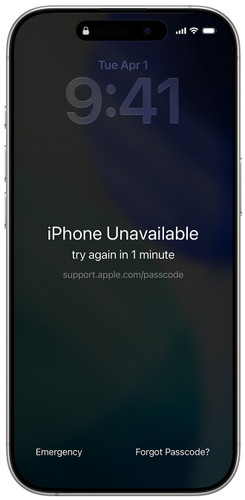
Part 3: How to Fix iPhone Unavailable Without Erase option - 4 Ways
If your iPhone shows "iPhone Unavailable" but there is no Erase iPhone option, you can still try these 4 ways to regain access.
Method 1: Unlock Unavailable iPhone via Old Passcode
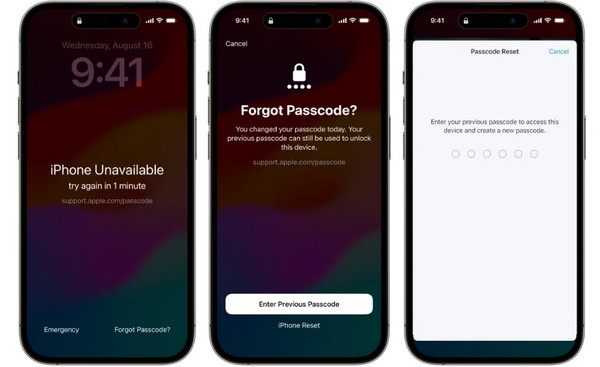
Is it possible to fix iPhone unavailable without losing data? Yes, you may be able to. If you're using iOS 17/18 or later and just changed your passcode, there's a good chance you can still get back in. Apple lets you use your old passcode for up to 72 hours after you change it. So, if you remember the previous one, it's definitely worth trying before you reset your iPhone.
をタップします。 「パスコードをお忘れですか?」 option at the bottom corner of the "iPhone Unavailable" screen.
タップ 以前のパスコードを入力 and enter your old passcode.
Follow the instructions to set a new passcode.
Method 2: Unlock Unavailable iPhone with imyPass iPassGo
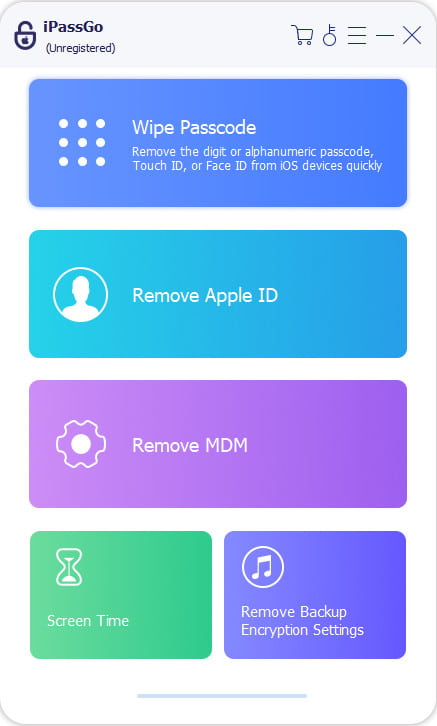
If you forgot your passcode and there is no erase option, a professional iPhone unlock tool like imyPass iPassGo can help you bypass the unvailable screen and remove the screen lock effortlessly. It can remove different types of iPhone locks, including screen lock, Activation Lock, carrier lock, or MDM and Screen Time restrictions.

4,000,000以上のダウンロード
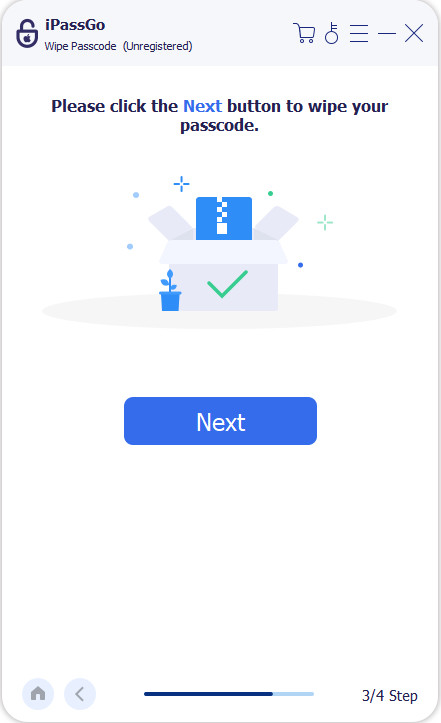
パソコンで本ソフトを起動します。画面上で iOS画面のロック解除 モードを選択します。USBケーブルで端末をコンピュータに接続し、 始める 今 続ける。
をクリックします。 今すぐ始めましょう デバイス情報を確認し、.
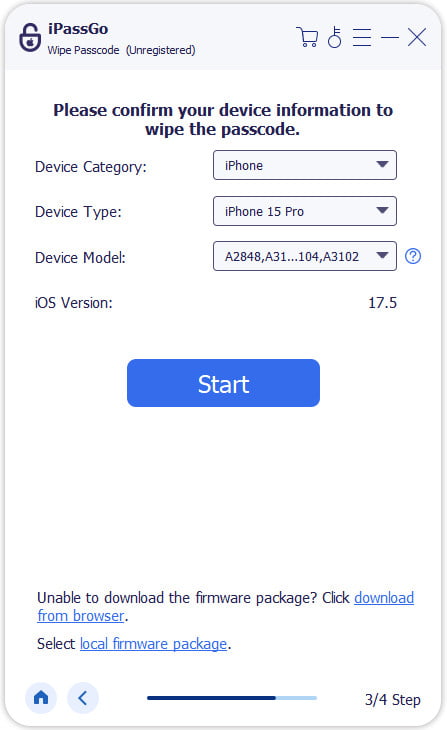
ボタンをクリックしてファームウェアパッケージをダウンロードします。ダウンロードが完了し、ファームウェアの検証が終わるまで待ちます。 削除を開始 button and confirm again. The software will automatically unlock the disabled iPhone, then you can use your device again.
Method 3: Fix Unavailable iPhone with iTunes/Finder
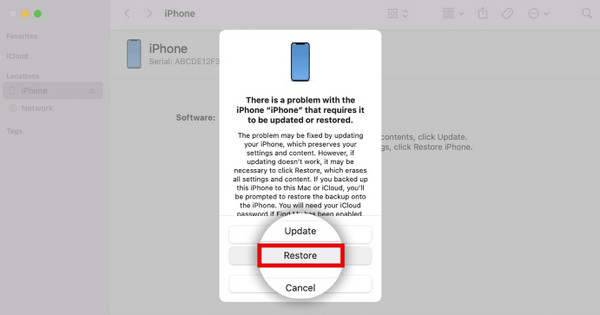
Recovery mode works when the iPhone Unavailable Erase option is missing. You can use a computer to connect your device and restore your iPhone via iTunes or Finder.
Power off your disabled iPhone. Launch the latest version of iTunes on your PC (or Finder on Mac). Connect your iPhone to the computer using a USB cable.
iPhone の電源が入らない、Apple ロゴ画面で止まる、起動中にフリーズする、またはコンピュータに認識されない場合、通常の復元方法ではうまくいかないことがあります。そのような場合は、iPhone をリカバリモードにすることで、iOS を再インストールし、iPhone を工場出荷時の状態に戻し、これらの問題を解決できる可能性があります。
- iPhone 8以降: 押してすぐに離す ボリュームアップ button, then ボリュームダウン iPhone 8以降: 側 リカバリモード画面が表示されるまでボタンを押し続けます。
- iPhone 7/7 プラス: 両方を押したままにします ボリュームダウン と 側 buttons simultaneously until the recovery mode screen appears.
- iPhone 6s以前: 両方を押したままにします 家 と 側 iPhone 6s以前:
When your iPhone appears, select 戻す メニューから。
Method 4: Erase Your Unavailable iPhone Using Find My
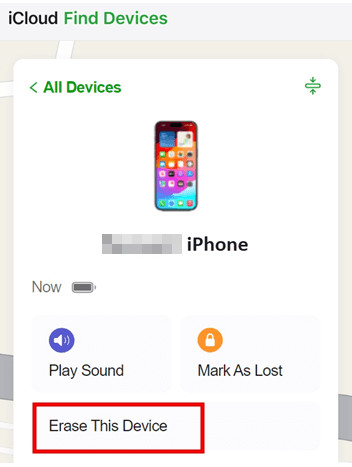
If you don't have a computer around, you can remotely erase your iPhone using the Find My app on another device. Just keep in mind that Find My needs to have been turned on before your iPhone became unavailable. If it wasn't, this option won't help much.
Open the Find My app on another Apple device or visit iCloud.com on a browser.
Sign in with your Apple Account used on your unavailable iPhone.
Select your iPhone from the device list. Choose このデバイスを消去 and confirm it with one more click. Then your iPhone will be reset to factory settings.
よくある質問。
-
iPhoneに「iPhone使用できません」と表示された場合、どのようにリセットすればよいですか?
iPhoneに「iPhone使用不可」と表示される場合は、右下にある「iPhoneを消去/パスコードをお忘れですか」オプションを使ってリセットできます。また、iTunes/Finder、[探す](旧「iPhoneを探す」)、あるいはimyPass iPassGoのような専門的なiPhoneロック解除ツールを使って、画面ロックを解除することもできます。
-
iPhone が使用できなくなるまでに、何回パスコードを間違えるとそうなりますか?
Your iPhone becomes unavailable after 10 incorrect unlock attempts. The lockout time increases after each failed attempt. Once you reach the limit, your iPhone will be completely disabled.
-
消去オプションが表示されない「iPhone使用不可」状態を、データを消去せずに直すにはどうすればいいですか?
If you recently changed your passcode and are using iOS 17/18 or later, you are able to unlock your iPhone without erasing your data using your previous passcode within 72 hours. Tap the パスコードを忘れた場合 オプションを選択して 以前のパスコードを入力 to exit the unavailable screen.
結論
「iPhone使用できません」で消去オプションがない場合 この問題はかなり厄介です。次にどうすればよいかわからないときは、本ガイドで紹介する4つの方法を試してみてください。「パスコードをお忘れですか」オプションの利用、iTunes/Finder経由での復元、「探す」を使った消去、あるいは専用ツールの利用などがあります。 iPhoneロック解除ソフトウェア たとえば imyPass iPassGo などです。これらの方法のいずれかで、あまり手間をかけずに再びiPhoneを使えるようになることを願っています。
サミュエルはパスワードセキュリティとデジタルプライバシーを専門としています。以前は中小企業向けのサイバーセキュリティコンサルタントとして、デジタル資産の保護に携わっていました。サイバーセキュリティと倫理的ハッキングの認定資格を持ち、複雑なセキュリティ関連のトピックを、わかりやすく実践しやすいアドバイスへと噛み砕いて伝えています。また、ユーザーが自信を持ってアカウントを守れるように、パスワードに関するコツを共有することも楽しんでいます。
ホットなソリューション
-
iOSのロックを解除する
-
iOSのヒント
-
Androidのロックを解除
-
パスワードのヒント


