



 해결책
해결책 지원 센터
지원 센터 회사 소개
회사 소개 연락하다
연락하다Why iPhone Says SIM Failure and How to Fix This Problem
 사무엘 스펜서 게시일 2026년 10월 9일iOS 잠금 해제3분 읽기
“I got a new iPhone this year. All of a sudden, today I began getting a message that says SIM card failure. I haven't dropped or damaged my phone at all. Any ideas?”
While the iPhone comes with a wide variety of features, most of them require a SIM card and wireless signals. If it cannot detect the SIM card, these features are unavailable, such as phone calls, SMS, and more. This guide walks you through solutions to fix SIM failure on an iPhone.

이 기사에서는:
Part 1: What Does SIM Failure Mean on iPhone
What does SIM Failure mean on an iPhone? It means that your iPhone can see that a SIM card is inserted, but something blocks it from being recognized by your mobile network. In addition to SIM Failure, you may also see the error message, such as Invalid SIM, SIM Not Supported, or SIM Not Valid.
Why does my iPhone keep saying SIM Failure? First of all, you need to rule out any hardware damage, like water damage. If the error occurs suddenly, the common causes may include:
- 1.Something is wrong with the SIM card.
- 2.Network issues.
- 3.Your iPhone doesn't load the SIM card properly.
- 4.Outdated software or carrier settings.
- 5.소프트웨어 오류가 있는 경우.
- 6.Your iPhone is locked to a specific carrier.
Part 2: How to Fix iPhone Says No SIM
Solution 1: Disable Airplane Mode
Network issues may be responsible for your iPhone not recognizing the SIM card. If you accidentally turn on Airplane Mode on your device, you will encounter network errors. The solution is simple: turning off Airplane Mode on your iPhone.
옵션 1:
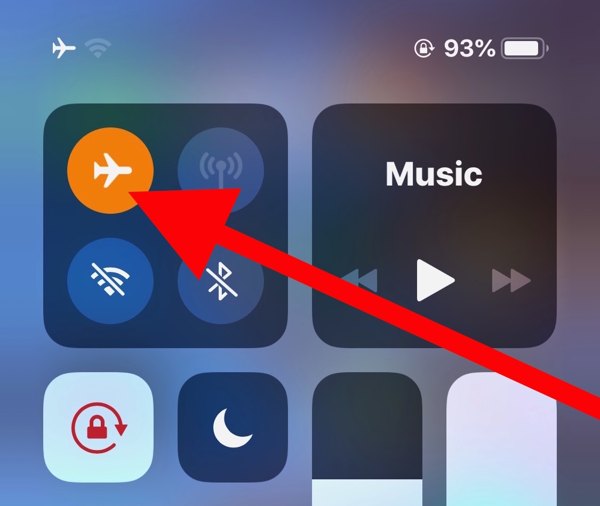
입력하세요 제어 센터 당신의 아이폰에.
을 누릅니다 비행기 모드 button to turn it off. If it is disabled, turn it on and then disable it.
옵션 2:
실행 설정 app from the home screen.
찾기 비행기 모드 option, and toggle it off.
해결 방법 2: SIM 카드 다시 끼우기
When an iPhone keeps saying No SIM, it means that your device cannot see the SIM card. That may be due to a loose card, improper placement, or a damaged SIM card. To fix this problem, you need to take out the card from your device.
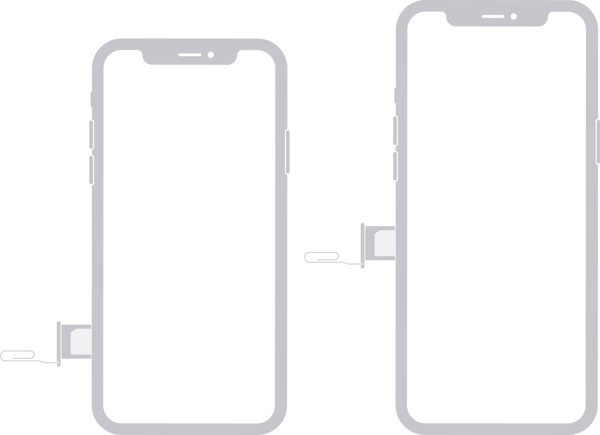
Find the SIM tray on the right side.
Insert a paper clip or SIM-eject tool into the hole beside the tray.
Pull in gently to eject the tray.
Remove the SIM card.
Next, place the SIM card back in the tray.
Insert the SIM tray into your iPhone to see if the error disappears.
If not, take out the card and use another one to check whether your SIM is broken.
솔루션 3: iPhone을 다시 시작하세요
Another simple solution to fix iPhone not detecting the SIM card is to restart your device. That can refresh the operating system and let it detect the SIM card again. For an iPhone, you can complete the process with physical buttons.
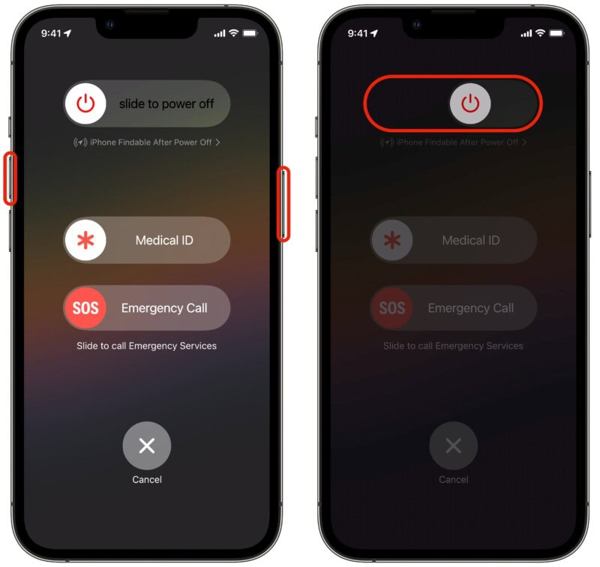
For an iPhone with Face ID, press and hold the 볼륨 업 + 옆 버튼을 함께 누릅니다.
For older models, hold down the 옆 단추.
As long as the boot menu screen appears, release the buttons or button.
Move the power-off slider to shut down your iPhone.
몇 분 후에 길게 누르세요 옆 button until the Apple logo pops up.
Solution 4: Update Carrier Settings
Your iPhone does not read the SIM card partly because the carrier settings are outdated. By default, iOS is able to detect and install the update automatically. If not, you will need to update the carrier settings manually.
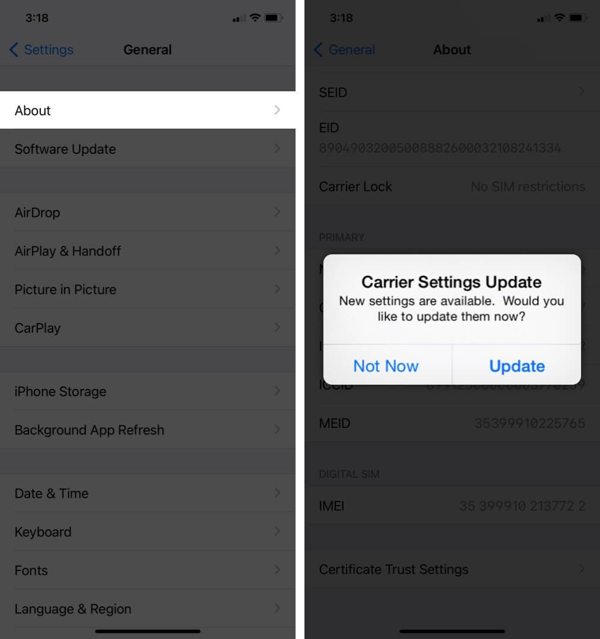
실행 설정 앱.
이동 일반적인 그리고 에 대한.
If a carrier settings update is available, tap the 업데이트 button on the prompt.
When the update finishes, check your SIM card again.
Solution 5: Update iPhone Software
Outdated software is another cause that your iPhone keeps saying SIM Failure. In fact, outdated software can lead to a lot of issues. Therefore, Apple suggests users keep software up to date on their iPhones.
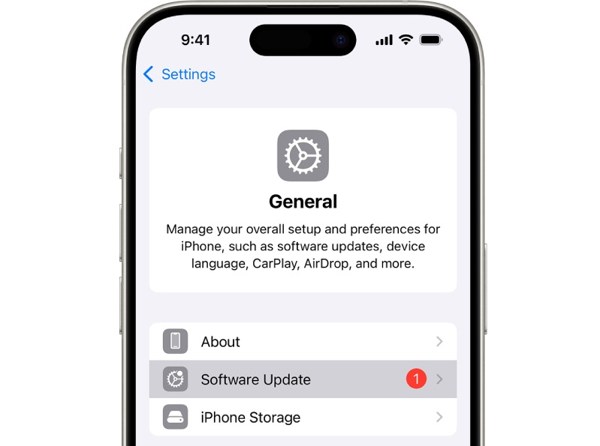
시작하세요 설정 앱.
로 이동 일반적인 그리고 소프트웨어 업데이트.
If an update is ready, tap the 다운로드 및 설치 button to get it.
해결 방법 6: 네트워크 설정 재설정
Conflict settings can lead to the SIM Failure error on iPhone, too. It is difficult to identify which changes cause the problem, but you can reset all network settings with a single option on your iPhone.
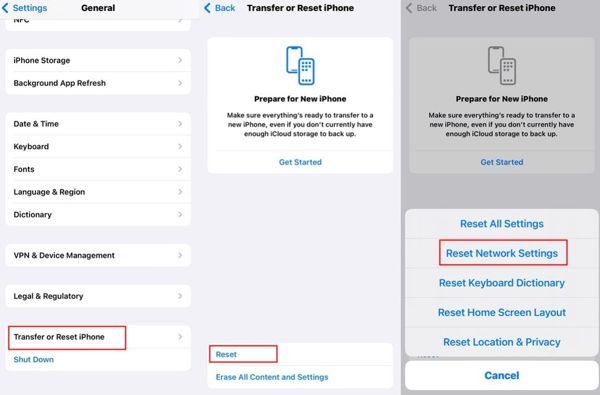
실행하세요 설정 앱.
로 향하다 일반적인, iPhone 전송 또는 재설정, 그리고 초기화.
선택 네트워크 설정 재설정 옵션.
Authenticate with your iPhone passcode.
수도꼭지 네트워크 설정 재설정 다시 확인합니다.
Solution 7: Check if Your iPhone Is Locked to a Carrier
One main reason why my iPhone says SIM Failure is that your device is carrier-locked. Once you insert a SIM card from another carrier, your iPhone cannot read the signal. Check if your iPhone is locked to a carrier following the steps below:
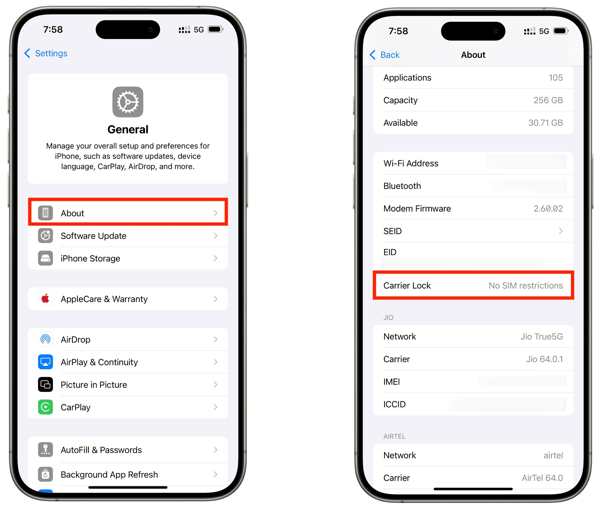
이동 일반적인 당신의 설정 앱.
선택 에 대한 옵션.
찾기 캐리어 잠금 기입.
If you see No SIM restrictions, it means your iPhone isn't locked to a carrier. If not, you have to unlock the SIM on your device.
Part 3: How to Unlock SIM Lock on an iPhone
If your iPhone doesn't recognize SIM card because your device is locked to the previous carrier, imyPass 아이패스고 can help you fix this problem quickly. It can remove the SIM lock from your iPhone without any restrictions. Furthermore, the clear design helps you simplify the workflow.

4,000,000+ 다운로드
iPhone의 SIM 카드 잠금을 해제하세요 단 세 단계만으로 가능합니다.
과정 중에 비밀번호나 각종 제한 사항을 요구하지 마세요.
SIM 잠금을 해제하는 동안 데이터의 안전을 지키세요.
거의 모든 iPhone 모델에서 작동합니다.
MDM 우회와 같은 보너스 기능을 포함하세요.
iPhone에서 SIM 카드 잠금 해제하는 방법
SIM 잠금 해제 도구 설치
컴퓨터에 설치한 후 SIM 잠금 해제 소프트웨어를 실행합니다. 이 프로그램은 Windows 7부터 11까지와 Mac OS X 10.12 이상에서 사용할 수 있습니다. 다음을 선택하세요 SIM 카드 잠금 해제 진행하는 모드입니다.
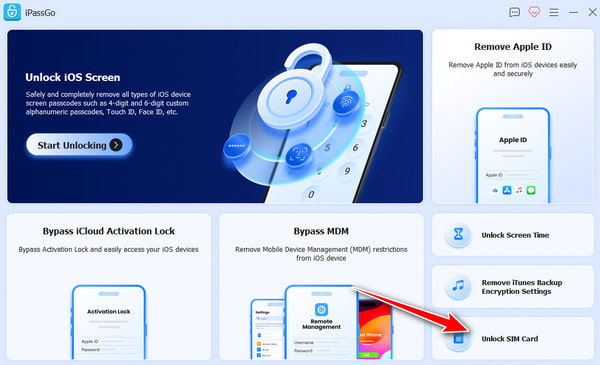
iPhone을 인식하세요
라이트닝 케이블로 iPhone을 컴퓨터에 연결한 뒤 이 컴퓨터를 신뢰하도록 설정하세요. 소프트웨어가 iPhone을 인식하면 다음을 클릭합니다 지금 시작하세요 계속하려면 버튼을 누릅니다.
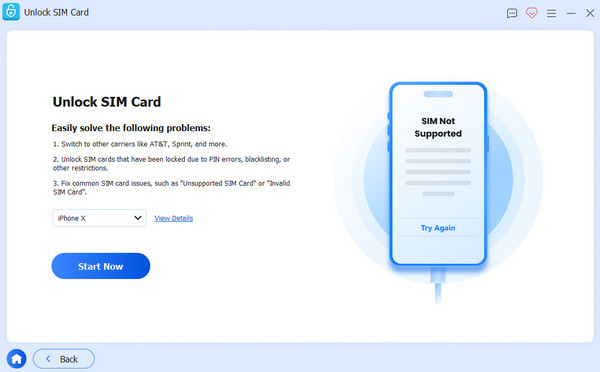
iPhone에서 SIM 잠금 해제
기기 정보를 확인한 후, 다음을 클릭합니다 우회 시작 버튼을 누르세요. 기기를 탈옥한 뒤 화면 안내에 따라 기기를 설정합니다. 설정을 마치면 확인 를 클릭하여 iPhone의 SIM 잠금 해제를 시작합니다.
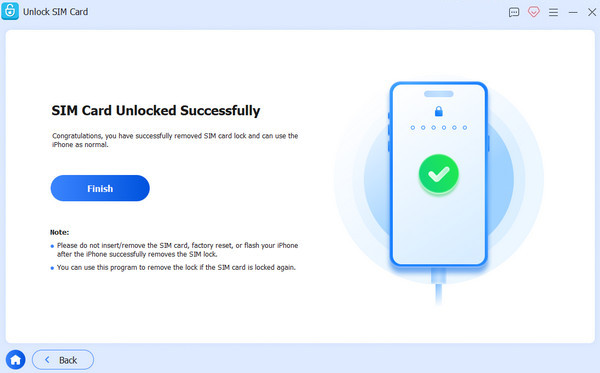
Bonus: SIM Failure vs. No SIM vs. Invalid SIM vs. No Service
휴대전화에서 SIM 또는 eSIM 관련 다른 문제가 있을 경우, 아래 표를 확인해 모두 이해할 수 있습니다.
| 오류 | 의미 |
| SIM 오류 | iPhone이 SIM 카드 또는 셀룰러 연결에 문제를 감지했습니다. |
| SIM 없음 / SIM 카드 없음 | iPhone이 SIM 카드를 감지하지 못했습니다. |
| 유효하지 않은 SIM | 해당 SIM 카드는 지원되지 않거나 이 iPhone에서 사용할 수 없습니다. |
| 서비스 없음 | iPhone이 통신사의 셀룰러 네트워크에 연결할 수 없습니다. |
| SOS / SOS 전용 | iPhone이 일반 셀룰러 네트워크에 연결할 수 없지만, 긴급 통화는 가능할 수 있습니다. |
결론
이제 당신은 그 이유를 이해해야 합니다. SIM 오류는 iPhone 13 및 다른 모델에서도 발생합니다. 더 중요한 것은, 이 오류를 제거하고 평소처럼 iPhone을 사용할 수 있는 검증된 해결책을 배울 수 있다는 점입니다. 기기가 이전 통신사에 잠겨 있어 이 오류가 발생한다면, 제한 없이 iPhone에서 SIM 잠금을 빠르게 제거하려면 imyPass 아이패스고 를 시도해 보세요.
Samuel은 비밀번호 보안과 디지털 프라이버시를 전문으로 합니다. 그는 과거에 중소기업의 디지털 자산을 보호하기 위한 사이버보안 컨설턴트로 일한 경험이 있습니다. 사이버보안과 윤리적 해킹 관련 자격증을 보유하고 있으며, 복잡한 보안 주제를 따라가기 쉬운 조언으로 풀어내는 데 능숙합니다. 또한 사용자들이 보다 자신 있게 계정을 보호할 수 있도록 비밀번호 사용 팁을 공유하는 것을 즐깁니다.
핫 솔루션
-
iOS 잠금 해제
-
iOS 팁
-
안드로이드 잠금해제
-
비밀번호 팁


