Oplossing
 Ondersteuning's centrum
 Over ons
 Contact
How to Retrieve Deleted Snapchat Photos Before They're Gone
 Clara Prescott gepubliceerd op 30 juli 2026Gegevens herstellen3 minuten lezen
Snapchat is designed to make photos and videos disappear, but losing important memories isn't always permanent. Whether you accidentally deleted a Snap, cleared your Memories, switched to a new phone, or experienced data loss after a system crash, there are several ways you may be able to recover your Snapchat photos. In this post, we'll teach you 7 proven methods on how to recover deleted Snapchat photos. You'll learn how to use built-in recovery features, restore from cloud providers, and try a professional data recovery tool when standard methods don't actually work. We'll also explain why some snaps can't be recovered and what you can do to improve the chances of getting them back.

In dit artikel:
Part 1. Snapchat's Built-In Recovery (The Easiest Methods)
Before trying advanced recovery, it is always best to start with the basics. If your snaps are still associated with your account, these methods offer the best chance of recovering them without risking data loss.
Method 1: Check the Recently Deleted Folder
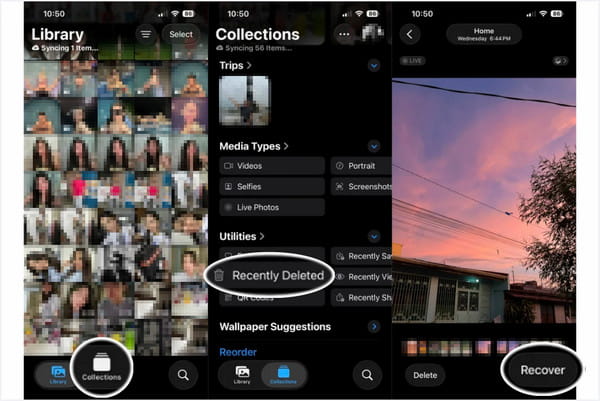
If you've set Snapchat to save snaps to the Camera Roll, there is a high chance you can recover them. The deleted photos in the Apple device are kept in the Recently Deleted folder for 30 days. Here's how to retrieve deleted Snapchat pictures:
Navigeer naar de Foto's app, tik Verzamelingenen selecteer Onlangs verwijderd.
Enter your passcode or use Face ID to open the album. Select the snap you want to retrieve, then tap Herstellen.
Method 2: Download Your Snapchat Data (The My Data Method)
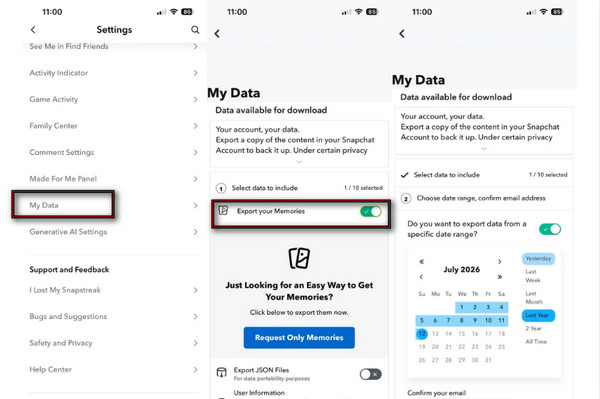
Snapchat provides an option under the My Data section for getting a copy of your data, including snaps. However, this feature cannot retrieve full-resolution pictures.
Ga naar je Profiel in Snapchat, tap the app's Instellingen, en scroll naar beneden naar Mijn gegevens.
Schakel in Export your Memories, kraan Request Only Memories, and choose a time range.
Confirm your email, tap Indienen, and wait for the notification email containing the download link for your data.
Method 3: Check My Eyes Only and the App Cache
How to see old Snapchat pictures? If your snaps seem to have disappeared, you might have stored them accidentally in My Eyes Only or saved them temporarily in the app's cache.
Check My Eyes Only
My Eyes Only is a password-protected section within Snapchat. It keeps private photos and videos separate from your regular Memories.
Swipe up from the Camera display to bring up Herinneringen.
Ga naar Alleen mijn ogen, enter the passcode, and browse saved snaps.
In case you forgot your passcode, you can reset je Snapchat-wachtwoord.
Tap and hold the missing snap and select Unhide Snap to transfer it back to Memories.
Check Snapchat App Cache
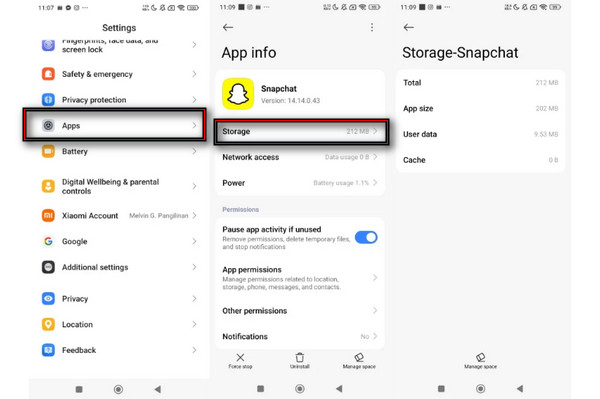
How to get deleted pictures back on Snapchat? On Android, Snapchat temporarily stores image files in its cache. However, cached files are not guaranteed to include your deleted photos.
In de Instellingen, go to Apps, select Snapchat, and tap Opslag.
View the cache size. Don't tap Cache wissen unless you've checked recoverable files.
Part 2. Recover from Phone Backups (iPhone & Android)
If the previous methods don't work, your best bet would be trying out phone backups or cloud services. This approach will allow you to restore a backup made before the deletion of the photo.
Method 4: Restore from iCloud/iTunes Backup
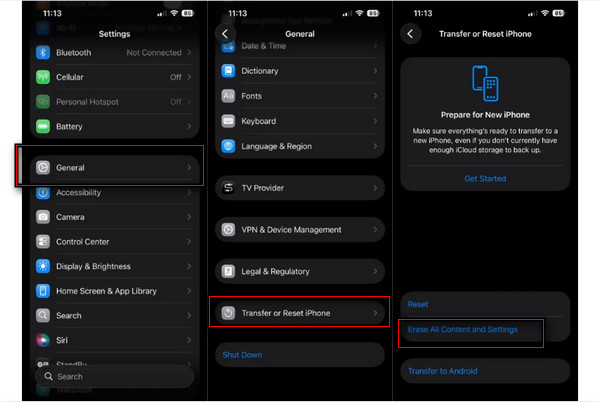
If you're an iOS user, you can restore snaps from iCloud or iTunes backup. Here is how to recover Snapchat pictures from iCloud:
Open Settings, tap Algemeen, en scroll naar beneden naar iPhone overzetten of resetten.
Tik Wis alle inhoud en instellingen tot reset de iPhone, restart it, and reach the App & Data screen.
Tik Herstellen vanuit iCloud-back-up, sign in with your Apple ID, and select a backup date prior to when the photos were lost.
Method 5: Check Third-Party Cloud Libraries
In case you have set your phone to automatically back up your snaps to a third-party cloud provider, your stored Snapchat images could be there. Here's how to get back deleted pictures on Snapchat.
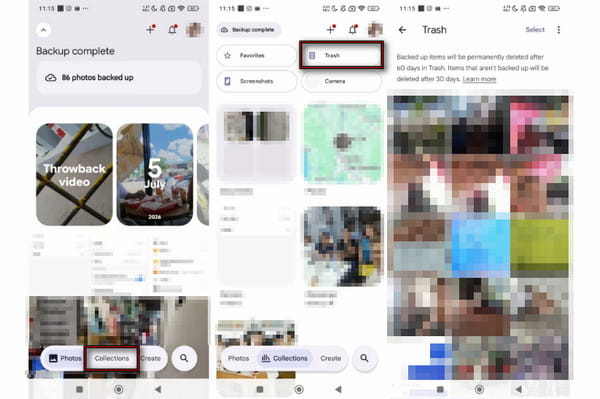
Open Google Photos and head to the Verzamelingen tabblad.
Druk op Afval folder and check if the snaps were recently deleted from your device storage.
Part 3. Professional Data Recovery Software (Advanced Method)
If you can't recover your snaps using the built-in recovery or phone backups, these advanced methods can surely help. These approaches work best if new files haven't overwritten the deleted snaps or data.
Method 6: Use imyPass iPhone Data Recovery
imyPass iPhone-gegevensherstel is een Snapchat-hersteltool voor afbeeldingen waarmee verloren of verwijderde gegevens kunnen worden teruggehaald. Het kan je helpen je Snapchat-foto’s terug te krijgen, zelfs zonder back-up. Het ondersteunt bijna alle iDevices en versies, inclusief iOS 27. Naast foto’s kan het ook tekstberichten, iMessages, spraakmemo’s en meer dan 20 andere soorten gegevens herstellen. Zie hieronder de gedetailleerde stappen om te bekijken hoe de tool werkt.
Downloaden imyPass iPhone-gegevensherstel, set it up, install it, and open it.
Selecteer Herstellen van iOS-apparaat, then plug the iPhone into the computer using a USB cable.
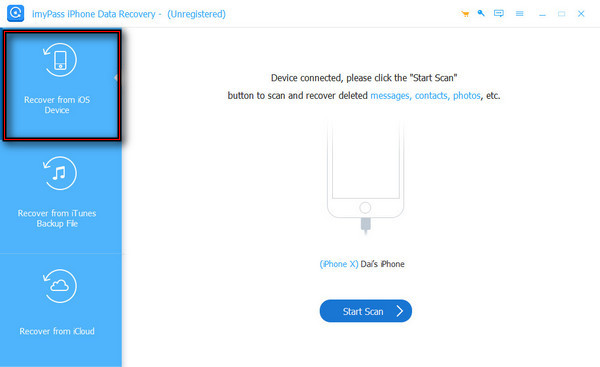
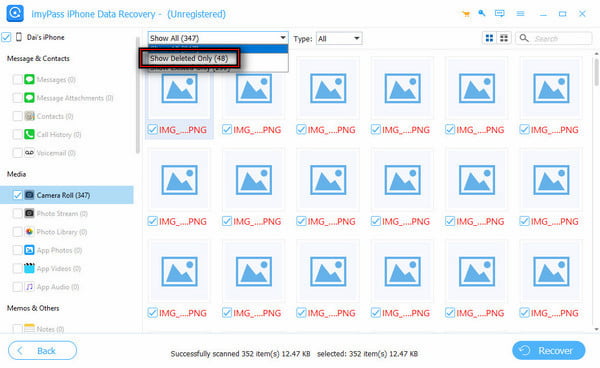
Klik Scannen starten om al je gegevens te scannen. Selecteer vervolgens Alleen verwijderde items weergeven om de snap te vinden die je wilt terughalen.
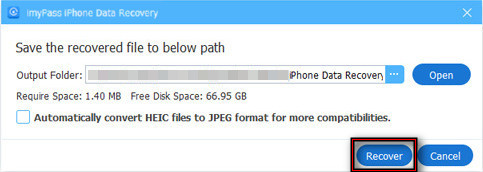
Selecteer alle snaps en klik vervolgens op Herstellen om het herstel te starten.
Methode 7: Verken de cachemap en apps van derden voor herstel (Android)
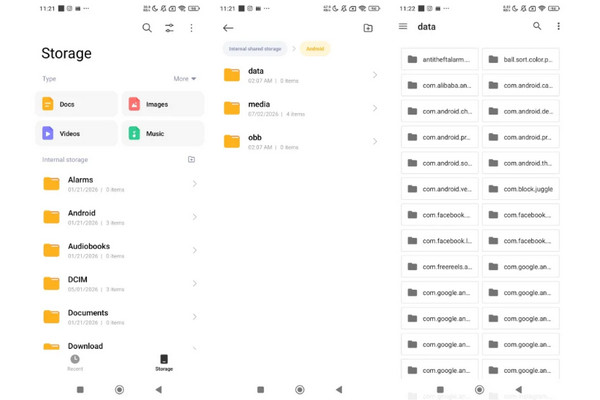
Hoe herstel je Snapchat‑foto’s op Android? Sommige Android‑apparaten bieden via een bestandsbeheerder toegang tot de in de cache opgeslagen bestanden van Snapchat. Zo kun je erbij komen:
Open je bestandsbeheerder en navigeer naar Interne opslagen selecteer Android.
Tik Gegevens, open com.snapchat.android, en voer de cache map.
Opmerking:
Als je de foto’s niet in de cache kunt vinden, kun je Android‑herstelsoftware proberen. Zo’n app kan verwijderde foto’s terughalen die niet meer beschikbaar zijn in Snapchat of cloudback‑ups. Houd er echter rekening mee dat de kans op herstel afneemt naarmate er nieuwe gegevens op het apparaat worden geschreven.
Part 4. Why Can't I Recover My Snapchat Photos? (The Hard Truth)
Zelfs na het proberen van elke herstelmethode kunnen sommige Snapchat‑foto’s gewoon niet worden teruggehaald. Dit zijn de meest voorkomende redenen waarom je Snapchat‑foto’s niet kunt herstellen:
Overschrijving van gegevens
Na het verwijderen van een foto wordt deze niet onmiddellijk volledig van het opslagapparaat gewist. De opslaglocatie waarin het bestand stond, wordt simpelweg gemarkeerd als herbruikbaar. Daardoor is er nog een beperkte periode na het verwijderen waarin het soms mogelijk is de foto te herstellen.
De kernopzet van Snapchat
Snapchat is opgebouwd rond vluchtige berichten. In veel gevallen zijn foto’s bewust zo ontworpen dat ze verdwijnen. Met andere woorden: bekeken snaps worden vaak automatisch verwijderd. Snapchat verwijdert verlopen inhoud van zijn servers volgens het eigen bewaarbeleid.
Account‑ en app‑problemen
Soms zijn de foto’s helemaal niet echt verwijderd; ze worden alleen niet weergegeven. Dit probleem ontstaat als je inlogt op het verkeerde Snapchat‑account of als er nog een Memories‑synchronisatie loopt. Controleer of je met het juiste Snapchat‑account bent ingelogd, of wacht een paar minuten tot de synchronisatie is voltooid.
Conclusie
Dit bericht legt het uit hoe je verwijderde Snapchat‑foto’s kunt vinden. Eerlijk is eerlijk: het terughalen van Snapchat‑afbeeldingen is niet altijd gegarandeerd. Maar toch kan het geen kwaad om de verschillende Snapchat‑herstelsmethoden te proberen, zelfs als je denkt dat je afbeeldingen voorgoed verloren zijn. Begin met de ingebouwde herstelopties en controleer daarna de cloudaanbieders. Als al deze methoden niet hebben gewerkt, imyPass iPhone-gegevensherstel is je laatste redmiddel. Deze tool scant de iPhone, zoekt de verwijderde Snapchat‑foto’s en herstelt ze. Denk eraan: hoe eerder je met het herstelproces begint, hoe groter de kans op succes.
Clara heeft meer dan 8 jaar ervaring met het helpen van gebruikers bij het herstellen van verloren bestanden en het overzetten van gegevens. Eerder werkte ze als gegevensherstelspecialist bij een groot IT‑dienstverleningsbedrijf. Met certificeringen in data recovery en digitale forensica richt haar artikelen zich op eenvoudige oplossingen die ingewikkelde hersteltaken voor alledaagse gebruikers gemakkelijker maken.
Hete oplossingen
-
Gegevens herstellen
- AppGeeker iOS-gegevensherstelbeoordeling
- Disk Drill iPhone-gegevensherstel review
- Hoe je een iPhone uit de recovery-modus haalt
- Hoe je support.apple.com/iphone/restore kunt oplossen
- Hoe gegevens herstellen vanuit de DFU‑modus
- Review van gegevensherstel van een GBTE iPhone
- Hoe verwijderde iPhone‑foto’s herstellen na 30 dagen
- Hoe verwijderde foto’s op een iPad herstellen
-
Ontgrendel iOS
-
Gegevens overdragen
-
iOS-tips

iPhone-gegevensherstel
Herstel verwijderde of verloren iPhone-gegevens
Gratis download Gratis download