Solução
 Centro de Apoio
 Sobre nós
 Contato
How to Hide Location on an iPhone Without Notifying
 Penny Warren publicado em outubro 29, 2026Localização GPSLeitura de 3 minutos
Hiding your location on your iPhone is crucial if you wish to protect your privacy. Tracking location can help you keep in touch with your friends and family members. However, sometimes you want to keep your location privacy and hide it from anyone else. Currently, Apple allows users to hide their geolocation instantly. This concrete tutorial shares six proven ways and demonstrates the workflow for each way.

Neste artigo:
Part 1: Can You Hide Location on iPhone
Can you hide your location on your iPhone? Yes. Apple has introduced a new feature called Flexible Location Sharing when releasing iOS 27. It includes a dedicated Hide Location option. Before iOS 27 was released, you had to use alternative options to hide your real-time location in Airplane Mode or by disabling Location Services.
Part 2: Common Ways to Hide Location on iPhone
Way 1: How to Hide Location on iOS 27
As mentioned previously, Apple has introduced the Flexible Location Sharing feature on iOS 27 and iPadOS 27. It allows you to pause location sharing temporarily and hide your geolocation directly.
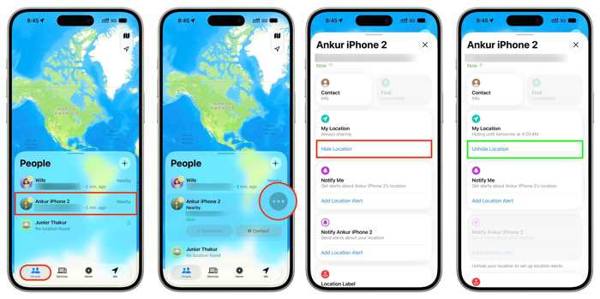
Abra o Encontre o meu aplicativo no seu iPhone.
Vou ao Pessoas aba.
Choose the desired contact.
Toque em Mais botão com um ícone de três pontos.
Em seguida, toque no Esconder Location button under the Minha localização section to hide the location on Find My.
When you want to stop hiding the location, tap the Unhide Location botão.
Way 2: How to Hide Location on iPhone in Airplane Mode
When you turn on Airplane Mode on your iPhone, you disable all wireless and cellular signals, including GPS. As a result, you can hide your location on your iPhone. Others can only see the last available location.
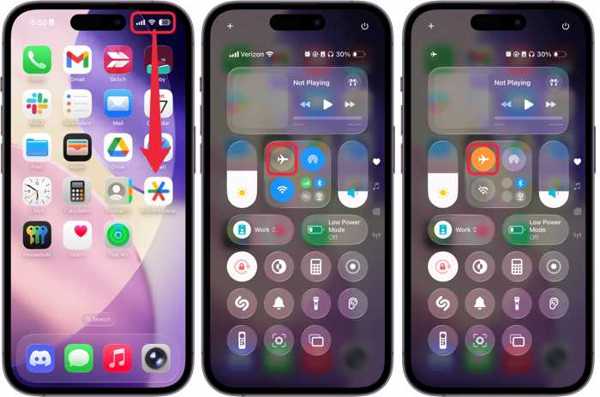
Vou ao Centro de Controle panel on your iPhone.
Toque em Modo avião botão.
Then, all wireless connections on your device are cut off.
Way 3: How to Hide Location on iPhone by Disabling Location Services
Using Location Services on your iPhone can be quite handy. If you want to protect your privacy and hide your location on your iPhone, disable Location Services. Then, no one can access your location, including apps.
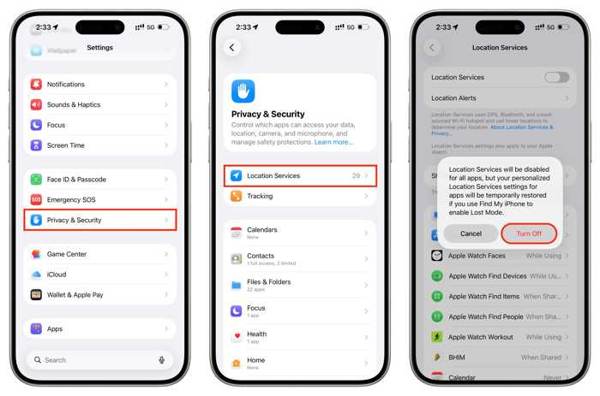
Execute o Definições aplicativo em seu dispositivo iOS.
Vá para o privacidade e segurança aba.
Escolha o Serviços de localização opção.
Desligar Serviços de localização.
Toque em Desligar botão na caixa de diálogo de confirmação.
If you want to hide the location for specific apps, keep Location Services enabled, tap the app below, and select Nunca.
Way 4: How to Hide Location on iPhone After Disabling Location Sharing
Stopping location sharing is another way to hide your location on Find My on an iOS device. You have three options to turn off Share My Location. Moreover, this way won't interrupt the apps.
Opção 1:
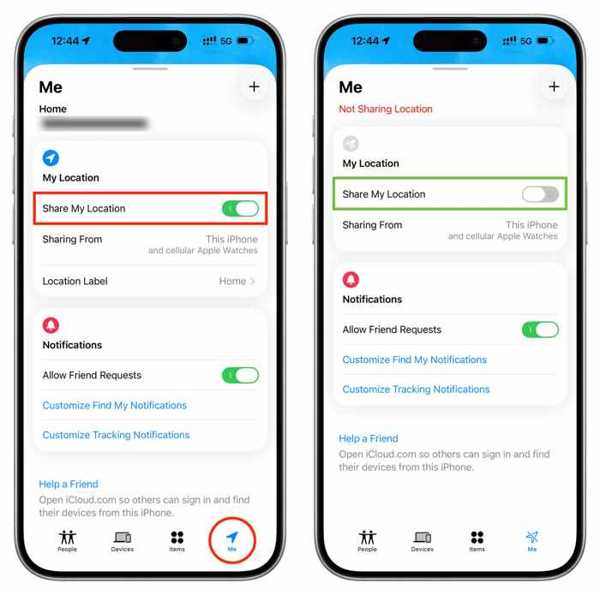
Execute o Encontre o meu aplicativo.
Vou ao Meu aba.
Desligar Compartilhar minha localização.
Opção 2:
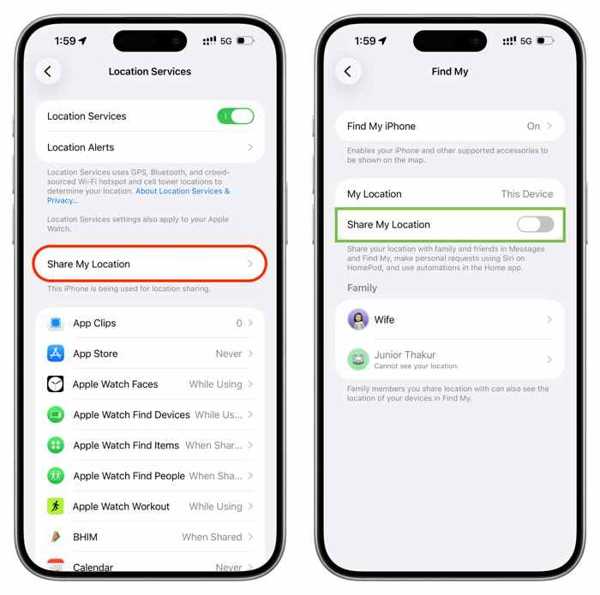
Abra o Definições aplicativo.
Dirigir a privacidade e segurança.
Escolher Serviços de localização.
Toque Compartilhar minha localização.
Desligar Compartilhar minha localização.
Option 3:
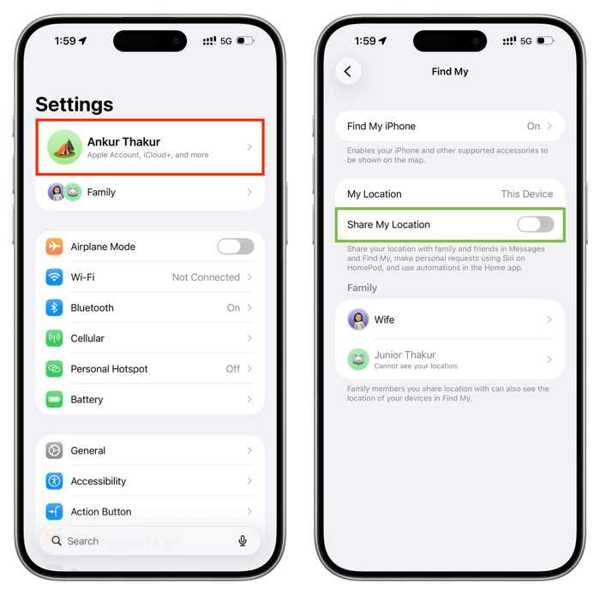
Execute seu Definições aplicativo.
Toque no seu perfil.
Escolha o Encontre o meu opção.
Desligar Compartilhar minha localização.
Way 5: How to Hide Location on iPhone Using a Second Apple Device
Apple allows you to use a second Apple device as the location of your iPhone. If you have two Apple devices associated with the same Apple Account, such as an iPhone and iPad, you can place the iPad at home and hide your location on your iPhone with your iPad.
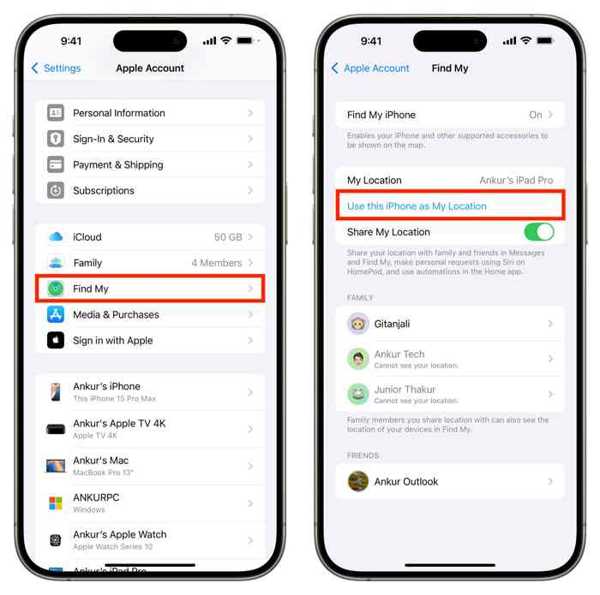
Vá para sua Definições aplicativo.
Tap on your profile at the top.
Escolha o Encontre o meu opção.
Ligar Use this iPad as My Location.
Now, family members and friends will only track your iPad's location.
You May Also Like:
Part 3: How to Hide Location on iPhone with Fake Location
If you want to hide your location on iPhone without them knowing, try imyPass iLocaGo. It fakes your geolocation with any address on your iPhone or iPad. Since it won't install anything on your iOS device, apps and contacts cannot detect your action.
Mais de 4.000.000 de downloads
Hide your iPhone location in three steps.
Simulate routes with your keyboard and mouse.
Ofereça vários modos para diferentes propósitos.
Customize speeds and traffic.
Available on the latest versions of iOS and iPadOS.
How to Hide Location on Your iPhone Without Notifying
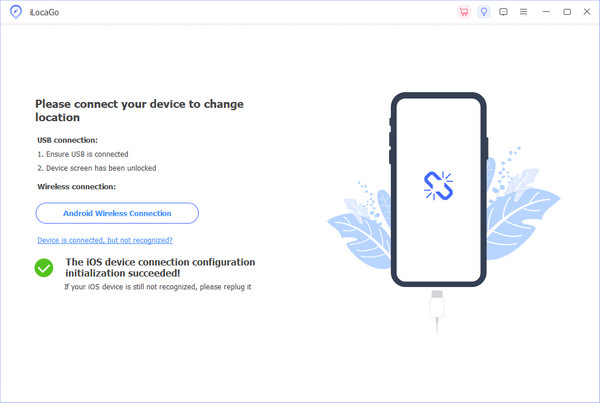
Conecte-se ao seu dispositivo
Launch the iPhone location-hiding software after you install it on your PC. There is another version for macOS 10.12 and newer. Link your iPhone to the PC with a Lightning cable. If prompted, make sure to trust this PC.
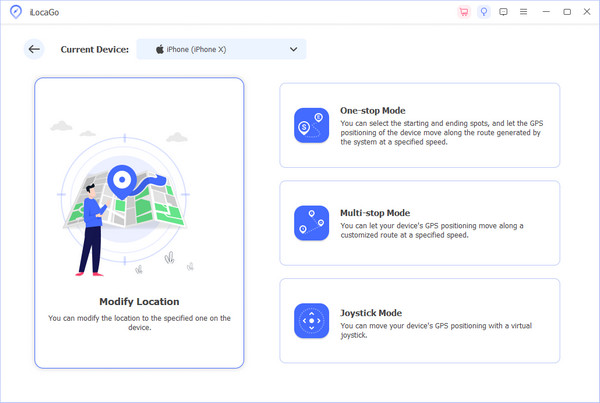
Escolha um modo
If you want to hide a static location, choose the Modificar localização modo. Os outros três modos, Modo de parada única, Modo de parada múltipla, e Modo joystick, are used to create virtual routes in different situations.
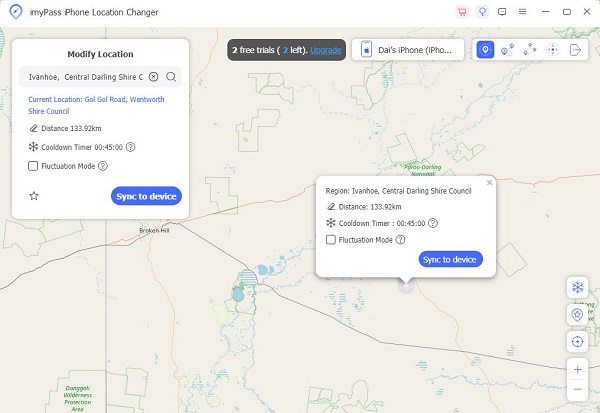
Hide iPhone location without notifying
Type in an accurate address into the field on the pop-up dialog. If you don't have an address, click a proper position on the interactive map. Then, you will see the address. Finally, click on the Modificar button to confirm it. Now, you can use your iPhone with a fake location. When you want to stop hiding, disconnect your iPhone.
This program can also help you alterar localização no Snapchat. You may meet different people in the world.
Conclusão
This article shared six ways to hide your location on an iPhone quickly. The Hide Location option is available on iPhones running iOS 27 now. Moreover, you can hide your real-time location by disabling Location Services or Share My Location. Airplane Mode is used to temporarily stop sharing your location. You can also use a second Apple device. imyPass iLocaGo is the ultimate option to fake your iPhone location with any address or position on the map.
Penny focuses on GPS troubleshooting and Windows optimization. She formerly worked as a technical support engineer, helping clients solve location-based and system issues efficiently. Backed by IT support experience, she provides practical solutions that really work. In her free time, she likes hiking and geocaching, testing GPS tech in the real world.
Soluções quentes
-
Localização GPS
-
Desbloquear iOS
-
Dicas para iOS
-
Desbloquear Android