



 Solução
 Centro de Apoio
 Sobre nós
 Contato
How to Change Apple ID Password With or Without Password
 Clara Prescott publicado em abril 30, 2026Dicas para iOSLeitura de 3 minutos
As the key to accessing Apple devices and services, almost every Apple customer must have created an Apple ID account, which includes the ID and password. If you encounter the same problem, don't panic. The good news is that you can change your Apple ID password even if you forgot your password or device passcode. This comprehensive guide demonstrates the seven proven methods and explains the prerequisites for each method.

Neste artigo:
- Part 1. How to Change Apple ID Password on iPhone
- Part 2. How to Change Apple ID Password on Mac
- Part 3. How to Change Apple ID Password on Apple Watch
- Part 4. How to Change Apple ID Password Online
- Part 5. How to Change Apple ID Password via Apple Support
- Part 6. How to Change Apple ID Password on Web If You Forgot It
- Part 7. What to Do If You Cannot Change the Password for Apple ID
Part 1. How to Change Apple ID Password on iPhone
One easy way to change your Apple ID password on an iPhone is through the Settings app. If you have turned on Two-factor authentication, you can complete the job on the trusted iOS device with your lock screen password.
Pré-requisitos
- 1.You have turned on Two-factor Authentication.
- 2.You have set your iPhone as a trusted device.
- 3.Your iPhone is accessible.
- 4.You remember your iPhone passcode.
No aplicativo Configurações
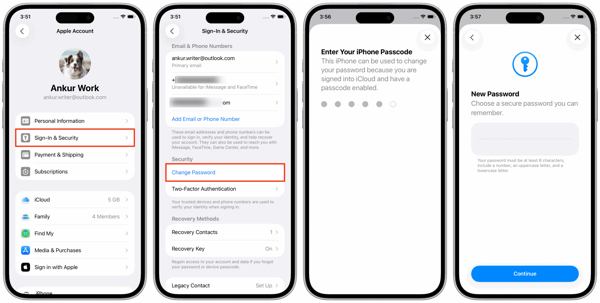
Abra o Definições aplicativo na tela inicial.
Toque no seu perfil e escolha Login e segurança.
Toque em Mudar senha botão.
Se solicitado, digite a senha do seu iPhone.
Now, type in a new password for your Apple ID, and enter it again.
Your password must be at least 8 characters, including a digit, an uppercase letter, and a lowercase letter.
Toque em Continuar botão para seguir em frente.
Então escolha Sign Out Other Devices ou Don't Sign Out, dependendo de suas necessidades.
On the Web
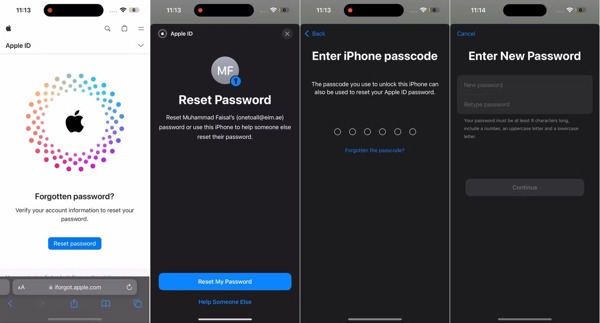
Go to Apple's iForgot website.
Tap the Reset password button.
Em seguida, clique Redefinir minha senha.
Enter your iPhone passcode to verify your ownership.
Next, input a new password, retype it, and tap Continuar.
Observação:
You'd better update the new password on other Apple devices and all your Apple services.
Part 2. How to Change Apple ID Password on Mac
If your trust device is a MacBook, after enabling Two-factor authentication, you can change your Apple ID password on your Mac with the login password. The workflow is pretty easy, and here are the steps:
Pré-requisitos
- 1.Two-factor Authentication is enabled.
- 2.Your Mac is a trusted device.
- 3.Your Mac is still accessible.
- 4.You still remember your Mac login password.
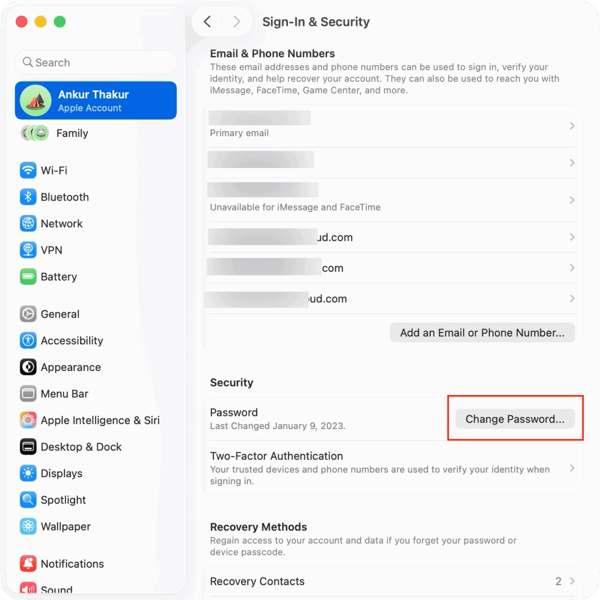
Vou ao Maçã cardápio.
Escolher Configurações de sistema ou Preferências do Sistema.
Clique Conta Apple na barra lateral e escolha Login e segurança.
A seguir, clique no Mudar senha botão.
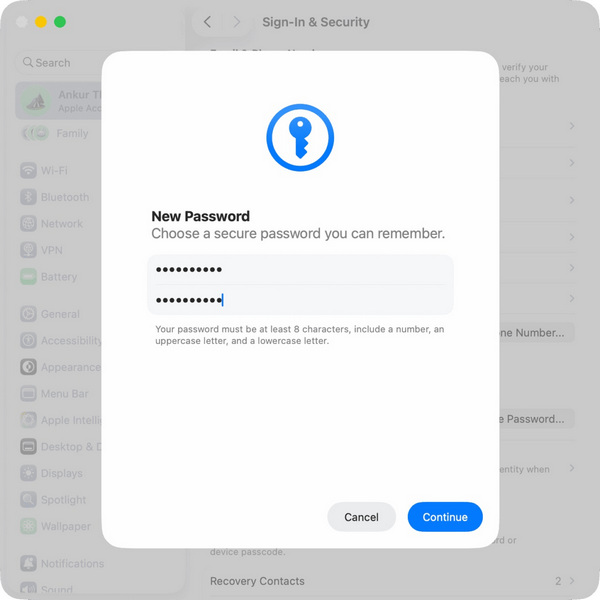
When prompted, enter your login password for your Mac account and click Permitir.
Now, input a new password according to the instructions.
Type it in the field again, and click Continuar.
Finally, decide if you would like other devices to sign out of this account or not.
Leitura Estendida:
Part 3. How to Change Apple ID Password on Apple Watch
If you have an Apple Watch, it provides an option to change your Apple ID password with your Apple Watch passcode. The workflow is very similar to the process of changing the Apple ID password on iOS.
Pré-requisitos
- 1.Two-factor Authentication is turned on for your account.
- 2.Your Apple Watch is accessible.
- 3.You have signed in to your Apple ID account on your Apple Watch.
- 4.You remember the passcode for your Apple Watch.
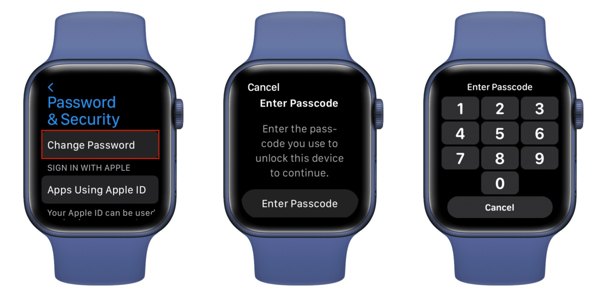
Execute o Definições app on your watch.
Tap on your account and select Login e segurança.
Toque em Mudar senha botão.
Then, type in the passcode you use to unlock your watch.
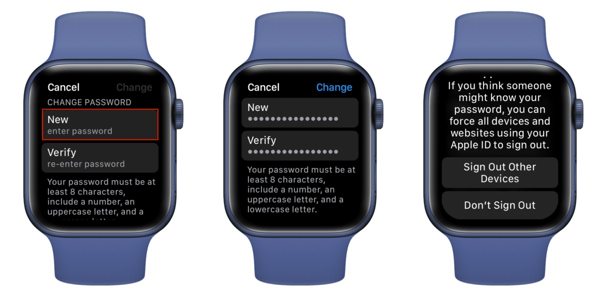
Next, input a new Apple ID password and verify it.
Toque em Mudar botão.
Por fim, escolha Sign Out Other Devices ou Don't Sign Out.
Part 4. How to Change Apple ID Password Online
It is easy to change your Apple ID password online if you still remember your password. In addition to your Apple device, you can also change it on account.apple.com in a browser on any computer.
Pré-requisitos
- 1.You remember the current Apple ID password.
- 2.You have a reliable internet connection.
- 3.A computer and a browser.
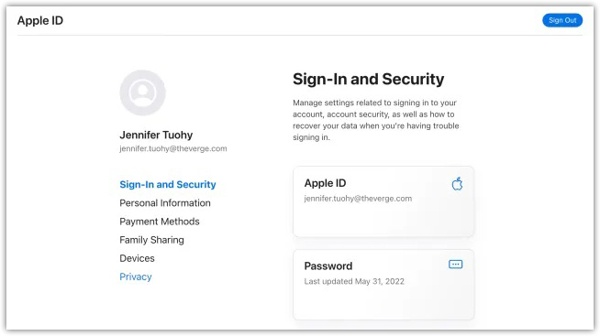
Go to https://account.apple.com/ in a browser.
Clique no Entrar button and log in with your Apple ID and password.
Escolha o Login e segurança option on the side menu.
Clique no Senha option and enter your current password.
Create a new password, re-enter it, and confirm the change.
Follow the onscreen instructions to complete the process.
Part 5. How to Change Apple ID Password via Apple Support
If you are locked out of your iPhone or Mac, borrow an Apple device from a friend or family member to change your Apple ID password. The Apple Support app allows you to reset your account on another iPhone.
Pré-requisitos
- 1.Another accessible iPhone or iPad.
- 2.An active phone number.
- 3.You remember the email or phone number associated with your Apple ID.
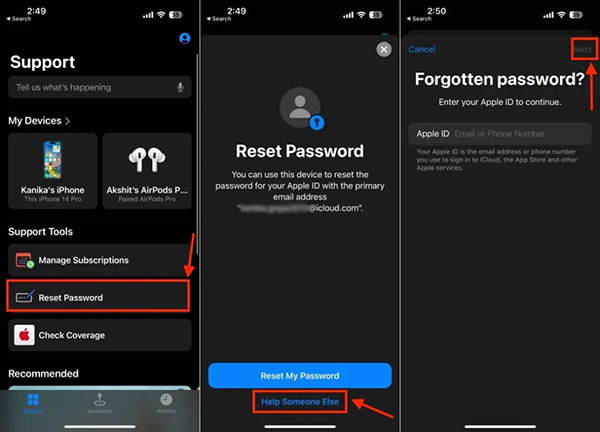
Install the official Apple Support app from the App Store on the borrowed iOS device.
Toque em Redefinir senha botão sob o Ferramentas de suporte seção.
Escolher Ajude outra pessoa para prosseguir.
Enter the major email or phone number associated with your Apple ID and tap Continuar.
Input your trusted phone number when prompted, and tap Continuar.
Imprensa Send Code to [your phone number].
Once you receive the verification code via SMS, enter it in Apple Support.
If you have set up two-step verification, enter your recovery key to continue.
Next, input a new password, re-enter it, and tap Continuar para confirmar a alteração.
Part 6. How to Change Apple ID Password on Web If You Forgot It
If you forgot your password, you have to change your Apple ID password on Apple's iForgot website. Follow the onscreen instructions to provide the required information and reset your password. The workflows are different, depending on your situation.
Visit https://iforgot.apple.com/ in a web browser.
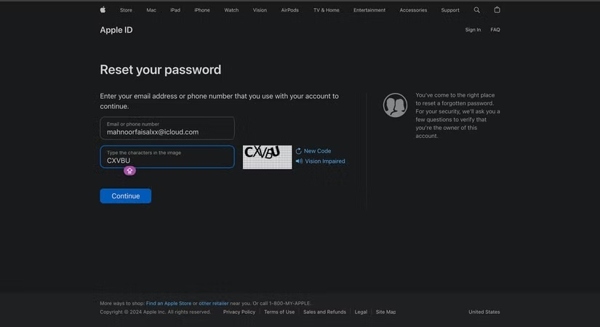
Clique no Redefinir senha botão para continuar.
Type in your Apple ID email or phone number, type the characters in the image, and click Continuar.
Input the phone number associated with your Apple ID and click Continuar.
Now, you will face different scenarios:
Scenario 1: Using a trusted device
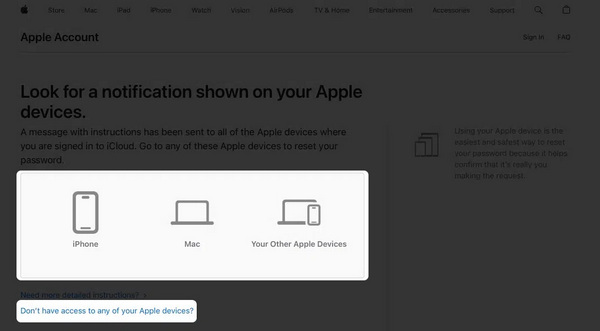
Choose a trusted device.
Turn on the device, and you should see a notification.
Toque ou clique no Permitir botão.
Next, enter your lock screen passcode.
At last, make a new password, enter it again, and confirm the reset.
Scenario 2: Without a trusted device
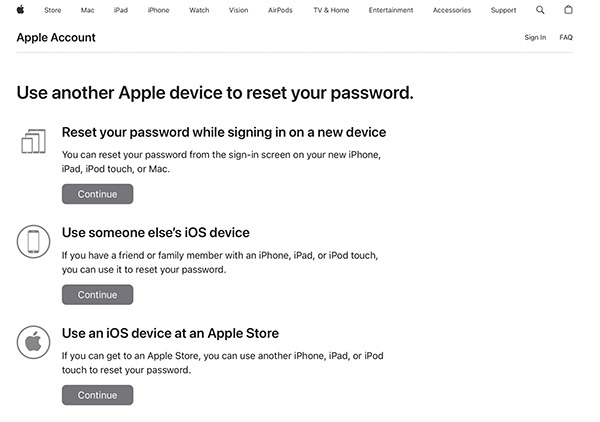
Press the link of Don't have access to any of your Apple devices.
Select a proper option according to your situation and click the Continuar botão.
Next, follow the detailed instructions to change your Apple ID password.
Scenario 3: By Recovery Key
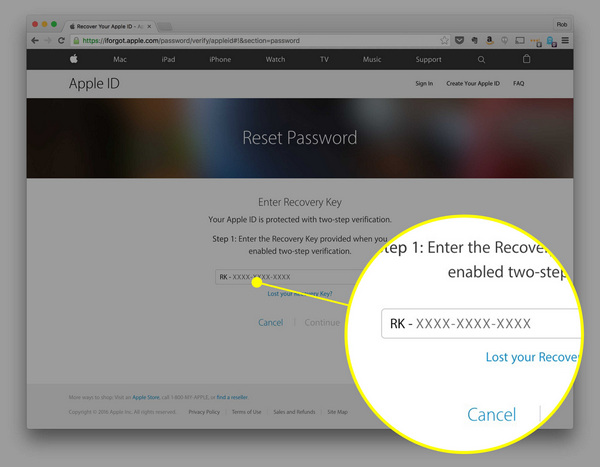
If you have set up Two-step Verification on your Apple device, you will be asked to enter your recovery key.
Input your recovery key and click Continuar.
Next, enter the verification code that you received at your phone number.
Create a new password for your Apple ID.
Scenario 4: Get an email
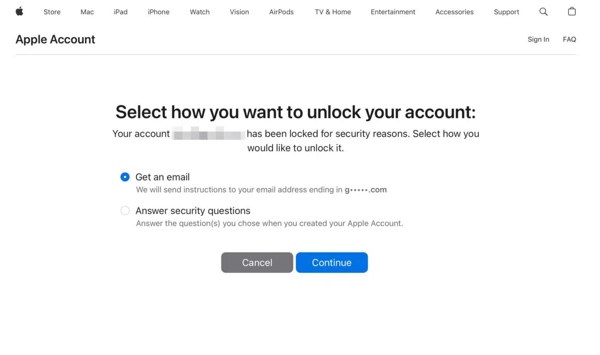
If you haven't set up Two-factor Authentication, eu esqueci will take you to two other options: Receba um e-mail e Responder perguntas de segurança.
Selecionar Receba um e-mail e clique Continuar.
Enter the email associated with your account.
Then, open the email and read the verification message.
Follow the prompts to change your Apple ID password.
Scenario 5: Answer the security questions
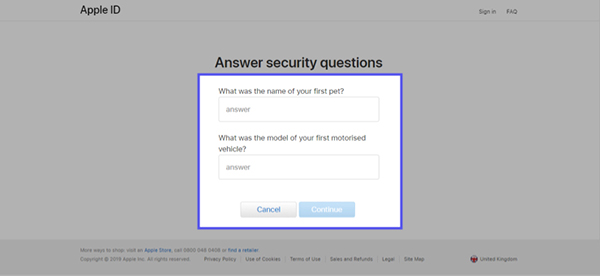
If you remember your security questions and answers, select Answer security questions.
Clique no Continuar botão.
Select each of your security questions and offer the answer.
Now, you will be presented with the new password page.
Create a new password, re-enter it, and submit the confirmation.
Scenario 6: Perform Account Recovery
If none of the above options are available, try the account recovery.
Press the link of Don't have access to any of your Apple devices.
Then, click the link of Can't use any of these options.
Acerte o Continue anyway.
Answer the questions and provide the necessary information.
Check the associated phone number and click Enviar código.
If you stop using this number, click Can't use this number and provide another available phone number.
Enter the verification code you received and click Continuar.
Wait for Apple to inform you within 24 hours. Then, you will receive the instructions on changing your Apple ID password.
Part 7. What to Do If You Cannot Change the Password for Apple ID
If you forgot your Apple ID password, it is difficult to change or reset it. What to do if you can't change the password for your Apple ID? The alternative solution is to remove the old account and use a new Apple ID and password. imyPass iPassGo can help you get rid of the old account without any restrictions.

Mais de 4.000.000 de downloads
Remove an old Apple ID account from iOS without a password.
Work for disabled and locked Apple ID accounts.
Offer bonus features, like MDM bypassing.
Support the latest editions of iOS and iPadOS.
How to Change Apple ID Password Without a Password
Install Apple removal software
Launch the Apple ID removal software once you install it on your computer. It is available on Windows 11/10/8/7 and macOS 10.12 or above. Choose the Remover ID Apple mode. Connect your iPhone to your computer with a Lightning cable.
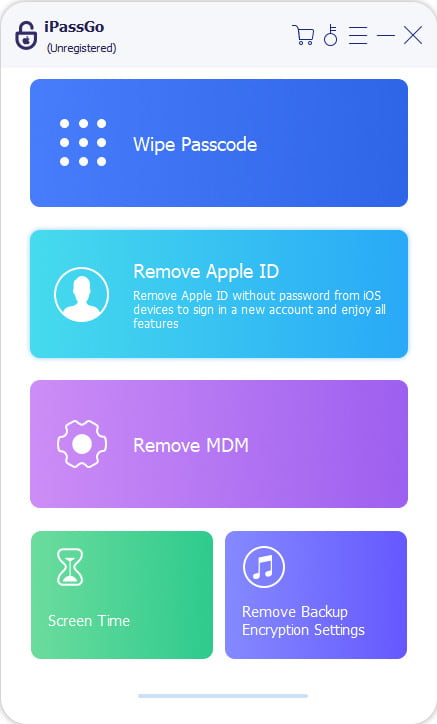
Remover ID Apple
Once your iPhone is detected, click the Começar button to begin removing the old Apple account if Find My iPhone is disabled. If Find My iPhone is enabled, make sure to enable Two-factor Authentication. Enter 0000 and confirm the removal. Check your device information and begin the process.
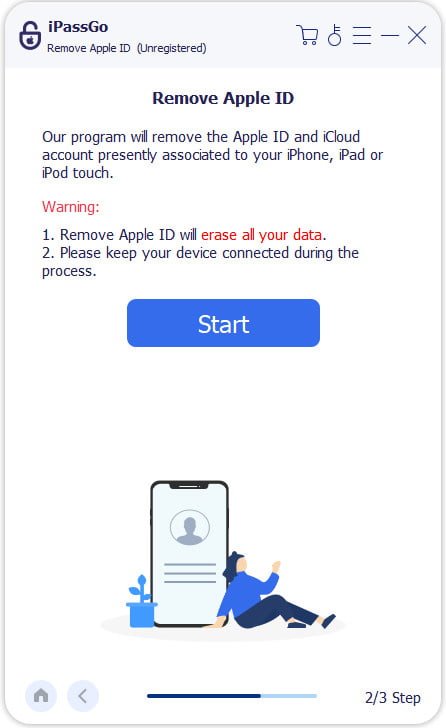
If your iPhone runs iOS 11.3 or earlier and Find My iPhone is enabled, reset all settings, and the software will immediately remove your Apple ID.
Change Apple ID and password
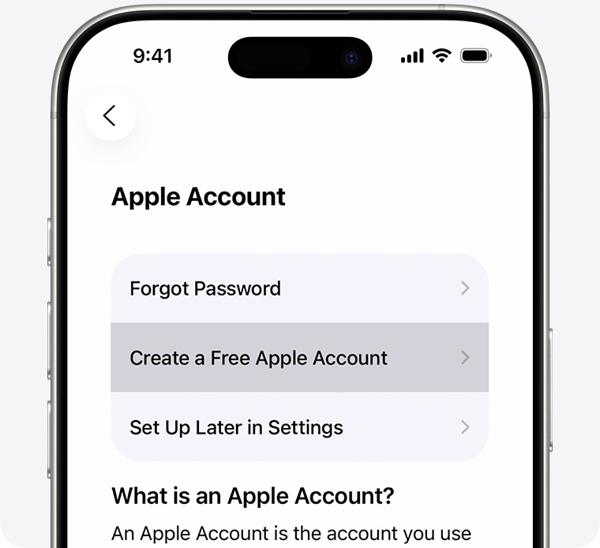
Once your iPhone restarts, set it up as a new device. When you are asked to sign in with an Apple ID, tap Forgot password or don't have an accounte escolha Create a Free Apple Account. Then, log in with a new Apple ID and password.
Conclusão
Este guia compartilhou várias maneiras de change your Apple ID password on your iPhone, iPad, Mac, or the web. You can change it even if you forgot your password if you meet the prerequisites. If the common methods are unavailable, try imyPass iPassGo to get rid of the old account from your iOS device and log in with a new ID and password.
Clara has over 8 years of experience helping users recover lost files and transfer data. She previously worked as a data recovery technician for a major IT service company. Certified in Data Recovery and Digital Forensics, her articles focus on simple solutions that make complicated recovery tasks easier for everyday users.
Soluções quentes
-
Dicas para iOS
- Como baixar aplicativos sem ID Apple
- How to Factory Reset iPhone
- Como redefinir um iPad para as configurações de fábrica
- Fix Error Connecting to the Apple ID Server
- How to Fix iPhone Unavailable Issue
- How to Quickly Fix SIM Not Support Error
- How to Enter iPhone Recovery Mode
- Is Apple ID and iCloud ID the Same
-
Desbloquear iOS
-
Localização GPS
-
Dicas do Windows


