



 Solução
 Centro de Apoio
 Sobre nós
 Contato
iPhone is in Lost Mode: How to Turn Off, Enable, and Exit It
 Clara Prescott publicado em julho 01, 2026Dicas para iOSLeitura de 3 minutos
iPhone can be brought to different places because of its size. Because it is handy, people prefer to bring it compared to other devices, such as a Mac and an iPad. Also, it is commonly used for personal stuff. So, they are brought from different places.
However, this convenience turns into a disaster when the iPhone is accidentally misplaced or lost. Luckily, Apple offers Lost Mode in this kind of situation. Do you know what Modo perdido do iPhone is? This article will help you better understand what the feature offers. Kindly scroll below to know the important information about it.

Neste artigo:
Part 1. What is Lost Mode on iPhone
Most users know Lost Mode on iPhone as a free feature offered by iCloud. This is correct. But did you know that there are other features it can offer? See them from the sections below.
1. What Lost Mode Actually Does
What does Lost Mode do on iPhone? By default, it tracks the location of your iPhone, the real-time one, using the GPS and internet connection. It also has the ability to lock your iPhone remotely. Due to that, it disables Apple Pay. If a person found your iPhone, you will see the custom message that you added. Also, it uses the low-power mode for tracking.
2. What Lost Mode Does NOT Do
On the other hand, what does Lost Mode not do on iPhone? The good thing about the feature is that it does not erase your data. It means that it does not limpe o iPhone. Also, it does not prevent someone from turning off the phone. But if they do, the last known location is saved.
3. Should You Enable Lost Mode?
Some users wonder if they will enable or remove lost mode on an iPhone. We recommend that you turn on Lost Mode on your iPhone. It is a good idea to turn it on if your iPhone is stolen or lost. In this case, you can immediately track its real-time location.
Part 2. How to Enable Lost Mode on iPhone
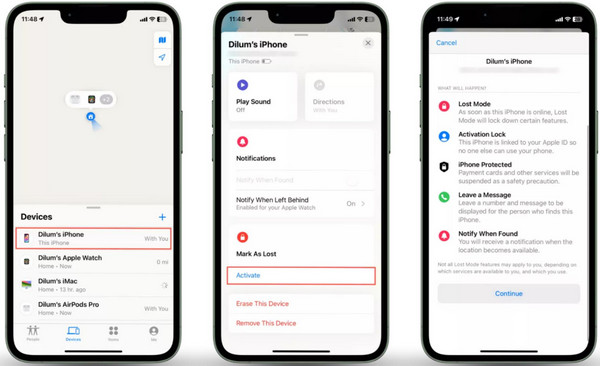
If you want to use Lost Mode, you need to enable it first. It does not automatically turn on by itself. How to enable Lost Mode on iPhone? Find My is accessible with different Apple devices. If you have another iPhone, iPad, or Mac, you can use the app to enable Lost Mode.
Additionally, you can visit its official website. The best thing about them is that they have the same process. See how below.
Abrir Encontre o meu or visit its website. Sign in to your Apple ID account. Select Dispositivos depois.
Choose your missing iPhone. Tap Marcar como perdido. Later, choose Ativar.
Part 3. How to Turn Off / Disable Lost Mode
In contrast, how to turn off Lost Mode on an iPhone? When the feature is encountered, there are various ways to do that. The methods below will help you with the process.
Scenario A: You Found Your iPhone
If you found your iPhone, you are only required to enter the passcode to unlock it. You can also remotely do this process with Find My. The associated Apple ID account is needed for the success of the operation. This feature is also used to fix the iPhone indisponível questão.
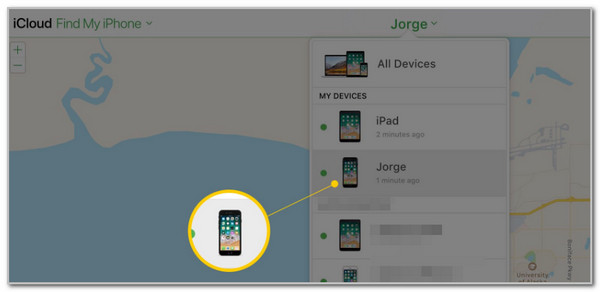
Procurar por Encontre o meu. Em seguida, clique no Entrar option. Enter your Apple ID afterward.
Later, select Modo perdido ou Marked As Lost. Clique Desligue o modo perdido. Finally, confirm the procedure.
Scenario B: Someone Else Found It and Called Your Displayed Number
But if someone found your iPhone, it is better not to unlock it remotely with Find My. The reason is that unauthorized access will be obtained. So, it is recommended to wait for the call or other mode of communication to happen from the person who found your iPhone.
Part 4. How to Exit Lost Mode Without Face ID or Passcode
How to get an iPhone out of Lost Mode without Face ID or passcode? The methods below will guide you on this matter.
1. The Only Legitimate Ways:
The most legitimate way to exit Lost Mode is to enter your device passcode if you know it. It works even without Face ID. Also, you can use your Apple ID password to wipe the device via iCloud Find My website, then restore from backup.
Visita iCloud Encontre meu. Escolha o Entrar button. Enter your associated Apple ID account.
Choose your iPhone from Todos os dispositivos. Selecionar Apagar este dispositivo e clique Apagar confirmar.
If none of these work, it is better to contact Apple Support with proof of purchase. They can help you.
2. What Does NOT Work:
There is no backdoor to remove Lost Mode without the passcode or Apple ID password. Any online service claiming to do so is a scam.
Bonus: But What If You are the Real Owner and Still Can‘t Exit Lost Mode?
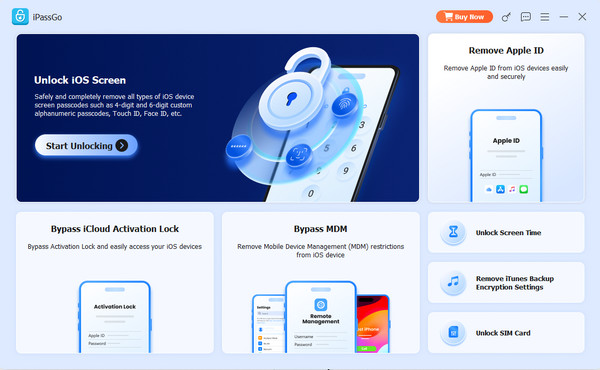
If you are the rightful owner of the iPhone but simply cannot remember your device passcode or your Apple ID password, you are not out of options. Use imyPass iPassGo. It is a third-party tool that may remove your passcode, PIN, Face ID, Touch ID, and other screen lock types. Besides that, it supports different scenarios. It includes a non-working Face ID or Touch ID, a broken iPhone screen, a forgotten passcode, and more. See the steps below to know how to use the tool.
Download imyPass iPassGo. Then, install and open it on your computer.
Escolha o Desbloquear tela do iOS button. Then, plug an iPhone into the computer using the USB cable.
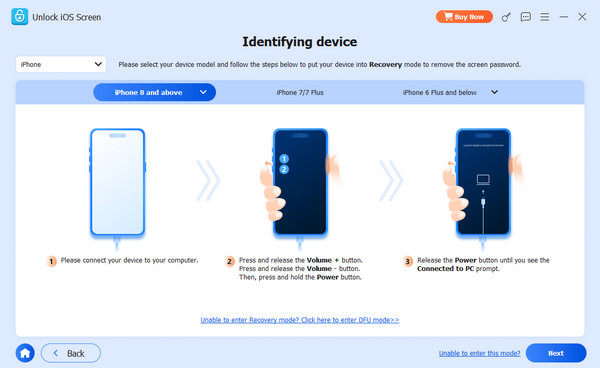
Enter an iPhone into recovery mode and click the Próximo botão. Clique Comece agora e escolha Começar a remover. Mais tarde, clique Confirm Again to start unlocking your iPhone.
Perguntas frequentes.
-
Can someone unlock my iPhone in Lost Mode?
In most cases, no one can simply unlock your iPhone when the Lost Mode feature is enabled. It is impossible with the built-in methods Apple offers.
-
Why won't Lost Mode activate?
There are common causes why Lost Mode cannot be turned on. It happens when the iPhone is turned off, the battery is dead, Airplane Mode is enabled, or more.
-
How to disable Lost Mode if you forgot your Apple ID password?
The best way to disable Lost Mode if you forgot your Apple ID password is to reset it. You can visit the official website to reset your account password.
Conclusão
Modo perdido do iPhone is a helpful iCloud feature that helps you track your iPhone when it is lost or stolen. This article consists of the information you need to know about the mentioned tracking feature. imyPass iPassGo is also here to help you unlock an iPhone when its passcode is forgotten. Download the tool if you want to know more about it!
Clara has over 8 years of experience helping users recover lost files and transfer data. She previously worked as a data recovery technician for a major IT service company. Certified in Data Recovery and Digital Forensics, her articles focus on simple solutions that make complicated recovery tasks easier for everyday users.
Soluções quentes
-
Dicas para iOS
- Como baixar aplicativos sem ID Apple
- How to Factory Reset iPhone
- Como redefinir um iPad para as configurações de fábrica
- Fix Error Connecting to the Apple ID Server
- How to Fix iPhone Unavailable Issue
- How to Quickly Fix SIM Not Support Error
- How to Enter iPhone Recovery Mode
- Is Apple ID and iCloud ID the Same
-
Desbloquear iOS
-
Localização GPS
-
Dicas do Windows


