



 Solução
 Centro de Apoio
 Sobre nós
 Contato
How to Temporarily or Permanently Turn off Face ID on iPhone
 Clara Prescott publicado em maio 11, 2026Dicas para iOSLeitura de 3 minutos
Apple's Face ID is a convenient way to unlock iOS devices and Apple services. According to Apple, the likelihood that someone else can pick up your iPhone and unlock it with a glance is about 1 in 1 million. Therefore, Face ID only permits five failed match attempts to add another layer of security. This guide shares how to temporarily or permanently turn off Face ID on your iPhone.

Neste artigo:
Part 1: How to Turn off Face ID on iPhone
When you remove Face ID on your iPhone, your device stops using biometric security and switches entirely to the digit passcode for authentication. Besides, you can turn off Face ID for Messages, Safari, or any app, respectively.
How to Completely Turn off Face ID
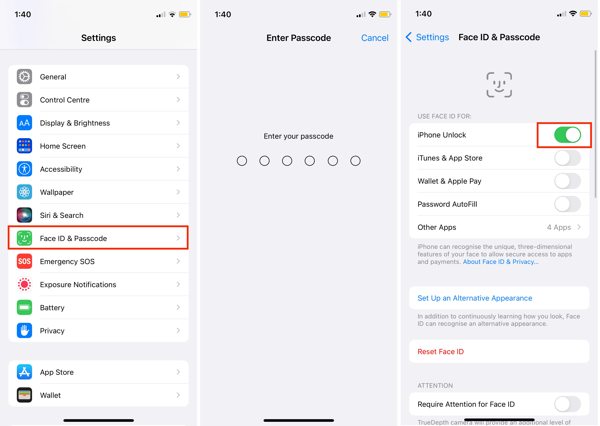
Abra o Definições aplicativo na sua tela inicial.
Escolha o ID facial e senha aba.
If prompted, enter your lock screen passcode.
Desligar Desbloquear iPhone debaixo de USE ID DE FACE PARA seção.
Observação:
If you want to turn off Face ID for a service, like App Store, toggle off iTunes e App Store.
How to Turn off Face ID for Messages
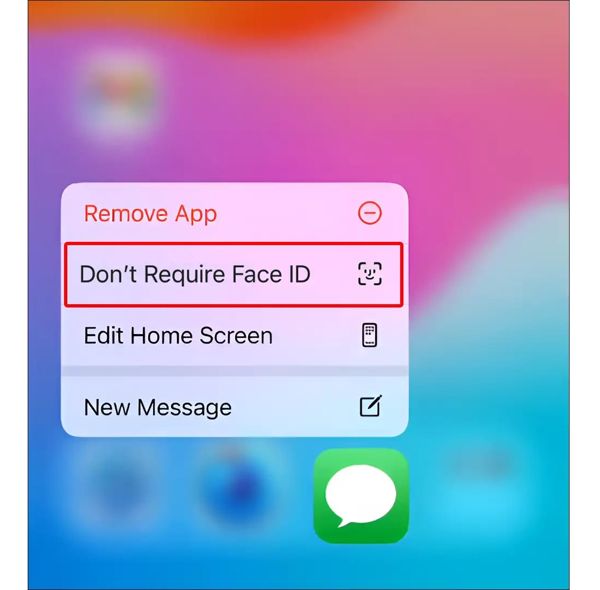
Long-press the app on your screen, like Messages.
Escolher Don't Require Face ID to turn off Face ID for Messages.
How to Turn off Face ID for Safari
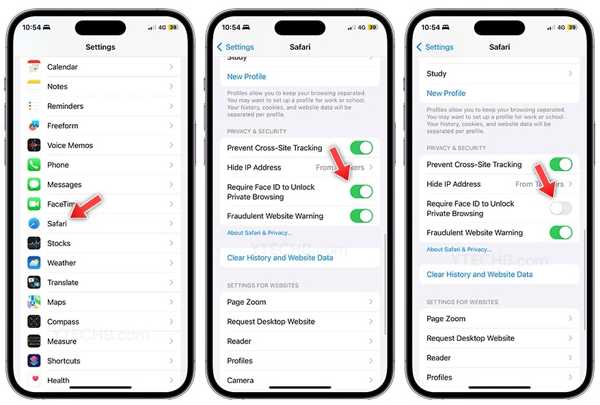
Long-press Safári on your home screen.
Escolher Don't Require Face ID to turn off Face ID for Safari.
If you just want to turn off Face ID for private browsing, choose Require Face ID after holding the Safari app.
Então vá para Definições e Safári.
Desligar Require Face ID to Unlock Private Browsing.
How to Remove Face ID on iPhone
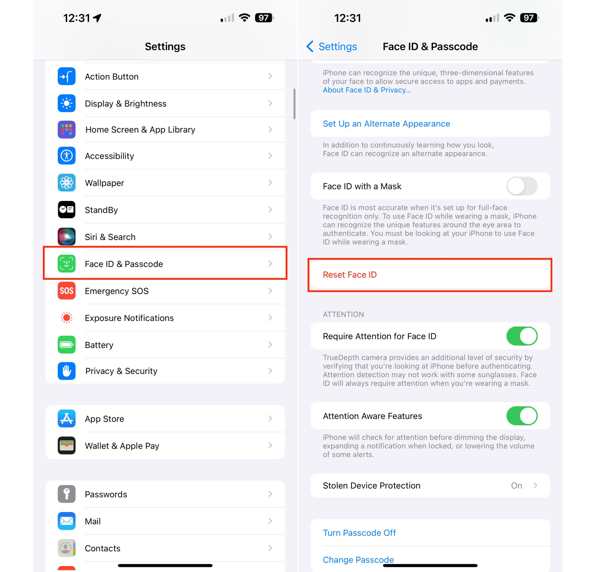
Escolher ID facial e senha na tua Definições aplicativo.
If prompted, enter your passcode.
Toque Redefinir ID facial to remove all Face ID from your iPhone.
Part 2: How to Disable Face ID on iPhone on Lock Screen
If it is inconvenient to scan your face when unlocking your device, you can disable Face ID on the iPhone's lock screen. Moreover, you have multiple ways to temporarily disable the biometric system on your lock screen.
Option 1: Disable Face ID on iPhone on the Power-off Screen
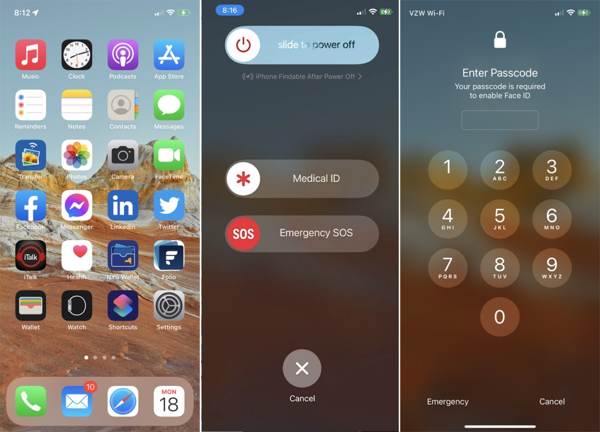
Press and hold either Volume botão e Lado botão juntos.
Quando a tela de desligamento aparecer, solte os botões.
Toque em Cancelar botão.
Then, you will be presented with the passcode screen.
Option 2: Disable Face ID on iPhone with Siri
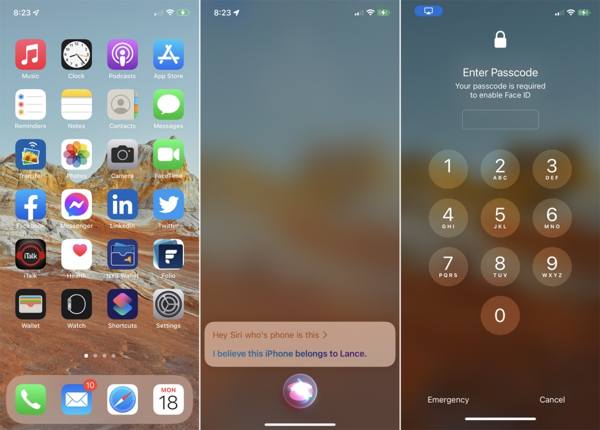
Vamos para Siri & Search na tua Definições aplicativo.
Ativar/desativar Allow Siri When Locked.
Now, lock your iPhone.
Segure o Lado button to wake Siri.
Dizer Hey Siri, whose phone is this to disable Face ID temporarily.
Option 3: Disable Face ID on iPhone after Wrong Scans
After 5 unsuccessful Face ID attempts, Face ID will be disabled on your iPhone. You will be asked to enter the digit passcode to unlock your device. The next time, Face ID will be enabled again for unlocking.
Part 3: How to Turn off Face ID on iPhone Remotely
Once you put your iOS device in Lost Mode, Face ID is disabled on your iPhone. It means that you have to unlock your device with the passcode. The precondition is that you have enabled Find My iPhone.
Turn off Face ID on iPhone with Find My
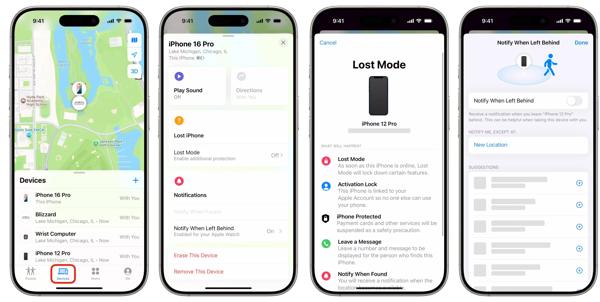
Abra o Encontre o meu app on a borrowed Apple device.
Vou ao Meu guia, toque Help a Friend, and sign in with your Apple ID credentials.
Vá para o Dispositivos tab and choose your iPhone on the list.
Read the summary and tap Continuar.
Next, enter your phone number and tap Próximo.
Enter a message and hit Próximo.
Por fim, toque em Ativar para confirmá-lo.
Disable Face ID on iPhone on iCloud
To disable Face ID on your iPhone, go to www.icloud.com/find in a browser.
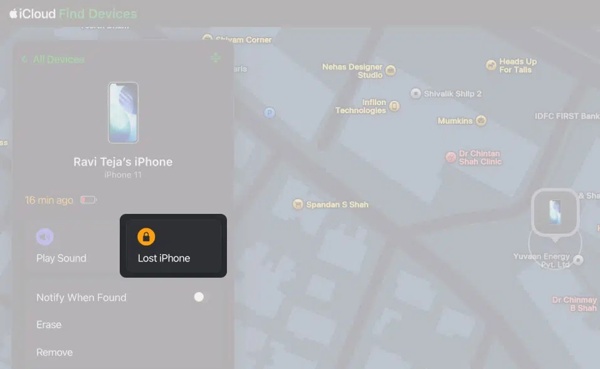
Efetue login com seu ID Apple e senha.
Clique Todos os dispositivos and pick your iPhone.
Clique no Lost iPhone botão e aperte Próximo.
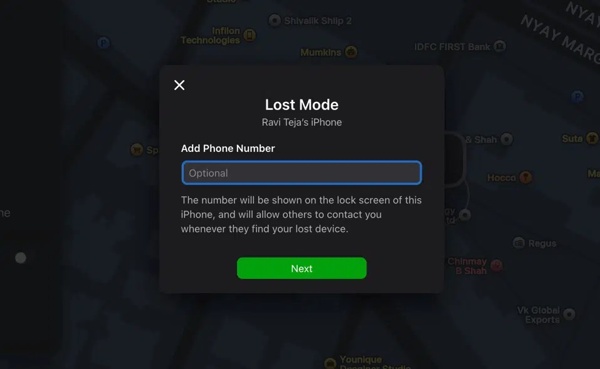
Follow the on-screen instructions to continue.
Por fim, clique Ativar para confirmá-lo.
Part 4: How to Delete Face ID on iPhone Without a Password
If you want to delete Face ID on your iPhone without a password, imyPass iPassGo is a good option. It is able to remove all Face IDs from your device without any restrictions. Moreover, it comes with a user-friendly interface.

Mais de 4.000.000 de downloads
Delete Face IDs on an iPhone in three steps.
Work for Face IDs, digit passcodes, and Touch IDs.
Don't ask for your passcode or Apple ID password.
Suporte às versões mais recentes do iOS e iPadOS.
How to Delete Face ID on Your iPhone Without a Password
Detecte seu iPhone
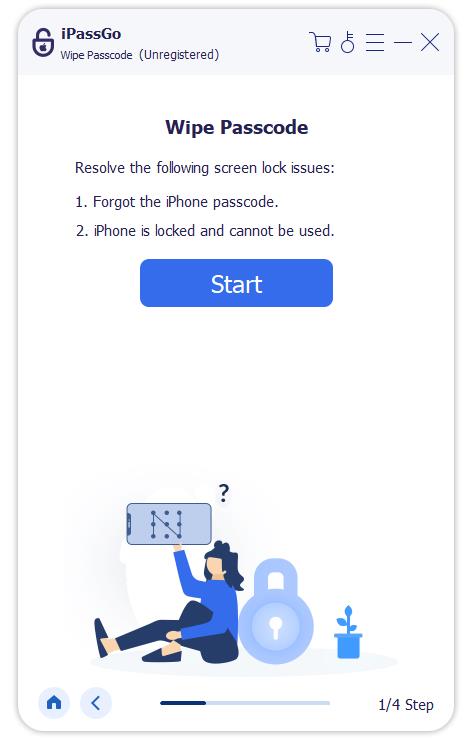
Launch the Face ID removal software after installing it on your PC. There is another version for Mac. Connect your iPhone to your PC with a Lightning cable. Choose the Limpar senha modo para prosseguir.
Baixe o firmware
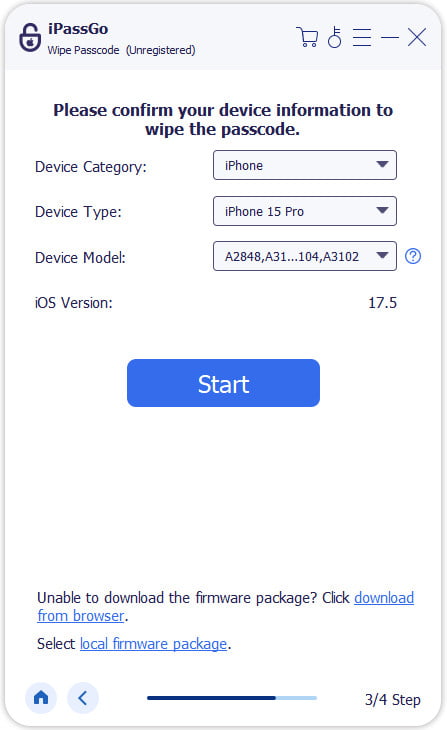
Clique no Começar button to load your device information. Check them and hit Começar para baixar o firmware.
Delete Face IDs
Após fazer o download, clique no Desbloquear button to continue. Read the notification and follow the prompts to ensure the process. When your iPhone restarts, Face ID will be permanently deleted.

You May Also Like:
Conclusão
Este guia compartilhou how to remove Face ID on your iPhone in various situations. You can turn off the biometric system for the lock screen, specific services, and apps. Furthermore, you can temporarily disable the security measure on your lock screen. The Find My feature enables you to lock your device with the passcode remotely. imyPass iPassGo is the ultimate option to get rid of Face ID on iPhone.
Clara has over 8 years of experience helping users recover lost files and transfer data. She previously worked as a data recovery technician for a major IT service company. Certified in Data Recovery and Digital Forensics, her articles focus on simple solutions that make complicated recovery tasks easier for everyday users.
Soluções quentes
-
Dicas para iOS
- Como baixar aplicativos sem ID Apple
- How to Factory Reset iPhone
- Como redefinir um iPad para as configurações de fábrica
- Fix Error Connecting to the Apple ID Server
- How to Fix iPhone Unavailable Issue
- How to Quickly Fix SIM Not Support Error
- How to Enter iPhone Recovery Mode
- Is Apple ID and iCloud ID the Same
-
Desbloquear iOS
-
Localização GPS
-
Dicas do Windows


