



 Solução
 Centro de Apoio
 Sobre nós
 Contato
How to Fix Update Apple ID Settings Stuck on iPhone/iPad
 Clara Prescott publicado em junho 24, 2026Dicas para iOSLeitura de 4 minutos
"I changed my trusted phone number for my Apple ID and updated the settings on my iPhone, but it gets stuck. How can I fix this problem?" After changing your information for your account, you'd better update the changes on all your Apple devices to use the account normally. However, the Update Apple ID Settings stuck message brings your device usage to an unexpected halt. Follow our solutions to fix this problem.

Neste artigo:
Part 1. Why Updating Apple ID Settings Gets Stuck
If your iPhone is stuck on the Update Apple ID Settings screen, you cannot complete the updating process. As a result, your account is inaccessible on your iOS device. The main causes of the error include:
- 1.Poor internet connection.
- 2.Apple servers are down.
- 3.Something is wrong with your account.
- 4.Insufficient storage.
- 5.Software glitches.
Part 2. How to Fix Updating Apple ID Settings Stuck
Solution 1: Restart Your Device
Restarting the iPhone is a simple solution to fix Update Apple ID Settings stuck error. It can close all apps in the background, free up space, quit the conflict apps, and enable you to take other solutions.
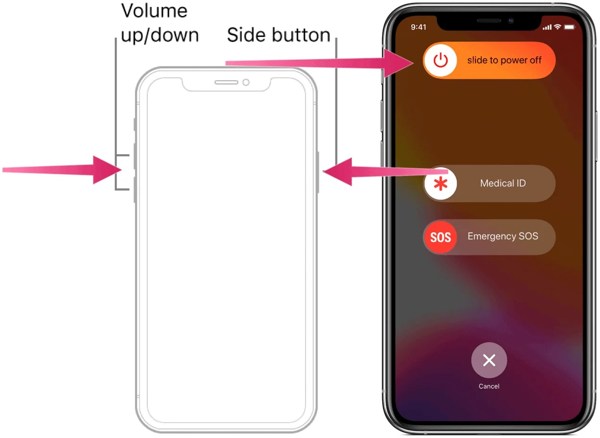
Press and hold either Volume botão + Lado button on an iPhone with Face ID. Hold down the Lado ou Poder button on an iPhone without Face ID.
Release the buttons or button when the power-off screen appears.
Mova o controle deslizante e desligue seu dispositivo.
A few minutes later, hold down the Lado ou Poder botão até ver o logotipo da Apple.
Solution 2: Check Your Wi-Fi
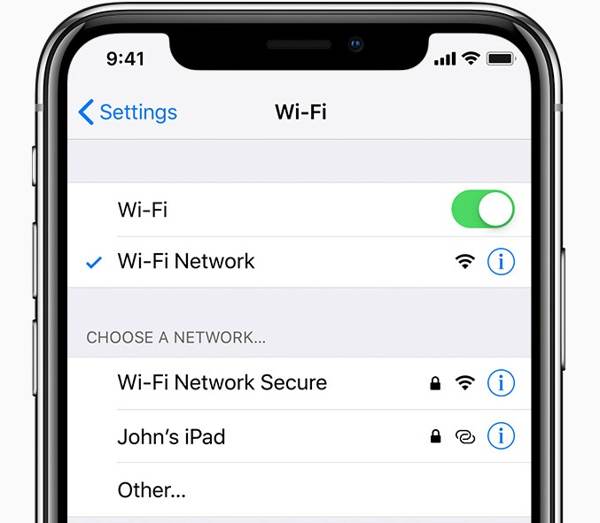
Changing Apple ID settings requires a stable internet connection. If your iPhone connects to a poor Wi-Fi, switch to cellular data or vice versa. Then, update Apple ID settings again to check if the problem is fixed.
Solution 3: Re-sign in to Apple ID
If your screen gets stuck when tapping Update Apple ID Settings, you can sign out of the account and sign in to the Apple ID back to manually update the changes. Here are the steps to update your account:
Toque no seu perfil no aplicativo Configurações.
Scroll down and tap the Sign Out button at the bottom.
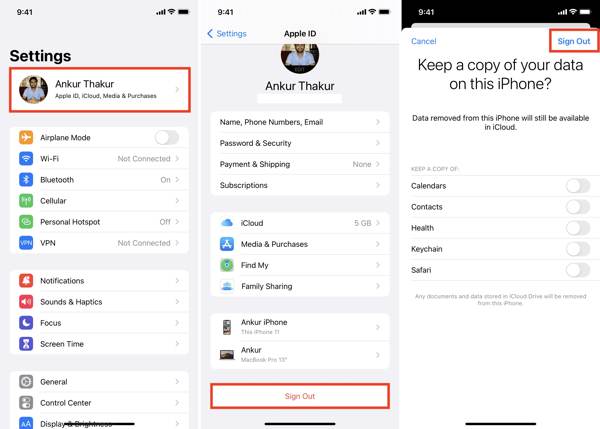
Enter your Apple Account password to disable Find My.
Toque em Desligar botão.
Decide to keep a copy of the data or not and tap Sair.
De volta ao Definições aplicativo e toque Conta Apple.
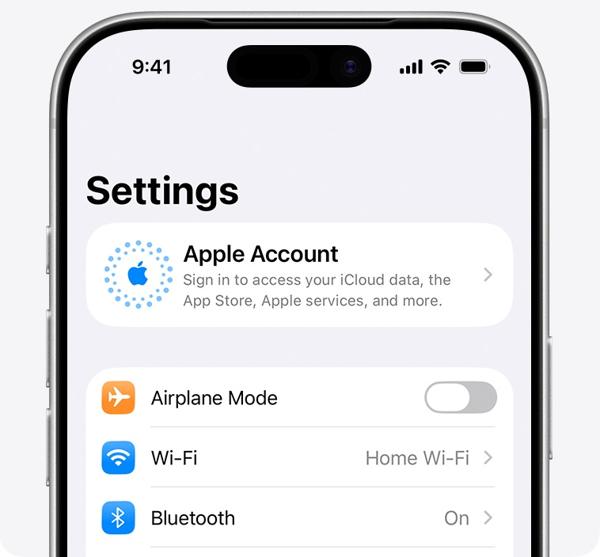
Escolher Entrar manualmente, and enter your Apple Account and password.
Solution 4: Check Apple Servers
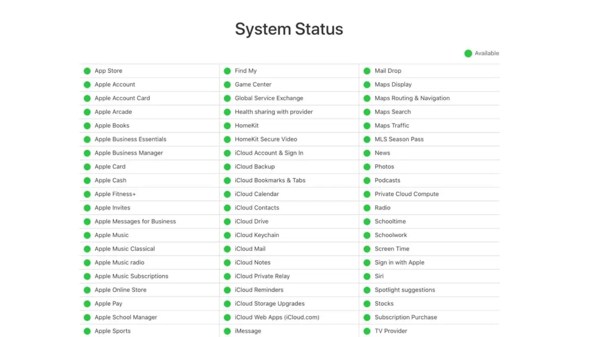
When your screen is stuck on the Updating Apple ID Settings screen, go to https://www.apple.com/support/systemstatus/ in a browser. Check the status of the Apple Account and the relevant servers. If any item is down, wait for it to work again.
Solution 5: Change Your Apple ID Password
Another solution to fix the Update Apple ID Settings stuck is to change your account password. This method requires an accessible iPhone and your iPhone lock screen passcode. Plus, your account must have Two-factor Authentication.
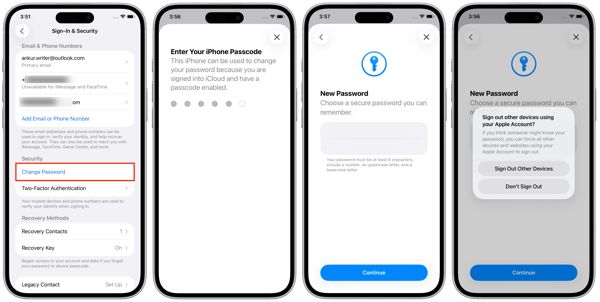
Toque no seu perfil em Definições.
Vamos para Login e segurança.
Toque em Mudar senha botão.
Digite a senha do seu iPhone.
Set a new password and verify it.
Escolher Sign Out Other Device ou Don't Sign Out.
Leituras relacionadas:
Part 3. How to Update Apple ID Settings
If you want to update Apple ID settings on your iPhone after you forgot the password, imyPass iPassGo can meet your needs. It is able to remove the current account from your iOS device without any restrictions. Then, you can log in to your account again.

Mais de 4.000.000 de downloads
Remove the old Apple Account without the password.
Complete the process with three steps.
Available to locked and disabled Apple Accounts.
Support a wide range of iPhones and iPad devices.
How to Update Apple ID Settings on Your iPhone
Instale a ferramenta de remoção do Apple ID
Run the Apple ID removal software after installing it on your PC. There is another version for Mac. Choose the Remover ID Apple modo.
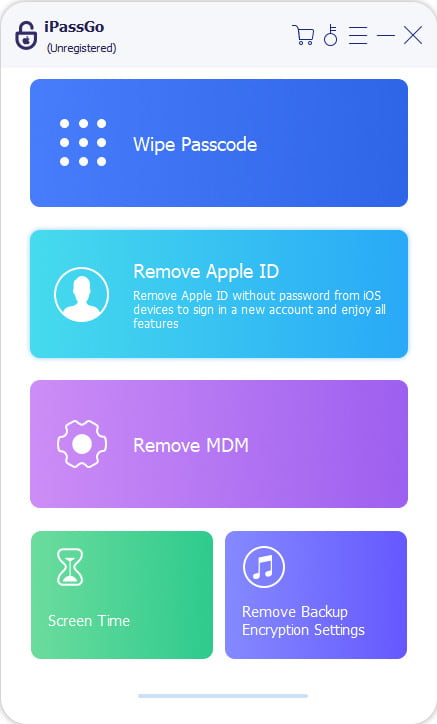
Conecte-se ao seu dispositivo
Connect your iPhone to your PC with a Lightning cable. Once the software detects your iPhone, click the Comece agora botão.
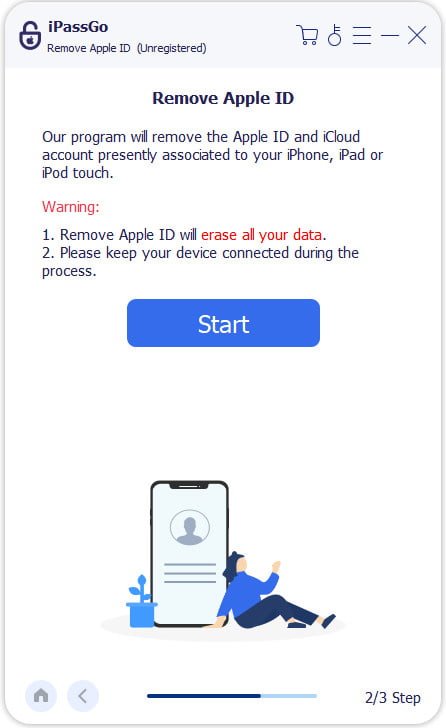
Update Apple ID Settings
If Find My is disabled, the software will automatically start removing the old account. If Find My is enabled, reset all settings on your device. Then, click Confirm Again and check your device information to initiate the process.
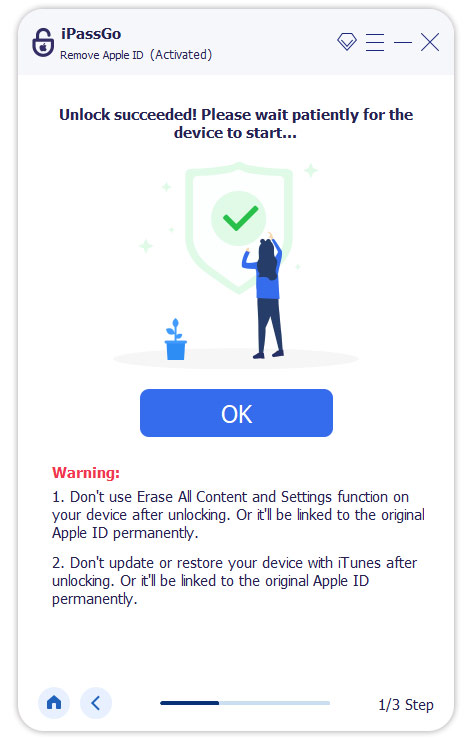
When it is done, set up your iPhone and sign in to your Apple Account again.
Conclusão
This article shared what to do if your touchscreen gets stuck on Update Apple ID Settings. Fortunately, you can follow our solutions one by one to get rid of the error on your iPhone or iPad. Then, you can use your Apple Account on your iOS device as usual. imyPass iPassGo allows you to remove the old account and log in to it again.
Clara has over 8 years of experience helping users recover lost files and transfer data. She previously worked as a data recovery technician for a major IT service company. Certified in Data Recovery and Digital Forensics, her articles focus on simple solutions that make complicated recovery tasks easier for everyday users.
Soluções quentes
-
Dicas para iOS
- Como baixar aplicativos sem ID Apple
- How to Factory Reset iPhone
- Como redefinir um iPad para as configurações de fábrica
- Fix Error Connecting to the Apple ID Server
- How to Fix iPhone Unavailable Issue
- How to Quickly Fix SIM Not Support Error
- How to Enter iPhone Recovery Mode
- Is Apple ID and iCloud ID the Same
-
Desbloquear iOS
-
Localização GPS
-
Dicas do Windows


