



 Solução
 Centro de Apoio
 Sobre nós
 Contato
Como sincronizar fotos com o iCloud no iPhone, iPad, Mac e PC
 Clara Prescott Published on dezembro 19, 2025Transfer Data3-min reading
Considering the limited storage, Apple had released cloud storage for users to expand memory. In other words, you can sync photos to iCloud on your Apple product and access them across your devices. Thus, you can free up space while keeping your photos without quality loss. In this article, you can learn the process and what you can do if you encounter issues when syncing photos on your device.

Neste artigo:
Parte 1: Como sincronizar fotos com o iCloud no iPhone
Ao criar uma conta Apple, você receberá 5 GB de armazenamento gratuito no iCloud. Isso permite sincronizar fotos com o iCloud no seu iPhone ou iPad sem fio. Se o armazenamento não for suficiente, você pode adquirir o iCloud+. O plano de 50 GB custa £0,99, o plano de 200 GB custa £2,99, o plano de 2 TB custa £6 e o plano de 12 TB custa £59,99.
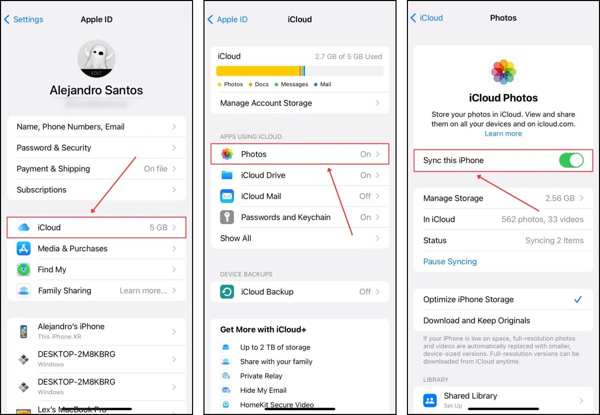
Open the Settings app on your iPhone or iPad.
Conecte seu iPhone a uma rede Wi-Fi ou a dados móveis.
Tap on your profile and choose iCloud.
Press Photos and toggle on Sync this iPhone.
Note: If you want to stop syncing photos to iCloud, turn off Sync this iPhone on the iCloud Photos screen.
Parte 2: Como sincronizar fotos com o iCloud no Mac
Se você usa macOS, também pode fazer backup de suas fotos no iCloud. Assim, qualquer alteração, como edição, exclusão ou adição de fotos, será sincronizada com todos os seus dispositivos por meio de uma conexão com a internet.
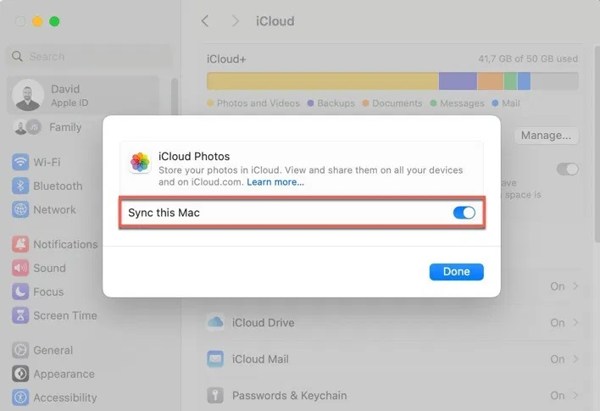
Click the Apple menu and choose System Settings.
Navigate to the iCloud tab.
Choose the Photos app on the app list.
Turn on Sync this Mac and click Done.
Assim que seu Mac se conectar à internet, as fotos serão enviadas para sua conta do iCloud.
Parte 3: Como sincronizar fotos com o iCloud no PC
Embora o iCloud seja o serviço de nuvem da Apple, ele também está disponível para PC. Se você configurar o iCloud no seu PC, poderá transferir fotos para o iCloud no seu computador usando uma rede Wi-Fi. Assim, essas fotos ficarão acessíveis em todos os seus dispositivos Apple.
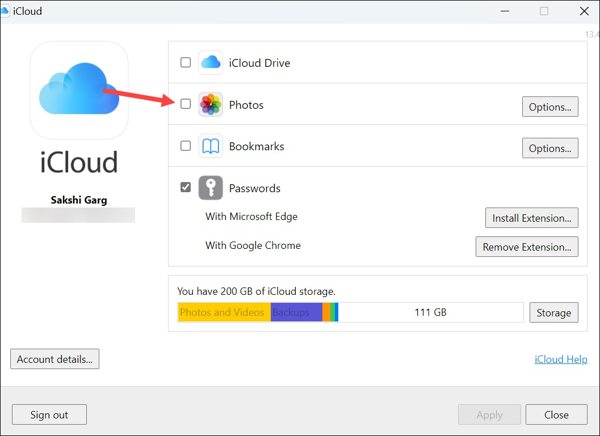
Instale o iCloud no seu PC a partir da Microsoft Store.
Inicie o aplicativo e faça login com suas credenciais do ID Apple.
Check the box next to Photos to enable iCloud Photos on PC.
Click the Options button, check iCloud Photos, and click Done.
Click the Apply button to confirm it.
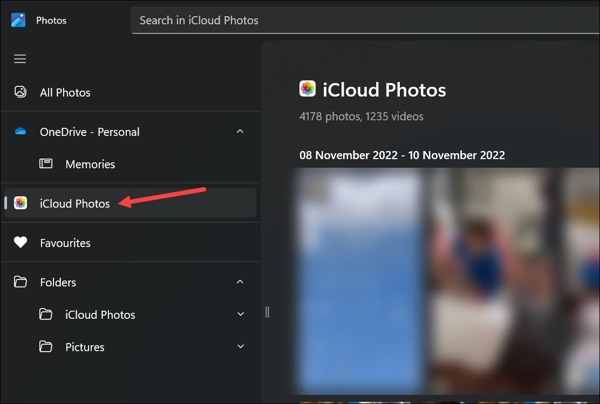
Open the Photos app on Windows 11/10. For older versions of PCs, open File Explorer.
Select iCloud Photos on the sidebar and view or manage photos.
Parte 4: Como corrigir o problema de sincronização de fotos com o iCloud
How long does it take to sync photos to iCloud? The answer depends on your internet condition and the number of your photos. Sometimes, it may take days or syncing to iCloud is paused. The reasons why my photos are not syncing to iCloud are complicated, but you can fix this problem by following the solutions below:
Solução 1: Verifique sua conexão com a Internet
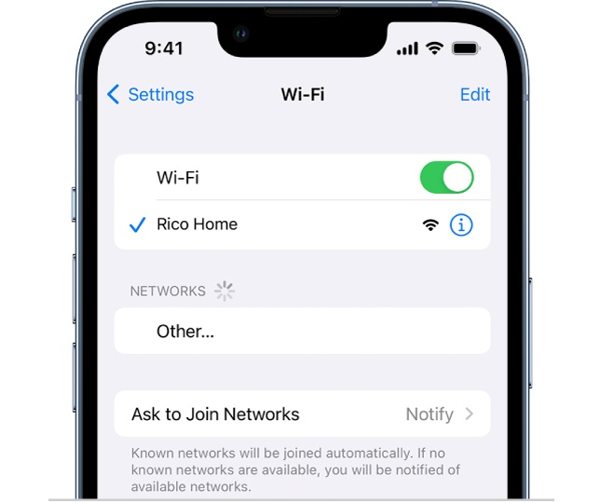
Para salvar fotos no iCloud, você precisa de uma conexão de internet estável. Se sua rede for ruim, o processo pode ser lento ou travar. A solução é simples: verifique sua conexão de internet e use uma boa conexão.
Em um iPhone ou iPad, você pode usar uma rede Wi-Fi ou dados móveis, dependendo da situação. Para um computador, é melhor usar uma rede fixa em vez de Wi-Fi.
Solução 2: Forçar a sincronização das fotos do iCloud
Às vezes, a transferência de fotos para o iCloud é pausada porque seu dispositivo está tentando economizar bateria ou aguardando uma conexão Wi-Fi estável. Você pode forçar a sincronização de suas fotos com o iCloud no iPhone, iPad ou Mac.
For iPhone/iPad
Run your Photos app.
Enter the Recents album.
If you see a status message at the bottom, tap Sync Now.
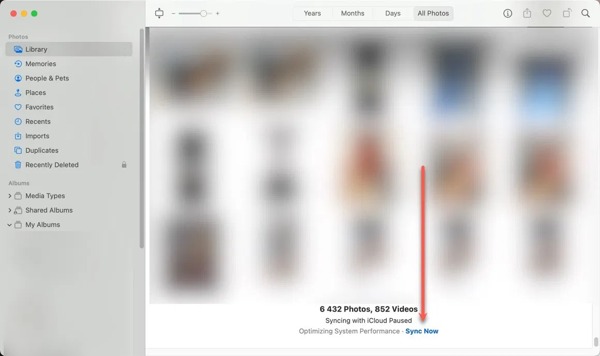
For Mac
Open the Photos app on your computer.
Go to the Library album on the sidebar.
Click the Sync Now button on the status message.
Solução 3: Desative o iCloud Fotos e ative-o novamente.
Ao enviar fotos para o iCloud no seu iPhone, o processo pode ser interrompido devido a falhas de software, como o iCloud Fotos travando. Você pode desativar e reativar esse recurso para resolver o problema no seu iPhone ou iPad.
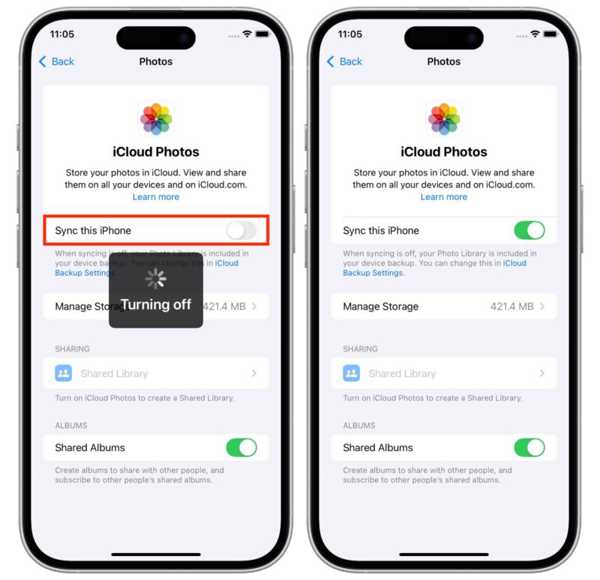
Open Settings and tap on your profile.
Navigate to iCloud and Photos.
Toggle off Sync this iPhone.
A few minutes later, turn on Sync this iPhone.
Solução 4: Libere espaço de armazenamento no iCloud
Exportar fotos de um iPhone para o iCloud requer espaço de armazenamento. Se você tiver muitos arquivos e backups na sua conta do iCloud, o recurso Fotos do iCloud pode parar de funcionar por falta de espaço. Você pode excluir backups do iCloud para liberar espaço.
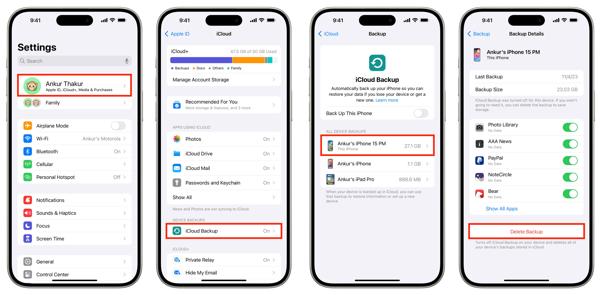
Tap on your profile in Settings.
Choose iCloud, and tap iCloud Backup.
Pick a backup under ALL DEVICES BACKUPS.
Tap Delete Backup and confirm it.
Parte 5: Como sincronizar fotos do iPhone sem o iCloud
If you cannot fix iCloud photo sharing stops, try an alternative solution, such as imyPass iPhone Transfer. It enables you to sync photos between iPhone and computer, between iPhone and iPhone/iPad, or between iPhone and Android.

Mais de 4.000.000 de downloads
Sync photos between iPhone and computer quickly.
Transfer photos without an internet connection.
Protect photo quality.
Work for almost all iPhone and iPad models.
Como sincronizar fotos no iPhone sem o iCloud
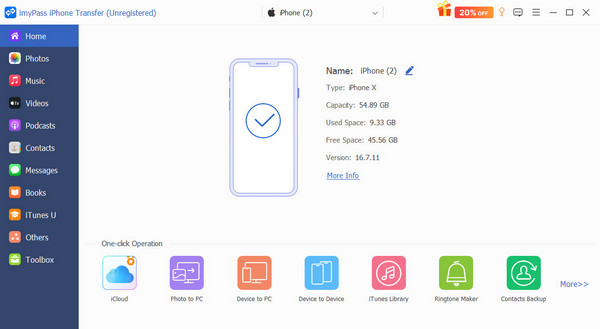
Connect to your device
Run the best photo transferring software after installing it on your computer. Plug your iPhone into your computer with a Lightning cable.
Preview iPhone photos
Go to the Photos tab on the sidebar after your device is recognized. View photos on your device.
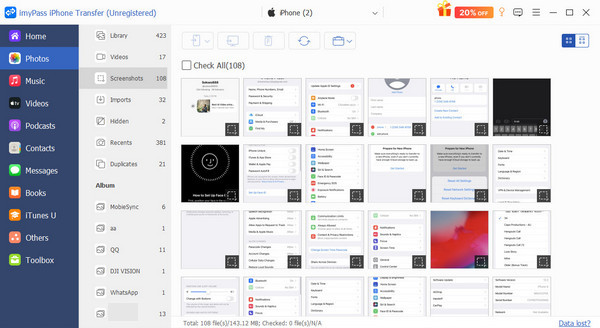
Transfer photos from iPhone to PC
Select the desired photos, click the PC button on the top ribbon, and choose a location folder. You can also share contacts on iPhone with other devices.
Conclusão
This guide shared how to synchronize photos to iCloud from iPhone, iPad, Mac, and PC. You can follow our steps to upload your photos to your iCloud account. Plus, you should understand what to do if iCloud Photos stops syncing. imyPass iPhone Transfer can help you transfer photos and other data between an iPhone and other devices.
Clara é editora do imyPass. Ela é especialista em recuperação de dados. Você pode encontrar tutoriais e soluções profissionais para recuperar dados perdidos de qualquer dispositivo. Muitos usuários relataram que este tutorial é fácil e útil.
Soluções quentes
-
Transferir dados
-
Recuperar dados
-
Desbloquear iOS
-
Dicas para iOS

