Solução
 Centro de Apoio
 Sobre nós
 Contato
How to Unlock Android Home Screen Layout: Step-by-Step Guide
 Penny Warren publicado em maio 25, 2026Desbloquear AndroidLeitura de 3 minutos
If you try to customize your Android home screen by long-pressing a blank area but see the message "Home screen layout locked", don't worry. In this guide, you'll learn how to desbloquear a tela inicial layout on Samsung, Huawei, Redmi, and Infinix devices.

Neste artigo:
Parte 1. Tela inicial versus tela de bloqueio
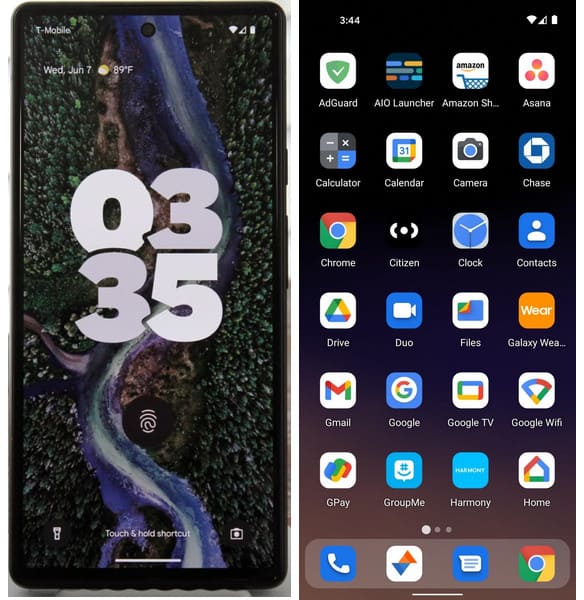
Before we start unlocking your Android home screen, it's important to know the difference between the home screen and the lock screen.
- Home Screen: This is your main screen, where you can access apps, widgets, and shortcuts. It gives you full control of your phone.
- Lock Screen: This screen appears when you wake up your phone. It only shows limited information, such as date, time, weather, and notifications, and helps protect your device from unauthorized access.
In short, the home screen is for using your phone and accessing private data, while the lock screen acts as a security barrier. To fully manage your device, you need to unlock the lock screen to access the home screen.
Parte 2. Como desbloquear o layout da tela inicial para a maioria das marcas de Android
Most Android phones follow a similar process to unlock the home screen layout. Below is a quick reference table for popular brands.
| Marca | Método |
| Samsung | Long-press blank area |
| Huawei | Pinch home screen |
| Redmi/Xiaomi | Open Settings app |
| Infinix | Long-press blank area |
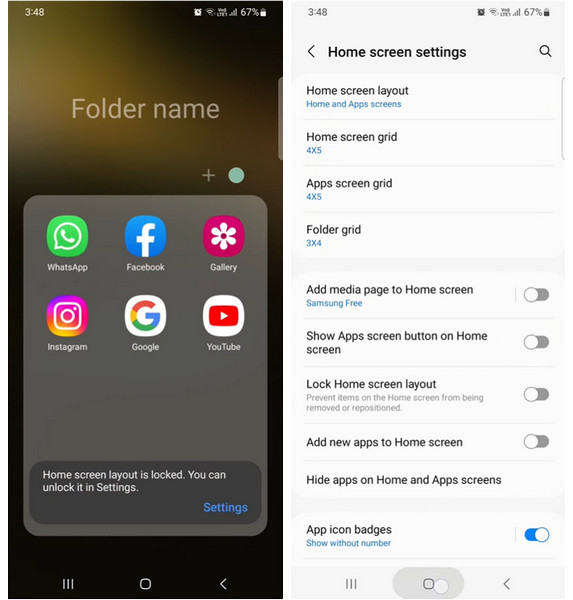
1. Como desbloquear a tela inicial do Samsung
Continue pressionando um espaço em branco na tela inicial do Samsung até ver a notificação com um azul Definições palavra. Toque para continuar.
If you don't see the notification, open Definições > Tela inicial > Lock Home Screen Layout and toggle it off to unlock the home screen on your Samsung phone.
2. Como desbloquear a tela inicial do Huawei
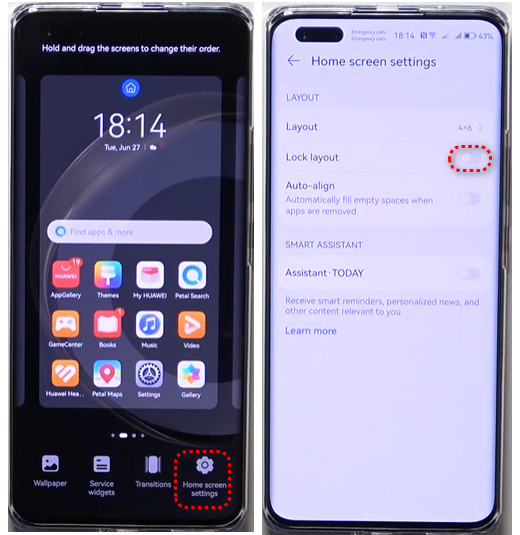
Aperte a tela inicial do Huawei usando dois dedos.
Você pode ver o Configurações da tela inicial opção no canto inferior direito. Toque nele e alterne o Layout de bloqueio desligado.
3. Como desbloquear a tela inicial do Redmi
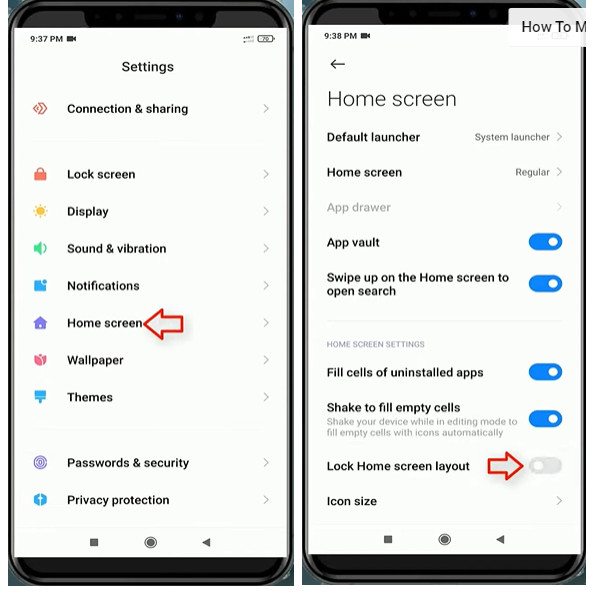
Abra o aplicativo Configurações em seu telefone Redmi.
Toque Tela inicial e desligue Bloquear layout da tela inicial.
4. Como desbloquear a tela inicial no Infinix
Mantenha pressionada uma área em branco na tela inicial do Infinix até ver o Definições opção no canto inferior direito. Toque nele para entrar no Configurações da área de trabalho cardápio.
Toque Outros e desligue Fixar ícones na tela.
Part 3. How to Unlock Android Lock Screen Without Password
As we mentioned above, the home screen and lock screen are different. You can manually lock the home screen. But if you forget the password, you will be locked out of the lock screen. In these cases, you'll need a specialized tool. imyPass AnyPassGo can help you unlock your Android device without a password. It supports most Android devices running Android 6.0 to Android 17, including Samsung, Xiaomi, Huawei, and more. If the Google account verification is not removed on a second-hand phone, it can also bypass FRP lock easily.
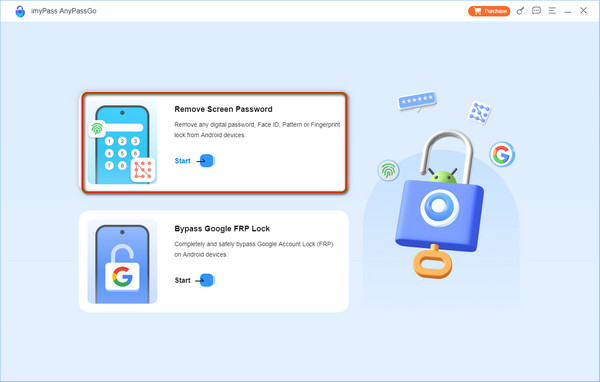
Baixe o imyPass AnyPassGo para o seu laptop a partir do link de download. Abra o programa e clique em Remover senha da tela. Conecte seu dispositivo Android usando um cabo USB.
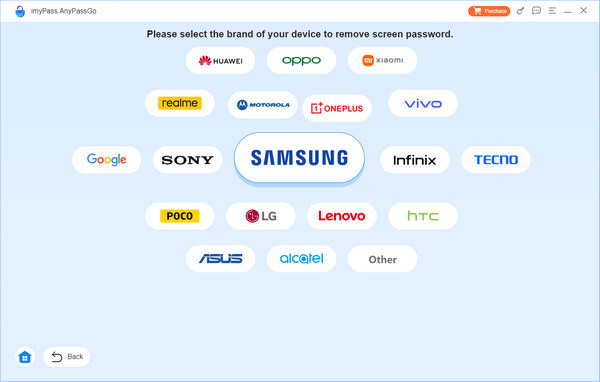
Escolha a marca do seu telefone aqui.
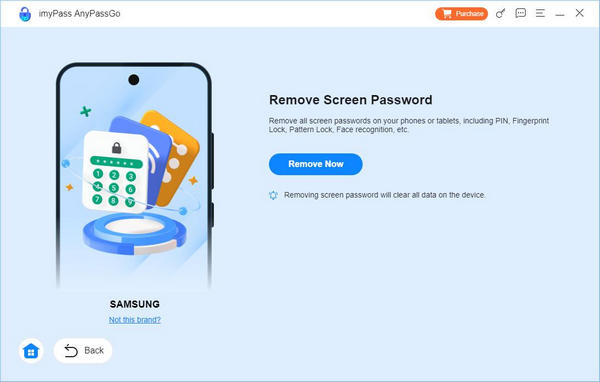
Clique Remover agora e aguarde que o programa remova a senha. Clique OK para sair do programa quando o processo terminar.
Observação:
The unlock process will erase all data on your device. Make sure you have created a backup before starting.
Perguntas frequentes.
-
Por que você prefere o layout da tela inicial do Android bloqueado?
O principal motivo e vantagem de um layout de tela inicial bloqueado é que ele pode evitar movimentos acidentais de ícones, o que pode manter a organização personalizada de aplicativos, widgets e atalhos na tela inicial.
-
Como adicionar widgets na tela inicial do Android?
Toque e segure uma área vazia na tela inicial até ver um Widgets opção. Toque nele para localizar e verificar os widgets disponíveis para um aplicativo. Toque e segure o widget desejado e deslize-o para onde desejar. Em seguida, levante o dedo para adicioná-lo à tela inicial.
-
Como adicionar um atalho de aplicativo na tela inicial do Android?
Os atalhos de aplicativos podem executar ações específicas rapidamente. Para adicionar um atalho de aplicativo à tela inicial, toque e segure o aplicativo ao qual deseja adicionar um atalho até ver a lista de atalhos, se houver. Selecione o atalho e adicione-o à tela inicial.
Conclusão
In this guide, you have learned how to unlock the home screen on Android, including Samsung, Huawei, Redmi, and Infinix. By following the steps in this post, you can easily manage and customize your home screen. If you are unable to access the home screen due to a forgotten password, you can use a third-party tool to desvio de FRP lock such as imyPass AnyPassGo.
Penny focuses on GPS troubleshooting and Windows optimization. She formerly worked as a technical support engineer, helping clients solve location-based and system issues efficiently. Backed by IT support experience, she provides practical solutions that really work. In her free time, she likes hiking and geocaching, testing GPS tech in the real world.
Soluções quentes
-
Desbloquear Android
-
Desbloquear iOS
-
dicas de senha
-
Dicas para iOS