



 Solução
 Centro de Apoio
 Sobre nós
 Contato
What Is Face ID on iPhone and How to Use It Properly
 Samuel Spenser publicado em abril 30, 2026Desbloquear iOSLeitura de 3 minutos
ID de rosto refers to Apple's advanced facial recognition-based biometric system. When releasing the iPhone X, Apple added this system to iOS devices. It works through the hardware and software. It allows users to unlock their devices without frequently entering passcodes. By default, this system is disabled, and you must set it up correctly. This comprehensive guide explains Face ID and helps you to use it on your Apple device and other services.

Neste artigo:
Part 1. What Is Face ID
According to Wikipedia, Face ID is a biometric authentication facial-recognition system designed and developed by Apple for iPhone and iPad Pro. It can be used for unlocking an iOS device, making payments, accessing sensitive data, and more. This system was released in 2017 with the iPhone X. Since then, it has been updated and introduced to all iPhones outside of SE models and iPad Pro models from 2018 onwards. Since iOS 18, users can use Face ID on apps.
How does Face ID work? It works through both hardware and software. The TrueDepth camera is equipped on the top of your device, which consists of a sensor with three modules: a laser dot projector, a module called the flood illuminator, and an infrared camera. The laser dot projector projects more than 30,000 infrared dots onto the user's face. The TrueDepth camera scans the face and creates a 3D map of unique facial identity.
Advantages of Face ID
- 1.Face ID is fast, secure, and easy to use once set up.
- 2.You can use Face ID for iPhone unlock, App Store, payments, autofill, and apps.
- 3.You can frequently reset and set up Face ID.
- 4.Maximize the machine learning via the Neural Engine.
Disadvantages of Face ID
- 1.Face ID cannot recognize your face due to blocks, like hats.
- 2.It cannot identify twins or close relatives.
- 3.No laws prevent other parties from forcing individuals to access their devices.
- 4.Privacy concerns.
Does Face ID work in the dark? Yes. Unlike traditional facial recognition systems, Apple's Face ID uses infrared light and a sophisticated dot projector to scan your face in three dimensions. That enables secure and reliable authentication even in dark environments.
Does Face ID work with eyes closed? No, Face ID won't work when your eyes are closed. Eyes play a key role in Face ID's functionality. When you turn on Face ID, the system scans a detailed image of your eyes, including the shape, color, and distance.
Is Face ID safe? This system offers fast and secure phone unlocking, but it is not perfect if you are concerned about your privacy. According to the new regulations, face scans can be used against you, while passcodes cannot.
iPhone and iPad with Face ID
iPhone X and above, except iPhone SE models
iPad Pro 11-inch(1st to 4th)
iPad Pro 12.9-inch(3rd to 6th)
iPad Pro 11-inch(M4 and M5)
iPad Pro 13-inch(M4 and M5)
Face ID vs Passcode
Both Face ID and passcode are essential security measures for Apple mobile devices. However, they work differently. Face IDs are biometric IDs. Even if you use Face ID to unlock your device, you must set a digit passcode. Both of them are secure and able to protect your device from unauthorized access. However, in some cases, you can only unlock your iPhone or iPad with your passcode:
- 1.Your device has been turned on or restarted.
- 2.Your iPhone or iPad hasn't been unlocked for over 48 hours.
- 3.Your device has just been charged.
- 4.Your device has been locked remotely.
- 5.The passcode hasn't been used to unlock your device in the last six and a half days.
- 6.Your Face ID hasn't unlocked the device in the last 4 hours.
- 7.After five unsuccessful attempts to match your face.
- 8.After initiating power off or Emergency SOS.
Part 2. How to Set up Face ID on iPhone
As mentioned previously, you have to set up Face ID on your iPhone or iPad to use it to unlock your device or access other services. The workflow is not very difficult, and we demonstrate it below:
Abra o Definições aplicativo na tela inicial.
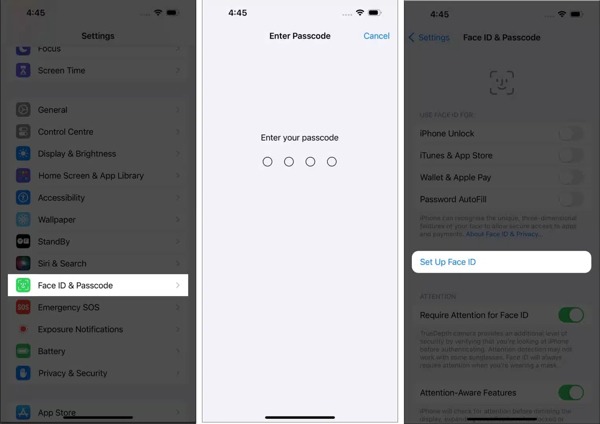
Where is Face ID in Settings? Scroll down and tap ID facial e senha.
Enter your lock screen passcode. If you don't have a passcode, you will be asked to set one first.
Toque em Configurar ID facial botão para prosseguir.
Quando solicitado, toque em Iniciar.
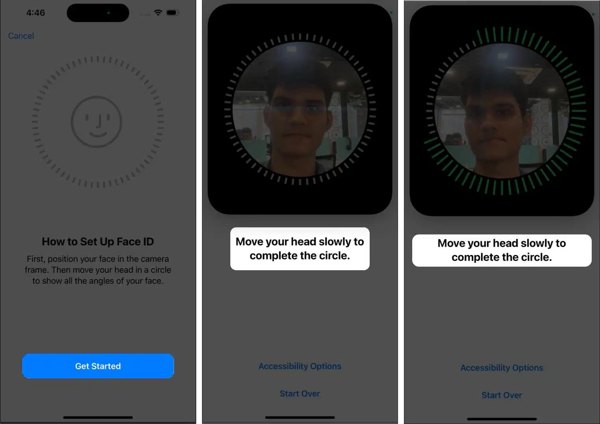
Position your face for Face ID and follow the onscreen instructions to move your head.
Once the scan is complete, you can select Use o Face ID com uma máscara ou Don't Use Face ID with a Mask.
Here, tap Configurar mais tarde e bater Feito to complete the basic Face ID enabling.
Observação:
If you want to use Face ID with a mask, locate the Face ID & Passcode settings screen, and toggle on Use o Face ID com uma máscara. Then, follow the onscreen instructions to set it up.
Leitura Estendida:
Part 3. How to Add Another Face ID
Can you have multiple Face IDs? Currently, you can add two Face IDs on a single device. We suggest that you add a basic Face ID first. Then, you can add another Face ID with sunglasses or a mask, depending on your needs.
Execute seu Definições aplicativo.
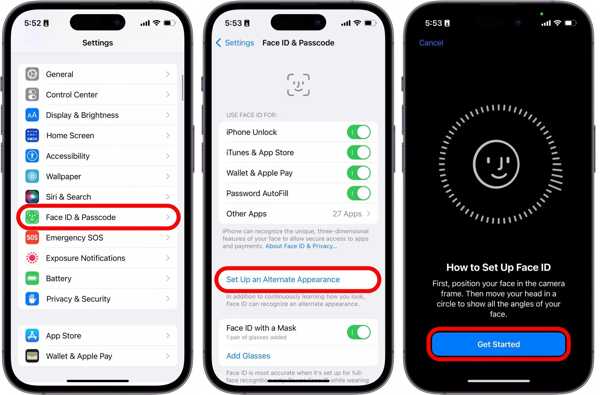
Escolher ID facial e senha e digite sua senha.
Toque em Configurar uma aparência alternativa botão.
Acerte o Iniciar botão.
Follow the onscreen instructions to add another Face ID.
When you are presented with Face ID is now set up, tocar Feito para confirmá-lo.
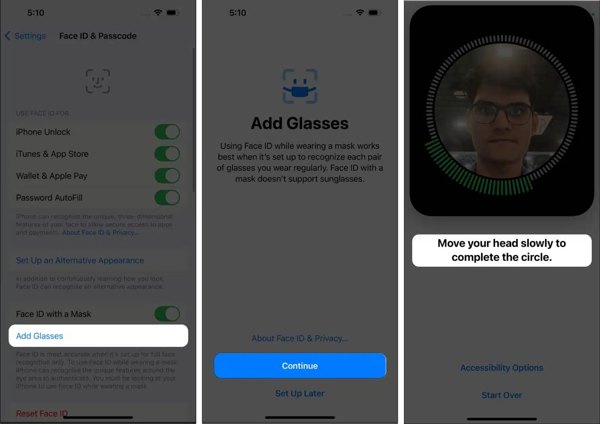
Optionally, if you want to use Face ID with sunglasses, toggle on Face ID com uma máscara. Tocar Adicionar Óculos and scan your face with the mask and sunglasses again.
To enhance the security of Face ID, go back to the Definições aplicativo.
Escolha o Acessibilidade opção e toque Face ID & Attention.
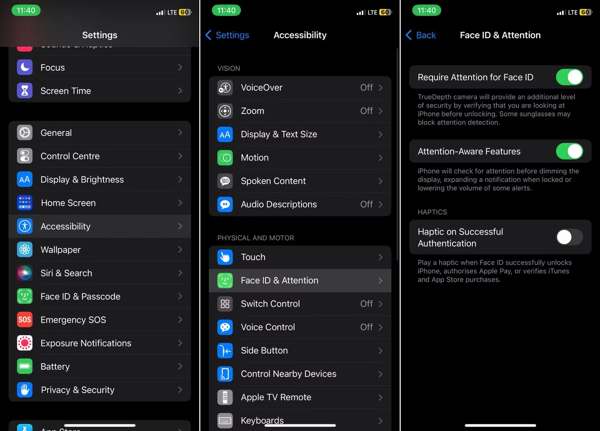
Ativar/desativar Exigir atenção para Face ID e Attention-Aware Features.
Part 4. How to Use Face ID for App Store and More
Once set up Face ID, you can use Face ID for App Store, iPhone unlock, payments, and other services. More importantly, you can turn each option on and off according to your situation and needs.
How to Use Face ID for App Store
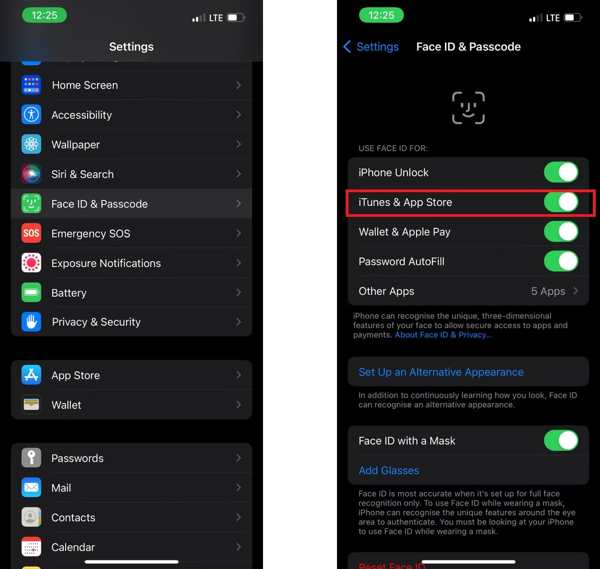
Vamos para ID facial e senha na tua Definições aplicativo.
If prompted, enter your passcode.
Localize o USE ID DE FACE PARA seção.
Ativar/desativar iTunes e App Store if you want to use Face ID for App Store.
Set up other options you want to use Face ID for.
How to Use Face ID for Apps
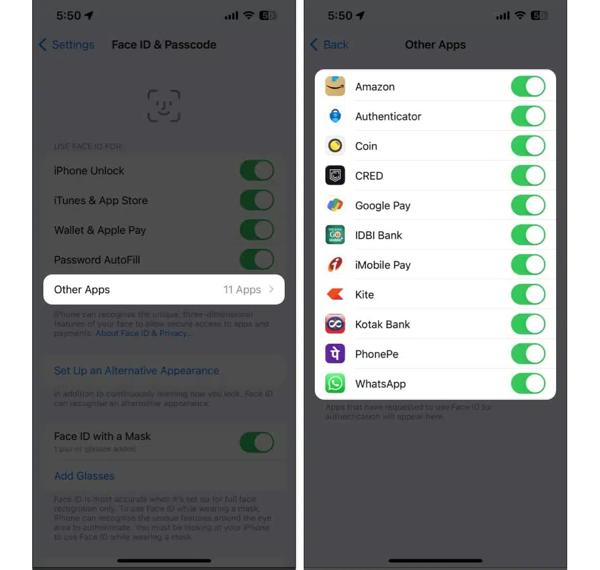
Escolher ID facial e senha no Definições aplicativo.
Type in your passcode if prompted.
Toque Outros aplicativos to put Face ID on apps.
Then, toggle on the desired apps on the list.
How to Put Face ID on Messages
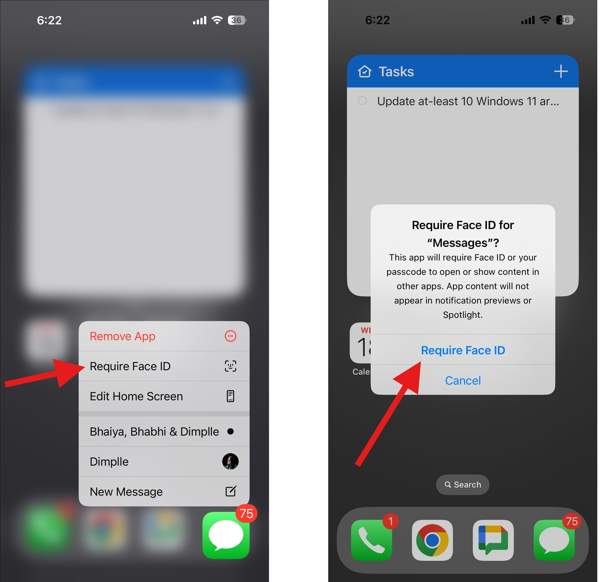
Localize o mensagens app on your home screen if you want to put Face ID on Messages.
Press and hold the icon.
Então escolha Require Face ID.
Quando solicitado, escolha Require Face ID de novo.
Now, your Messages app will be locked by Face ID.
Part 5. How to Reset Face ID
Once you add a Face ID, you cannot remove it. In other words, you can only add two Face IDs on your iPhone or iPad and cannot delete one separately. Alternatively, you have to reset Face ID and completely remove all Face IDs from your device. Furthermore, resetting Face ID is an indispensable step to fix Face ID not working.
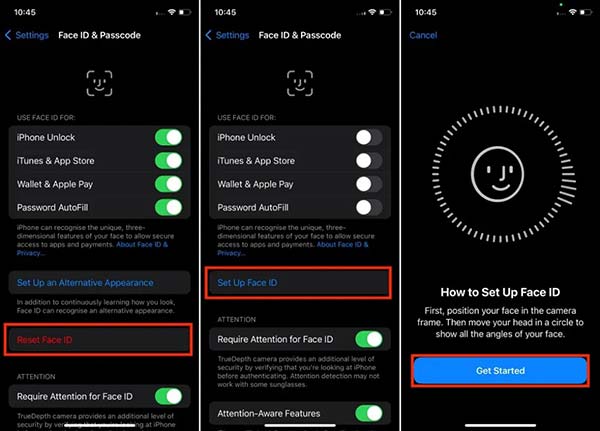
Comece seu Definições aplicativo no seu iPhone ou iPad.
Role para baixo e toque no ID facial e senha opção.
Enter your device passcode when prompted.
Em seguida, toque no Redefinir ID facial button to remove current Face IDs immediately.
Wait for the process to finish and activate Face ID to improve security and accuracy.
Part 6. What to Do If Face ID Is Not Working
As mentioned previously, if Face ID is not working, you can reset it and set up Face ID again. However, you may be locked out of your device if you forgot your passcode. The ultimate solution is imyPass iPassGo. It is able to remove any iPhone screen locks, including Face IDs without any restrictions. Furthermore, the user-friendly interface makes it easy to use for beginners.

Mais de 4.000.000 de downloads
Remove Face IDs and digit passcodes on iOS devices.
Won't require lock screen passcodes or Apple ID passwords.
Work for different situations, like a disabled iPhone.
Ofereça recursos de bônus, como Remoção de MDM.
Support a wide range of iPhones and iPad devices.
How to Remove Not Working Face ID from Your iPhone
Install Face ID removal
Download and install the Face ID removal software on your PC from the official website. It is compatible with Windows 11/10/8/7. There is another version for Mac users. Launch the software and choose the Limpar senha modo para prosseguir.
Connect your iPhone to your PC with a Lightning cable. If you link the two devices for the first time, tap Confiar na tela para confiar neste PC.
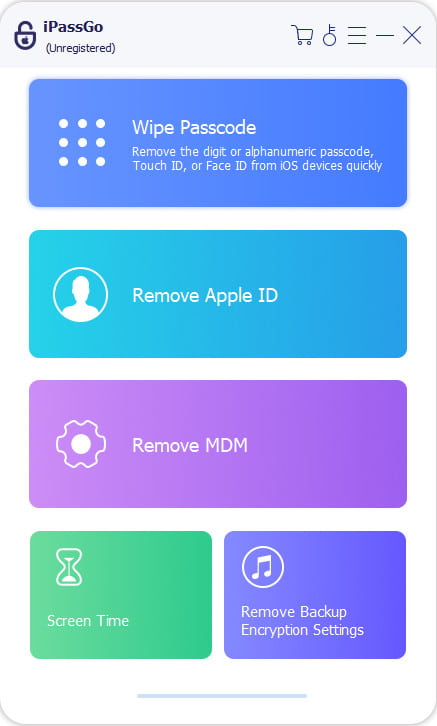
Baixe o firmware
Once the software detects your device, click on the Começar button to scan your iPhone. Then, you will be presented with your iPhone information. Check your device category, type, and model. If any option is wrong, correct it. Click on the Começar button to begin downloading the firmware package. It may take a while, depending on your internet connection.
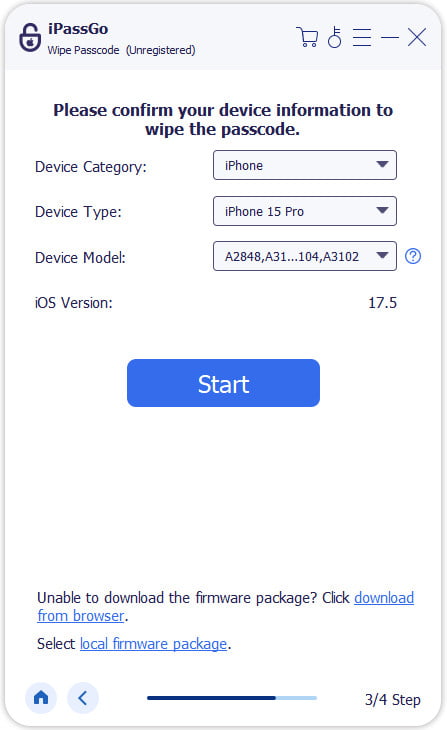
Remove Face ID
Once the firmware download is complete, click the Desbloquear button to continue. Read the notification and confirm Face ID removal again. Next, type in 0000 to ensure the process. Then, the software will initiate iPhone unlocking immediately. When it is done, your iPhone will restart.

Observação:
The process will redefinir seu iPhone de fábrica and erase all data on your device. You'd better back up your iPhone or iPad. Then, restore the backup to avoid data loss.
Conclusão
Este guia explicou how to set up Face ID on iPhone and iPad, as well as other information you should know. We shared how this system works, how to use it for iPhone lock and other services, and more. You can follow our guide to set up and use the facial recognition system on your iOS device. If your Face ID suddenly doesn't work, imyPass iPassGo can help you resolve this problem quickly.
Samuel specializes in password security and digital privacy. He used to work as a cybersecurity consultant for small businesses to protect digital assets. With certifications in Cybersecurity and Ethical Hacking, he turns complex security topics into easy-to-follow advice. He also enjoys sharing password tips to help users protect their accounts more confidently.
Soluções quentes
-
Desbloquear iOS
-
Dicas para iOS
-
Desbloquear Android
-
dicas de senha


