



 Solução
 Centro de Apoio
 Sobre nós
 Contato
How to Reset iPhone Without Apple ID Password – 4 Proven Ways
 Samuel Spenser publicado em setembro 14, 2026Desbloquear iOSLeitura de 4 minutos
If you want to sell your iPhone, you need to factory reset your device first. A factory reset removes all data, settings, and apps from your device. However, if you lost access to your Apple Account, how to factory reset an iPhone without Apple ID password? Read this guide and learn several ways to erase your iPhone or iPad and restore it to factory settings without Apple ID credentials.

Neste artigo:
Part 1. When Should You Factory Reset Your iPhone or iPad
A factory reset restores your iPhone or iPad to its original factory state. All your data will be removed while keeping the latest iOS or iPadOS updates. This process is useful when you want to erase your device, fix software problems, or prepare it for a new user.
Motivos comuns para redefinir seu iPhone ou iPad
- 1.Prepare for Sale or Transfer. If you plan to sell or give away your iPhone, a factory reset removes your personal data and protects your privacy before the device is used by someone else.
- 2.Fix Performance Issues. Over time, iPhones may slow down due to accumulated apps, files, caches, and junk files. A factory reset can help improve performance by removing unnecessary data.
- 3.Troubleshoot Software Problems. Resetting your iPhone can help resolve serious software issues. It can fix crashed, disabled, or corrupted systems effectively.
- 4.Free Up Storage Space. A factory reset removes old files, junk files, and other stored data that are no longer needed, helping clear space on your device.
Factory Reset vs. Hard Reset
Hard reset is another way for iOS users to troubleshoot. It won't erase your data and settings but can fix various software issues.
| Recurso | Redefinição de fábrica | Reinicialização forçada |
| Erase personal data and settings | ✓ | ✗ |
| Remove apps and files | ✓ | ✗ |
| Restore iPhone to factory settings | ✓ | ✗ |
| Fix temporary system glitches | ✓ | ✓ |
| Corrigir tela que não responde | ✓ | ✓ |
| Fix disabled iPhone | ✓ | ✗ |
| Keep your personal data | ✗ | ✓ |
Part 2. How to Factory Reset iPhone Without Apple ID Password
Factory resetting an iPad without an Apple ID password is not easy, but it is possible if you have a trusted computer installed the latest version of iTunes or Finder. Of course, you'd better back up your device before the process.
Back up Your iPhone with iTunes/Finder
Connect your iPhone to a trusted computer with a USB cable. Open iTunes on Windows or macOS Mojave and earlier. On macOS Catalina or later, open Finder.
Once your device is detected, Select your iPhone from the sidebar.

Vou ao Resumo ou Em geral tab and select the backup option.
Selecionar Este computador ou Faça backup de todos os dados do seu iPhone para este Mac.
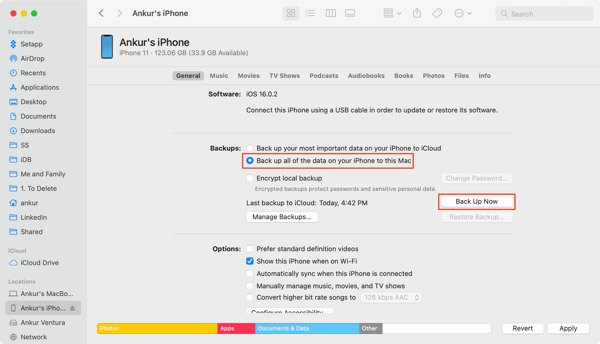
Por fim, clique no Fazer backup agora botão para fazer backup do seu iPhone.
Observação:
Se você deseja proteger seu arquivo de backup, marque a caixa de seleção ao lado de Criptografar backup local and leave an Senha de backup do iTunes.
Redefinição de fábrica do iPhone sem senha do ID Apple
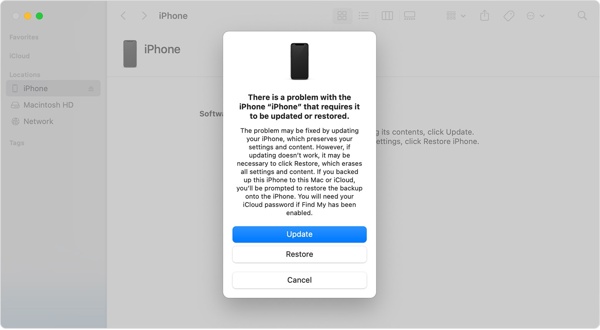
After creating a backup, click Restaurar Iphone in iTunes or Finder.

Follow the on-screen instructions to erase your iPhone and restore it to factory settings.
Part 3. How to Factory Reset iPhone Using Recovery Mode
If your iPhone cannot be detected by iTunes/Finder, is disabled, or you forgot your screen passcode, you can use Recovery Mode to factory reset an iPhone with buttons.
Connect your iPhone to a computer using a USB cable. Keep the device connected during the recovery process.
You need to put your device into Recovery Mode.
On iPhone 8 or later:
Pressione e solte rapidamente o Aumentar o volume botão e, em seguida, pressione e solte rapidamente o Volume baixo button. Press and hold the Lado botão até que a tela do modo de recuperação apareça.
On iPhone 7/7 Plus:
Pressione e segure o Volume baixo e Lado buttons at the same time until the recovery mode screen appears.
On iPhone 6s or earlier:
Pressione e segure o Lar e Side (Top) buttons until the recovery mode screen appears.
No iPad sem um botão Home
Pressione e solte rapidamente o Aumentar o volume button, then press and release the Volume baixo button. Press and hold the Poder botão até ver a tela do modo de recuperação.
On iPad with a Home button:
Pressione e segure o Poder e Lar buttons. Once the Recovery Mode shows up, release the buttons.
When iTunes or Finder detects your device in Recovery Mode, choose the Restaurar option and follow the on-screen instructions to complete the reset.
Part 4. How to Factory Reset iPhone/iPad Without iTunes/Finder
If you forgot your Apple ID password and cannot factory reset your iPhone or iPad using iTunes/Finder, this professional unlocking tool is just for you. imyPass iPassGo allows you to erase your device, remove the screen lock, and restore it to factory settings in easy 3 steps. It works on both Windows PC and Mac. Users with limited technical knowledge can also reset their iPhone or iPad effortlessly.

Mais de 4.000.000 de downloads
Factory reset iPhone and iPad without Apple ID password.
Unlock disabled, cracked, frozen iPhone without iTunes.
Remove Apple ID, ignorar o tempo de tela and MDM.
Suporte às versões mais recentes do iOS e iPadOS.
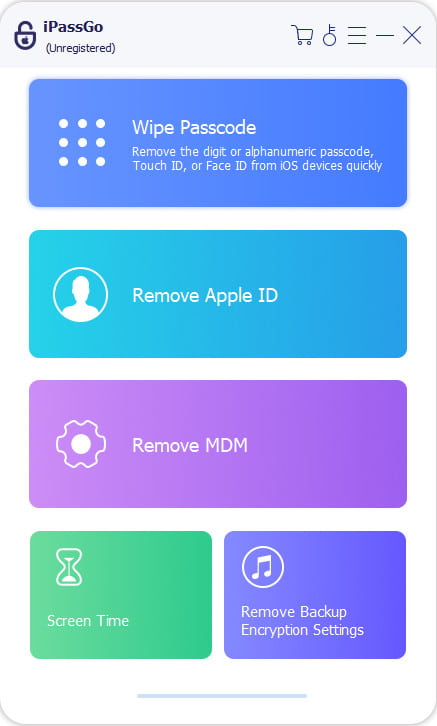
Inicie o imPass iPassGo no seu computador e escolha o Desbloquear tela do iOS mode from the interface. Connect your device to the computer with a USB cable.
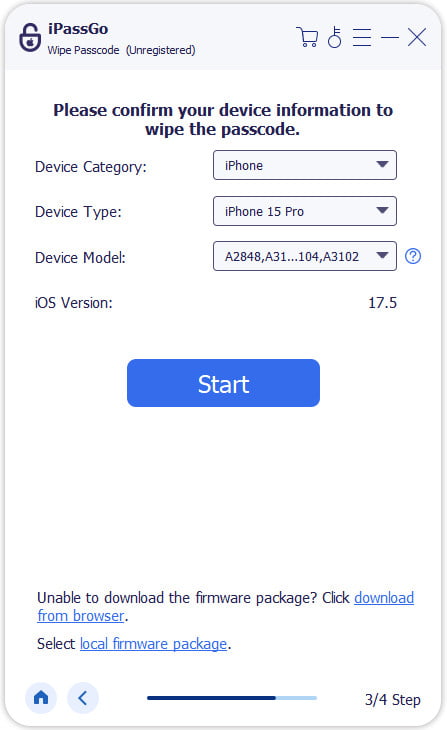
Confirme as informações do seu dispositivo e clique em Comece agora to begin downloading the firmware package.
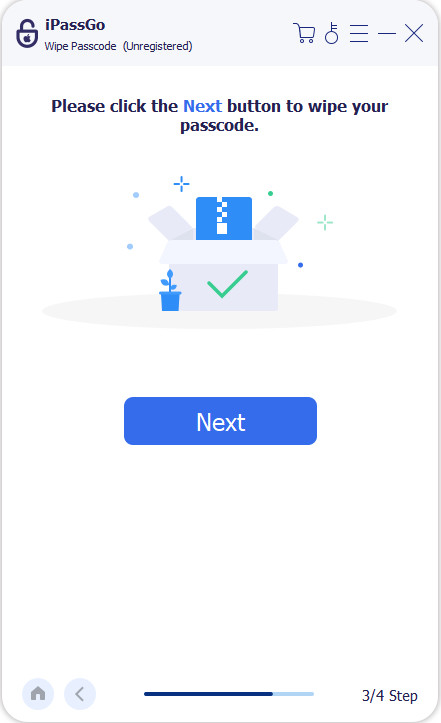
Clique no Começar Removing button to start the reset. When it is done, the screen lock and all your data will be erased from your device.
Conclusão
Este guia explicou como factory reset an iPhone without Apple ID. You can follow our concrete guide to bring your device to the factory status and erase all your data. imyPass iPassGo is an easy-to-use solution to help reset your device without any limitations. Even beginners can use it without technical expertise.
Samuel specializes in password security and digital privacy. He used to work as a cybersecurity consultant for small businesses to protect digital assets. With certifications in Cybersecurity and Ethical Hacking, he turns complex security topics into easy-to-follow advice. He also enjoys sharing password tips to help users protect their accounts more confidently.
Soluções quentes
-
Desbloquear iOS
-
Dicas para iOS
-
Desbloquear Android
-
dicas de senha


