



 Solução
 Centro de Apoio
 Sobre nós
 Contato
Why Is Apple ID Not Valid or Supported & How to Fix It in 2026
 Samuel Spenser publicado em agosto 06, 2026Desbloquear iOSLeitura de 3 minutos
"This Apple ID is not valid or supported." Why did your iPhone show you this notification? In this post, we will break down the main causes of this issue and offer you 4 ways to get your Apple account back to work.
A quick guide for you to choose the best way:
When you see "Apple ID not valid", it's likely something's wrong with the email address and password you entered. Try Fix 1, 2, and 4.
If your second-hand iPhone requires a previous user's account, use Fix 3 to remove iCloud Activation Lock.

Neste artigo:
Why Is My Apple ID Not Valid or Supported?
The most likely cause of "Apple ID not valid" is simple: you entered the wrong ID. The email address was incorrect, or you typed a non-Apple email, so the iPhone can't recognize it.
If the ID is correct but you are notified with "iPhone disabled", it's possible that your Apple ID is inactive, often due to incorrect password entries: entering wrong passwords too many times triggers the security lock. Or it could be an iCloud Activation Lock if your iPhone is second-hand, which means the iPhone is currently locked to the previous user's account, so you can't sign in with your own.
When both causes above get excluded, you're likely having an outdated OS, an inaccurate system setting, or a bad Internet connection. They can cause random glitches on your iPhone.
Fix 1. Basic Troubleshooting
Quick aids before you go to more complex solutions:
- Double-check the Apple ID. Make sure you remember it exactly, you type the email correctly, and the email domain is among @icloud.com, @me.com, and @mac.com. If you can't recall your exact ID, try looking for it on your other iOS devices, or in some emails from Apple.
Observação:
If your email is masked like j*****@icloud.com, the number of asterisks doesn't necessarily match the number of characters in your email address.
- Try a different Wi-Fi. Turn off the VPN if any.
- Force-restart your iPhone. For modern iPhones, quickly press and release Volume Up, then Volume Down. Then press and hold the Side Power button till the screen goes black. Release the button once the Apple logo appears.
- Sign out of your Apple account and then sign back in.
- Update your iOS version to the latest.
- Make sure your iPhone is set to the correct date and time – if not, your iPhone can fail to verify security and display "invalid Apple ID". Go to Settings > General > Date & Time and turn on Set Automatically. If it is already on, turn it off, wait for a minute, and turn it back on.
- Check your country/region in Settings > Apple ID > Media & Purchases. Correct it if it's not matching your current location.
Fix 2. Fix Apple ID Not Working: Reset Password
Quando você esqueça a senha do seu ID Apple and incorrect passwords are entered many times in a short period, Apple locks your device to avoid potential theft – they mean well, but it can cause trouble sometimes, like locking the true owner out. Resetting the password is helpful in this situation.
Reset Apple ID Password on an iOS Device
Open your iPhone, or other trusted iOS device where your Apple account is signed in.
Tap your username, then Mudar senha.
Choose a new password and follow the instructions on screen.
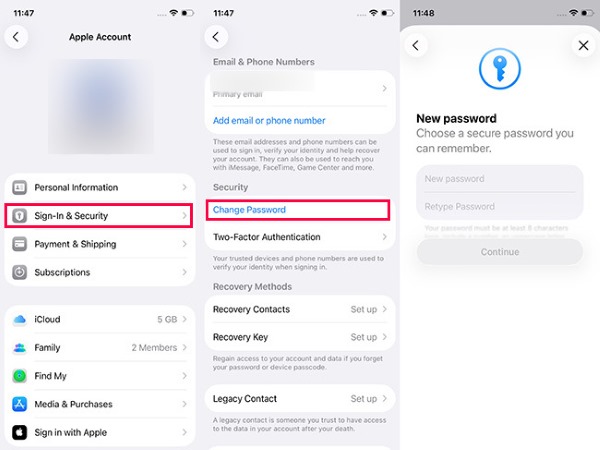
Reset Apple ID Password on the Official Website
Vamos para iforgot.apple.com. Enter your Apple ID, and you will be asked to type the phone number t for verification.
Toque Permitir in the notification that shows up on your iPhone and begin the process of resetting your password.
Follow the instructions on screen.
Fix 3. Fix Apple ID Not Working: Unlock iCloud Without Password
If you can't remember the Apple ID at all, or if the used iPhone is locked to an account of a previous owner you can't reach – for these cases, unlocking the iPhone with imyPass iPassGo is the easiest solution.

Mais de 4.000.000 de downloads
Remove an Apple ID without an email address or password.
Unlock disabled, second-hand, or iCloud-locked iPhone easily.
Support iPhone/iPad and multiple iOS versions.
Work fast and securely in all scenarios.
Observação:
Before you begin, you need to know that this method will wipe all your data and reset the iPhone like new.
Download and install the software on a computer. It's available on both Windows and Mac.
Connect your iPhone to the computer with a cable, and then launch the software.
Selecionar Remover ID Apple e clique Comece agora começar.
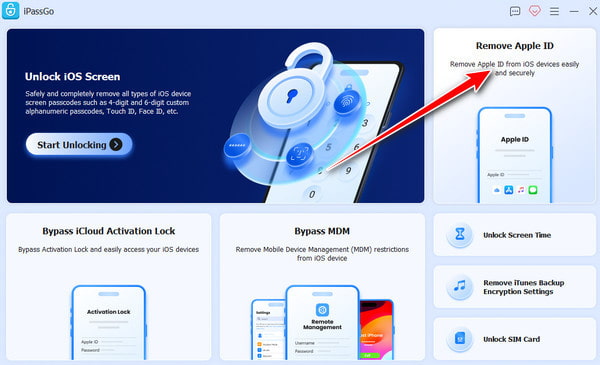
iPassGo automatically detects your iPhone's details. Check if anything's wrong. If so, fix it before you continue. Then click Começar to download the right firmware for your iPhone, which will help remove the Apple ID safely. Wait till the firmware is ready.
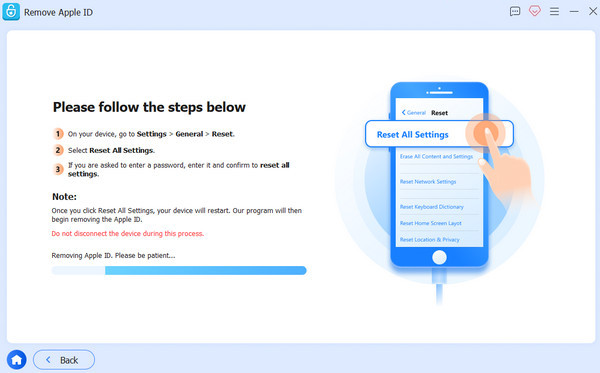
Clique Desbloquear. Read the warning carefully before typing 0000 to confirm you know what you're doing.
The removal starts. Keep the iPhone connected to the computer during the process.
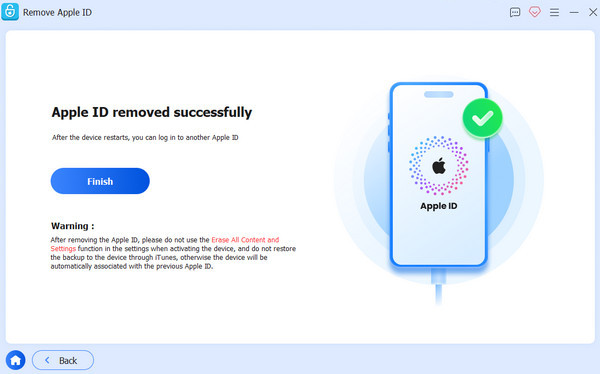
Fix 4. Fix Apple ID Not Working: Contact Apple Support
If all the solutions above fail, unfortunately, you'll have to make some effort to get official help from Apple Support.
Vamos para getsupport.apple.com e procurar por identificação da Apple.
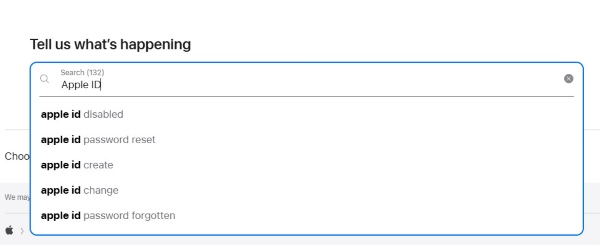
Select the issue that matches your situation best.
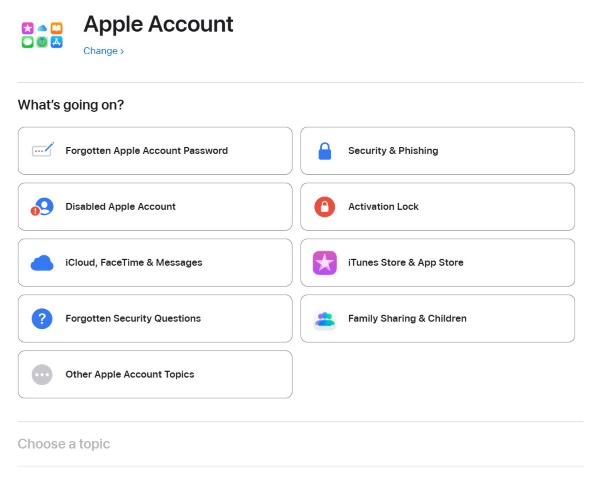
Then follow Apple's instructions. You may be instructed to reset your password or asked to submit an unlocking request.
Wait a couple of days for the request to be approved.
Conclusão
ID Apple não é válido ou não é compatível? No need to panic. Now you know what to do. We shared some easy and helpful ways to fix it. One of the best things you can try is resetting Apple ID when you forget your ID or password using imyPass iPassGo. It is safe, simple, and works smoothly even on the latest iPhones and iPads. Take one step at a time, and your device will work again!
Samuel specializes in password security and digital privacy. He used to work as a cybersecurity consultant for small businesses to protect digital assets. With certifications in Cybersecurity and Ethical Hacking, he turns complex security topics into easy-to-follow advice. He also enjoys sharing password tips to help users protect their accounts more confidently.
Soluções quentes
-
Desbloquear iOS
-
Dicas para iOS
-
Desbloquear Android
-
dicas de senha


