


 Solução
 Centro de Apoio
 Sobre nós
 Contato
How to Fix iPad Security Lockout With or Without Password
 Samuel Spenser publicado em outubro 22, 2026Desbloquear iOSLeitura de 3 minutos
"After a few minutes of trying the lock code unsuccessfully, the iPad is under Security Lockout. How to fix this problem?" If you see the Security Lockout message on your screen, there is no need to panic right away. That is a feature on iPadOS and iOS devices. It enables you to factory reset an iPad without a passcode. This guide walks you through ways to regain access to your iPad after a Security Lockout.

Neste artigo:
Part 1: What Is iPad Security Lockout and Why Does It Occur
iPad Security Lockout is not an error but a significant feature released when Apple rolled out iPadOS 15.2 and iOS 15.2. Since then, it has become one of the most useful security measures of newer versions of iPadOS and iOS.
When you first enter the wrong passcode, it takes 5 attempts before your iPad is disabled. Initially, the timeout is not even long. It starts with 1 minute. After 10 failed attempts, your iPad will be unavailable and disabled.
Now, you have to unlock your iPad without the passcode. Due to the Security Lockout, you can erase your device with your Apple Account and password.
Part 2: How to Fix iPad Security Lockout
Way 1: How to Unlock a Disabled iPad by Erasing the iPad
The Security Lockout feature comes with the Erase iPad option. It enables you to unlock a disabled iPad with your Apple Account password. This way doesn’t require extra software or hardware.
On iPadOS 17 and Newer
Toque em Esqueci a senha option at the bottom of the iPad Unavailable screen.
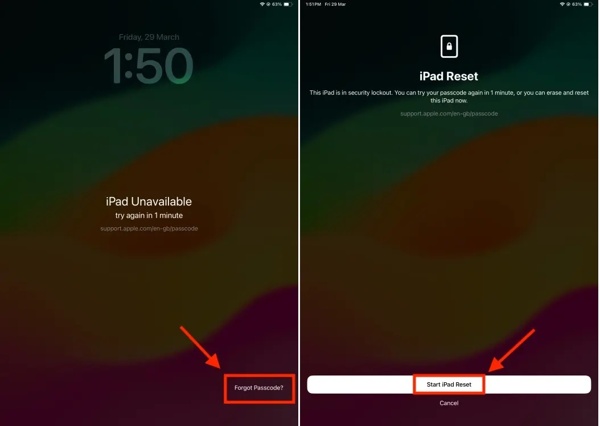
Escolher Iniciar redefinição do iPad.
Enter your Apple Account password.
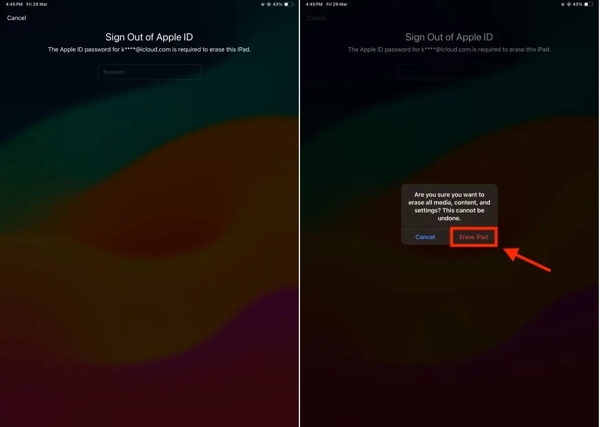
Em seguida, toque no Apagar iPad botão para confirmar.
On iPadOS 15.2 and Later
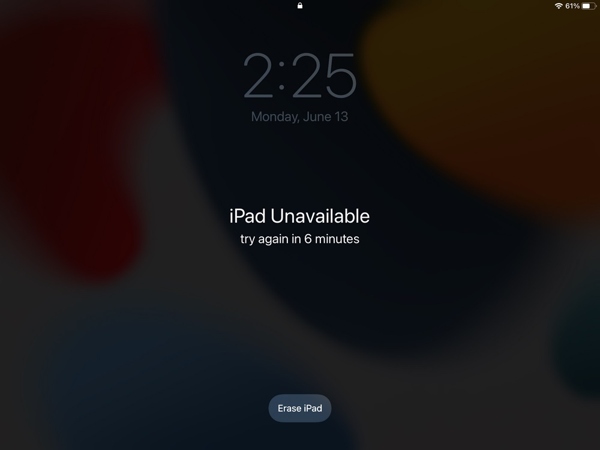
Toque em Apagar iPad option when the iPad Unavailable screen appears.
Read the message and tap the Apagar iPad botão novamente.
Input the associated Apple Account password.
Then, start unlocking the disabled iPad immediately.
Way 2: How to Remove the iPad Unavailable Screen in Recovery Mode
If your iPad Security Lockout doesn’t offer the Erase option, you can get rid of the Unavailable Screen in Recovery Mode. This method requires a computer and the latest version of iTunes or Finder.
Conecte seu iPad a um computador com um cabo USB.
Coloque seu iPad no Modo de Recuperação:
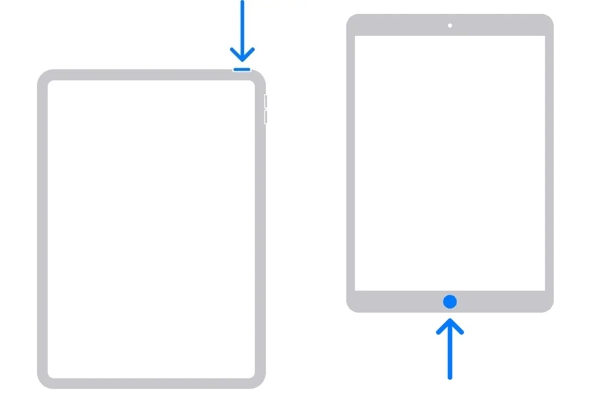
For an iPad Without a Home Button
Pressione rapidamente o Aumentar o volume botão e solte-o.
Pressione rapidamente o Volume baixo botão e solte-o.
Segure o Lado button until Modo de recuperação aparece.
For an iPad with a Home Button
Pressione e segure o Lar + Dormir/Despertar botões juntos.
When your iPad enters Recovery Mode, release the buttons.
Open iTunes on Windows or on macOS Mojave or earlier, or run Finder on macOS Catalina or newer.
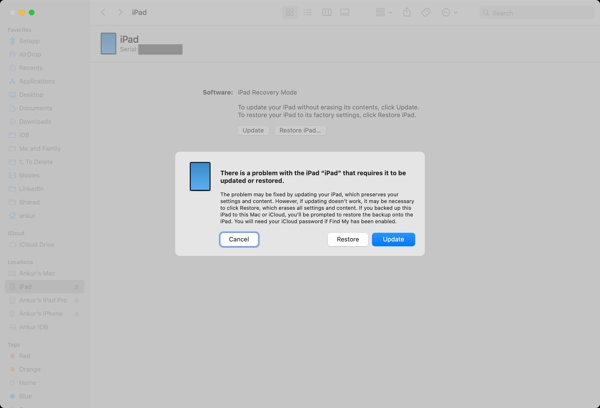
A seguir, clique no Restaurar botão na caixa de diálogo pop-up.
When it finishes, the iPad Unavailable Screen is removed.
Observação:
If Find My iPad is enabled, you need to enter your Apple Account password to set it up.
Way 3: How to Unlock a Locked iPad on iCloud
To unlock a locked iPad after a Security Lockout is triggered, you can complete the process on iCloud.com using the linked Apple Account and password. The prerequisite is that you have turned on Find My iPad.
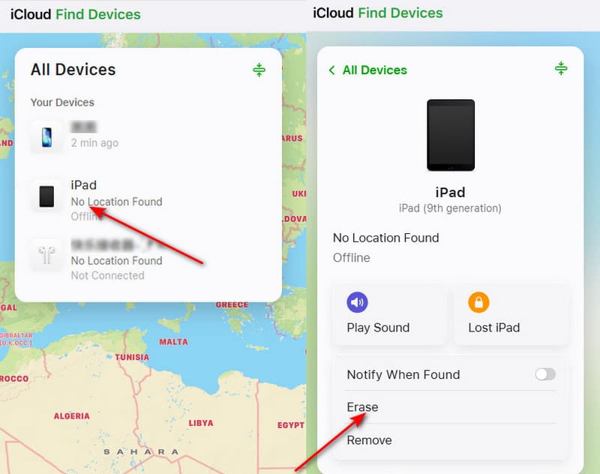
Visit www.icloud.com/find/ in your browser.
Log in with your Apple Account and password.
Choose the locked iPad from the Todos os dispositivos lista.
After locating your device, click the Apagar opção.
A seguir, clique no Apagar button again to confirm it.
Way 4: How to Fix an Unavailable iPad by Find My
Another way to fix an Unavailable iPad is the Find My app if you have set up Find My iPad before your device is locked. This way requires the Apple Account and password associated with your iPad.
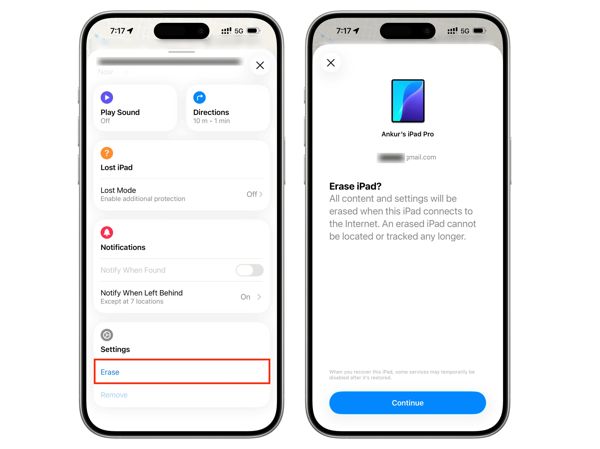
Open the Find My app on another Apple device.
Sign in with the linked Apple Account and password.
Mudar para o Dispositivos aba.
Choose your iPad.
Acerte o Apagar option in the toolbar and choose Continuar.
Follow the prompts to unlock the iPad without a passcode.
Part 3: How to Effectively Fix iPad Security Lockout
If you forgot your passcode and Apple Account password, imyPass iPassGo can help you fix iPad Security Lockout quickly. It lets you regain access to any iPad without the password. The intuitive design and onscreen instructions make it easy to use.

Mais de 4.000.000 de downloads
Remove the iPad Security Lockout screen easily.
Don’t require a passcode or password.
Bypass the digit passcode, Face ID, and Touch ID.
Available for the latest versions of iPadOS.
How to Fix iPad Security Lockout Without a Password
Conecte-se ao seu iPad
Launch the iPad unlocking software after you install it on your PC. There is another version for Mac. Choose the Desbloquear tela do iOS mode. Connect your iPad to the PC with a Lightning cable.
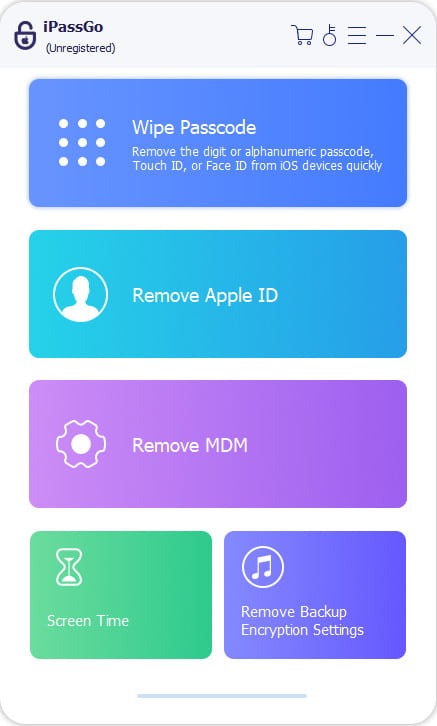
Baixe o firmware
Once your iPad is detected, check the device information. Then, click the Comece agora button to begin downloading the firmware. It may take a while, depending on your internet connection.
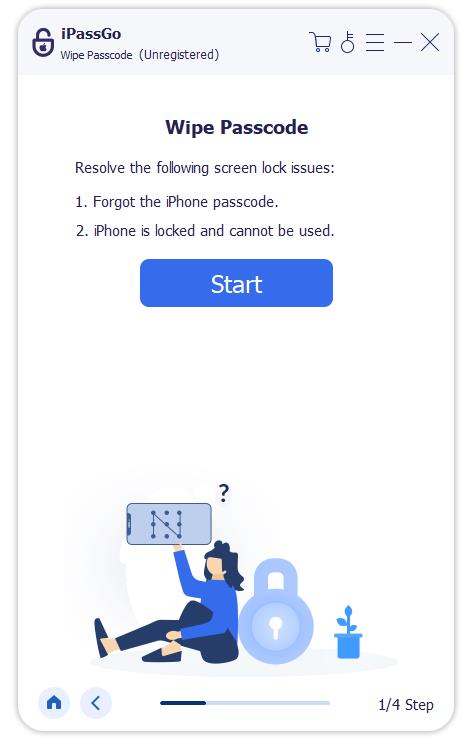
Corrigir o bloqueio de segurança do iPad
Após fazer o download, clique no Começar a remover button to continue. Read the notification and confirm the process. Finally, click the Confirm Again button to ensure the process. When it is done, you can unlock your iPad and set it up directly.
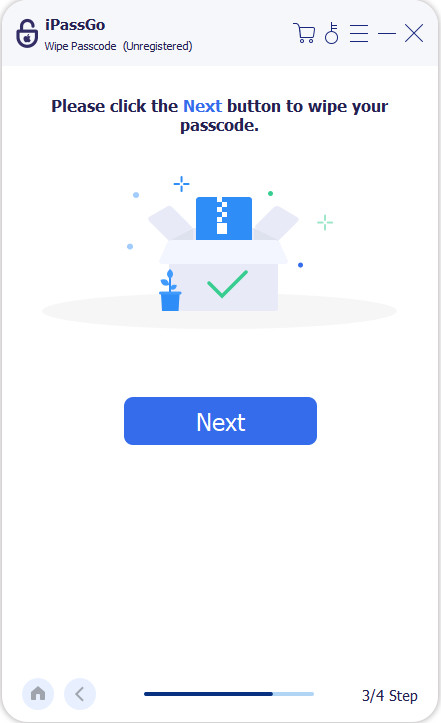
Observação:
The process will erase your data, so you’d better back up your device first.
Conclusão
Este artigo explicou how to reset an iPad without a password. You should understand what Security Lockout is, why it occurs, and the proven methods to unlock your device in various situations. imyPass iPassGo is the ultimate solution to unlock a locked, disabled, or unavailable iPad without a password or Apple Account password. Moreover, it doesn’t require technical skills.
Samuel specializes in password security and digital privacy. He used to work as a cybersecurity consultant for small businesses to protect digital assets. With certifications in Cybersecurity and Ethical Hacking, he turns complex security topics into easy-to-follow advice. He also enjoys sharing password tips to help users protect their accounts more confidently.
Soluções quentes
-
Desbloquear iOS
-
Dicas para iOS
-
Desbloquear Android
-
dicas de senha


