



 Solução
 Centro de Apoio
 Sobre nós
 Contato
Forgot iPad Passcode? 5 Ways to Unlock iPad Quickly and Safely
 Samuel Spenser publicado em abril 16, 2026Desbloquear iOSLeitura de 3 minutos
Can't remember your iPad passcode? Or did it just say "iPad is disabled" and leave you staring at the screen in frustration? Even worse, did you buy a second-hand iPad only to find it locked? Don't worry! In this guide, we'll show you fast, simple and efficient ways to unlock your iPad without a passcode!

Neste artigo:
Quick Summary: How to Unlock iPad
If you are locked out of your iPad, here are the fastest solutions based on your situation:
- You know your passcode → Use Face ID, Touch ID, or passcode.
- You forgot the passcode and see "iPad Unavailable" → Use Forgot Passcode? (iPadOS 17 or later).
- You forgot the passcode and have a computer available → Use Recovery Mode with iTunes/Finder.
- You forgot the passcode but remember your Apple ID password → Use iCloud (Find My) to erase remotely.
- You forgot both the passcode and Apple ID credentials → Use a third-party unlock tool.
Part 1. Standard Unlocking (If You Know Your Passcode)
If you remember your iPad's passcode, you can unlock it through the following 3 convenient methods. Different iPad models have different features, so check your iPad model and find the proper solution!
1. Unlock with Face ID
Face ID is available on most modern iPad Pro models without a Home button. If your iPad has Face ID, unlocking your iPad with Face ID is the fastest way. You just need to tap the screen to wake your iPad, or swipe up from the bottom of the screen. Then Face ID will automatically recognize your face and unlock your iPad instantly.
If you didn't set a Face ID, go to Definições > ID facial e senha > Configurar ID facial, then follow the prompts on the screen to complete.
2. Unlock with Touch ID
If your iPad has Touch ID on the Home button or the top button, you can unlock it using your fingerprint. This feature is available on many iPad, iPad Air, and iPad mini models.
Para iPads com botão Início: Press the Home button lightly. Touch ID will verify your fingerprint and unlock the iPad automatically.
For iPads with a top button: Place your finger on the top button and hold for 1–2 seconds. Once recognized, your iPad will unlock.
3. Unlock with a Passcode
Unlocking with a Passcode is the most basic method for all iPad models. Just press the Home button or swipe up from the bottom of the screen, then enter the password, and your iPad will be unlocked soon.
You can only use Face ID/Touch ID after setting up a passcode. For your iPad's security, you must enter a passcode to unlock your iPad in the following situations:
- You just restart or power on your iPad.
- Your iPad hasn't been unlocked for more than 48 hours.
- You haven't used the passcode to unlock your iPad in the last 6.5 days.
- Face ID or Touch ID has failed 5 times.
- Your iPad receives a remote lock command.
Part 2. Unlock iPad If You Forgot Your Passcode
If you forget your iPad's screen passcode or your iPad becomes disabled, and Face ID/Touch no longer works, how can you unlock the iPad without a passcode? Don't panic! These simple ways may help you get out of these situations quickly!
Aviso: Most methods for unlocking a locked iPad will erase all data on the device. Make sure you have a backup in iCloud or iTunes before proceeding.
1. Using an iPad Unlocker
imyPass iPassGo is one of the best free iPad unlocking software. It provides professional unlocking services for both Mac and Windows users. Whether you're dealing with a locked second-hand iPad or an iPad with a cracked screen, iPassGo will solve the issue with its powerful features.

Mais de 4.000.000 de downloads
Supports all iPad models with the latest iPadOS 27.
Bypass the passcode and Face ID/Touch ID effortlessly to unlock the disabled iPad.
Remove Apple ID from iOS devices without a passcode.
Ensure user data security and privacy during unlocking.
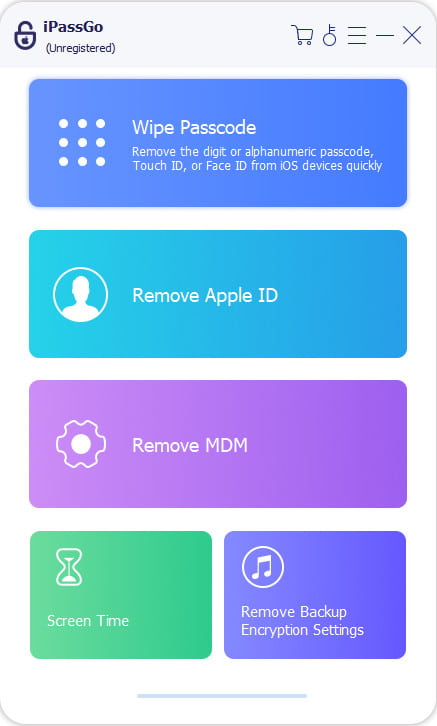
Connect your iPad to a computer using a USB cable. Launch the software and select the Desbloquear tela do iOS mode. Click Comece agora continuar.
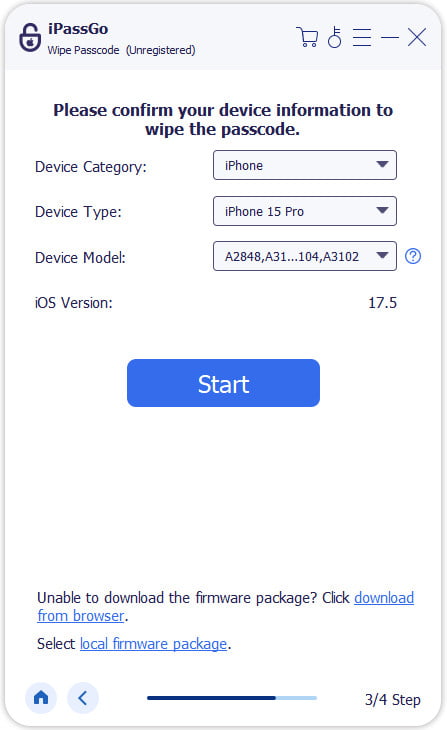
Confirm your device information before unlocking, and click Comece agora para baixar o pacote de firmware.
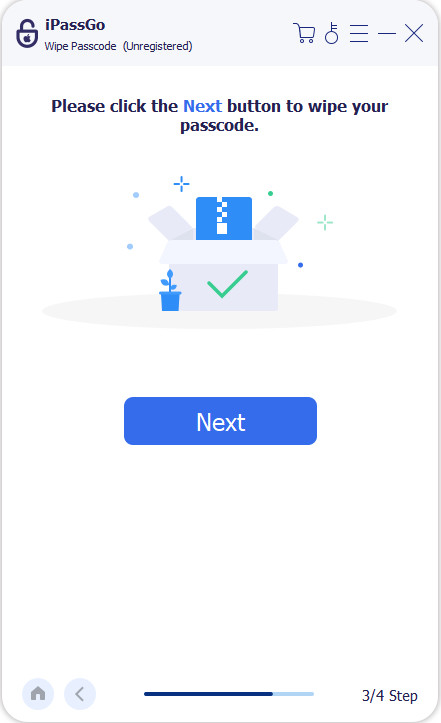
Acerte o Começar a remover button, confirm twice in the prompt window. All passcodes will be removed in a minute.
2. Using Only Your iPad
If your iPad system version is iPadOS 17 or later, you can use the built-in Forgot Passcode? feature to get into your locked iPad. This feature allows you to reset the passcode directly, but you must remember your Apple ID and passcode, and ensure your iPad is connected to a cellular or Wi-Fi network.
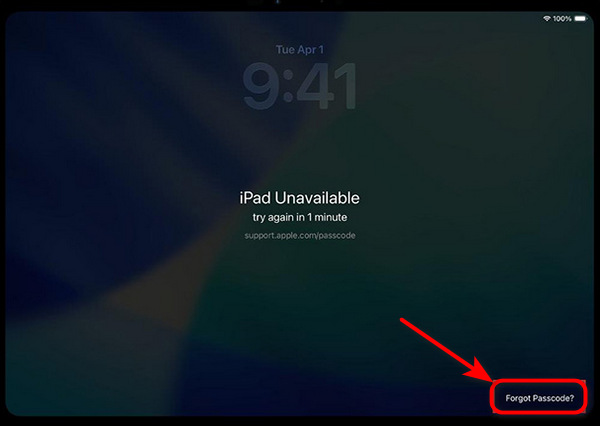
Enter your passcode until iPad indisponível appears on the locked screen.
Toque Esqueci a senha? in the bottom right corner.
Escolher Iniciar redefinição do iPad and enter your Apple ID and password to verify your Apple Account.
Once verification is successful, tap Apagar dispositivo to permanently delete all of your data and settings. After resetting, follow the instructions to set a new passcode.
3. Using Recovery Mode
However, Apple has provided an official solution to unlock iPad without a passcode. You can restore your disabled iPad with iTunes/Finder.
- Use Finder: For macOS Catalina or later.
- Use iTunes: For macOS Mojave or earlier/Windows.
Turn off your iPad. Connect your iPad to a computer via USB.
Put your iPad into Modo de recuperação.
For iPad models without a Home button: press and release the Aumentar o volume button > press and release the Volume baixo button > Press and hold the Top button until the Recovery Mode screen appears.
For iPad models with a Home button: Press and hold the Home button e a Top button together until the Recovery Mode appears.
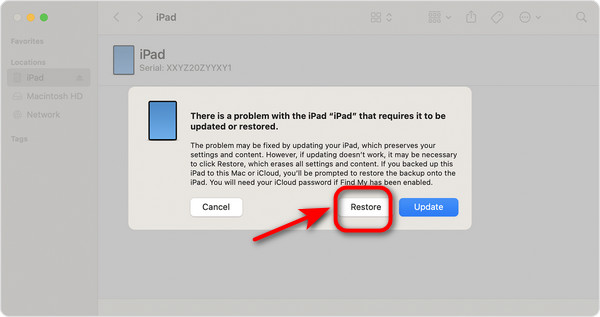
Locate iTunes/Finder on the computer and choose your device. Select Restaurar when you see the prompt window. Your computer will start the restore process.
Wait for the process to finish and reset your iPad.
4. Using iCloud to Erase iPad Remotely
If you don't have a computer to unlock your iPad or you want to reset your stolen iPad, iCloud can help you access remote iPad unlocking without a passcode. Before you start, make sure Encontre o meu is enabled on the locked device and you remember your Apple ID and password.
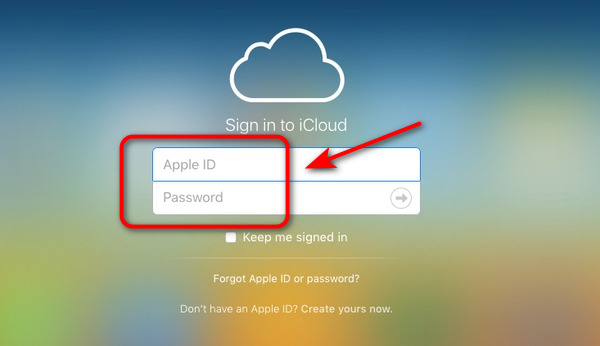
Open your iCloud on the other devices and sign in with your Apple ID and password.
Vamos para Todos os dispositivos and select the locked iPad you want to unlock.
Escolher Apagar and confirm the information. You can reinicie seu iPad after erasing!
Perguntas frequentes.
-
Can I unlock an iPad without a computer?
Yes. If your iPad runs iPadOS 17 or later, you can use the Forgot Passcode? option directly on the device. Alternatively, you can reset your iPad via iCloud, as long as you remember your Apple ID password.
-
How to unlock a second-hand iPad without an Apple ID?
You can use Recovery Mode to restore your iPad with iTunes/Finder. But this process will erase your data. The best method is to use imyPass iPassGo to bypass all the locks quickly and safely. And it can also remove your Apple ID from iPadsem uma senha.
-
Can I reset a stolen iPad?
Yes, if your iPad is stolen, you can reset it by using iCloud. First, open your iCloud on other devices and sign in with your Apple ID and password. Next, choose the stolen iPad, then erase data and reset it again.
Conclusão
Whether you've forgotten your iPad passcode, your iPad is disabled, or you bought a second-hand iPad with a screen lock, choosing the right unlocking method is crucial. A reliable iPad unlocker like imyPass iPassGo can quickly get into a locked iPad. With the tips in this guide, you can handle iPad unlocking issues easily and avoid unnecessary hassle!
Samuel specializes in password security and digital privacy. He used to work as a cybersecurity consultant for small businesses to protect digital assets. With certifications in Cybersecurity and Ethical Hacking, he turns complex security topics into easy-to-follow advice. He also enjoys sharing password tips to help users protect their accounts more confidently.
Soluções quentes
-
Desbloquear iOS
-
Dicas para iOS
-
Desbloquear Android
-
dicas de senha


