



 Solução
 Centro de Apoio
 Sobre nós
 Contato
iBackupBot Review: How to Remove MDM on iPhone Without Password
 Penny Warren publicado em setembro 09, 2026Desbloquear iOSLeitura de 3 minutos
Stuck with corporate or school MDM restrictions on your iPhone? Does iBackupBot really remove MDM profiles on iPhones and iPads? In this review, we tested this tool on multiple iOS versions to see how well it works, and clarified its pros, cons, and real success rates.

Neste artigo:
Part 1: What is iBackupBot?
iBackupBot is a professional tool originally used to view, browse, export and edit iTunes backed-up files from iPhone, iPad and iPod. Unlike iTunes full restore, it gives you more control over iTunes backup files. You can browse backup contents, preview all types of files, edit files, then export specific files you need. As iBackupBot can modify the system configuration files in iTunes backup, it's always used as a workaround to remove MDM profile from iPhone.
Key Features of iBackupBot
- 1.Browse, preview, export, and restore iTunes backup data selectively.
- 2.Delete the MDM configuration files in system folders to remove MDM restrictions on the iOS device.
- 3.Edit or modify certain backup files to customize device settings and stored information.
- 4.Work with backups from iPhone, iPad, and iPod Touch models.
Requisitos de sistema
- Windows 11/10/8/7/Vista/XP (32/64-bit)
- macOS 10.5 Leopard and later
- iTunes 8.0 or later
- iPad/iPhone/iPod Touch with iOS 2.0 or later
Plano de preços
iBackupBot offers a free trial version that allows users to explore some backup management features. To unlock full functions, users need to purchase a license. iBackupBot does not charge monthly fees, and its pro license is a one-time purchase.
Part 2: iBackupBot MDM Removal Review: Pros and Cons
Before you use iBackupBot to remove MDM, let's talk about its real performance on MDM removal. We conducted repeated device tests under the same conditions to record accurate success rates.
Computer System: Windows 11
Test Devices: iPhone 7 (iOS 10), iPhone 8 (iOS 12), iPhone 11 (iOS 15.5), iPhone 13 (iOS 16.5), iPhone 14 (iOS 17.4), iPad 9 (iPadOS 18.1). All devices were locked with genuine supervised school/corporate MDM profiles.
Tool Version: iBackupBot for Windows 5.6.3
Test Result:
- 1.iBackupBot works reliably on iOS 10 to iOS 12 with an over 83% MDM removal success rate.
- 2.Its performance declines drastically on newer firmware.
- 3.iOS 15 sees very low success rates with frequent restore failures.
- 4.iOS 16 and later is entirely unsupported.
Prós
- Bypass MDM locks without the admin password.
- Doesn't wipe any data on your device during MDM removal.
- No jailbreak needed, keeping your device safe and warranty valid.
Contras
- You need to manually locate and delete system files, which is confusing for beginners.
- If your MDM-locked device cannot create an unencrypted backup, this tool will not work at all.
- It hardly works on iOS 15 and above, with extremely low success rates.
- Wrong manual edits can damage backup files and cause device anomalies.
Part 3: How to Download iBackupBot
To avoid malware or modified fake installation packages, always download iBackupBot from its official website.
Open your computer browser and visit ibackupbot.com.
Select the matching version according to your system.
Click the free download button to download the installer.
Double-click the installer, follow the on-screen prompts to complete installation.
Launch the software after installation. You can use basic functions for free, or purchase the license key through the website or within the app to unlock MDM removal features.
Part 4: How to Use iBackupBot to Remove MDM
Read the full step-by-step iBackupBot MDM removal tutorial and follow each step carefully to avoid mistakes.
Connect your device to your computer via a USB cable. Open iTunes on your computer, unlock your device, and trust the computer.
Launch iBackupBot, then click Fazer backup agora Uncheck the encrypted backup to ensure iBackupBot can read the file.
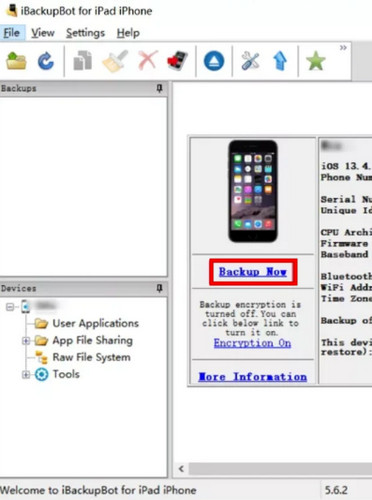
On the left sidebar, click Arquivos do sistema to expand the system directory. Find and open the folder named SysSharedContainerDomain-systemgroup.com.apple.configurationprofiles.
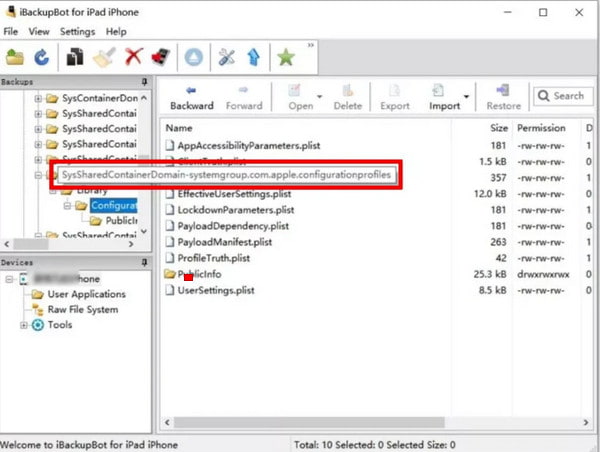
Locate the file named MDM.plist and delete this file directly. This file stores all your device's MDM restriction rules.
Return to the backup list, then choose Restaurar para o dispositivo from the pop-up menu.
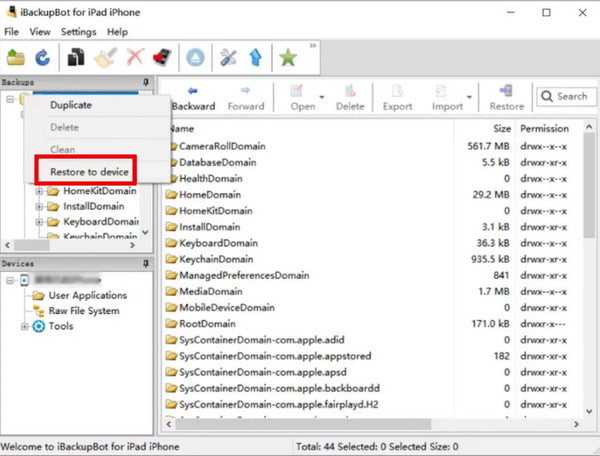
Once the restore finishes, your device will restart automatically. All MDM profiles and restrictions will be removed, and you'll get full control over your device.
Part 5: Best iBackupBot Alternative - Remove MDM without Password
If using iBackupBot to remove MDM is too complicated for you, or you keep failing to remove MDM on new iOS versions, you need a better alternative. imyPass iPassGo overcomes all drawbacks of iBackupBot, with no cumbersome steps, no backup required, and wide compatibility on new iOS systems. This professional iOS unlock tool can help you remove MDM in a few clicks without a password!

Mais de 4.000.000 de downloads
Bypass MDM from your iPhone, iPad, or iPod Touch easily.
Remove MobileIron, Jamf, Intune, IBM and more MDM profiles.
Unlock iPhone screen passcodes, Face ID, or Touch ID in a few clicks.
Support the latest iPhone 17 with iOS 26/27 Beta.
How to remove ManageEngine MDM with iPassGo:
Launch the software on your computer, then choose the Remover MDM modo.
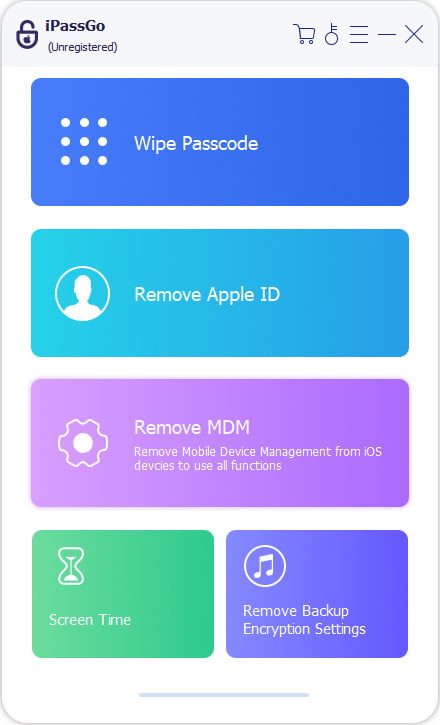
Connect your device to the computer with a USB cable, then click the Começar botão para prosseguir.
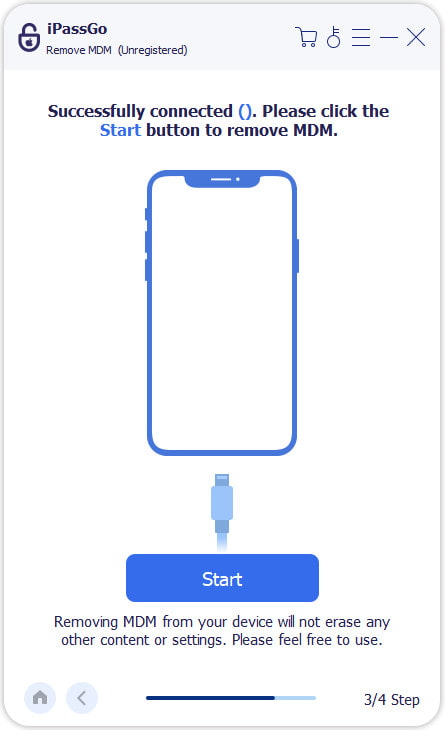
The software will start removing MDM from your device automatically.
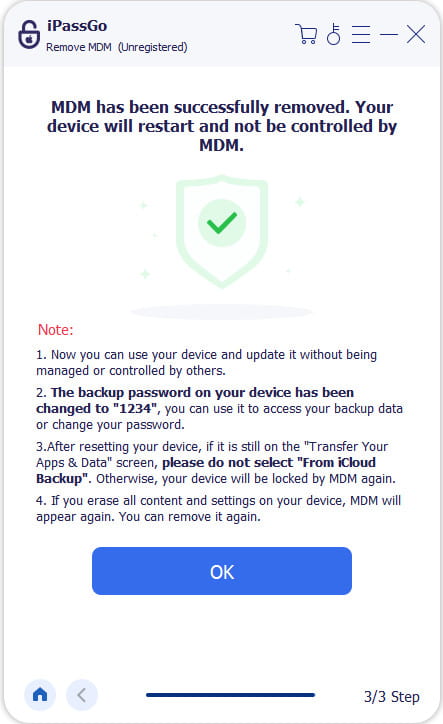
Conclusão
After our full range of device tests, we can confirm that Remoção do iBackupBot MDM only works on older iOS systems. If you want to bypass MDM restrictions on iOS 26, we recommend using the iBackupBot alternative - imyPass iPassGo. This software serves better on newer Android versions.
Penny focuses on GPS troubleshooting and Windows optimization. She formerly worked as a technical support engineer, helping clients solve location-based and system issues efficiently. Backed by IT support experience, she provides practical solutions that really work. In her free time, she likes hiking and geocaching, testing GPS tech in the real world.
Soluções quentes
-
Desbloquear iOS
-
Dicas para iOS
-
Desbloquear Android
-
dicas de senha


