



 Solução
 Centro de Apoio
 Sobre nós
 Contato
iPhone Passcode Changed Itself: Causes, Fixes, Recovery Tips
 Samuel Spenser publicado em junho 30, 2026Desbloquear iOSLeitura de 3 minutos
It's always frustrating when your iPhone shows "Incorrect Password "even though you're certain it's right. When an iPhone passcode changed issue happens out of nowhere, getting locked out can feel pretty confusing. In this guide, we'll look at what might be causing it and how you can fix it.

Neste artigo:
Part 1. Why Did My iPhone Passcode Change by Itself
Getting locked out of your iPhone with a passcode that used to work is confusing and frustrating. You may feel like something has changed on its own. An iPhone passcode changed issue often creates this kind of situation, especially when there's no sign of what caused it.
Below are the most common possible reasons behind this situation.
iOS glitches or updates
After an iOS update or a temporary system bug, the lock screen may fail to recognize your correct passcode. It feels like the passcode changed, but it’s usually a system validation issue.
Wrong passcode input
If you rely on Face ID or Touch ID most of the time, it's easy to get recent changes or mix up similar codes, making it seem like the iPhone changed the passcode.
Apple ID sync issues
If you use the same Apple ID on multiple devices, sometimes you may get confused. You might feel like the iPhone changed the passcode on its own, but in many cases, it's actually a setting changed on another device—or simply a wrong code you don't realize you're entering.
4-digit vs 6-digit mismatch
In some cases, it feels like the passcode has changed, but it's really just a format difference. This is especially common with an iPhone passcode changed from 4 to 6 digits in a situation where users don't realize the device is now expecting a different length.
Security concerns (rare cases)
If you suspect unauthorized access, you may think of an iPhone hacked password change situation. While uncommon, this is more often related to Apple ID security rather than the lock screen passcode being altered directly.
In most cases, the issue is not an actual passcode change, but a misunderstanding of how the system, settings, or input behavior is working.
Part 2. What Passcodes Should I Try Before Resetting My iPhone
Before resetting your iPhone, it's important to slow down and check whether the issue is really a changed passcode. In many iPhone passcode change cases, the correct code is often something you've already used before.
Try your old passcode
If you've changed your passcode before, start there first. A lot of people think it's been reset by the system, but more often than not, it's still the same code they set earlier.
Check 4-digit vs 6-digit format
Sometimes it's just a matter of format. If you're seeing an iPhone passcode changed from 4 to 6 digits by itself situation, it's easy to miss the change in length and assume something is wrong.
Try familiar combinations
Think about numbers you tend to reuse, like old PINs or simple patterns. When you rely on Face ID most of the time, it's surprisingly easy to forget these kinds of codes.
Look at other Apple devices
If you use more than one Apple device, things can sometimes feel slightly out of sync. You might think the iPhone changed its passcode on its own, but it could simply be a change made on another device you didn't notice, or a quick Verificação de ID Apple prompt during sign-in.
Review recently used security codes
Some users mistake other device or app-related codes for their iPhone passcode, especially if they recently updated security settings.
At this stage, the goal is to make sure the passcode is truly wrong before moving on to reset or recovery methods.
Part 3. How to Fix an iPhone Passcode Changed Issue
If you've already tried a few passcodes without any luck, it's probably not just a simple input mistake anymore. At that point, you'll need to move on to real fixes.
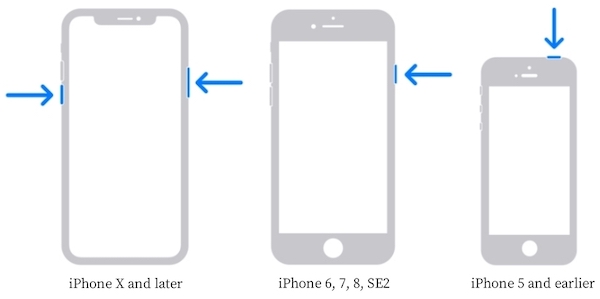
Restart your iPhone
Para iPhone X e modelos posteriores
Press and hold either Volume botão e o Lado button until the power-off slider appears.
Arraste o controle deslizante para desligar o iPhone.
Wait about 30 seconds.
Press and hold the Side button until the Apple logo appears.
For iPhone 6, 7, 8, and SE (2nd or 3rd generation)
Pressione e segure o Lado button until the power-off slider appears.
Drag the slider to shut down the device.
Wait about 30 seconds.
Press and hold the Side button again until the Apple logo appears.
For iPhone 5 and earlier
Pressione e segure o Principal button until the power-off slider appears.
Drag the slider to power off the device.
Wait about 30 seconds.
Press and hold the Top button until the Apple logo appears.
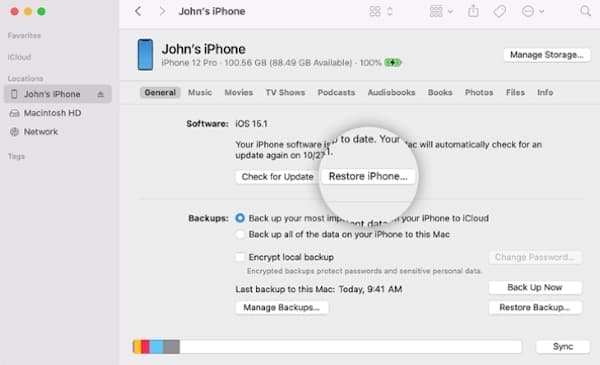
Restore with iTunes or Finder
Connect your iPhone to a computer using a USB cable.
Open iTunes on Windows (or macOS Mojave and earlier), or Finder on newer macOS versions.
Put your iPhone into Recovery Mode according to your device model.
When your device appears on the screen, choose Restaurar.
Wait for iTunes or Finder to download and reinstall iOS.
Observação:
If you plan to restore data from a previous backup after the process, make sure you still remember your Senha de backup do iTunes. Without it, encrypted backups cannot be accessed or restored.
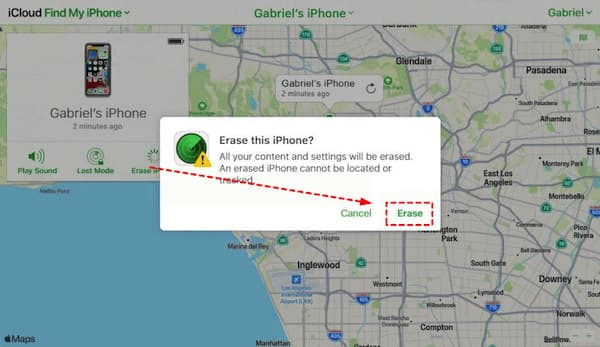
Erase iPhone via iCloud
Go to iCloud.com and sign in with your Apple ID.
After logging in, open Encontre o meu and choose your iPhone from the device list.
Em seguida, clique no Apagar iPhone button. Confirm the request when it pops up.
Wait for the process to finish. Once it's done, your iPhone will be wiped, and the passcode lock will be removed.
Remove the Passcode with imyPass iPassGo
When the iPhone is already disabled or stuck on the Security Lockout screen, traditional methods may feel too limited. In this situation, a dedicated unlock tool can help complete the process more directly.

Mais de 4.000.000 de downloads
Removes the screen passcode without the original passcode.
Still works even if the device is disabled or unavailable.
Useful when iTunes or iCloud methods don't work.
Simple steps and easy-to-follow guide.
Download and install imyPass iPassGo on your computer. Launch the program and choose Desbloquear tela do iOS from the main interface.
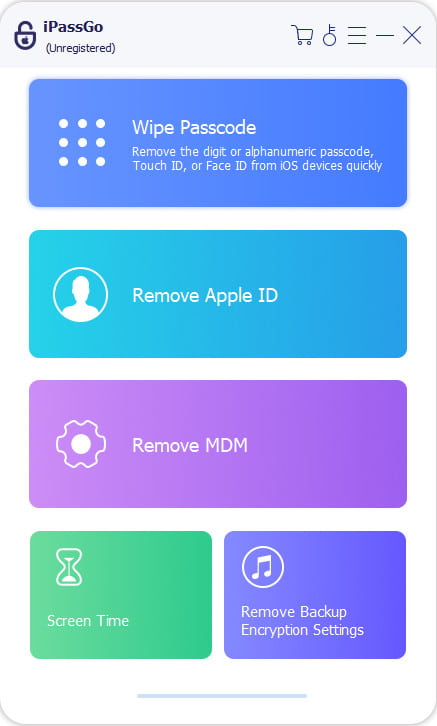
Then connect your iPhone with a USB cable.
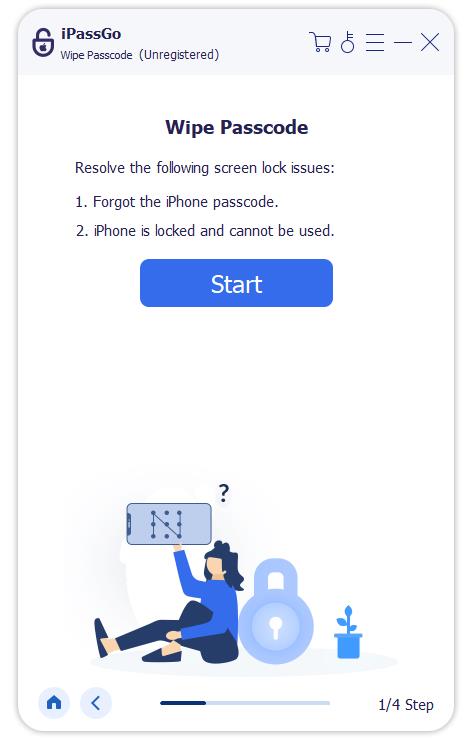
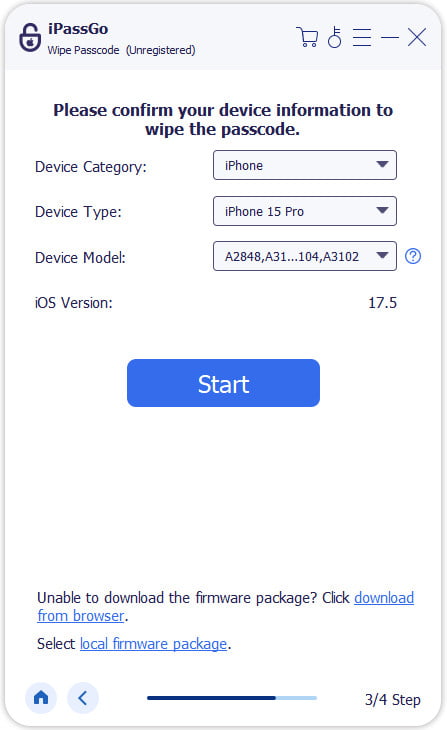
Once your device is detected, review the device information displayed on the screen. If everything is correct, click Comece agora again to download the firmware package required for unlocking.
After the download is complete, click Começar a remover. The software will display a warning message explaining that the unlocking process will erase all data stored on the device.
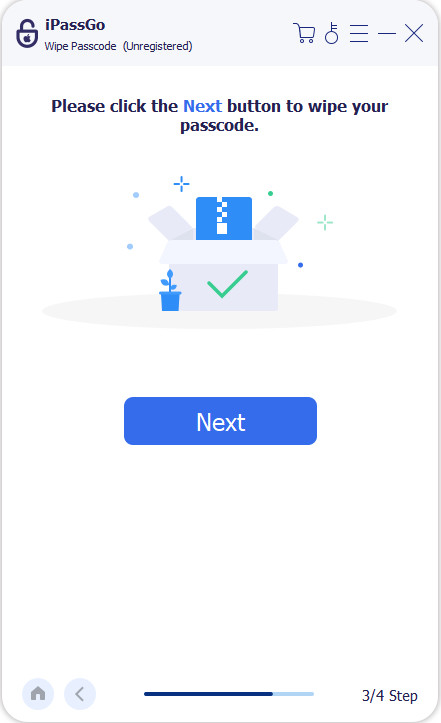
Wait while imyPass iPassGo removes the screen lock automatically. Once completed, the device will restart, and you can set it up again as a new device or restore a previous backup.
Conclusão
Hopefully, the solutions above have helped you regain access to your device. Whether you're dealing with an iPhone passcode changed itself issue or a similar problem on an iPhone, it's best to stop guessing once multiple attempts have failed. If your device has already become unavailable or entered Security Lockout, imyPass iPassGo can help you remove the screen lock and get back into your device more easily.
Samuel specializes in password security and digital privacy. He used to work as a cybersecurity consultant for small businesses to protect digital assets. With certifications in Cybersecurity and Ethical Hacking, he turns complex security topics into easy-to-follow advice. He also enjoys sharing password tips to help users protect their accounts more confidently.
Soluções quentes
-
Desbloquear iOS
-
Dicas para iOS
-
Desbloquear Android
-
dicas de senha


