



 Solução
 Centro de Apoio
 Sobre nós
 Contato
How to Change Screen Time Password - Official & Recovery Methods
 Samuel Spenser publicado em junho 09, 2026Desbloquear iOSLeitura de 3 minutos
If the Screen Time passcode is forgotten, it can limit app usage, content filters, and parental controls for iPhone and iPad devices. This frequently occurs when device settings are not updated, or not enough information is known about Apple ID recovery. A next layer of security is provided by requiring user identity for any resets or modifications, which Apple requires before any of such resets or modifications can be made. By educating everyone on how to correctly perform the process, failures are minimized, and locks are not lost. The following guide explains how to change the passcode for Screen Time, using methods that are approved by Apple, and what to do if the device cannot be accessed.

Neste artigo:
Part 1. How to Change a Screen Time Passcode (When You Know It)
This section covers how to update your Screen Time passcode when you already know the current one. It is an iOS built-in function that enables you to change your passcode directly from the settings without using any recovery device or requesting further verification besides your passcode.
1. On Your Own iPhone or iPad
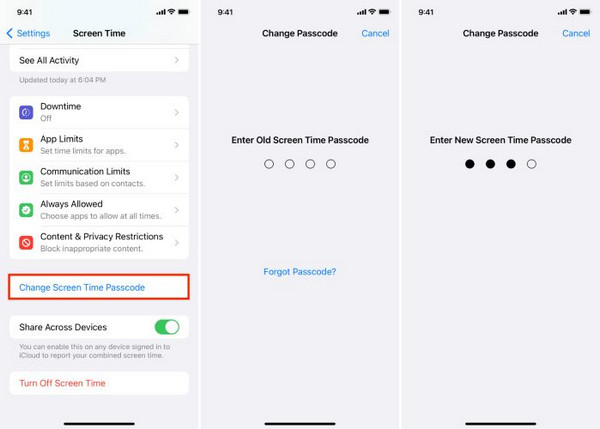
When you are updating parental controls or your own device security on iPhone or iPad, you may want to know how to change the Screen Time password. It is integrated into the iOS settings, and you can only make changes if you have the same passcode as you currently use.
Lançar Definições no seu iPhone ou iPad.
Acerte o Tempo de tela from the list of options.
Selecionar Alterar senha de tempo de tela, então escolha Alterar senha de tempo de tela novamente quando solicitado.
Enter your current passcode, then set and confirm a new passcode to complete the update.
2. On Your Child's iPhone or iPad (Using Family Sharing)
How to reset Screen Time password on PC is often searched by parents managing Screen Time through Family Sharing, especially when adjusting or updating restrictions remotely using account-based controls tied to the child’s device.
Vou ao Definições on the parent’s iPhone or iPad.
Toque Tempo de tela, then select your child’s name under Family.
Toque Alterar senha de tempo de tela and authenticate using Face ID, Touch ID, or your Apple ID password.
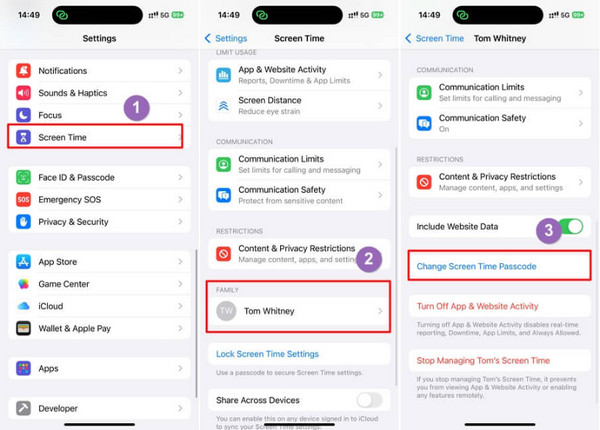
Enter a new passcode, then confirm it to apply the changes to your child’s device.
Part 2. How to Reset a Forgotten Screen Time Passcode
This section explains what to do when you forget your Screen Time passcode. Apple provides an official recovery method using your Apple ID, but access to account credentials is required to complete the reset process.
1. If You Know Your Apple ID & Password
One of the most frequently asked questions is how to change the Screen Time passcode on a child's phone when the parent has lost their passcode but has access to the Apple ID of the phone. A secure reset process is ensured by Apple via an identity verification process, which guarantees that only the authorized user can make modifications to the restriction.
Lançar Definições on the iPhone or iPad.
Toque Tempo de tela > Alterar senha de tempo de tela.
Toque Esqueci a senha, then enter your Apple ID and password when prompted.

Set a new Screen Time passcode and confirm it to complete the reset process.
2. If You Can't Remember Apple ID
How to change Screen Time passcode when you forgot is a situation where Apple’s built-in recovery may not work, especially if Apple ID access is unavailable. In such cases, users typically rely on computer-based tools to remove Screen Time restrictions by processing encrypted device data through a secure recovery workflow.
Por exemplo, imyPass iPassGo is a good choice to help you reset the Screen Time passcode.
Get the software on your PC and follow the installation process it requires. Then, launch the tool to start using it.
Link up the device to the computer, then choose the Desbloquear tempo de tela option. Next, select how your Screen Time was set from the available options in the tool interface.
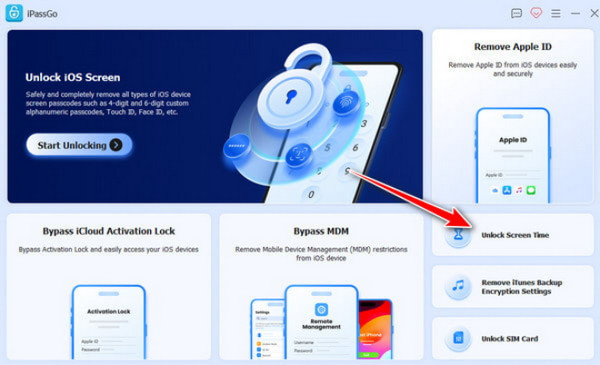
Disable Find My on your iPhone or iPad, but make sure two-factor authentication is enabled before you continue. Click Desbloquear, then wait for the process to complete.
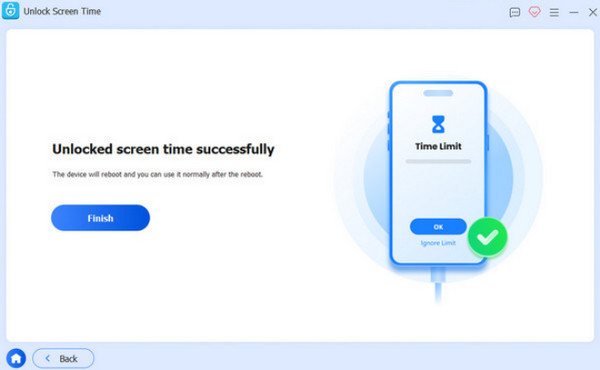
Once finished, the program will display the current Screen Time restriction passcode, which you can use to reset or change the settings on your device.
Part 3. Erase Forgotten Screen Time Passcode
The final option to bypass a passcode to the Screen Time app is explained here. These choices include the option to reset the device, as well as wiping all settings and data, including those for Screen Time.
1. Recovery Mode
Changing the Screen Time passcode on an iPad sometimes is not possible in normal settings if it has been forgotten, and there is no recovery option available. In this instance, you can reset all settings, including Screen Time, with the device's Recovery Mode.
Link up your iPad to a computer using a USB cable and open localizador ou iTunes.
Set your iOS device into Recovery Mode by pressing and holding the correct button combination for your device model until the recovery screen appears.
Selecionar Restaurar when prompted on the computer screen. This will erase the device completely, including the Screen Time passcode.
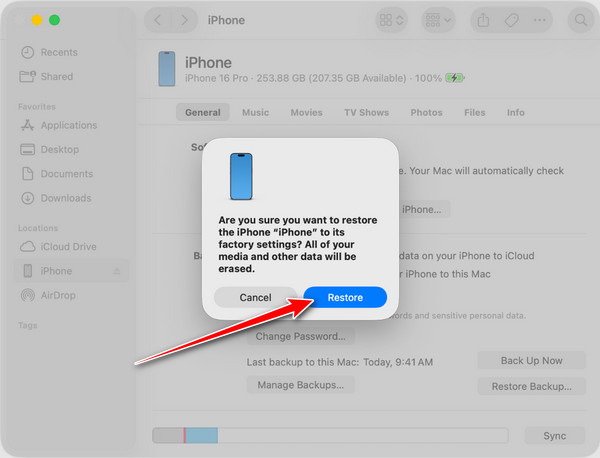
After restoration, set up your iPad as new and go through the setup process. When asked, you can choose to enable Screen Time and create a new passcode.
2. iCloud Erase
How to set the Screen Time passcode is often done again after a full device erase, especially when using iCloud to remove all data and reset Screen Time settings remotely.
Abra um navegador e vá para iCloud.com, then sign in with your Apple ID.
Selecionar Encontrar iPhone and choose your iPad or iPhone from the device list.
Clique Apagar iPhone ou Apagar iPad to remotely wipe the device and remove all settings, including Screen Time restrictions.
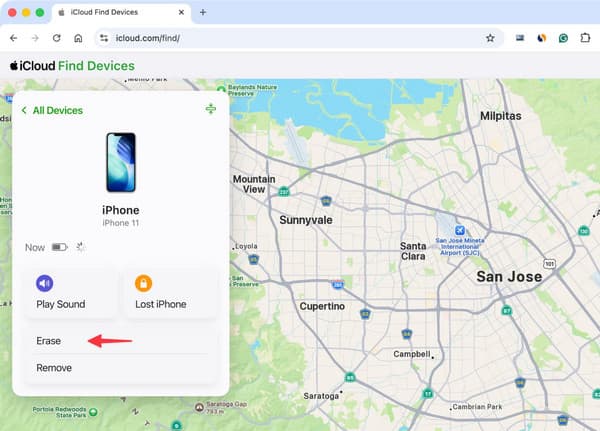
Once the device restarts, set it up again and go to Definições to enable Tempo de tela, then create a new passcode during setup.
Conclusão
Managing or recovering a Screen Time passcode depends on the level of access you still have to your device and Apple ID. Apple offers built-in options in many instances, but if there is no account access, there are ways to get control of restrictions otherwise. Knowing what to do will prevent needless loss of data and re-locking. If you are still unable to access your settings, methods related to how to reset Screen Time password on PC can provide a last-resort option to restore control and set up a new passcode on your device.
Samuel specializes in password security and digital privacy. He used to work as a cybersecurity consultant for small businesses to protect digital assets. With certifications in Cybersecurity and Ethical Hacking, he turns complex security topics into easy-to-follow advice. He also enjoys sharing password tips to help users protect their accounts more confidently.
Soluções quentes
-
Desbloquear iOS
-
Dicas para iOS
-
Desbloquear Android
-
dicas de senha


