


 Solução
 Centro de Apoio
 Sobre nós
 Contato
Why Is My iPhone Stuck in SOS Mode and How to Fix It
 Samuel Spenser publicado em novembro 03, 2026Desbloquear iOSLeitura de 3 minutos
"My iPhone has a SOS next to the battery, and I am not able to remove it. I don't have any kind of communication. How to fix this problem?" SOS mode is a built-in functionality on iPhones. It allows you to reach emergency services when an iPhone no longer connects to the carrier's cellular network. This article explains why my iPhone says SOS and what you can do to fix this problem.

Neste artigo:
Part 1: What Is SOS Mode on iPhone
What does SOS Mode mean on iPhone? When an iPhone displays SOS or SOS Only in the top right corner, it means your device cannot connect to the carrier network. In such a situation, you can call emergency numbers via satellite. This feature is designed for contacting emergency services even when you are completely off-grid.
However, if your iPhone is in an area with network services, but it still enters SOS mode, it is usually not about satellite features at all. Alternatively, it means your iPhone loses its regular network connection and fails to reconnect.
Part 2: Why Is iPhone Stuck in SOS Mode
If your iPhone continues to enter SOS Mode, you cannot make phone calls, send or receive messages, or access the internet. The main causes why my iPhone is stuck in SOS Mode include:
- 1.You are out of signal coverage and lose connection to your carrier.
- 2.Something is wrong with your network, but not your iPhone.
- 3.A damaged SIM card or eSIM issue.
- 4.Your carrier account has lapsed or been suspended.
- 5.You accidentally enable Airplane Mode.
- 6.Outdated carrier settings.
- 7.Software glitches.
- 8.Hardware damage.
Part 3: How to Fix an iPhone Stuck in SOS Mode
Fix 1: Force Restart Your iPhone
The easiest way to turn off SOS Mode on an iPhone is to force-restart your device. That can reboot iOS and refresh all connections. The workflow is different, depending on your iPhone model:
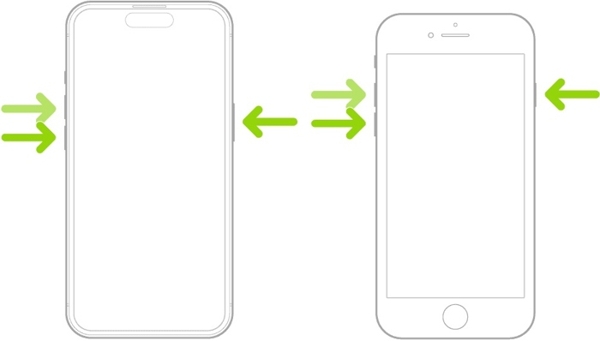
No iPhone 8 e posterior
Pressione e solte rapidamente o Aumentar o volume botão.
Faça a mesma coisa com o Volume baixo botão.
Segure o Lado botão até que o logotipo da Apple apareça.
On iPhone7/7 Plus
Pressione e segure o Volume baixo + Lado botões juntos.
Release them when you see the Apple logo.
No iPhone 6s e anteriores
Pressione e segure o Lar + Dormir/Despertar botões simultaneamente.
When the Apple logos appear, let the buttons go.
Fix 2: Move to a Different Location
If you are out of signal coverage, you can fix an iPhone stuck in SOS Mode by moving to another location. If it is inconvenient to drive to the town nearby, you have to wait for the network to work again.
Fix 3: Update Carrier Settings
The outdated carrier settings can lead to signal issues. By default, iOS installs the updates automatically. If not, you have to manually update settings to get your iPhone out of SOS Mode.
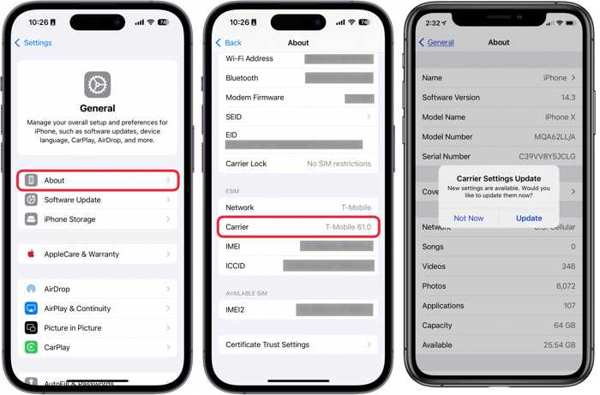
Abra o Definições aplicativo.
Vamos para Em geral e Sobre.
Toque em Operadora opção.
Se uma atualização estiver disponível, toque em Atualizar botão.
Fix 4: Turn off Airplane Mode
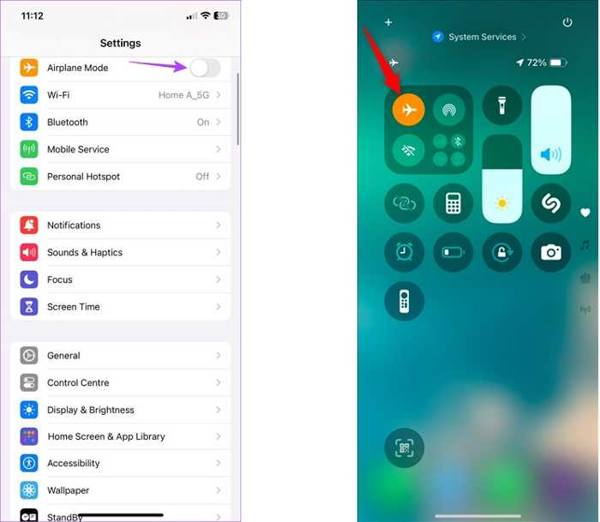
When your iPhone 15 gets stuck in SOS Mode, maybe you accidentally turn on Airplane Mode. The solution is simple: turn off Airplane Mode in your Control Center or the Settings app.
Option 1: Go to the Definições app and toggle off Modo avião.
Option 2: Enter the Centro de Controle e toque no Modo avião button to turn it off.
Fix 5: Reinsert Your SIM Card
Sometimes, the SIM card is loose, and your iPhone is in SOS Mode. That is a common cause of losing the network connection. The solution is ejecting the SIM card and reinserting it into your iPhone.
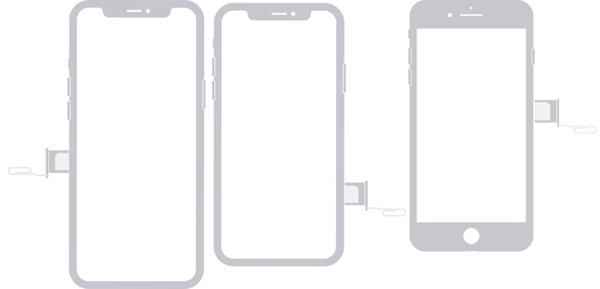
Insert a SIM-eject tool or paper clip into the hole beside the tray.
Push in to eject the SIM tray.
Remove the SIM card.
Then, place it on the SIM tray carefully.
Put the tray back into your iPhone.
Now, check your signal.
Fix 6: Reset Network Settings
Another solution to fix SOS Mode on iPhone is to reset network settings. This solution can troubleshoot the software glitches related to network settings on an iOS device. Here are the steps below:
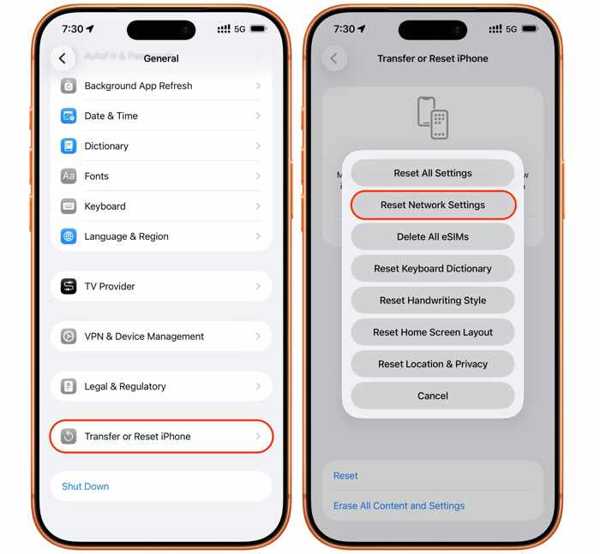
Execute seu Definições aplicativo.
Vou ao Em geral aba.
Toque em Transferir ou redefinir o iPhone opção.
aperte o Redefinir botão.
Escolher Redefinir Ajustes de Rede.
Se solicitado, digite a senha do seu iPhone.
Fix 7: Contact Your Carrier
An iPhone connects to the signal and network through a carrier's servers, such as Verizon. If your iPhone gets stuck in SOS Mode, you should contact your carrier and check your account status. If it is lapsed or suspended, ask your carrier to unlock it.
Fix 8: Try imyPass iPassGo
When you insert a new SIM card into your iPhone, but SOS Mode occurs, chances are that your iPhone is locked by a specific carrier. Fortunately, imyPass iPassGo can help you unlock a SIM card on an iPhone without any restrictions.

Mais de 4.000.000 de downloads
Unlock the SIM card on an iPhone in three steps.
Don't require any passcode or unlock code.
Offer bonus features, like MDM bypassing.
Support the latest editions of iOS.
Here are the steps to fix iPhone SOS Mode:
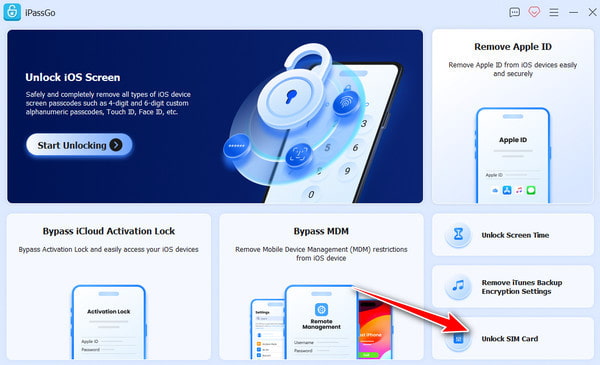
Install the SIM unlocking software
Launch the SIM unlocking tool after you install it on your PC. There is another version for Mac. Choose the Unlock SIM Card modo para prosseguir.
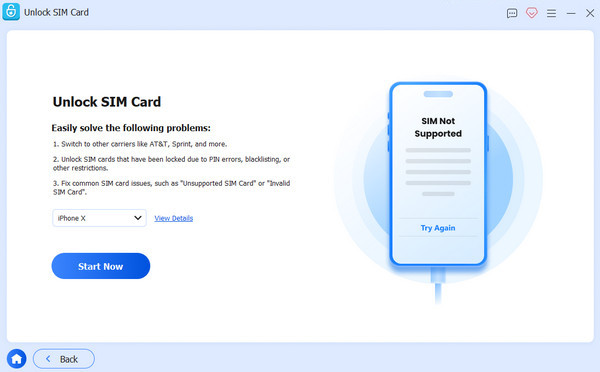
Conecte-se ao seu iPhone
Link your iPhone to your PC with a Lightning cable. Make sure to trust this PC and permit the connection. Once the software detects your device, click the Comece agora botão.
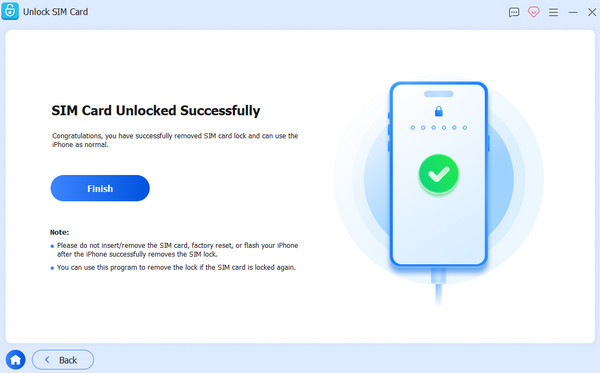
Fix iPhone SOS Mode
Check your device information and click Comece a ignorar to continue. Make sure to jailbreak your iPhone. Then, follow the onscreen prompts to set up your iPhone. Finally, click OK para concluir o processo.
You May Also Like:
Perguntas frequentes.
-
How to turn off SOS on iPhone?
If you want to get rid of the Emergency SOS screen on an iPhone, go to the Definições app, scroll down and choose the Emergency SOS tab, and toggle off the options you don't want, such as Call Quietly.
-
How to make an emergency call on an iPhone?
Pressione e segure o Lado button and any Volume button together until the slider appears. You can also have your iPhone initiate an SOS emergency call after you quickly press the Lado button five times if you have turned on the Press-5-to-Call característica.
-
Can you get an emergency contact from a locked iPhone?
Yes. You can enter the power-off screen and swipe the Medical ID slider across the screen to call the emergency contact if it is available.
Conclusão
This article explained what you should do if your iPhone gets stuck in SOS Mode. Now, you should understand what it means and why the error occurs. More importantly, you can follow our solutions to fix this error quickly. If you encounter the SOS Mode issue when switching to another carrier, imyPass iPassGo can help you fix the problem quickly without restrictions.
Samuel specializes in password security and digital privacy. He used to work as a cybersecurity consultant for small businesses to protect digital assets. With certifications in Cybersecurity and Ethical Hacking, he turns complex security topics into easy-to-follow advice. He also enjoys sharing password tips to help users protect their accounts more confidently.
Soluções quentes
-
Desbloquear iOS
-
Dicas para iOS
-
Desbloquear Android
-
dicas de senha


