



 Solução
 Centro de Apoio
 Sobre nós
 Contato
Why iPhone Says SIM Failure and How to Fix This Problem
 Samuel Spenser publicado em outubro 09, 2026Desbloquear iOSLeitura de 3 minutos
“I got a new iPhone this year. All of a sudden, today I began getting a message that says SIM card failure. I haven't dropped or damaged my phone at all. Any ideas?”
While the iPhone comes with a wide variety of features, most of them require a SIM card and wireless signals. If it cannot detect the SIM card, these features are unavailable, such as phone calls, SMS, and more. This guide walks you through solutions to fix SIM failure on an iPhone.

Neste artigo:
Part 1: What Does SIM Failure Mean on iPhone
What does SIM Failure mean on an iPhone? It means that your iPhone can see that a SIM card is inserted, but something blocks it from being recognized by your mobile network. In addition to SIM Failure, you may also see the error message, such as Invalid SIM, SIM Not Supported, or SIM Not Valid.
Why does my iPhone keep saying SIM Failure? First of all, you need to rule out any hardware damage, like water damage. If the error occurs suddenly, the common causes may include:
- 1.Something is wrong with the SIM card.
- 2.Network issues.
- 3.Your iPhone doesn't load the SIM card properly.
- 4.Outdated software or carrier settings.
- 5.Software glitches.
- 6.Your iPhone is locked to a specific carrier.
Part 2: How to Fix iPhone Says No SIM
Solution 1: Disable Airplane Mode
Network issues may be responsible for your iPhone not recognizing the SIM card. If you accidentally turn on Airplane Mode on your device, you will encounter network errors. The solution is simple: turning off Airplane Mode on your iPhone.
Opção 1:
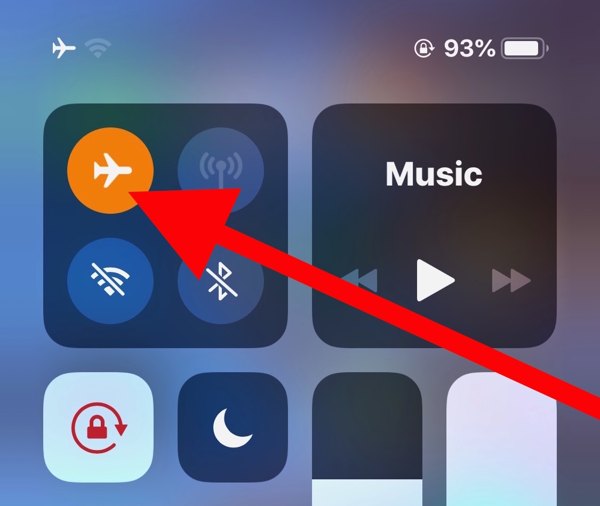
Entre no Centro de Controle no seu iPhone.
Toque em Modo avião button to turn it off. If it is disabled, turn it on and then disable it.
Opção 2:
Execute o Definições app from the home screen.
Encontre o Modo avião option, and toggle it off.
Solution 2: Re-insert Your SIM Card
When an iPhone keeps saying No SIM, it means that your device cannot see the SIM card. That may be due to a loose card, improper placement, or a damaged SIM card. To fix this problem, you need to take out the card from your device.
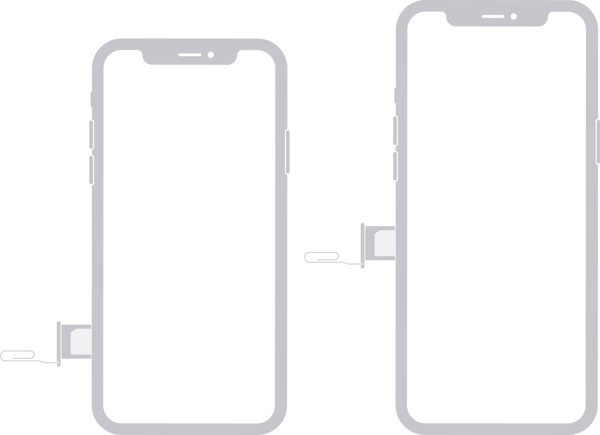
Find the SIM tray on the right side.
Insert a paper clip or SIM-eject tool into the hole beside the tray.
Pull in gently to eject the tray.
Remove the SIM card.
Next, place the SIM card back in the tray.
Insert the SIM tray into your iPhone to see if the error disappears.
If not, take out the card and use another one to check whether your SIM is broken.
Solução 3: reinicie o seu iPhone
Another simple solution to fix iPhone not detecting the SIM card is to restart your device. That can refresh the operating system and let it detect the SIM card again. For an iPhone, you can complete the process with physical buttons.
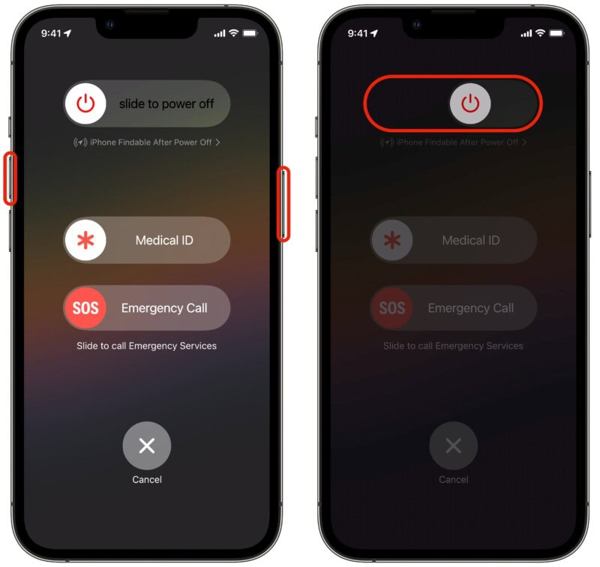
For an iPhone with Face ID, press and hold the Aumentar o volume + Lado botões juntos.
For older models, hold down the Lado botão.
As long as the boot menu screen appears, release the buttons or button.
Move the power-off slider to shut down your iPhone.
Alguns minutos depois, pressione longamente o Lado button until the Apple logo pops up.
Solution 4: Update Carrier Settings
Your iPhone does not read the SIM card partly because the carrier settings are outdated. By default, iOS is able to detect and install the update automatically. If not, you will need to update the carrier settings manually.
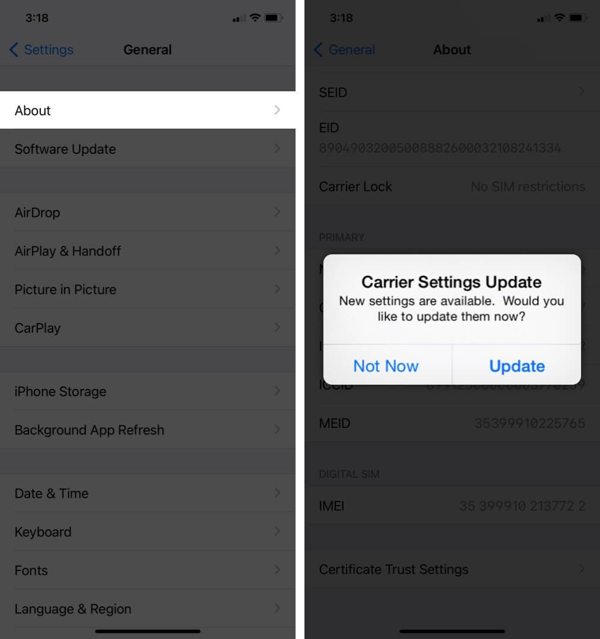
Execute o Definições aplicativo.
Vamos para Em geral e Sobre.
If a carrier settings update is available, tap the Atualizar button on the prompt.
When the update finishes, check your SIM card again.
Solution 5: Update iPhone Software
Outdated software is another cause that your iPhone keeps saying SIM Failure. In fact, outdated software can lead to a lot of issues. Therefore, Apple suggests users keep software up to date on their iPhones.
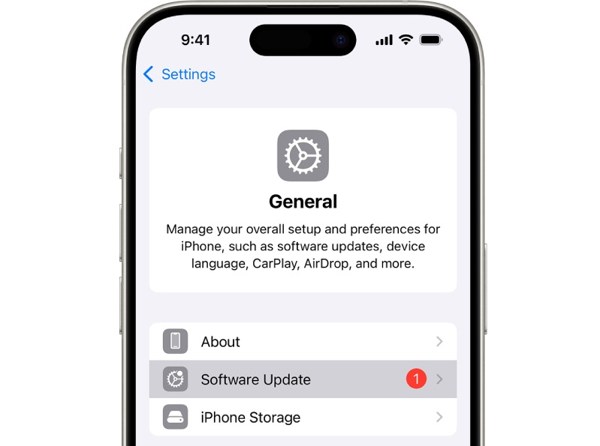
Comece seu Definições aplicativo.
Navegar para Em geral e Atualização de software.
If an update is ready, tap the Baixar e instalar button to get it.
Solução 6: Redefinir configurações de rede
Conflict settings can lead to the SIM Failure error on iPhone, too. It is difficult to identify which changes cause the problem, but you can reset all network settings with a single option on your iPhone.
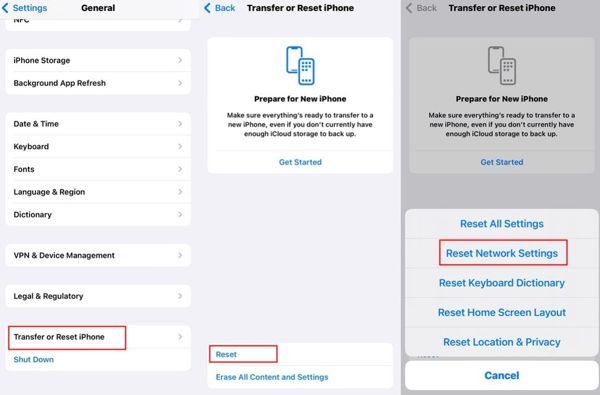
Execute seu Definições aplicativo.
Dirigir a Em geral, Transferir ou redefinir o iPhone, e Redefinir.
Escolha o Redefinir Ajustes de Rede opção.
Authenticate with your iPhone passcode.
Toque Redefinir Ajustes de Rede novamente para confirmar.
Solution 7: Check if Your iPhone Is Locked to a Carrier
One main reason why my iPhone says SIM Failure is that your device is carrier-locked. Once you insert a SIM card from another carrier, your iPhone cannot read the signal. Check if your iPhone is locked to a carrier following the steps below:
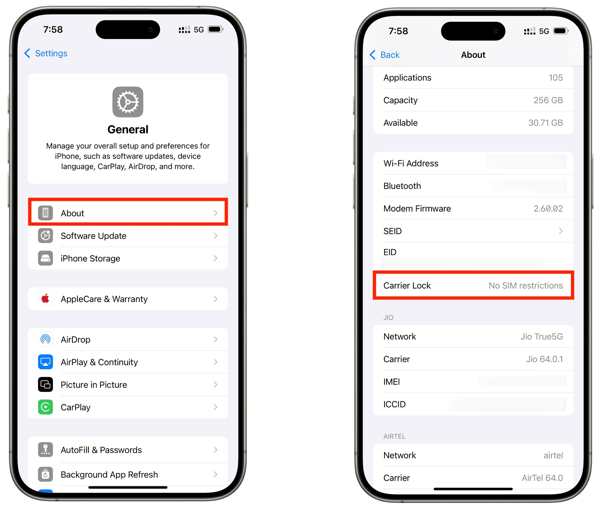
Vamos para Em geral na tua Definições aplicativo.
Escolha o Sobre opção.
Localize o Bloqueio de operadora entrada.
If you see No SIM restrictions, it means your iPhone isn't locked to a carrier. If not, you have to unlock the SIM on your device.
You May Also Like:
Part 3: How to Unlock SIM Lock on an iPhone
If your iPhone doesn't recognize SIM card because your device is locked to the previous carrier, imyPass iPassGo can help you fix this problem quickly. It can remove the SIM lock from your iPhone without any restrictions. Furthermore, the clear design helps you simplify the workflow.

Mais de 4.000.000 de downloads
Unlock the SIM card lock on an iPhone in only three steps.
Don't ask for a password or restrictions during the process.
Keep your data safe when unlocking the SIM.
Work for almost all iPhone models.
Include bonus features, like MDM bypassing.
How to Unlock SIM Card on Your iPhone
Install SIM unlocker
Launch the SIM unlocking software once you install it on your computer. It is available on Windows 11 to 7 and Mac OS X 10.12 or above. Choose the Unlock SIM Card modo para prosseguir.
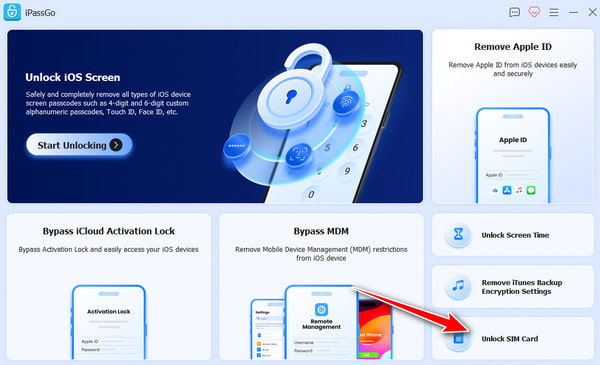
Reconheça seu iPhone
Connect your iPhone to your computer using a Lightning cable and make sure to trust this computer. Once the software detects your iPhone, click the Comece agora botão para continuar.
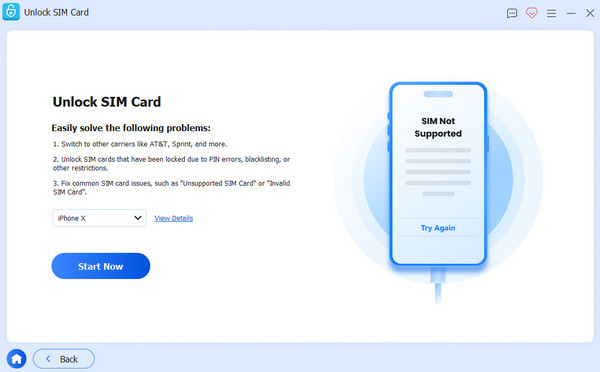
Unlock the SIM on an iPhone
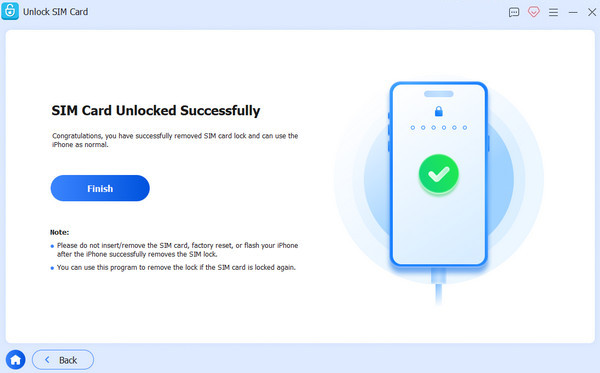
Check and confirm your device information. Then, click the Comece a ignorar button. After jailbreaking your device, follow the onscreen tutorial to set up your device. When you finish, click OK to begin unlocking the SIM on your iPhone.
Bonus: SIM Failure vs. No SIM vs. Invalid SIM vs. No Service
There are some other problems with SIM or eSIM on a phone, you can check the table below to understand them all.
| Errors | Meaning |
| SIM Failure | iPhone detects a problem with the SIM card or cellular connection. |
| No SIM / No SIM Card | iPhone cannot detect a SIM card. |
| SIM inválido | The SIM card is not supported or cannot be used with the iPhone. |
| No Service | iPhone cannot connect to the carrier’s cellular network. |
| SOS / SOS Only | iPhone cannot connect to the normal cellular network but may still support emergency calls. |
Conclusão
Agora, você deve entender por que SIM failure occurs on iPhone 13 and other models. More importantly, you can learn the proven solutions to get rid of the error and use your iPhone as usual. If you encounter this error because your device is locked to the previous carrier, try imyPass iPassGo to quickly remove the SIM lock from your iPhone without any restrictions.
Samuel specializes in password security and digital privacy. He used to work as a cybersecurity consultant for small businesses to protect digital assets. With certifications in Cybersecurity and Ethical Hacking, he turns complex security topics into easy-to-follow advice. He also enjoys sharing password tips to help users protect their accounts more confidently.
Soluções quentes
-
Desbloquear iOS
-
Dicas para iOS
-
Desbloquear Android
-
dicas de senha


