



 Solução
 Centro de Apoio
 Sobre nós
 Contato
Resolve iPhone Won't Unlock to Access Your Data Again
 Samuel Spenser publicado em maio 20, 2026Desbloquear iOSLeitura de 3 minutos
Are you conscious about the safety of your iPhone data? Adding a passcode to the mentioned Apple device can lessen your worry. You can add a passcode, Touch ID, Face ID, or other screen lock types to secure them.
However, there are instances where the mentioned security feature causes trouble for the users. It happens when it cannot be unlocked with the correct passcode or is accidentally forgotten. If you are experiencing the issue, this post will help you a lot! Kindly scroll below to know the nine easy methods to fix O iPhone não desbloqueia.

Neste artigo:
- Quick Diagnosis: What Type of Won’t Unlock Are You Experiencing
- Part 1. Force Restart Your iPhone
- Part 2. Clean Your Screen and Remove Accessories
- Part 3. Check for Display Damage
- Part 4. Charge the Phone
- Part 5. Update iOS Using a Computer
- Part 6. Check for Stuck Buttons
- Part 7. Use imyPass iPassGo
- Part 8. Enter Recovery Mode
- Part 9. Use DFU Mode (Device Firmware Update)
Quick Diagnosis: What Type of Won't Unlock Are You Experiencing
Countless reasons can be the causes why the iPhone will not unlock. Below is the table that can help you determine them. Kindly scroll below to know them.
| Display Message/Error | Solução |
| iPhone Unavailable/Security Lockout/iPhone Disabled | Reset the iPhone with a computer. |
| No Error Message (Stuck on Lock Screen) | Force restart or reboot the iPhone. |
| Ghost Touch | Try removing the accessories from your iPhone. |
| Face ID/Touch ID Not Available | Use the iPhone passcode instead, or wait for the countdown to be completed. |
| Passcode Required After Restart | Restart your iPhone if the passcode is correct, but it is not accepted to fix the software bug. |
Part 1. Force Restart Your iPhone
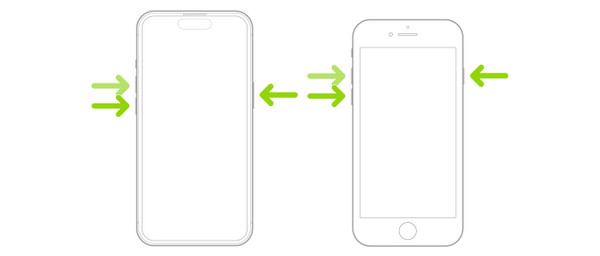
Sometimes, the iPhone won't swipe up to unlock. It is one of the common issues users experience. It might be due to screen issues. So, it only means that you cannot operate any features on the iPhone screen. Force restarting the mentioned device is the most recommended way to fix it. See how below.
Press and release Aumentar o volume. Please do the same with the Volume baixo button. Then, press and hold Lado. Wait for the Apple Logo screen to release the Lado button of your iPhone.
Part 2. Clean Your Screen and Remove Accessories
Adding accessories to your iPhone can still make it functional. It includes the screen protector, case, and more. However, they sometimes cause the iPhone not to accept a passcode, regardless of whether it is correct. Removing the accessories from your iPhone can help you fix the mentioned issue. It is also suggested to clean your iPhone screen.
Part 3. Check for Display Damage
You cannot desbloquear um iPhone com tela quebrada. The screen will not function, especially if the damaged part of the screen is in the spot where you can unlock the iPhone. A repair is a must in this matter.
Part 4. Charge the Phone
When the iPhone is low on battery, it occasionally experiences bugs and lagging issues. It can cause the iPhone not to accept the passcode you enter. It is recommended to charge your iPhone for 50% or higher.
Part 5. Update iOS Using a Computer
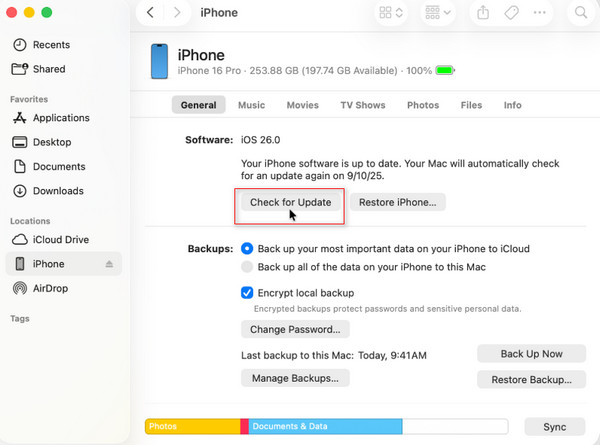
Updating the iOS version of your iPhone can fix different issues. It includes the issue with the iPhone that it does not accept the passcode even if it is correct. Since the iPhone is locked, you can use iTunes or Finder instead. The steps below will guide you.
Abrir iTunes ou localizador. Then, plug an iPhone into the computer with a USB cable. After that, select the iPhone botão e selecione o Verificar atualizações button. If there are available updates, please click the Download and Update botão.
Part 6. Check for Stuck Buttons
If you use Touch ID, it is better to look for stuck buttons. Unlocking the iPhone is impossible if the issue is encountered. You may try to clean the buttons with cotton buds, cloth, and other materials. If none of these work, it is better to make an appointment for repair.
Part 7. Use imyPass iPassGo
You can also use a third-party tool to unlock your iPhone when the passcode cannot be accepted. imyPass iPassGo can remove different screen lock types on your iPhone. It includes Touch ID, Face ID, passcode, and PIN. It deletes all the content and settings it contains, but your backups will greatly help after the process. You can also use the tool to unlock iPhone SIM, Screen Time, iCloud Activation Lock, and more security features. Please use the tool with the steps below.
Download imyPass iPassGo. Then, set up, install, and open the tool to start the unlocking process.
Clique no Comece a desbloquear button at the top left. Plug your iPhone into the computer. Then, click the Comece agora opção no canto inferior esquerdo.
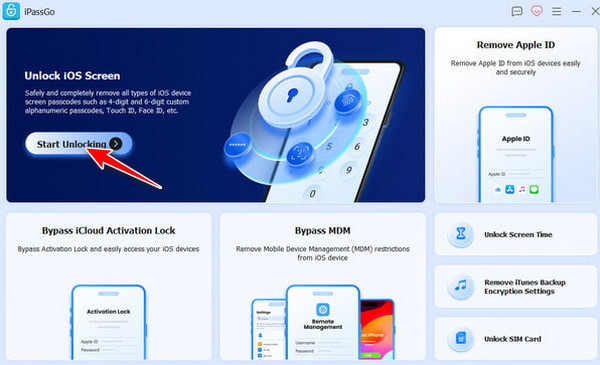
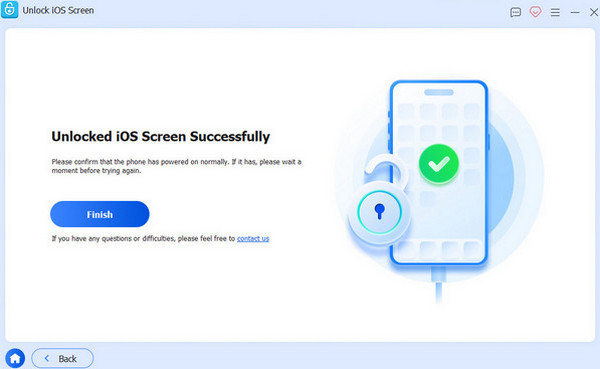
The firmware package will be downloaded. Later, click the Começar a remover botão. Clique no Confirm Again button. The unlocking process will start. Finally, click the Terminar botão.
Part 8. Enter Recovery Mode
Recovery mode is a professional technique used for fixing major issues on your iPhone and other Apple devices. It does not desbloquear um iPhone. It only restores it to its factory settings. See how below.
Put your iPhone into recovery mode. Press and quickly release Aumentar o volume. Do the same process with Volume baixo. Press and hold the Lado afterward. Alternatively, press and hold Lado e Volume baixo ou Lar.
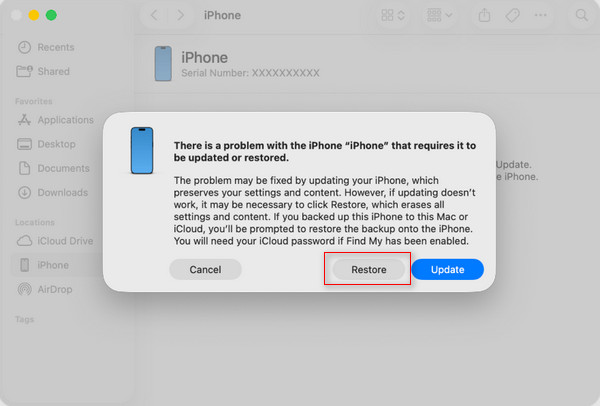
Abrir iTunes ou localizador. Then, plug your iPhone into recovery mode. Later, a small window will appear. Click the Restaurar button. Confirm the process to start unlocking the iPhone.
Part 9. Use DFU Mode (Device Firmware Update)
The Device Firmware Update, or DFU mode, on your iPhone is the deepest restore process that can be done. This method is almost similar to recovery mode. But it will reload the firmware and iOS to fix the mentioned issue. It can also be used when you can't unlock an iPad. See the steps below.
For iPhone 8 and newer models, press and release Aumentar o volume e Abaixo. Imprensa Poder until you see a black screen. Later, hold Poder e Volume baixo. Release Poder and keep holding Volume baixo .
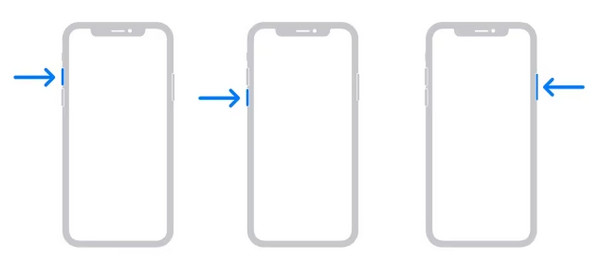
For earlier versions, press and hold Lar e Poder ou Poder e Volume baixo. Release Poder and keep holding Volume baixo or Home.
Plug your iPhone into the computer. Then, open iTunes ou localizador. Selecione os Restaurar Iphone button and confirm the process to start the unlocking procedure.
Conclusão
To summarize, the iPhone will not unlock when the passcode is incorrect or when there is a software issue. This post helps you fix the issue using the nine methods it offers. imyPass iPassGo is one of them, which is a tool that can bypass your iPhone screen lock. Download the tool if you are interested in knowing more about its features!
Samuel specializes in password security and digital privacy. He used to work as a cybersecurity consultant for small businesses to protect digital assets. With certifications in Cybersecurity and Ethical Hacking, he turns complex security topics into easy-to-follow advice. He also enjoys sharing password tips to help users protect their accounts more confidently.
Soluções quentes
-
Desbloquear iOS
-
Dicas para iOS
-
Desbloquear Android
-
dicas de senha


